Travel connectivity guide
Motorola Edge+ 2023 eSIM Compatibility
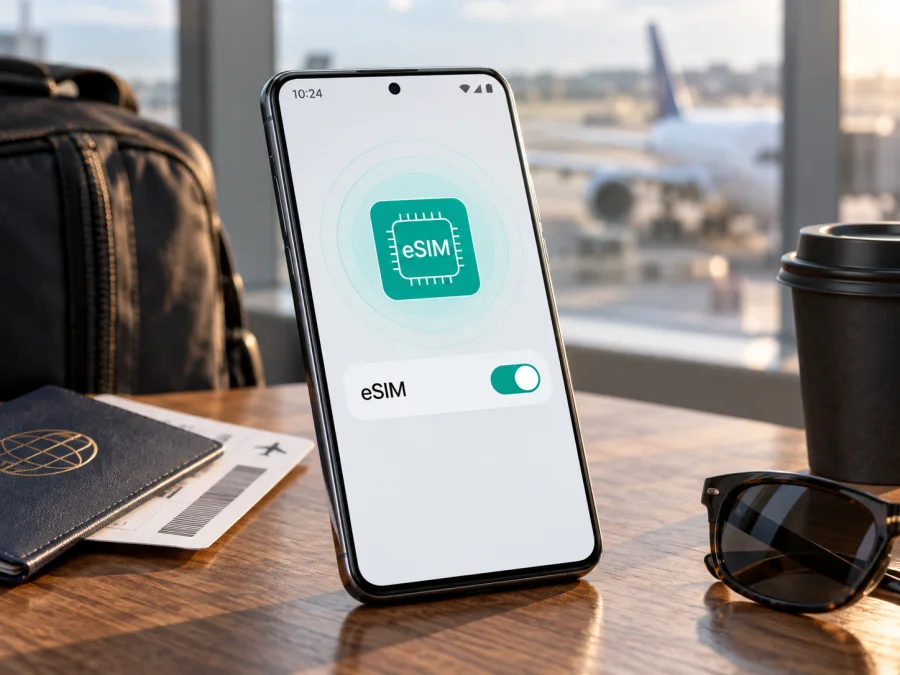
Motorola Edge+ 2023 eSIM: compatibility and setup guide
The Motorola Edge+ 2023 can use an eSIM alongside a physical SIM in configurations where the feature is enabled. Motorola’s US specifications list dual SIM (eSIM + pSIM), while noting that the option may not be available in certain regions. Motorola’s setup guide also makes support conditional and advises checking with the carrier. The practical answer is yes for supported regional and carrier versions, but check the individual phone before buying a plan. The model name alone cannot confirm that every handset sold worldwide has the same eSIM capability.
This guide shows how to check the device’s eSIM controls and EID, install a profile, choose SIM settings, and troubleshoot common issues during a trip. Neither the model name nor a 5G label establishes that a regional unit can download an eSIM profile. Market, carrier, software, and lock status matter.
Motorola Edge+ 2023 at a glance
| Item | Published specification or practical note |
|---|---|
| Device covered | Motorola Edge+ 2023 |
| US-listed memory and storage | 8 GB RAM and 512 GB internal storage |
| SIM configuration | Dual SIM (eSIM + physical SIM) listed; Motorola says eSIM may be unavailable in some regions |
| Mobile network | 5G support is listed for compatible networks and bands |
| Operating system at launch | Android 13; menus can vary after software updates |
| Setup path | Network and SIM settings, typically “Download new SIM” |
| Important qualification | Check the actual model, EID/menu availability, carrier support, and phone lock status |
These figures come from Motorola’s US support specifications. Retail configurations and product names can differ by market, so identify your phone using its model number in Settings > About phone and compare it with the box or purchase information. The RAM and storage values do not determine whether eSIM is enabled. Do not assume an imported or carrier-branded handset has the same SIM configuration as a US retail unit.
What eSIM support means on this phone
An eSIM is a digital SIM profile stored in the phone’s embedded SIM hardware. Instead of inserting another plastic card, you download a profile through Settings, often by scanning a QR code or following an app’s installation flow. The profile still needs an eligible plan and network. Having eSIM hardware does not guarantee that a carrier will issue a profile for this model, that the phone is unlocked, or that the plan works in every destination.
Motorola’s US specification page lists “Dual SIM (eSIM+pSIM)” for the Edge+ 2023 and explicitly qualifies this with “Option may not be available in certain region.” Motorola’s user guide describes eSIM setup but says the phone “might” support it and advises users to consult their service provider. The careful conclusion is that an eSIM-capable Edge+ 2023 configuration exists, and Motorola does not promise the feature for every market or carrier variant.
The main variables are market and model number, carrier software, Android version, and network lock. An imported phone may differ from a local listing; carrier policy may hide the eSIM menu or reject activation. Updates can move settings but should not be assumed to add unsupported hardware. A locked phone may reject another provider’s profile even with an EID. Plan coverage, validity, data, hotspot, and installation rules also vary, so check terms before adding a profile.
5G and eSIM describe different things: 5G is a radio network generation, while eSIM is a way to store and provision a SIM profile. A phone may support 5G but lack eSIM activation in a particular configuration. An eSIM-capable phone may also use LTE abroad if the plan, local coverage, or supported bands do not permit 5G.
Check compatibility on your own phone {#kesim-device-compatibility}
Check the handset before ordering a travel plan. Settings reveal which options the installed software exposes; the EID identifies the embedded SIM component. Menu wording changes between Android builds and carrier versions, so use Settings search as well as browsing the menus.
Quick compatibility checklist
- [ ] Confirm the model number under Settings > About phone. If the phone was imported, compare the number with its original packaging and ask the provider about that regional version.
- [ ] Open Settings > Network & internet and look for SIMs and mobile network, SIM preferences, Add eSIM, or Download new SIM. One of these may be available depending on software.
- [ ] Search Settings for EID. It may appear under About phone, SIM status, or a SIM menu. On builds that show identifiers, dialing
*#06#may also display the EID; stop if only an IMEI appears. - [ ] An EID is usually 32 digits. Keep it private. An IMEI is a different identifier and does not confirm eSIM capability.
- [ ] Ask the plan provider whether it accepts your exact model and sales region, and whether an unlocked phone is required.
- [ ] Check that the plan covers every destination and that its data, duration, activation timing, and hotspot rules fit your trip.
The EID is a useful sign of embedded SIM capability, but is not a guarantee that any provider will activate the phone. Carrier restrictions, regional firmware, lock status, and plan eligibility still apply. If there is no EID and no option to add or download a SIM, do not guess: confirm the exact model with Motorola, the seller, or provider support. If a menu is missing, carrier software can also be a factor, so check before concluding that every Edge+ 2023 lacks eSIM.
Before checkout, check your device’s compatibility and confirm the provider accepts the handset’s exact version. When buying second-hand, ask to see the eSIM menu and EID on the phone itself. Do not post identifiers publicly; share them only through an official support channel when necessary. This quick check can prevent ordering a plan the handset cannot install.
Install and activate an eSIM
Use reliable Wi-Fi and keep the provider’s QR code or activation details available on another screen. Follow the supplied instructions; do not share one-time codes or scan codes from unknown sources.
- Read the plan conditions. Confirm destination coverage, validity, data allowance, installation limits, and when the plan starts. Validity may begin at installation or first connection; check which rule applies.
- Check the phone. Make sure the actual Edge+ 2023 shows an eSIM download/add option and is not locked to a carrier that prevents another provider’s profile.
- Connect to Wi-Fi. Leave Wi-Fi on while downloading the profile. If you use your home SIM during setup, check that its data roaming is off if you want to avoid charges.
- Open SIM settings. Motorola’s guide gives Settings > Network & internet > SIMs and mobile network > Download new SIM. Labels can vary; search Settings for “SIM” or “eSIM.”
- Add the profile. Follow the phone prompts, scan the provider’s QR code, or enter the supplied activation details. Some plans use an app. Keep setup open while downloading.
- Label and configure it. Give the new line a clear name, such as “Travel data.” In SIM settings, select it as the mobile-data line when appropriate. Choose separately which line handles calls and messages.
- Activate at the right time. Follow the provider’s activation rule. If the plan starts on arrival, leave it installed but inactive until then if the instructions say so. At the destination, turn on the travel line and enable data roaming on that line only if the provider requires it.
- Check service. Turn Wi-Fi off briefly, wait for the network to register, then open a simple webpage. Confirm that the travel line is selected for data and that the plan is within its validity period.
See the Android installation instructions for the Android flow. The iOS installation instructions are for Apple devices and do not describe installation on this Motorola phone. Android menu names and steps differ from iOS.
Keep home and travel lines straight
A common setup keeps the physical home SIM available for calls or verification while the travel eSIM handles data. Check the home carrier’s roaming charges, choose the data line deliberately, and disable automatic data switching if you do not want a weak travel signal to move data to the home SIM. Turning off the home line can prevent calls and verification texts. Recheck selections after rebooting or crossing a border.
Most travel eSIMs are data-only unless their terms say otherwise. Internet calling and messaging apps can use data; conventional calls and SMS usually remain with your home line. Check whether receiving calls or messages incurs a charge.
Using the Edge+ 2023 abroad
Short city break: Install the profile over Wi-Fi before leaving if the plan permits it. At your destination, turn on the travel line and select it for mobile data. Maps, bookings, translation, and messaging can then work away from public Wi-Fi. Save an offline map as a backup for weak-signal areas.
Multi-country route: Check that every country and territory is included; “regional” does not mean every nearby island is covered. Allow time for registration after a crossing; check the data line if it remains on the previous network.
Longer stay or work trip: Compare allowance and duration with expected use. Video calls, updates, cloud backups, and hotspot sharing can use data quickly. Pause large uploads, use Wi-Fi for downloads when practical, and monitor usage. Check before moving or reinstalling a profile because activation codes may be single-use.
Actual speed depends on the plan, partner network, supported bands, coverage, congestion, and software. Motorola’s 5G specification does not guarantee 5G access on a travel plan; LTE may be normal where coverage or network support is limited.
Troubleshooting: what to check first
No eSIM menu appears. Restart, install any available official system update, and search Settings for “eSIM” and “SIM.” Check the model number and sales region. Motorola says the feature may be unavailable in some regions; ask the carrier or seller about this exact handset before buying.
QR scan or download fails. Check Wi-Fi, code clarity, and camera focus. If the profile may already be installed or the code expired, ask the provider about recovery. Avoid repeated deletion and installation: a code may be single-use, and deleting a profile may not reset it.
Installed profile has no service. Verify destination coverage, validity, and that the eSIM line is on. Turn off airplane mode and use automatic network selection unless the provider specifies otherwise. Toggle airplane mode once, wait for registration, and follow provider instructions before resetting.
Signal but no data. Check that the eSIM is selected under SIM for mobile data and that mobile data is enabled. Enable roaming on that line only if the plan requires it. Check that automatic switching has not selected your home SIM. Enter an APN only when the provider supplies the values.
LTE instead of 5G. Check plan access, local coverage, and supported bands. LTE can result from coverage, congestion, or plan limits; it does not necessarily mean the eSIM has failed.
Phone reports locked or unsupported. Ask the original carrier or seller about unlocking and regional compatibility. An EID does not remove a lock. Avoid a factory reset as a first step: it may remove profiles and will not unlock the phone.
Home SIM uses roaming data. Recheck the selected data line, disable automatic switching if available, and turn off roaming or the home line as appropriate. Check again after rebooting. Disabling that line can affect calls, messages, or verification codes.
Do not erase an eSIM as a routine fix. Motorola says erasing removes the line’s calling, messaging, and data functions, and restoration may require the provider. Check coverage, activation timing, data selection, roaming, and plan rules first. If support recommends erasure, confirm that you can obtain a replacement profile.
Frequently asked questions
Does every Motorola Edge+ 2023 support eSIM?
No. Motorola lists eSIM plus physical SIM in US specifications but says availability may vary by region. Check the handset’s EID and eSIM menu, then confirm carrier support.
Can I use eSIM and physical SIM together?
Motorola documents this setup. Calls, messages, and data depend on carrier service and settings; select the data line deliberately and check roaming costs.
Does an EID guarantee a travel plan will work?
No. It indicates embedded SIM capability, but does not prove the phone is unlocked or accepted by a provider. Confirm the exact model and plan.
Will a travel eSIM provide a number or 5G?
Usually it is data-only unless plan terms say otherwise. 5G depends on plan, network, bands, and coverage; LTE may be the available connection.
Should I install before travelling?
It can save time if advance installation is allowed. Check whether validity begins at installation or first connection abroad.
Final device check and travel eSIM choice
Before choosing a plan, verify the Motorola Edge+ 2023’s model number, EID, and eSIM menu on the actual handset. Confirm that it is unlocked, accepted by the provider, and supported along your route. Compare data, validity, activation timing, hotspot rules, and networks; ask support if anything is unclear.
Kaspersky eSIM Store is an app and website where you can choose, arrange, and activate an eSIM with a mobile data plan for an international trip. Review conditions for your route and install only after confirming compatibility. Check roaming settings before departure.


