Travel connectivity guide
Motorola G34 128GB eSIM: Compatibility & Setup
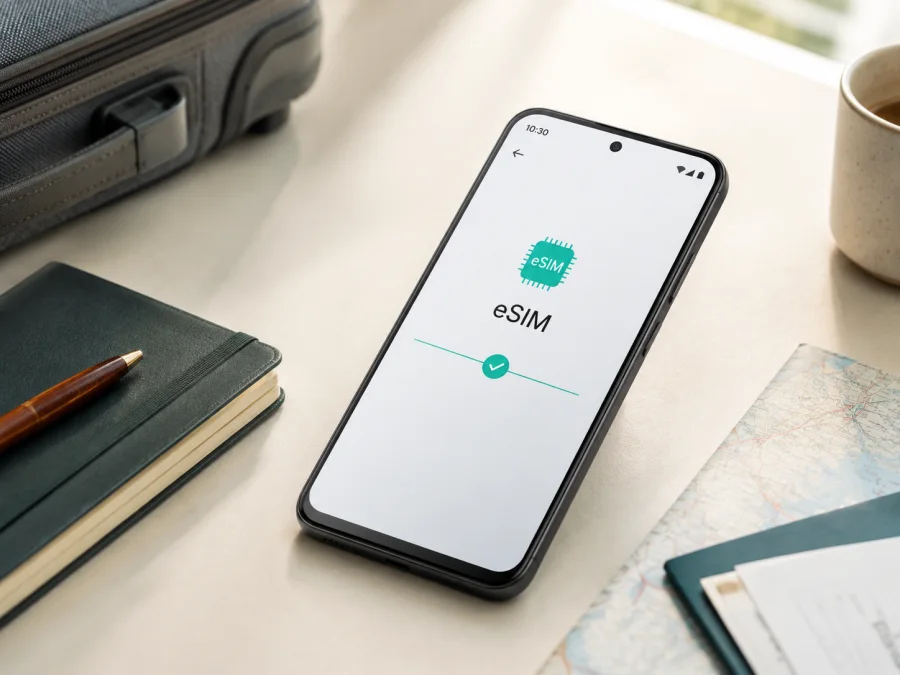
Motorola G34 128GB eSIM: compatibility and setup
If you are preparing a trip and want mobile internet without replacing your physical SIM card, the Motorola G34 128GB may be a suitable starting point for an eSIM check. The important detail is that storage capacity alone does not determine eSIM capability. The exact sales region, hardware configuration, carrier support and software build matter.
Motorola’s current official support information for the moto g34 5G family lists a 128GB configuration and, on supported versions, Dual SIM with one physical Nano-SIM, eSIM and a microSD card. Motorola also states that eSIM is not available in every country or from every carrier. Therefore the accurate answer for the requested Motorola G34 128GB is: eSIM can be supported, but you should confirm the individual phone before buying or installing a plan. The decisive checks are the presence of an EID and an option to download or add an eSIM in Android settings.
Quick answer for Motorola G34 128GB
The phone may be suitable for a travel eSIM when all of the following are true:
- the device has an EID;
- Android offers an eSIM download, setup or add-mobile-plan command;
- the phone is not locked to a carrier;
- the eSIM plan supports the country or region you will visit;
- the carrier or eSIM service can activate the profile on this particular device.
If EID and eSIM controls are absent, do not rely on the 128GB label, the 5G family name, a retailer description or an online compatibility list. Treat that handset as not confirmed for eSIM until Motorola or the seller identifies the exact regional SKU.
What the official specifications tell us
Motorola’s support material separates the model family from local availability. Its official specification for moto g34 5G describes 128GB storage and, for selected markets, one physical Nano-SIM plus eSIM and microSD. Motorola’s SIM guidance also warns that eSIM is not available in all countries or from all carriers. The safe conclusion is conditional: selected Motorola G34 128GB units support eSIM; the exact unit must prove it on the device and be accepted by the intended carrier.
Specification snapshot
| Item | What to expect or verify |
|---|---|
| Requested device | Motorola G34 128GB |
| Manufacturer family reference | moto g34 5G in Motorola support material |
| Internal storage | 128GB, as stated in the requested variant |
| RAM | Not specified in the device name; do not infer a RAM edition from 128GB |
| SIM capability | Some official regional specifications list one physical Nano-SIM plus eSIM and microSD |
| eSIM status | Potentially supported; country, carrier, SKU and firmware can change availability |
| Mobile data use | Choose the eSIM profile as the mobile-data line after installation |
| Calls and SMS | A travel data eSIM normally does not add a regular phone number unless its conditions say otherwise |
| Main purchase check | Confirm EID, eSIM menu, carrier unlock and destination coverage before payment |
The table does not turn a regional specification into a universal promise.
Regional and carrier differences
The same model family can be sold with different combinations of physical SIM and eSIM. Motorola’s official wording that eSIM is not available in all countries or from all carriers is especially relevant here. A unit intended for one market may expose an eSIM menu, while another unit with a closely related product name may offer only physical SIM service. Local certification and operator agreements can affect what the phone is allowed to activate.
Before travelling, check the box, the model or SKU in About phone and the seller’s return conditions. Ask about eSIM for that exact unit, not merely for “G34” or “G34 5G”. If the phone was imported or bought with a contract, ask whether it is network-unlocked. An unlocked phone is not automatically an eSIM phone, and a physical dual-SIM tray does not by itself rule eSIM out. First look for EID and the add-eSIM command; do not erase a working profile to test it.
Check compatibility before buying a plan
The most reliable check is made on the Motorola G34 128GB itself over Wi-Fi. Keep the device charged and install available Android and Motorola updates before testing.
Find the EID
- Open Settings.
- Open About phone or Device details.
- Look for EID, eSIM ID or an entry under SIM status.
An EID identifies the embedded SIM component. It differs from the IMEI and does not replace an activation code. Its presence strongly suggests eSIM capability, although the carrier can still restrict activation.
If the label is not visible in About phone, open Settings > Network & internet > SIMs or SIMs & mobile network. Names vary with Android version and firmware. Look for Download a SIM, Download and set up an eSIM, Add eSIM or Add mobile plan.
Use the settings menu as a second check
An eSIM command should open a guided setup flow; a retailer claim is not enough. Open it only far enough to see whether Android offers profile setup. If EID is present but the option is missing, update and restart the phone, review the SKU and ask Motorola or the seller. A rejected activation can be caused by the carrier, plan, used QR code or country restriction.
Use this compact checklist before purchase:
- [ ] The device name and storage match Motorola G34 128GB.
- [ ] The exact retail unit has an EID or a visible eSIM setup command.
- [ ] The phone is network-unlocked and not tied to a carrier restriction.
- [ ] Android is up to date and the phone can connect to Wi-Fi.
- [ ] The intended plan covers the destination and its validity period fits the trip.
- [ ] You understand whether the plan is data-only and when its validity starts.
- [ ] You know how to reach the seller or service support if activation fails.
For a final pre-purchase check, use Check your device. The link is a reminder to verify this individual handset, not a substitute for the EID and settings checks above.
How to install an eSIM on Motorola G34 128GB
Install before departure when possible. You need an unlocked compatible phone, Wi-Fi and the QR code or activation details supplied after choosing a plan. Keep the original profile page available; some QR codes allow only one installation.
1. Confirm the conditions
Connect the Motorola G34 128GB to Wi-Fi. Confirm EID, charge and unlock status. Keep the physical SIM active if you need its number for calls or messages.
2. Open mobile-network settings
Open Settings, then Network & internet. Tap SIMs & mobile network or its local equivalent, then choose download or add eSIM.
3. Start the eSIM setup
Choose download and set up eSIM. Select QR-code setup when Android offers it.
4. Scan the QR code
Keep the whole QR code visible in good light. Do not share it. If it is on the Motorola G34 128GB, show it on another screen or use manual details if offered.
5. Wait for the profile to download
Let the phone download the profile over Wi-Fi. This can take several minutes; keep Wi-Fi on and do not scan a code repeatedly if Android says it was used.
6. Name and enable the profile
Label the line Travel data. Keep it disabled until needed, if appropriate. Do not erase it as a troubleshooting shortcut.
7. Read the mobile-data choice
When Android asks which SIM provides mobile data, select the eSIM for the trip. Keep the regular line for calls or messages if needed. If installed early, leave the travel profile disabled or keep the usual data line active until the plan should start.
For platform-specific background, see the Android eSIM installation instructions and the iOS eSIM installation instructions.
Activate and use eSIM mobile data while travelling
Installation downloads the digital profile; activation may occur when it registers on a supported network or when the plan’s conditions start. Read the Kaspersky eSIM Store app or site plan details to learn when validity begins. A visible profile does not guarantee working data.
Install and label the profile over Wi-Fi at home. After landing, set the travel eSIM as the mobile-data line. If required, turn on Data roaming for that eSIM only; the primary line need not roam.
Scenario: short city break
Install at home, keep the regular line for data during the flight and switch to Travel data after landing. Check the signal and open a simple webpage. Review the physical line’s roaming setting so it cannot become the data line unexpectedly.
Scenario: work trip with a local number
Keep the physical SIM for calls and verification messages, and use eSIM for data. Turn off automatic data switching if offered. Messaging apps work over data, but a data-only plan does not automatically include calls or SMS.
Scenario: multi-country route
Choose a plan covering every destination, or confirm whether separate country and regional options are needed. Coverage and fair-use conditions belong to the selected plan and local operator partners. Kaspersky eSIM Store helps you choose and activate the eSIM-tariff workflow; check the next country and remaining data before crossing a border.
Scenario: hotspot for a laptop
If the plan permits tethering, enable Hotspot & tethering after selecting the travel eSIM for data. A hotspot can consume allowance quickly, so use a strong password and turn it off afterward.
Troubleshooting common problems
The eSIM option is missing
Check About phone for EID and review Settings > Network & internet > SIMs. Restart and update the phone. If both EID and add-eSIM are absent, ask Motorola or the seller to verify the SKU before purchase.
The QR code will not scan
Increase the code’s brightness, clean the camera lens and show the whole code in the eSIM setup flow. If it was already installed, expired or used, request help under the service terms.
The profile will not download
Use reliable Wi-Fi, restart and try again. Confirm the activation details, country and unlock status. Rejection can indicate a carrier limit or a profile already assigned to another handset.
The profile is installed but there is no signal
Confirm that the travel eSIM is enabled and selected for mobile data. Toggle airplane mode, enable data roaming for that eSIM if required and follow the plan’s network-selection guidance. Registration can take several minutes.
Mobile data still does not work
Verify the data line, mobile-data toggle, roaming and any supplied access-point settings. Disable the physical line’s data or automatic switching while testing. Check reception, destination coverage, allowance and expiry. Do not delete the eSIM without support advice.
The phone is locked or the plan is rejected
An operator lock can block an eSIM profile. Ask the original carrier or seller about unlocking. If unlocked, give support the error, model/SKU, EID status and country; never share the full EID or QR code publicly.
FAQ
Does Motorola G34 128GB support eSIM?
Potentially, yes. Motorola lists eSIM for selected moto g34 5G 128GB configurations, but says availability depends on country and carrier. Confirm EID and the setup option on the phone.
Is 128GB enough to prove eSIM support?
No. Storage identifies the variant, but regional SKU, firmware and carrier support determine the cellular configuration.
Can I keep my physical SIM while using eSIM?
Often, yes, on a configuration with one physical Nano-SIM plus eSIM. Choose the data line in Android; simultaneous use and voice features depend on the version and carrier.
Does a travel eSIM give me a phone number?
Usually no. The Kaspersky eSIM Store travel scenario is for mobile internet. Calls and SMS are excluded unless the plan says otherwise; messaging apps can use the data connection.
Can I install it after arriving?
Yes, with Wi-Fi or another connection if the profile is still valid. Installing before departure is convenient; keep the travel profile disabled or the primary data line selected until needed, subject to the plan rules.
Can I move the eSIM to another phone?
Not necessarily. Many profiles allow one installation or one device. Check transfer terms before removing it from the Motorola G34 128GB and ask support before deletion.
What is Kaspersky eSIM Store in this process?
Kaspersky eSIM Store is an app and website that helps you choose, arrange and activate an eSIM with a suitable tariff for mobile internet abroad. It is not an operator or network owner; access, coverage, validity and allowance come from the selected tariff and local operator arrangements.
Final check before your trip
Before paying, match the exact phone name and storage: Motorola G34 128GB. Find the EID, open the eSIM menu and confirm the phone is unlocked. Check destination, allowance, validity, activation timing and roaming requirements. Install over Wi-Fi, label the profile and choose the data line after arrival.
If EID or the eSIM command is absent, pause and ask the seller or Motorola support to verify the region. If present, choose an eSIM-tariff option in the Kaspersky eSIM Store app or site, review its conditions and activate it when appropriate. Verify the device, choose the travel eSIM, install carefully and select the data line.
Motorola G34 128GB trip eSIM block
Device check: Find EID and Add eSIM in Android settings before purchase. Trip check: Confirm the destination and plan conditions, install with Wi-Fi, select the travel eSIM for mobile data and enable data roaming for that profile only if required. Next step: When compatibility is confirmed, use Kaspersky eSIM Store to choose and activate a suitable eSIM tariff for the journey.


