Travel connectivity guide
Motorola G34 256GB eSIM: setup guide
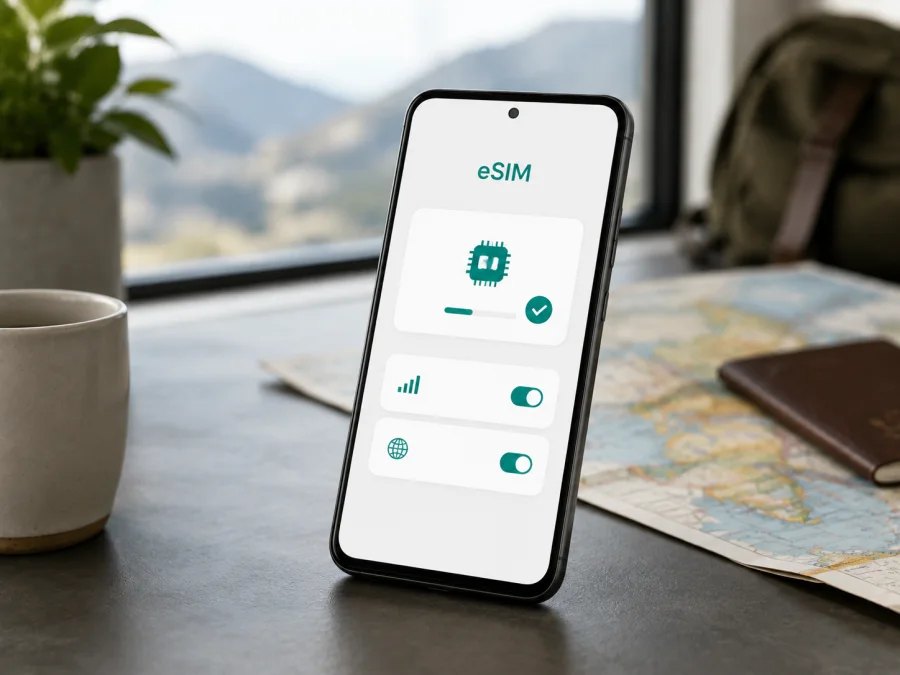
Motorola G34 256GB eSIM: compatibility and setup
If you are preparing for a trip and want mobile data without removing your everyday physical SIM, the Motorola G34 256GB is worth checking before you choose an eSIM tariff. The short answer is conditional: Motorola’s current specifications for the 256 GB configuration list a physical Nano SIM and eSIM, and Motorola’s support instructions include a download-and-set-up eSIM path. Motorola also states that eSIM is not available in every country or from every carrier. The menu on your own phone is therefore the final practical check.
“Motorola G34 256GB” identifies a storage variant, not one identical unit sold worldwide. Similar family names can hide different SIM hardware, firmware, and carrier provisioning, so check the actual handset.
Quick answer: does Motorola G34 256GB support eSIM?
Yes, the Motorola G34 256GB can support eSIM when it is the regional and carrier version with eSIM enabled. Motorola’s published 256 GB specification lists the SIM type as Nano SIM / eSIM. Its support guide for the moto g34 5G family describes adding an eSIM from Settings and says that an eSIM may work alongside a physical SIM. The same guide gives the key qualification: availability can vary by country and carrier.
The useful answer is therefore “yes for a supported 256 GB variant”, not “yes for every unit”. If your phone has no EID and no option to download or add an eSIM, do not assume that a later QR code will unlock the capability. Ask the seller or carrier to confirm the exact regional model and check the phone’s settings.
The storage number is not proof of network support. Motorola’s 256 GB specification lists Android 14, Snapdragon 695 5G, and Nano SIM / eSIM. RAM labels can vary by market; for eSIM, check the hardware, software, lock status, and destination tariff.
What the exact variant means in practice
The requested device is Motorola G34 256GB. Keep that full name when comparing a listing, invoice, box, or support record. Do not silently replace it with “G34”, and do not merge it with a 128 GB version, another G34 5G market edition, or a different Motorola phone. A support page may use the family wording “moto g34 5G”; that helps locate instructions, but it should not erase the exact 256GB variant being checked.
| Item | What to confirm for Motorola G34 256GB |
|---|---|
| Device variant | Motorola G34 256GB |
| Operating system | Android; the 256 GB specification lists Android 14 |
| Storage | 256 GB internal storage for this configuration |
| SIM arrangement | Nano SIM plus eSIM on supported regional versions |
| Mobile networks | 2G, 3G, 4G, and 5G are listed for the family; bands vary by market |
| Physical lock | The handset must not be restricted to an incompatible carrier |
| Final proof | An EID and an eSIM-addition control in the phone’s settings |
This table is a starting point, not a substitute for checking the actual phone.
Regional and carrier differences
Motorola’s support wording is cautious: the phone might support eSIM, and eSIM is not available in all countries or from all carriers. Regional availability can affect the physical tray, SIM menu, permitted profiles, and whether a carrier can provision the embedded SIM.
Before buying, compare the exact model in About phone, storage variant, country of sale, and carrier or seller. “Unlocked” does not by itself prove that eSIM hardware and provisioning are present, and a physical dual-SIM tray does not prove eSIM availability.
Firmware can change the wording and location of controls. One build may show “Download a new SIM”, another “Set up an eSIM” or “Add eSIM”. The function may be under SIMs & mobile network. If the control is absent, install available system updates and restart, then check again. If it remains missing, treat the unit as unconfirmed rather than inferring support from the name.
The carrier or eSIM service must issue a valid profile for the destination and accept the device. A QR code cannot correct regional hardware, a carrier lock, an account problem, or an unsupported route. If an EID is requested, do not confuse it with the IMEI or serial number.
Check EID and the eSIM menu before buying
The safest check takes a few minutes and should be done on the actual Motorola G34 256GB. Use Wi-Fi so the phone can reach activation services if the menu opens an installation flow.
- Open Settings.
- Go to About phone and inspect device details for an EID or eSIM entry.
- Return to Settings and open Network & internet.
- Open SIMs & mobile network or the similarly named SIM page.
- Look for Download a new SIM, Set up an eSIM, Add eSIM, or an equivalent control.
- Stop before confirming installation if you are checking compatibility only. Installing a profile is a separate action and may make it unavailable for reuse under the tariff conditions.
An EID is a strong sign of an eSIM function, but check it together with the visible settings option and carrier acceptance. If both are present, the phone is a good candidate. If only one is present, ask for confirmation tied to the exact unit. If neither is present, do not buy an eSIM tariff for this phone until support has been established.
Compatibility checklist
Use this device compatibility check as the last gate before selecting a plan.
- [ ] The phone is the exact Motorola G34 256GB shown on the invoice or in About phone.
- [ ] The handset was sold for a market where eSIM is enabled.
- [ ] An EID is visible, or Motorola’s eSIM menu is available.
- [ ] The phone is unlocked for the intended carrier or service.
- [ ] Android is updated and the phone can connect to Wi-Fi.
- [ ] The eSIM tariff covers every country or region on the itinerary.
- [ ] Data allowance, validity, activation conditions, and refund terms suit the trip.
- [ ] You know which existing SIM will remain your voice and SMS line.
If any item is uncertain, pause the purchase. Compatibility is easier to resolve before a plan is issued than after an installation attempt.
How to choose an eSIM tariff for a trip
Start with the route, not the largest data allowance. In Kaspersky eSIM Store, the app and website help you choose, arrange, and activate an eSIM with a suitable tariff for mobile internet abroad. Select the country, region, or route, then compare the allowance and validity. Read when validity begins, when the package expires, and what happens when included data is used.
Travel eSIM tariffs are usually mobile-data tools, not replacement telephone numbers. Unless the selected conditions say otherwise, ordinary voice calls and SMS do not move to the travel eSIM. Keep the physical SIM for your usual number if needed, use messaging apps over data, and select only the travel profile for mobile data. Maps and occasional browsing use less data than video calls, cloud backups, video, or hotspot use, so use Wi-Fi for large downloads and updates.
Kaspersky eSIM Store is an app and website for choosing, arranging, and activating this type of travel eSIM tariff. It is not a mobile operator, network owner, or source of cellular coverage. The underlying service and coverage depend on the selected tariff and the local operators involved. That is why destination, validity, allowance, and compatibility should all be checked before proceeding.
Install the eSIM on Motorola G34 256GB
Prepare a compatible, unlocked phone, stable Wi-Fi, and the QR code or installation details supplied in your account or purchase flow. Keep the QR code private; if it is displayed on the same phone, use manual details or the supported in-app flow.
For general guidance, see the Android eSIM installation instructions or the iOS eSIM installation instructions. The steps below follow Motorola’s support path; wording may differ by software build.
1. Connect to Wi-Fi
Connect to reliable Wi-Fi; it may be needed to download the profile.
2. Open SIM settings
Go to Settings > Network & internet > SIMs & mobile network. Find the control for downloading or setting up an eSIM. If it is missing, return to the EID and regional checks rather than guessing at another menu.
3. Start setup
Tap Download a new SIM, Set up an eSIM, or the equivalent, then confirm that you are ready to install the profile on this Motorola G34 256GB.
4. Scan the QR code
Scan the QR code for the selected tariff, or enter activation details manually if offered. Keep the phone still and reduce glare.
5. Wait for the profile
Let the download complete over Wi-Fi; it can take several minutes. Do not repeatedly scan during a delay.
6. Name the line
Give the new profile a clear label such as “Travel data” or the destination. A useful label helps prevent selecting your everyday line by mistake.
7. Set mobile data
Choose the travel eSIM for mobile data and turn automatic switching off to prevent fallback to your home line. Keep calls and messages on your usual line unless the tariff says otherwise.
8. Enable data roaming if required
Some travel tariffs require data roaming for the eSIM profile. Follow the tariff instructions and enable it only for that profile when required; this differs from choosing the preferred data SIM.
9. Activate at the right time
Installation, network registration, and tariff validity are not always the same event. Check the conditions before installing early. When allowed, install before departure, keep the profile off, then enable it after arrival and allow a few minutes for registration.
Using the eSIM while travelling
Before departure
Complete the compatibility check, choose a destination tariff, install when its conditions suit your schedule, label the lines “Home” and “Travel data”, and store the activation details privately.
After landing
Turn off airplane mode, enable the travel eSIM, select it for mobile data, and enable data roaming if required. Keep the home line for calls or SMS only if you understand its roaming conditions.
Open a webpage or map to test the connection. A network name may take several minutes to appear. If the test fails, move to a stronger-signal location and recheck the data SIM and roaming setting.
During the trip
Watch the allowance and validity in the account or app, use Wi-Fi for large updates, and confirm at a border that the tariff includes the new country or region. The profile is associated with the device where it was installed; do not erase or transfer it without checking the conditions. Motorola recommends erasing an eSIM only when instructed by support.
Troubleshooting common problems
The eSIM option is missing
Recheck Settings > Network & internet > SIMs & mobile network, install updates, and restart. Verify the EID and regional model. If the menu remains absent, ask the seller or carrier about this specific Motorola G34 256GB unit. A QR code cannot add missing hardware or a regional function.
The QR code will not scan
Increase the second screen’s brightness, clean the lens, reduce glare, and confirm that the code belongs to the intended tariff and has not already been used.
The profile will not download
Reconnect to stable Wi-Fi, check activation details and account readiness, then restart and retry once. If the error continues, save the exact message and contact support rather than deleting other profiles.
The eSIM appears, but there is no data
Verify that the travel profile is enabled and selected for mobile data, and check whether data roaming is required. Turn off automatic switching and toggle airplane mode once. If it still does not register, destination, tariff conditions, provisioning, or local coverage may be the cause.
The connection stops at a border
Check whether the new country is included. If it is, toggle airplane mode, verify the profile and roaming setting, and move to a stronger-signal location. Do not erase the eSIM before support confirms replacement.
You need to remove the eSIM
Treat removal as a last step. Erasing a profile removes its data function and it may not be reusable. Follow the tariff conditions; erasing a profile and ending a service are not necessarily the same action.
FAQ
Does Motorola G34 256GB definitely support eSIM everywhere?
No. Motorola’s current 256 GB specifications list eSIM, but Motorola also warns that eSIM is not available in all countries or from all carriers. Check the EID, eSIM menu, regional model, and carrier before buying.
Will the travel eSIM give me a normal phone number?
Not usually. A travel eSIM tariff generally provides data; ordinary calls and SMS are not included unless the conditions explicitly say so. Keep your usual line for its number and use internet-based messaging where appropriate.
Why is it installed but not connected?
Check the active profile, preferred data SIM, data roaming, airplane mode, signal, destination coverage, and activation window. If settings are correct, contact support with the exact error and device details.
Conclusion: verify first, then prepare your travel eSIM
For Motorola G34 256GB, Motorola lists eSIM for the 256 GB configuration, but availability depends on country, carrier, regional unit, and software. Find the EID and setup control, confirm the handset is unlocked, and match the tariff to your itinerary.
Before paying, complete the checklist. Choose by route, allowance, and validity, install over Wi-Fi, select the travel eSIM for data, and enable roaming only when required. Once those checks pass, use Kaspersky eSIM Store to choose, arrange, and activate the travel eSIM tariff. It is an app and website for this preparation, not the operator or network. Check the device, confirm the tariff, and only then prepare the travel eSIM.


