Travel connectivity guide
Motorola G52J 5G II 256GB eSIM Compatibility
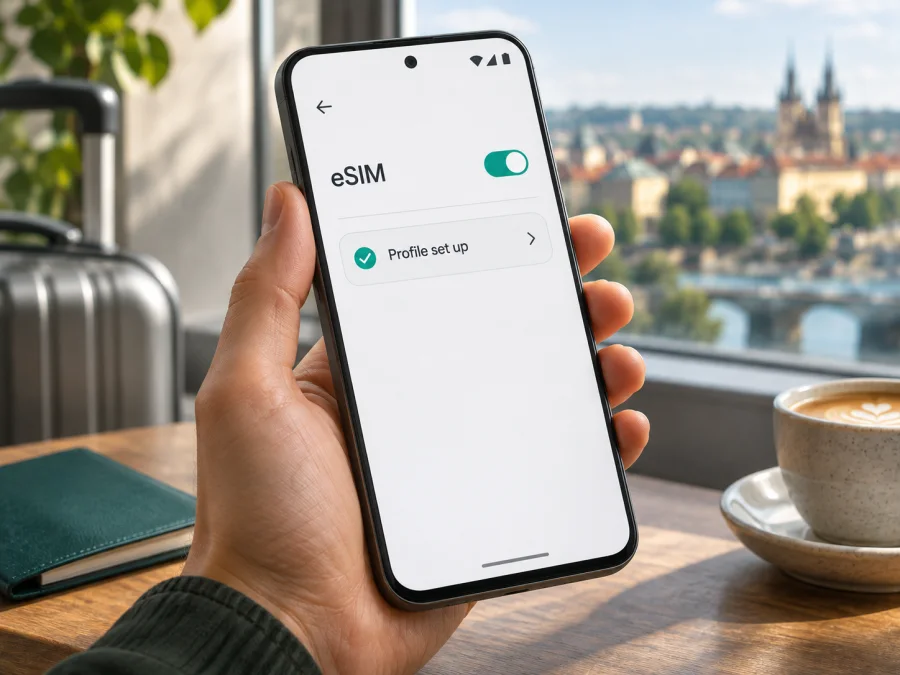
Motorola G52J 5G II 256GB eSIM compatibility and travel setup
Short answer
The Japanese-market moto g52j 5G II is documented with eSIM support, and Motorola’s Japanese specifications list 256GB storage in the moto g52j family. But the exact retail title Motorola G52J 5G II 256GB does not reveal the country of sale, model code or firmware. Do not assume that every unit advertised this way has the Japanese configuration.
Motorola Support’s Japanese moto g52j specifications describe nano-SIM plus eSIM dual-SIM use and say carrier support varies. IIJmio separately lists moto g52j 5G Ⅱ for selected Japanese eSIM services. These confirm the documented Japanese version and named operator tests; they do not verify every imported handset or travel provider. Check the actual phone: an EID or working Add eSIM option is a strong sign that its eSIM function is available, but the device must also be unlocked and accepted by the plan provider.
The listing’s typography may vary, but this guide concerns the exact requested Motorola G52J 5G II 256GB variant. If the device has no EID or eSIM setup option, confirm its model code and market with Motorola or the seller before purchase.
What the model name tells you—and what it does not
The “II” marks a distinct generation of the Japanese G52J line. Do not treat it as the first moto g52j 5G, the international moto g52, or another Moto G model. Retailers may abbreviate or reformat a name and add storage capacity, but a title alone does not prove the SIM hardware and firmware of the individual unit.
Motorola’s Japanese moto g52j specification lists 128GB and 256GB storage configurations and nano-SIM plus eSIM dual-SIM use. It does not identify every regional sales code behind every retailer listing. IIJmio names the moto g52j 5G Ⅱ specifically, but its tests apply to selected IIJmio services in Japan, not every travel eSIM or foreign network.
| Detail | Confirmed information | Check on your phone |
|---|---|---|
| Exact target | Motorola G52J 5G II 256GB; “II” and 256GB are meaningful modifiers. | Match the full model number in Settings to the box and invoice. |
| Storage | Japanese moto g52j specs include a 256GB configuration. | Confirm the actual unit; storage does not prove eSIM support. |
| SIM setup | Japanese specs describe nano-SIM plus eSIM. | Find EID and an eSIM add/download control. |
| Operator evidence | IIJmio lists the named II model for selected Japanese eSIM services. | Check compatibility with your provider and plan. |
| 5G / lock | 5G in the name does not promise travel 5G; an eSIM phone may still be locked. | Check bands, local plan terms and unlock status. |
Motorola Support’s Japanese “moto g52j specifications” page was checked on 3 November 2026; it lists both storage capacities, the SIM arrangement and a carrier-support caveat. IIJmio’s “moto g52j 5G Ⅱ” device notice identifies the operator services it tested. Together these confirm the documented Japanese configuration, not every regional or refurbished unit sold under a shortened title. Check the actual handset before purchase.
Why country, carrier and firmware matter
Manufacturers can release different hardware or software configurations by market. A similarly named handset may have another model number, SIM tray, carrier profile or firmware. An operator may further restrict activation to eligible devices or require the phone to be unlocked. eSIM hardware, carrier acceptance and plan coverage are related but separate checks.
The public evidence here is specific to Japan: Motorola’s specifications cover the Japanese moto g52j line, while IIJmio’s notice covers its own tested service. It does not establish that all Japanese phones support eSIM, that every carrier accepts this model, or that an overseas variant shares the same feature. A retailer’s “256GB” label cannot resolve those questions.
Ask the seller for the full model code and market of origin. For a used phone, confirm it is reset and free of management restrictions; for an operator-sold unit, ask whether it is unlocked. Requesting a screenshot of the actual SIM settings is more useful than relying on a stock photograph.
Check this exact phone before buying a plan
- Identify the model. In Settings → About phone, note the model number and software version; compare them with the box or invoice.
- Find eSIM controls. Search Settings for “eSIM” or inspect Network & internet / Mobile network / SIMs for Add eSIM, Download a SIM or similar. Labels vary by Android build.
- Look for EID. Check About phone or SIM status. On some Android versions,
*#06#displays identifiers including EID. Keep EID and IMEI private; share them only with trusted support when needed. - Check that setup is available. A missing or disabled control can indicate regional firmware, a restriction or no eSIM function. If possible, reach the activation screen over Wi-Fi without completing an order.
- Confirm unlock and plan acceptance. Ask the seller or original carrier about network locks, then check the travel provider’s device and destination requirements.
An EID is a hardware clue, not a guarantee that every provider accepts the phone. Likewise, 5G in the model name does not promise 5G on every travel plan. Check whether your device is compatible before choosing a plan.
Installing an eSIM on Motorola G52J 5G II 256GB
Install over reliable Wi-Fi and follow the selected plan’s instructions. Keep a QR code on another screen or printed; some codes are single-use, so do not repeatedly scan or delete a stalled profile.
- Verify the phone and offer. Confirm EID or an eSIM menu, unlock status, provider acceptance, destination, validity and data allowance.
- Retrieve the activation details. Find the QR code or manual details in your order confirmation or account. Keep them private.
- Add the profile. Open Settings → Network & internet → SIMs or the equivalent Motorola menu. Choose Add eSIM / Download a SIM and scan or enter the details.
- Wait for completion. Keep the connection active until the phone confirms the download. Profile installation and plan validity may start at different times.
- Name and select the line. Label the profile “Travel data” or with the destination. Select it for mobile data when you want it to carry traffic; keep calls and SMS on the intended line.
- Apply required settings. Enable roaming for the travel profile only if the provider instructs you to. Enter an APN only when specified.
- Test at destination. Turn Wi-Fi off briefly, confirm the data line and try a simple web page.
The Android eSIM installation guide shows a common QR flow and notes its menu path is Samsung-specific; follow the Motorola labels on your phone. The iOS installation guide is for an iPhone user you may be helping and does not apply to this Android device.
Prepare the travel connection
A travel eSIM can provide mobile data for maps, messages, bookings and translation without replacing your physical SIM. It does not automatically replace your regular number or include standard calls and SMS. Check whether the chosen offer is data-only and whether hotspot use is allowed.
Kaspersky eSIM Store is an app and website where users can choose, order and activate an eSIM with a mobile-data plan for an overseas trip. It is not the mobile operator or owner of the local network. Available destinations and service conditions belong to the specific offer and local network partners; a country label does not promise signal in every building or route.
Installing the profile before departure over Wi-Fi can simplify arrival, but validity may start on installation, at a scheduled time or on first connection, depending on the plan. Read the offer and confirmation instead of assuming a universal rule. For a one-country trip, compare the local destination plan with your dates and likely use. For a multi-country route, verify that every stop is included in the regional offer. Video, cloud backup and laptop hotspot use can consume much more data than messaging and basic browsing.
Example travel setups
- Short city break: Install over Wi-Fi before departure; choose it for data after arrival.
- Several countries: Check the included-country list for every stop and the full trip duration.
- Work trip: Confirm tethering is allowed and estimate data for calls, sync and updates.
- Two SIM lines: Name them clearly, select the intended data line and turn off automatic data switching if it could use the home SIM.
Troubleshooting: start with settings
Change one setting at a time and note any error. The cause may be the handset, activation code, plan terms or local network.
eSIM or EID is missing
Restart, install any official update and search Settings for “eSIM.” Confirm the model code and market with the seller or Motorola. If EID and an add-eSIM option remain absent, treat support as unconfirmed; storage size is not proof.
QR download fails
Use stable Wi-Fi and a clear, bright QR image. Check that the code belongs to this plan and has not been used. If an attempt may have consumed a one-time code, contact the provider before retrying or deleting the profile.
Profile installed but data does not work
Make sure the eSIM is enabled and selected for data. Check airplane mode, mobile data and destination eligibility. Enable roaming for this profile only if required, and enter an APN only as instructed by the provider. Toggle airplane mode or restart once; try automatic network selection first.
Network appears but apps do not connect
Turn Wi-Fi off briefly, verify the data line, plan validity and remaining data, then test a simple browser page. Pause downloads and cloud backups. Avoid resetting network settings until saved Wi-Fi passwords and custom settings are recorded.
The home SIM uses data, or service changes by location
Check the default line, automatic data switching and roaming state for both profiles. Ask your home operator about calls, voicemail, SMS and roaming charges. If coverage changes, confirm the destination is included and try another location; destination lists cannot promise reception in every building, rural area or moving vehicle. Contact the plan provider if service remains unavailable.
Compatibility checklist before you pay
Use this final check for the individual Motorola G52J 5G II 256GB:
- [ ] The model number belongs to the actual phone, and the seller confirms its country or market version.
- [ ] Settings shows an EID or a working Add eSIM / Download a SIM option.
- [ ] The handset is not restricted by an operator lock, activation lock or management policy.
- [ ] The plan provider accepts this model and the specific software or device variant.
- [ ] The offer covers the destination and the full travel dates, with data and validity that fit your needs.
- [ ] You understand whether the plan is data-only, whether roaming must be enabled, and whether hotspot use is permitted.
- [ ] Your primary SIM and data-line settings are arranged to avoid unintended mobile-data use.
If any item is uncertain, check with the seller, Motorola or the plan provider before checkout. A verified eSIM menu is a strong practical check; a product title, storage size or generic compatibility list is not a substitute for checking the phone you will use.
Frequently asked questions
Does Motorola G52J 5G II 256GB support eSIM?
Motorola’s Japanese moto g52j specification documents nano-SIM plus eSIM, and IIJmio lists the moto g52j 5G Ⅱ for selected Japanese services. That confirms the documented Japanese configuration, not every retail unit. Check your phone for EID or an eSIM setup option.
Does 256GB mean the phone has eSIM?
No. Storage and eSIM are separate features. Confirm the model code and inspect the SIM settings on the actual handset.
Can I use a travel eSIM with a physical SIM?
The documented Japanese version supports nano-SIM plus eSIM. Select the intended data line and review calls, SMS and roaming for the physical SIM separately.
Will I get 5G abroad?
Not necessarily. Bands, local networks, plan conditions and the regional phone variant matter; the plan may use 4G in some locations.
Does a travel eSIM replace my number?
Usually it is for data and does not replace your regular number. App calls use data; standard calls and SMS remain subject to the relevant line’s terms.
Can I delete the profile after the trip?
Check the offer first. Reuse and top-up rules vary, and some one-time activation codes cannot be transferred or reinstalled.
Before your trip: verify, then choose
For Motorola G52J 5G II 256GB, the clearest positive evidence applies to the documented Japanese-market model, not automatically to every regional or operator-branded version. Confirm the model code, look for the EID or eSIM add option, and verify that the handset is unlocked and accepted by the provider. Then check that the plan includes every destination and that its data, validity and activation conditions match your itinerary.
Once compatibility is confirmed, use the Kaspersky eSIM Store website or app to review available travel destinations, compare the current plan details and choose an eSIM for mobile data abroad. The Kaspersky eSIM Store homepage is the verified starting point for browsing current options; it is a general store page, not a specific country tariff. Install the profile on a stable connection, keep your primary line settings in view, and test mobile data after arrival. This keeps the decision grounded in the actual phone and offer.


