Travel connectivity guide
Motorola G53J 5G 256GB eSIM Compatibility
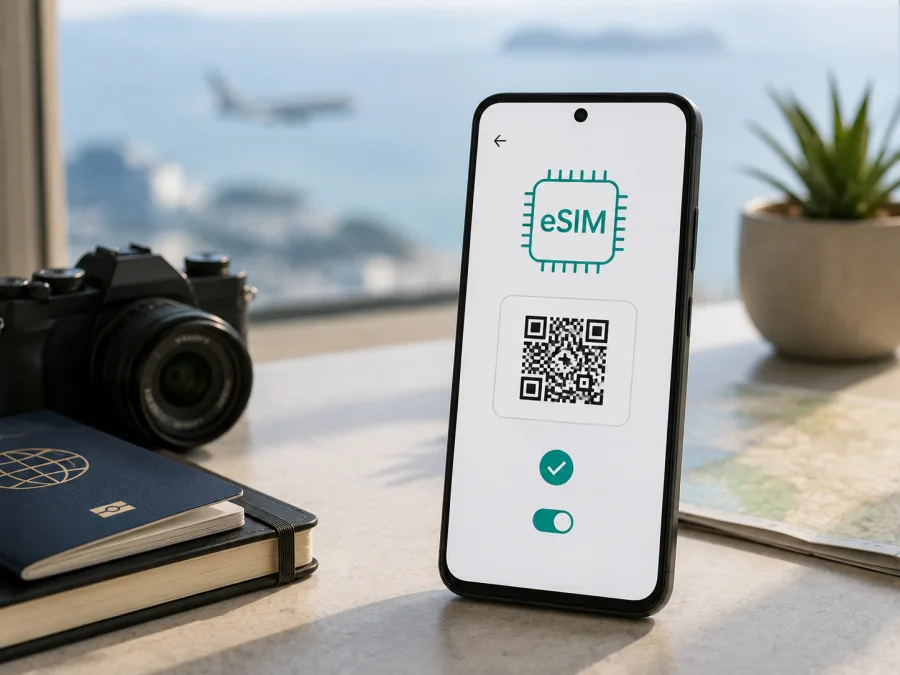
Motorola G53J 5G 256GB eSIM compatibility and setup guide
If you are checking whether the Motorola G53J 5G 256GB can use a travel eSIM, the answer is nuanced. Motorola’s current Japanese support specification lists nanoSIM/eSIM and dual-SIM dual-standby for the g53j 5G family. It also lists 128GB of internal storage, not 256GB. Therefore, eSIM support is confirmed for the official g53j hardware family, while the exact 256GB listing must be verified on the handset before you pay for a plan.
Keep the name Motorola G53J 5G 256GB intact when checking the phone and purchase record. Do not substitute a shorter “G53” name. The J, 5G and 256GB modifiers identify the requested variant and may distinguish it from a global, carrier or regional model. Look for an EID and an Add eSIM setting on the actual phone. If neither exists, pause before purchase.
Quick answer: does Motorola G53J 5G 256GB support eSIM?
For an authentic Japan-market g53j 5G unit with the expected firmware, yes, eSIM is supported. Motorola lists one nanoSIM together with eSIM and DSDV. You can therefore use a physical SIM for your usual line and an eSIM for travel data, subject to the carrier, firmware and selected plan.
The storage detail needs a separate answer. Motorola’s current Japanese specification lists 128GB for moto g53j 5G, whereas the requested product name says 256GB. That official record confirms the g53j family’s eSIM arrangement, but does not establish a standard Motorola 256GB configuration. A reseller may be describing a bundle, a memory-card capacity or another model. Storage does not create eSIM capability.
Verdict: eSIM is supported on genuine g53j 5G hardware when the EID and eSIM controls are present; confirm the requested 256GB designation on the individual unit. Do not extend this verdict to moto g53y 5G, moto g53s 5G, carrier, imported or repaired phones.
Motorola G53J 5G 256GB specifications to check
| Item | Confirmed or required check |
|---|---|
| Exact requested name | Motorola G53J 5G 256GB |
| Official family | moto g53j 5G, Japan-market model |
| eSIM | Listed by Motorola; verify the actual handset |
| Physical SIM | One nanoSIM slot |
| Dual-SIM arrangement | nanoSIM + eSIM, DSDV where enabled |
| Network label | 5G; destination bands and coverage still matter |
| Operating system | Android 13 at launch; installed version may be newer |
| RAM | 8GB listed for moto g53j 5G; carrier variants can differ |
| Internal storage | 128GB in Motorola’s current Japanese specification |
| Requested modifier | 256GB; confirm in Settings, box and invoice |
| Activation needs | Internet access, QR code or activation details, compatible plan |
This prevents a common mistake: large storage does not prove eSIM. A microSD card is storage expansion, not an embedded SIM.
Why region, firmware and seller matter
Related Motorola phones can look alike while using different modems, menus, bands and SIM rules. The Japanese g53j 5G has its own specification. A carrier or imported version may hide eSIM, restrict another provider or use different provisioning.
The J suffix must not be silently changed to a global moto g53 5G or a Y/S version. Network compatibility is distinct from eSIM compatibility: a profile can download while LTE or 5G support is limited at your destination. Check country, network type and activation conditions before payment.
Because Motorola’s current Japanese specification shows 128GB, compare the claimed 256GB with:
- the model number in Settings > About phone;
- the value shown in Storage;
- the model code on the box and invoice;
- the EID, shown only to a trusted support channel if requested;
- the original sales market and carrier;
- the device’s SIM-unlock status.
If these details disagree, ask the seller or Motorola support to identify the SKU. Do not buy a plan to test an uncertain listing.
<a id="kesim-device-compatibility"></a>
Compatibility check before purchasing a plan
The useful check is done on the phone in your hand, before choosing a travel eSIM.
Find the EID
Open Settings and search for EID. Depending on Android version, it may appear in About phone or SIM status. You can also try *#06#; supported firmware may show an EID with IMEI numbers. An EID indicates eSIM hardware, not an activation code. Do not publish it.
Find the eSIM control
Open Settings > Network & internet > SIMs or Mobile network. Look for Add SIM, Download a SIM, Add eSIM or Set up an eSIM. A QR scanner or manual activation form confirms that the firmware exposes eSIM provisioning. Menu names can vary after an update.
If the option is missing, update Android, restart and search again. If there is still no EID or control, treat the device as not ready. Do not install unofficial firmware to force a menu. Check your device before choosing a plan.
Confirm the carrier and destination
Ask whether the phone is SIM-unlocked. Check that the plan covers every country on your route. 5G in the model name does not promise 5G abroad; 4G/LTE may be the available connection.
Pre-purchase checklist
- [ ] The model code matches the requested Motorola G53J 5G 256GB listing.
- [ ] The phone’s storage and the claimed 256GB have been reconciled.
- [ ] An EID or Add eSIM control is visible.
- [ ] The phone is unlocked and updated.
- [ ] Wi-Fi or another data connection is available for setup.
- [ ] Destination, data volume, validity and activation rules fit the trip.
- [ ] You know whether roaming must be enabled for the travel profile.
Once these checks pass, Kaspersky eSIM Store can help you choose, arrange and activate an eSIM with a suitable mobile-data plan for an overseas trip. It is an app and site for that preparation; it is not a mobile operator, network owner or mobile-internet provider.
Installing an eSIM on a compatible Motorola phone
Charge the phone, prepare an internet connection and display the QR code on another screen if possible. If it is on the same phone, use manual activation details when supplied.
1. Back up important information
Back up contacts, photos and travel documents before changing network settings. Installation should not erase personal data, but a backup is sensible.
2. Connect to the internet
Connect the Motorola G53J 5G 256GB to Wi-Fi or keep an existing data line active so the profile can download. Keep the physical SIM installed if you need it for account messages.
3. Open mobile-network settings
Tap Settings, then Network & internet and SIMs or Mobile network. Choose Add SIM or Download a SIM.
4. Scan or enter the profile
Choose eSIM and scan the QR code supplied after your order. Keep it bright, flat and fully visible. If scanning fails, enter the manual details exactly. The activation code downloads a profile; the EID identifies the phone.
5. Wait for download
Let the phone contact the provisioning service. Downloading may take several minutes. Do not repeatedly scan a one-time QR code while it processes.
6. Label and select the line
Name the profile Travel data or use the destination. In the SIM manager, select it for Mobile data and check that Android has not selected the home line instead.
7. Set roaming and test
Enable Data roaming for the travel eSIM only when its instructions require it. Leave it off for the home line to reduce charge risk. Turn Wi-Fi off briefly and open a map or webpage to confirm the travel profile is the data line.
For a general Android walkthrough, use the Android eSIM installation instructions. The iOS eSIM installation instructions may help when the same trip is managed across Apple and Android devices. The Motorola G53J 5G 256GB uses Android menus, but labels can differ by build.
Activating eSIM for travel
Installation downloads a profile; activation may mean turning it on, registering on a network or starting validity at first connection. The meaning depends on the plan conditions, so read them before installing.
Before departure
If allowed, download the profile over Wi-Fi and leave the travel line off until needed. Check for an installation or activation deadline and keep the QR code secure.
On arrival
Turn on the travel eSIM, select it for data and enable roaming if required. Toggle airplane mode or restart if registration is slow. Test 4G/LTE as well as 5G; no 5G icon alone does not prove failure.
With your home line
The g53j arrangement can allow a physical SIM for the usual number and eSIM for data, but carrier and DSDV behavior apply. Disable home-line roaming and check the default data SIM. Data plans normally do not include a number, calls or SMS unless stated; messaging apps can work over the data connection.
After the trip
Select the home line for data and turn off travel-line roaming. Disable or remove the profile only when allowed. Do not erase it merely to tidy the SIM list: a one-time QR code may not be reusable.
Practical scenarios
One-country holiday. Verify the EID at home, install over Wi-Fi if allowed, label the profile and select it for data on arrival. Test maps and messages away from Wi-Fi.
Several countries. Confirm regional coverage and validity against the itinerary. Keep profiles clearly labelled; stored and active-profile limits depend on firmware, so do not delete one prematurely.
Work trip. Keep the physical line for essential calls if appropriate and assign data to the travel eSIM. Check the selected SIM before a meeting. This works only when the handset exposes eSIM and carriers permit it.
Hotspot and heavy navigation. Video calls, backup and tethering use data quickly. Check balance and hotspot rules, reduce backups and download maps over Wi-Fi. 256GB storage does not add mobile data.
Troubleshooting
No Add eSIM option
Search Settings for EID, eSIM and SIM. Restart, update Android and confirm the model code. If no EID or control appears, ask the seller or Motorola support to identify the unit.
QR code fails
Increase the other screen’s brightness, clean the camera, show all corners and use the system scanner. Try manual details if supplied. Never share a one-time QR code publicly.
Profile installed but no signal
Confirm that the profile is on and selected for data. Check destination, roaming, airplane mode and network selection. Restart and try 4G/LTE. If needed, contact support with the order reference, error text and model code.
Signal but no data
Turn off Wi-Fi and confirm the travel eSIM is the data line. Check plan validity and remaining data. If an APN is supplied, copy it exactly; do not invent one. Review roaming for the correct SIM.
Home line uses data
Open the SIM manager, select Travel data and disable automatic switching if present. Turn off home-line roaming and watch the active SIM during a small test.
Calls or SMS fail
That is expected for a data-only travel plan unless its conditions include voice or SMS. Keep the home line for calls or use an internet calling and messaging app.
Plan cannot be added
The profile may already be installed, the QR code used, the phone locked, or the plan may not cover the handset or destination. Check the eSIM list; do not erase a working profile first. Contact support with the order reference and model code.
FAQ
Is Motorola G53J 5G 256GB the same as every moto g53 5G?
No. The G53J, 5G and 256GB modifiers identify the requested variant. Regional and carrier versions may differ, so confirm model code, storage and eSIM controls.
Does 256GB guarantee eSIM?
No. Storage and eSIM are separate. Motorola’s current Japanese specification lists 128GB, so resolve the 256GB label and check the EID first.
Can I use nanoSIM and eSIM together?
Motorola lists nanoSIM/eSIM DSDV for the official g53j specification. Carrier, firmware and active-line rules still apply; select the data line in the SIM manager.
Must I remove the physical SIM?
Usually not. Keeping it installed can help with account messages. Remove or disable it only if required.
Can I install without Wi-Fi?
Yes, if another working data connection is available, although Wi-Fi is preferable.
Does the travel eSIM provide a phone number?
Not normally. It is for mobile internet; calls and SMS are excluded unless the plan says otherwise.
Should roaming be on?
Only for the travel eSIM when required. Keep home-line data roaming off and confirm which line the setting controls.
Can I transfer the eSIM later?
Do not assume so. Transfer, reinstallation and QR-code use can be limited. Check the plan conditions before deleting or moving a profile.
Final device check and travel eSIM choice
Before purchasing, perform this final check on the exact Motorola G53J 5G 256GB handset:
- Match the model number in Settings > About phone with the box and invoice.
- Confirm the storage and resolve the difference between the requested 256GB and Motorola’s 128GB Japanese specification.
- Find the EID or Add eSIM control.
- Confirm the phone is unlocked and its firmware exposes eSIM.
- Match the destination, data volume, validity and activation rules to the trip.
- Select the travel eSIM for mobile data only when the plan’s conditions tell you to activate it.
When all six checks pass, use Kaspersky eSIM Store as the app and site for choosing, arranging and activating an eSIM with a suitable mobile-data plan for your overseas trip. Review the conditions, control home-line settings and test the connection before relying on it for maps, messages or work. This verification helps prevent buying a plan for the wrong regional model or a 256GB description that does not match the phone.


