Travel connectivity guide
Motorola Moto G Stylus 5G 2024 eSIM Guide
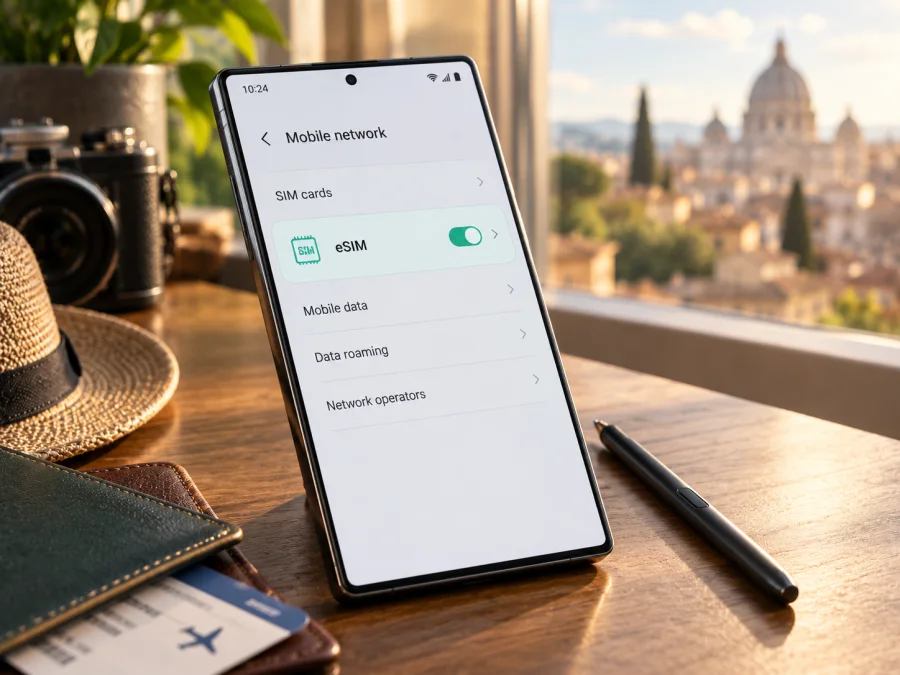
Motorola Moto G Stylus 5G 2024 eSIM: compatibility and setup
The US version of the Motorola Moto G Stylus 5G 2024 supports eSIM alongside a physical Nano SIM, according to Motorola’s US support specifications. Motorola’s model-specific help also describes downloading an eSIM from the phone’s SIM settings. That is a useful confirmation for the US-market configuration, but it should not be treated as proof that every phone sold under a similar name in every country has the same eSIM hardware, software, or carrier provisioning. Check the exact handset before choosing a travel plan.
This guide explains how to identify a compatible version, install an eSIM, select it for mobile data abroad, and troubleshoot common setup issues. The model name is kept as supplied: Motorola Moto G Stylus 5G 2024.
Does Motorola Moto G Stylus 5G 2024 support eSIM?
Yes, the US-market Motorola Moto G Stylus 5G 2024 configuration is listed by Motorola as dual SIM: one Nano SIM and one eSIM. Motorola’s US device support material also includes a model-specific procedure for adding an eSIM. If your phone was purchased in another market, imported, supplied by a carrier, or refurbished, confirm its own settings and model details rather than relying on the US specification alone.
“Supports eSIM” means that the device can store a digital SIM profile when its hardware, software, and carrier configuration allow it. It does not guarantee that every carrier will activate a profile, that the phone is unlocked, or that a particular travel plan will work in every destination. eSIM capability, carrier acceptance, network coverage, and the terms of a travel plan are separate checks.
Key details
| Item | What to know |
|---|---|
| Device | Motorola Moto G Stylus 5G 2024 |
| Confirmed configuration | Motorola’s US specifications list Dual SIM: 1 Nano SIM + eSIM |
| eSIM setup route | Settings, then Network & internet and the SIM section; wording can vary by software version |
| Physical SIM | Nano SIM is listed alongside eSIM for the US configuration |
| Important variable | Market, exact model or SKU, carrier configuration, software version, and SIM lock status |
| Best check before purchase | Look for an EID and an option to download or add a SIM on the actual phone |
Motorola’s support instructions give one setup path as Settings > Network & internet > SIMs & mobile network > Download new SIM. Another support page for this model describes Settings > Network & internet > SIM preferences and an option to download and set up an eSIM. The names can differ after a software update, between carrier builds, or with language settings. Use the available SIM-management page on your phone as the final guide.
Why region and carrier versions matter
A product name may cover different sales configurations. Markets and carriers can vary in SIM hardware, firmware, radio bands, or activation policy. Motorola’s US specifications confirm eSIM for the US configuration; they do not establish support for every similarly named phone sold elsewhere. The manufacturer’s model-specific help also advises checking with the carrier if the download option is missing.
Check the exact model or SKU in Settings > About phone against the seller’s specification. If imported or carrier supplied, ask whether that precise unit supports eSIM and is unlocked. eSIM hardware does not remove a carrier lock. Do not infer eSIM from 5G, a SIM tray, or an informal “dual SIM” listing.
Check your phone before buying a plan
<a id="kesim-device-compatibility"></a>
Use the handset itself as the first check; Android menu names vary by build and language.
- In Settings > About phone, note the model number and software version.
- Open Network & internet and look under SIMs, SIMs & mobile network, or SIM preferences for Download a SIM or Add eSIM.
- Look for an EID in About phone or SIM status. You can also try
*#06#in the Phone app; supported devices may display it. An EID indicates eSIM capability but does not prove the phone is unlocked or that a plan will activate. - Confirm unlock status with the seller or original carrier. Check that you have Wi-Fi for setup and review the plan’s destination, validity start, activation deadline, data allowance, and tethering terms.
Compatibility checklist
Before paying for a travel eSIM, confirm each item:
- [ ] The exact phone in your hand has an EID or a working eSIM download/add option.
- [ ] The model number corresponds to a configuration with eSIM, not just a similar product name.
- [ ] The device is not locked to a carrier that prevents adding the intended profile.
- [ ] The phone’s Android settings allow an eSIM profile to be added.
- [ ] The destination is covered by the selected plan, and its terms match the length and data needs of your trip.
- [ ] You have reliable Wi-Fi for installation and know whether the plan activates on installation, first network connection, or another event.
- [ ] You understand which SIM will handle mobile data and whether data roaming must be enabled for that eSIM.
Check whether your device is compatible before buying a plan. If you cannot confirm compatibility from the settings, contact the manufacturer, seller, or carrier with the model number and ask for a direct answer about eSIM on that exact unit.
Understand what a travel eSIM does
A travel eSIM is a digital SIM profile for mobile data in supported destinations. It can let you get online without replacing your physical SIM. Data-only plans generally do not include a regular number, voice calls, or SMS unless the terms say otherwise; messaging and internet calls can work over data. Coverage depends on destination, partner networks, device bands, local conditions, and plan terms.
After checking compatibility, Kaspersky eSIM Store is an app and website where you can choose, arrange, and activate an eSIM plan for mobile data on an overseas trip. Review the destination, data allowance, validity, and activation terms before selecting a plan. Choose a plan for your destination only after confirming that your phone is compatible.
How to install and activate an eSIM
The steps below describe the usual Android flow and reflect Motorola’s model-specific guidance. Your carrier or travel plan may provide a QR code, an in-app installation flow, or manual activation details. Follow the provider’s instructions if the available options differ.
Before you start
- Confirm eSIM support, unlock status, and stable Wi-Fi.
- Keep the QR code on another screen, or have the provider’s manual details ready.
- Check when validity begins. Adding a profile, enabling it, and starting the plan can be separate events.
- Do not delete a profile unless instructed; some profiles cannot be reinstalled without provider help.
Add the profile
- Open Settings on the phone.
- Tap Network & internet, then open SIMs, SIMs & mobile network, or SIM preferences. On Motorola’s US support flow for this model, the option may appear as Download new SIM.
- Choose the option to download, add, or set up an eSIM. If Android asks whether to use a QR code, scan the code provided for your plan. If the code is displayed on this same phone, use another screen or follow the provider’s manual installation instructions.
- Review the prompts and confirm the download. Leave Wi-Fi connected while the profile is being installed. Avoid closing Settings or restarting unless the phone asks you to do so.
- Give the profile a clear label, such as “Travel data,” so it is easy to distinguish from your home SIM. Labels are for your convenience and do not change the plan.
- When prompted, choose whether to enable the eSIM now or later. If you are preparing before departure, follow the plan’s activation rules. If you have arrived and are ready to use it, enable the profile as directed.
Motorola’s menu path can vary by software build. If you cannot find the eSIM download option, check Settings > Network & internet and use Settings search for “SIM” or “eSIM.” If it is still absent, confirm the model number and ask Motorola or the carrier whether eSIM is enabled for that specific variant. Do not try to force installation through an unsupported menu.
For additional step-by-step guidance, use the Android eSIM installation instructions. The iOS eSIM installation instructions are for Apple devices and do not replace the Android steps for this Motorola phone.
Select the eSIM for mobile data
After installation, open the SIM settings. Turn on the travel eSIM and select it as the SIM for Mobile data. If you want your home number to remain available, you can usually keep the physical SIM enabled for calls or messages while assigning mobile data to the travel profile; the exact dual-SIM controls depend on the software and carrier build.
Turn off data roaming on your home SIM if you do not want it to use roaming data. For the travel eSIM, enable data roaming only if the plan’s instructions require it. Some travel profiles need roaming enabled to connect to a partner network. Follow the plan’s instructions rather than changing settings on every SIM indiscriminately.
Once you reach the destination, allow a few minutes for the profile to register. Check that Airplane mode is off, Mobile data is on, and the travel eSIM is selected for data. If the plan includes a network selection instruction, use it. Automatic network selection is usually the first setting to try, but a plan may specify a supported network if registration does not succeed.
Using Motorola Moto G Stylus 5G 2024 on a trip
Install before departure
If the plan permits, install over home Wi-Fi and label the profile “Travel data.” Keep it off until the plan’s terms say to enable it if you need to control activation. Before leaving, confirm that it appears in SIM settings and that you know how to select it for mobile data.
Connect after arrival
Enable the travel profile, select it for Mobile data, and turn on data roaming for that profile if the plan requires it. Wait a few minutes for registration, then test a webpage or messaging app. If the phone still uses the home SIM for data, the installed eSIM may appear inactive.
Keep your home number available
The US configuration is listed with a Nano SIM and eSIM. Where the software permits, keep the home line for calls or texts and route data through the travel eSIM. Check home-carrier roaming charges and verify the selected data line; dual-SIM behavior can differ by carrier build.
Match the plan to your route
Check that every country on a multi-country itinerary is covered. Estimate usage for maps, messaging, browsing, and video; compare it with the plan’s allowance and validity. Check when validity begins and whether hotspot use is allowed. A data plan may not include a phone number, voice, or SMS.
Troubleshooting common issues
No option to add or download an eSIM
Search Settings for “SIM,” check Network & internet, and confirm the model number and software build. Look for an EID in About phone or SIM status. If the EID and setup option are absent, ask Motorola, the seller, or carrier to verify the exact regional configuration; carrier policy can affect activation.
The QR code will not scan or the download fails
Use another screen to display the code, raise its brightness, and keep the camera steady. Confirm the code belongs to this plan and has not expired or been used. Keep Wi-Fi connected. If the code is invalid or already used, contact the plan provider. Do not share the QR code, and avoid deleting a partially installed profile unless support tells you to.
The profile is installed but there is no service
Check that the eSIM is enabled and selected for mobile data, the destination is covered, and data roaming is enabled for the travel profile if required. Turn Airplane mode on briefly, then off, and wait for registration. Follow any network-selection instructions provided with the plan.
Signal appears, but apps cannot connect
Check that mobile data is assigned to the travel eSIM and that the plan is active with data remaining. Check data limits or Data Saver. If the provider supplied APN settings, enter those exactly; do not guess. Try more than one app or site.
Data uses the wrong SIM or the phone is locked
Inspect the selected mobile-data line and disable roaming on the home SIM if needed. A carrier lock can block another provider’s profile even when eSIM hardware is present; ask the original carrier about unlock status. If unlocked, check destination coverage, plan instructions, software, and supported bands.
Frequently asked questions
Does every Motorola Moto G Stylus 5G 2024 have eSIM?
Motorola confirms eSIM for its US-market configuration. Other regional or carrier variants must be checked by model number, EID, and SIM settings.
Is an EID enough to confirm a travel plan will work?
No. It indicates eSIM capability, but does not prove the phone is unlocked, accepted by the provider, or covered by the plan at your destination.
Can I keep my physical SIM active?
The US configuration is listed with one Nano SIM and eSIM. Compatible software can allow the physical SIM for calls or messages and the eSIM for data. Check your settings and home roaming charges.
Does installation start the plan, and can I transfer it?
Not necessarily: installation, line activation, network registration, and validity may be separate. Transfer rules vary; some profiles cannot be installed again after deletion. Follow the plan terms.
Does a travel eSIM include calls and SMS?
Many are data-only. Check the plan details; internet calling and messaging apps can work over mobile data.
What if there is no EID?
Check About phone, SIM status, or try *#06#. If no EID or setup option appears, ask Motorola or the seller about the exact model before buying a plan.
Final check before your trip
For the Motorola Moto G Stylus 5G 2024, Motorola confirms eSIM on its US-market configuration, but the precise phone in your hand is what matters. Confirm the model number, look for an EID or an eSIM download option, verify that the phone is unlocked, and check the selected plan’s destination and activation terms. Install over Wi-Fi, assign the eSIM as the mobile-data line when you are ready, and enable data roaming for that profile only when its instructions require it.
Once compatibility is clear, choose an eSIM plan that fits your destination, route, data needs, and trip dates. Kaspersky eSIM Store is an app and website where you can choose, arrange, and activate an eSIM plan for mobile data during an overseas trip. Review the plan details before purchase, then keep the installation instructions available while you set up the profile.


