Travel connectivity guide
Motorola Moto G35 256GB eSIM: Compatibility Guide
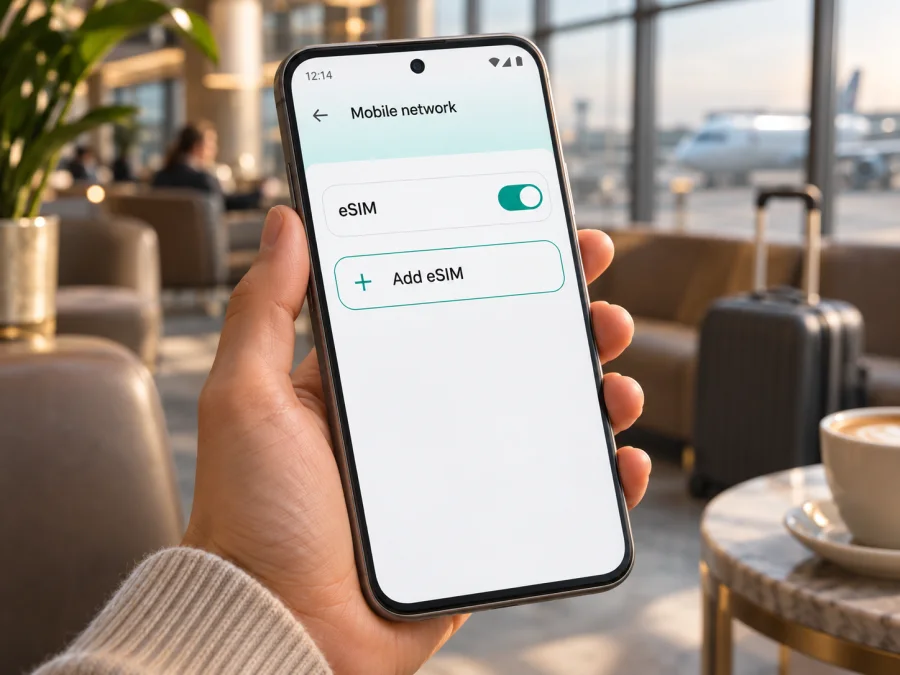
Motorola Moto G35 256GB eSIM: compatibility and setup
Short answer: The 256GB storage label alone does not confirm eSIM support. Motorola’s documentation for the Moto G35 says that eSIM may be available on models with one physical SIM slot, and that feature availability can vary by country and service provider. So the exact answer for your Motorola Moto G35 256GB depends on its regional hardware and software. Check the phone for an EID or an eSIM download option before choosing a travel plan; if neither appears, ask the seller or carrier to confirm the model number.
That distinction matters because “Moto G35 256GB” describes the phone and its storage capacity, but not necessarily its SIM configuration. Motorola’s public product information includes a 256GB Moto G35 offer in some markets, while its support pages describe different SIM arrangements and warn that specifications vary by market. A model sold with two physical SIMs should not be assumed to have the same eSIM capability as a one-physical-SIM model. Do not rely on the name on a retail listing alone.
At a glance
| Detail | What to know |
|---|---|
| Device named in this guide | Motorola Moto G35 256GB |
| Storage in the requested variant | 256GB, as stated in the device name; available user storage can be lower than the advertised capacity |
| eSIM verdict | Conditional. Motorola describes eSIM for some Moto G35 versions with one physical SIM; verify your individual handset |
| Physical SIM arrangement | The manufacturer documents single- and dual-physical-SIM versions; configuration can vary by market |
| Main check | Look for EID · eSIM in device details and for Download new SIM in mobile network settings |
| Travel use | A compatible, unlocked version can use a data eSIM for mobile internet where the selected plan is available |
Does Motorola Moto G35 256GB support eSIM?
Possibly, depending on the individual regional version; it is not confirmed for every 256GB unit. Motorola’s own Moto G35 getting-started guide says the eSIM option applies only to models with one physical SIM card and notes that the phone may support an embedded SIM in addition to that physical card. The manufacturer also says availability can vary between countries and service providers. That is the most useful general rule for this device family, but it is not a guarantee for every market or every retail unit carrying 256GB of storage.
Motorola’s official pages vary by market: one Latin American product page advertises 256GB, while support documentation describes one- and two-physical-SIM versions. A specification for one country cannot establish the SIM features of an imported unit, nor prove that all 256GB versions in one market have or lack eSIM.
Before purchase, verify the handset’s EID and add-eSIM menu, match its model number to the seller’s listing, and confirm the provider accepts that regional model. An eSIM menu is a strong sign of capability, but activation also depends on eligibility and lock status. If neither EID nor an add-eSIM option appears, verify the SKU. A software update cannot add eSIM hardware that the configuration lacks.
How to check the EID and eSIM menu
Start with the phone’s own software. The exact labels can differ slightly with Android version, language, and regional firmware:
- Open Settings.
- Tap About phone.
- Open Device details and look for EID · eSIM. On some Android versions, SIM information appears under SIM status instead.
- Return to Settings and open Network & internet or Internet and networks.
- Tap SIMs & mobile network or SIM cards and mobile network.
- Look for Download new SIM, Add eSIM, or a similar option.
Write down the model number and software build shown in About phone. If the EID appears, that confirms an eSIM identity is present on the handset, but it does not confirm that it is unlocked or accepted by every provider. If the option appears but activation fails, the provider may not support the model, the phone may be locked, or the code may not be valid for that handset. If neither appears, do not treat the 256GB capacity as proof of eSIM support.
If labels differ, use Settings search for “EID” or “eSIM,” or ask the seller to demonstrate the menu on the exact unit. A screenshot from another SKU is not proof.
Check compatibility before choosing a travel plan
Use this short checklist before you purchase or scan an eSIM profile:
- [ ] EID present: Device details show an EID or an eSIM identity.
- [ ] Add option present: Settings offers to download or add a SIM digitally.
- [ ] Exact variant checked: The model number matches the listing and the seller confirms eSIM for that SKU and country of sale.
- [ ] No carrier restriction: The phone is unlocked or the carrier confirms that another provider’s eSIM can be used.
- [ ] Provider eligibility confirmed: The travel eSIM provider accepts the Moto G35 variant and your destination.
- [ ] Internet available for setup: Wi-Fi or another working connection is available when you install the profile.
- [ ] Plan details understood: Destination, data allowance, validity period, activation timing, and any roaming-data instruction are clear.
Check whether your device is compatible before choosing a plan. Compatibility has two parts: the phone must be able to install an eSIM, and the specific profile must be usable on that phone and in the destination. An EID answers the first question more reliably than a retail title; it does not guarantee network access, coverage, or compatibility with every plan.
If bought through a carrier or imported, confirm the phone is unlocked. A lock can block another provider’s profile even when an EID is present.
How to install and activate an eSIM on Motorola Moto G35 256GB
First complete the compatibility checks and connect to Wi-Fi. Have the QR code or provider app ready. The Android guide below uses Samsung menu labels; the iOS guide is for iPhone, while the Moto G35 path is given here.
- Connect to Wi-Fi. Keep a reliable connection until the profile has downloaded. Avoid beginning setup when you may lose internet access.
- Open the SIM settings. On the Moto G35, go to Settings > Network & internet > SIMs & mobile network. Menu wording may vary by firmware.
- Choose the eSIM option. Tap Download new SIM or the equivalent add-eSIM command. If it is missing, stop and recheck the exact model and its eSIM eligibility.
- Scan the QR code or follow the provider’s app flow. Use the code issued for your purchase. If the phone asks to enter details manually, use only the activation information supplied for that eSIM.
- Confirm the download. Follow the on-screen prompts and wait for the profile to install. Do not close the setup screen or delete the profile while it is downloading.
- Name the profile. Choose a clear label such as “Travel data” so it is easy to tell apart from your home SIM.
- Select the data line. In SIM settings, choose the travel eSIM for mobile data when you are ready to use it. Keep your usual SIM enabled for calls or messages only if you want those services and understand your home carrier’s roaming terms.
- Set roaming as instructed. Some travel eSIM profiles need data roaming enabled on that eSIM. This setting is not the same as enabling roaming on your home SIM; check which line is selected before switching it on.
- Test at the right time. Some profiles install before the trip but connect only in the covered destination. Follow the plan’s activation and validity rules, then allow a few minutes after arrival for registration.
See the Android eSIM installation guide for a visual overview; its Samsung menu names may differ. The iOS installation guide applies to iPhone, not this Moto. Do not delete an installed profile to troubleshoot: some codes are single-use. Contact the provider before reinstalling or changing phones.
Using the eSIM for mobile internet while travelling
Before the trip, choose a plan that lists the country or region you will visit. Compare the data allowance and validity period with your expected use: navigation, messaging, booking confirmations, email, and occasional browsing need less data than video calls, hotspot use, or streaming. Check whether the plan begins at purchase, at installation, on a scheduled date, or only when it first connects; these are different events, and the plan terms control.
Kaspersky eSIM Store is an app and website where you can choose, arrange, and activate an eSIM with a plan for mobile internet on an international trip. The service’s public pages identify BNESIM Limited as a technology partner and describe plans for selected destinations. The Store is not the mobile operator and does not own the local network. A local telecommunications provider supplies the network service under the selected plan’s terms.
When you know the destination, you can browse the Kaspersky eSIM Store to check the currently listed options. This is the general English Store homepage, not a country-specific tariff page. Confirm the destination, price, data amount, validity, and activation conditions on the plan page before completing an order.
On arrival, select the travel eSIM under Mobile data. Enable roaming on that line only if the plan requires it, and disable automatic switching to your home SIM if available. Check a webpage or map, then monitor usage in the Store profile or app.
A data-only travel eSIM generally does not add a regular phone number or ordinary SMS and voice service unless the plan explicitly states otherwise. Internet calling and messaging apps can work over the data connection if the app account is already set up. Your home SIM may still receive calls or messages according to your home carrier’s rules, so confirm any roaming charges separately.
Coverage and speed depend on the local provider, plan, handset bands, signal, and location. Check supported destinations before purchase and keep essential bookings or maps available offline.
Common problems and what to check
There is no EID or Add eSIM option
Check the model number and sales market. Motorola describes eSIM on some one-physical-SIM models, with availability varying by country. Confirm with the seller or carrier before purchase.
The QR code will not scan
Increase the code’s brightness, clean the camera lens, and keep it fully visible. If displayed on the Moto itself, use the provider’s app or manual setup if offered. Check that the code is unused and intended for this eSIM; do not share it.
The profile will not download
Check Wi-Fi, restart, and verify automatic date and time. Confirm the code is correct and the phone has room for another profile. For eligibility or lock errors, contact the provider with the model number and message.
The eSIM installed but there is no signal
Check destination and activation timing, then confirm the eSIM is on, selected for data, and allowed to roam if required. Toggle airplane mode, then restart. Use automatic network selection unless instructed otherwise.
The phone connects but apps have no internet
Confirm Mobile data uses the travel eSIM and disable automatic switching while troubleshooting. Check any provider-specified APN, Data Saver, data limit, and remaining allowance.
The home SIM is using data abroad
Verify the selected data line. Disable roaming on the home SIM if appropriate, while preserving any roaming setting required by the travel eSIM.
Activation works on another phone but not this one
Some profiles are limited to one device or installation. Do not delete or rescan repeatedly; ask the provider about reissue or transfer and confirm the phone’s model and lock status.
FAQ
Does every Motorola Moto G35 256GB support eSIM?
No blanket confirmation is available. Motorola says some one-physical-SIM versions may support eSIM, subject to market and provider. Check EID, settings, and model number.
Does 256GB mean the phone has eSIM?
No. Storage capacity and SIM configuration are separate. A 256GB listing does not by itself identify the regional hardware or confirm an EID.
Can I use the travel eSIM and physical SIM at the same time?
It depends on the regional configuration and provider. Check your handset’s SIM settings; do not infer simultaneous use from the product title.
Will a travel eSIM work if the Moto G35 is locked?
It may not. Ask the original carrier to confirm that the phone is unlocked and eligible for another provider’s eSIM before you purchase a plan.
Should I install the eSIM before leaving?
Often you can install over Wi-Fi before departure, but check when validity starts; installation and data use may begin at different times.
Can I use the eSIM for calls and texts?
A travel data plan is generally for mobile internet only unless voice and SMS are specifically listed in its terms. Internet calls and messages may work through apps over mobile data.
What if my phone has an EID but the eSIM still fails?
An EID does not prove the phone is unlocked or accepted by every provider. Check the model, plan destination, activation timing, and error message with support.
Final check before your trip
For Motorola Moto G35 256GB, treat eSIM support as variant-dependent until your own handset confirms it. Find EID · eSIM or an Add eSIM / Download new SIM command, match the model number to the seller’s information, and confirm that the phone is unlocked and accepted by the provider. The 256GB capacity alone is not proof of compatibility.
After that, compare plans for your actual destination and trip length, review the data allowance and activation conditions, and save the setup details somewhere accessible. A few minutes spent checking the phone before purchase can help avoid discovering a regional or carrier limitation at the airport. When the device and plan are both confirmed, use the eSIM for mobile data, keep your home SIM settings under control, and retain Wi-Fi or offline navigation as a backup.


