Travel connectivity guide
Motorola Moto G35 eSIM Compatibility and Setup
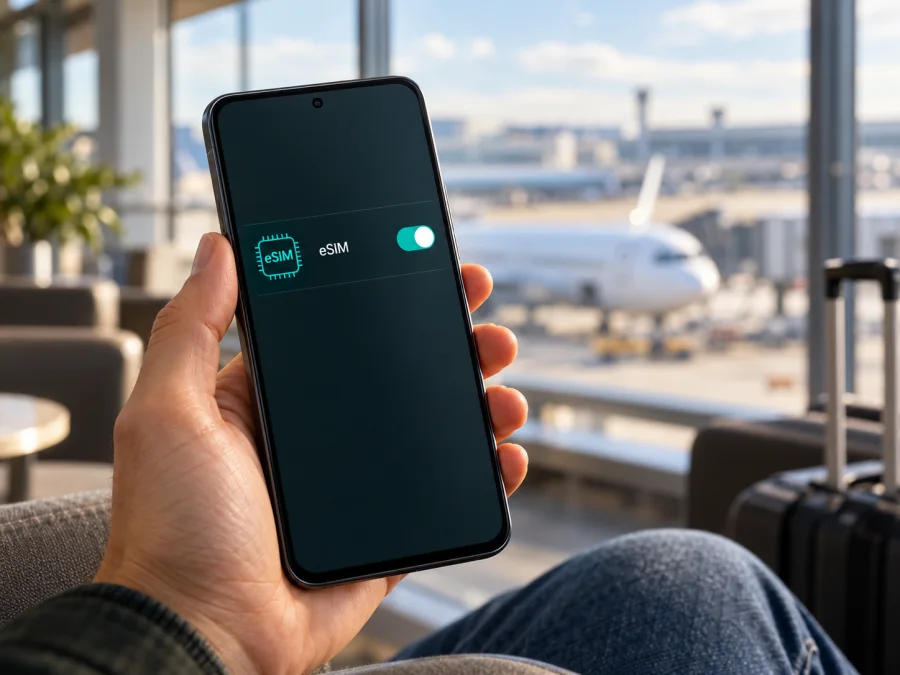
Motorola Moto G35 eSIM: compatibility, setup and travel data
Short answer: some Motorola Moto G35 versions support eSIM, but the model name by itself is not enough to confirm that a particular handset does. Motorola's regional product information differs: its Latin American specification lists a Nano SIM or eSIM, and its German listing says dual SIM with pSIM + eSIM. Motorola's India specification describes a physical SIM arrangement and does not list eSIM. Motorola's getting-started guide also says that eSIM may be available on models with one physical SIM. Check the exact phone in your hand before choosing a travel plan.
The distinction matters when you are preparing for a trip. A compatible, unlocked phone can keep its regular physical SIM available while you add a separate eSIM for mobile data, depending on the model and how many lines it can use at once. If your particular Motorola Moto G35 has no eSIM hardware or its settings do not offer eSIM setup, a travel eSIM cannot be installed by changing a setting or updating an app.
Does Motorola Moto G35 support eSIM?
The answer is conditional: yes for eSIM-enabled regional variants, not confirmed for every Motorola Moto G35 sold worldwide. Motorola's documentation uses different SIM descriptions across markets. A Latin American support page lists one SIM slot with “Nano SIM or eSIM.” A German specification lists “Dual-SIM (pSIM + eSIM).” By contrast, the Indian specifications list a hybrid setup of two Nano SIMs or one Nano SIM plus a microSD card, without listing eSIM. The product guide adds that eSIM may be supported on the version with one physical SIM card.
This is evidence of regional hardware or configuration differences, not a guarantee that every phone bought in a named region has the same configuration. Retailer stock, the exact model code, software build, and local carrier support can also matter. In particular, a device sold with two physical SIM positions should not be assumed to have an eSIM simply because another Moto G35 version does. Equally, an eSIM option in Motorola's international support materials does not mean that every local operator can activate a profile on it.
The name supplied here is Motorola Moto G35. Motorola often styles the family as “moto g35 5G,” but the eSIM question is about the exact unit you own, not about substituting a different model or inferring a configuration from the 5G label. Confirm the model code and country of sale with the seller or Motorola support if the phone's own settings are inconclusive.
| What to check | What Motorola's documentation indicates | What it means for your phone |
|---|---|---|
| Latin American specification | Nano SIM or eSIM is listed | An eSIM-capable configuration is documented for that regional product listing. |
| German specification | Dual SIM (physical SIM + eSIM) is listed | This is an explicitly eSIM-capable configuration. |
| Indian specification | Hybrid dual physical SIM arrangement is listed; eSIM is not listed | Do not treat this listing as confirmation of eSIM. Check the exact handset and model code. |
| Motorola getting-started guide | eSIM may be supported on models with one physical SIM | The feature depends on the phone variant; the guide does not promise it on all units. |
Check the phone before buying a plan
Use more than one check if possible. The most useful evidence is a working eSIM setup option on the handset, plus confirmation from Motorola or the seller for the exact model code. A plan page or a broad compatibility list may not distinguish regional Moto G35 variants.
- Open Settings and look under Network & internet, SIMs, Mobile network, or a similarly named section. The wording can vary with Android version and region.
- Check for an option such as Add eSIM, Download a SIM, Set up an eSIM, or Add mobile plan. An explicit setup option is a strong sign that the phone has eSIM capability.
- In Settings > About phone or the SIM status screen, look for an EID. An EID is an identifier associated with an embedded SIM. Its presence is useful evidence, but menu visibility can vary; if it is absent, confirm through the model code and manufacturer support rather than treating that alone as a definitive diagnosis.
- Ask the seller or Motorola support to verify the exact model number or SKU and country of sale. Ask specifically whether that SKU supports downloading an eSIM profile, not just whether it supports dual SIM or 5G.
- Confirm that the device is not carrier-locked. A phone may contain eSIM hardware yet be restricted from using another provider's profile until it is unlocked.
- Check that the Android software is current and that the phone can connect to Wi-Fi during setup. A software update can resolve menu or activation issues, but it cannot add missing eSIM hardware.
If the menu and EID checks disagree, pause before purchase. A visible eSIM menu is useful, but activation can still depend on carrier policy, local provisioning, and device restrictions. A missing menu may reflect the regional software configuration, but it may also mean that this variant has no eSIM support. Get a confirmation tied to the model code before paying for a plan.
Compatibility checklist
Before buying a travel eSIM for Motorola Moto G35, make sure you can answer yes to the points that apply:
- [ ] The exact handset shows an eSIM setup option, or Motorola/seller confirms eSIM support for its model code.
- [ ] The phone is unlocked and can accept a profile from the provider whose plan you intend to use.
- [ ] You have a stable Wi-Fi connection for downloading the profile if needed.
- [ ] The destination and the plan's validity period match your itinerary.
- [ ] You know whether the plan starts on installation, activation, or first connection to a supported local network; check its current terms.
- [ ] You know which line will be used for mobile data and whether roaming must be enabled for the travel eSIM.
- [ ] You have saved the setup instructions and activation details somewhere accessible before departure.
Check your device compatibility before you select a travel plan. The check is especially important for this model because official Motorola materials describe more than one SIM configuration.
What to know before installing an eSIM
An eSIM profile is downloaded to the phone rather than inserted as a plastic card. The profile and its plan are related but are not the same thing: installing a profile adds it to the device, while the plan's rules determine where data works, how much data is included, how long it lasts, and when use begins. Read the plan details before purchase and keep the QR code or in-app installation method available.
A travel data eSIM is generally intended for mobile internet. Unless the specific plan says otherwise, do not expect it to provide a regular phone number, standard voice calls, or SMS. You can continue to use your usual SIM for calls and messages where your home plan allows, and use messaging or calling apps over data. Check your home operator's roaming terms before leaving your main SIM enabled abroad.
Kaspersky eSIM Store is an app and website where you can choose, arrange, and activate an eSIM with a data plan for an international trip. The plan terms show the destination, data allowance, and validity. Available destinations and plan details can change, so review the current information for your route. The service is intended to help prepare travel data; network access itself depends on the selected plan and the local networks it can use.
How to install eSIM on Motorola Moto G35
The exact labels on Motorola's Android interface can vary by software version. Keep your phone connected to Wi-Fi, have the plan's QR code or installation details ready, and follow the provider's current instructions. Do not scan a QR code that was issued for another device or already used if the provider says it is single-use.
- Confirm compatibility and unlock status. Check the settings menu and the phone's model code before starting. If there is no eSIM option, stop and confirm the variant with Motorola or the seller.
- Connect to Wi-Fi. Keep the connection active until the profile has downloaded. If you received a QR code on the phone you are setting up, display it on another screen or use a supported manual installation method.
- Open the SIM settings. Go to Settings > Network & internet or the corresponding SIMs / Mobile network section. Choose the option to add or download an eSIM. If the item is missing, do not assume repeated scans will make the feature appear.
- Add the profile. Scan the QR code or enter the activation details only as instructed by the plan provider. Confirm the destination and profile information on screen, then allow the download to finish.
- Name the line. Use a label such as “Travel data” so it is easy to distinguish from your personal SIM. Keep your main line's name unchanged if you use it for calls or texts.
- Choose when to use it. If you do not want the travel plan to connect yet, leave the profile installed but switch it off or keep your main SIM selected for mobile data. Follow the plan's rules for activation timing; do not assume that installing is always the same as starting the validity period.
- Set the data line when ready. In SIM settings, select the travel eSIM for mobile data. If its instructions require data roaming, enable roaming for that eSIM only. Check the selected line carefully to avoid unintended use of your home plan.
- Wait for registration. Once you reach a supported destination, give the phone a few minutes to register. If it does not connect, use the troubleshooting steps below before deleting the profile.
For additional setup guidance, see the Android eSIM installation instructions. Its screen labels may differ because the page uses Samsung as its example. For reference when helping someone with an Apple device, see the iOS eSIM installation instructions. The Android steps are the relevant operating-system guide for Motorola Moto G35.
Use Motorola Moto G35 for travel data
After the profile is installed, choose the travel eSIM as the mobile-data line when you are ready to use the plan. Keep your home SIM active only if you need it and understand its roaming charges. On a dual-SIM configuration, the available combination of active lines may depend on the handset and software, so confirm how the phone handles simultaneous SIMs before travelling.
At your destination:
- Open SIM settings and make sure the travel eSIM is switched on.
- Select it as the preferred line for mobile data.
- Enable data roaming for that eSIM if the plan's instructions require it. This setting permits the profile to connect to a partner network; it does not itself change the amount of data included in the plan.
- Leave automatic network selection enabled initially. If the provider gives a specific network-selection instruction, follow that instruction.
- Open a webpage or app to confirm data works, then check the plan's account or app for usage information.
- If you are crossing borders, verify that your plan covers the next destination. A plan for one country may not include a neighbouring country.
For a short city break, estimate your use from maps, transport, messages, and browsing. For a longer trip, consider how often you stream video, upload photos, use hotspot sharing, or join video calls. Choose an allowance and validity that suit the actual itinerary; no single data amount is right for every traveller. Wi-Fi can reduce mobile data use, but avoid relying on public Wi-Fi as your only connection for navigation or essential travel details.
Common problems and checks
There is no “Add eSIM” option
Check the exact model code and country of sale. Restart the phone, install any available Android update, and review both the main network settings and the SIM status page. If the option remains absent, ask Motorola or the seller whether that SKU has eSIM hardware. A general Moto G35 support page cannot confirm every regional unit.
The QR code will not scan or the download fails
Confirm the display is bright and the QR code is not cropped, blurred, or already used. Connect to reliable Wi-Fi, check the phone's date and time settings, and make sure the code belongs to the plan you are trying to install. Some providers offer manual activation details or a one-tap installation flow. Use only the method provided for your purchase and contact the provider if the code reports an error.
The eSIM is installed but shows no service
Check that you are in a destination covered by the plan and that the plan is within its validity period. Make sure the profile is turned on and the travel eSIM is selected for mobile data. Toggle airplane mode off and on or restart the phone, then wait a few minutes. If the provider asks you to select a network manually or change an access-point setting, follow its model-specific advice; do not guess values.
The phone connects but apps have no internet
Verify the mobile-data line, data roaming setting for the travel profile, and remaining data allowance. Temporarily turn off Wi-Fi to confirm whether mobile data is being tested. Check for a data limit or restriction in Android settings and make sure the plan covers the location you are in. If a browser still cannot load pages, contact the plan provider with the error message and the approximate time of the attempt.
The home SIM is using data abroad
Return to SIM settings and explicitly set the travel eSIM as the mobile-data line. Turn off automatic data switching if your phone offers that option, and check that mobile data roaming is disabled for the home SIM unless you intend to use it. Confirm the setting again after a restart or SIM change.
The phone is locked or the profile cannot activate
Ask the original carrier to confirm the unlock status. A SIM lock is separate from eSIM hardware and can prevent use of another provider. If the phone is unlocked but the profile still fails, ask the plan provider whether the activation code is valid, unused, and supported for this exact handset. Do not delete a partially installed profile until support advises you.
I cannot find an EID
Look in About phone, SIM status, or the eSIM information screen. Menu placement differs across Android builds. If there is still no EID and no add-eSIM option, ask Motorola to check the model code. A physical-SIM configuration or regional software build can explain the difference; do not buy an eSIM plan based only on another owner's report about a different market.
FAQ
Is eSIM supported on every Motorola Moto G35?
No. Motorola documents eSIM for some regional configurations, including Latin American and German listings, while its India listing describes physical SIM options without listing eSIM. Check the exact unit's settings and model code.
Can I use a physical SIM and eSIM together?
Some versions are described by Motorola as dual SIM with a physical SIM and eSIM. The available active-line combinations depend on the handset and software, so check the SIM manager for your exact unit.
Does a travel eSIM replace my phone number?
Usually not. Travel data plans are often data-only and do not provide a standard number for calls or SMS unless their terms explicitly say otherwise. Check your home operator's roaming charges if you keep your regular line active.
Should I turn on data roaming?
Only for the line and plan that require it. Some travel eSIMs need roaming enabled to connect through a partner network. Enable the setting on the travel eSIM and verify that the home SIM is not selected for mobile data.
Can I move the eSIM to another phone later?
Do not assume that you can. Transfer and reinstallation rules depend on the profile and provider; some activation codes are single-use. Check the plan terms before replacing, resetting, or erasing the Motorola Moto G35.
Final check: device first, plan second
For Motorola Moto G35, eSIM is a real feature on some versions, but not a safe assumption for every handset. Motorola's regional documentation describes eSIM on some variants and physical SIM configurations on others; its guide makes eSIM conditional on the model. Verify the EID or add-eSIM menu, check the model code with Motorola or the seller, and confirm the phone is unlocked before paying for a travel plan.
Once compatibility is clear, choose a destination and review the current data allowance, validity, activation timing, and roaming instructions. Kaspersky eSIM Store's website and app let you browse, arrange, and activate an eSIM with a data plan for international travel. Check the exact destination and plan conditions there, then install the profile over Wi-Fi and select it for mobile data when you are ready to connect.


