Travel connectivity guide
Motorola Moto G53 256GB eSIM Compatibility
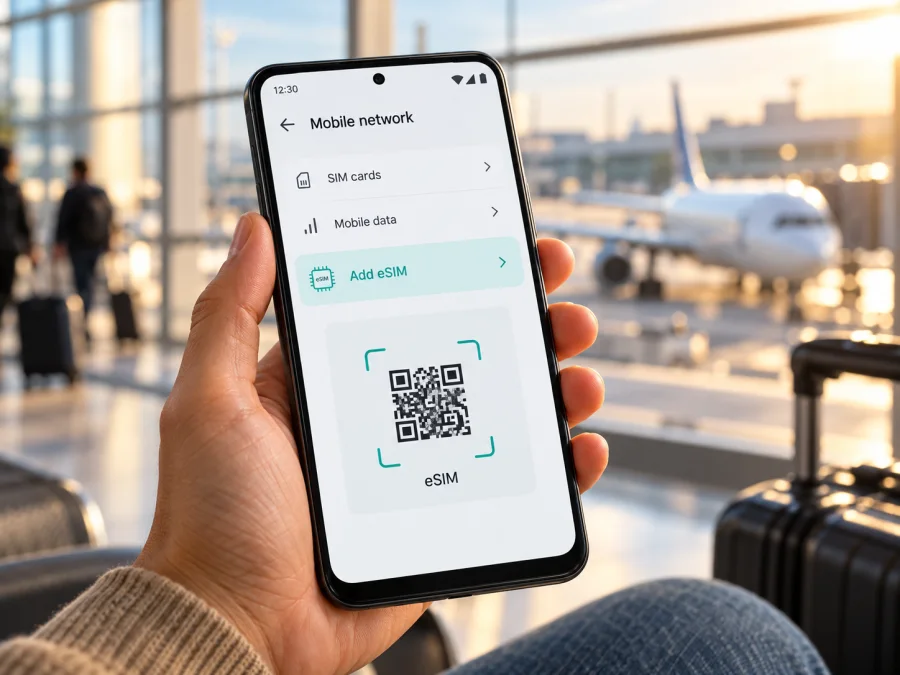
Motorola Moto G53 256GB eSIM: compatibility and setup guide
Quick answer: eSIM support is possible on some regional versions of the moto g53 5G, but the name “Motorola Moto G53 256GB” alone does not confirm that this exact phone has an eSIM. Motorola’s support guide describes eSIM setup for the moto g53 5G, and official specifications for some regional versions list a hybrid configuration with one eSIM and one nano-SIM. Motorola’s regional specifications do not establish that every 256GB-labelled device has the same hardware. Check the model number, EID and eSIM option on the phone itself before choosing a travel plan.
Does the Motorola Moto G53 256GB support eSIM?
The answer depends on the exact regional and operator version. Motorola’s guide describes eSIM setup on supported moto g53 5G phones; some regional specifications list a hybrid configuration of one eSIM and one nano-SIM. The guide also says the phone might support eSIM and recommends carrier confirmation. This does not establish that every 256GB-listed device has eSIM hardware.
| Check | What the available information tells you |
|---|---|
| Exact name supplied | Motorola Moto G53 256GB. Keep this complete name when checking the box, listing and device settings. |
| Motorola guide | The moto g53 5G guide includes an eSIM setup path for supported phones. |
| Regional specification | Some official Motorola pages list one eSIM plus one nano-SIM. |
| 256GB configuration | The name does not verify the eSIM-capable variant; confirm model code and software. |
| Travel use | Check unlock status and destination compatibility even if an EID is present. |
Motorola’s Romanian regional specification, for example, lists 128GB of internal storage expandable by microSD and a hybrid slot with one eSIM and one nano-SIM. That documents one market’s configuration; it does not verify a 256GB listing from a different market. The country of purchase, original operator and travel destination answer separate questions: the first two help identify the hardware and any network lock, while the plan conditions determine destination availability. Check each separately.
Check the phone before buying a plan
Do these checks on the phone you plan to take. A product title or generic compatibility list is not enough when regional versions differ.
- [ ] Open Settings → About phone and note the complete model number and software build.
- [ ] Open Settings → About phone → SIM status (the wording may vary) and look for an EID. An EID is the identifier associated with an eSIM-capable device.
- [ ] Open Settings → Network & internet → SIM preferences. Look for Download a SIM, Add eSIM, or an equivalent option. Motorola says the menu can vary by software version.
- [ ] If the EID is missing or no eSIM setup option appears, ask Motorola or the seller to verify this exact regional model. Do not assume a software update will add missing eSIM hardware.
- [ ] Confirm the phone is not carrier-locked. Ask the carrier or seller if you are unsure; an eSIM menu does not remove a network lock.
- [ ] Confirm that the eSIM provider supports your exact device and the country or region you will visit.
- [ ] Make sure you can connect to Wi-Fi during installation and have the QR code or in-app activation method available on another screen.
Check your device before choosing a travel eSIM. You can also use the manufacturer’s support information for the exact menu names on your software version.
Prepare before installation
Before scanning a QR code, confirm that the phone is unlocked, Wi-Fi is available and the plan covers your destination. Check its allowance, validity and activation timing. Keep the code on another screen and note which SIM is your home line.
How to install and activate an eSIM on the Motorola Moto G53 256GB
Android menu names can change with software updates. Motorola’s g53 5G guide gives the sequence below. Follow the instructions supplied with your eSIM if they differ, and do not continue if the phone does not display an eSIM setup option.
1. Connect to Wi-Fi
Turn on Wi-Fi and confirm that a web page loads. Keep the phone charged and do not close the installation screen while the profile is downloading.
2. Open SIM settings
Open Settings → Network & internet → SIM preferences. On some software builds, the section may be called SIM cards, SIMs & mobile network, or similar. Look for the action to download or add an eSIM.
3. Start adding the eSIM
Tap Download a SIM, Add eSIM, or the equivalent option. If Android asks how you want to set up the SIM, choose the QR-code option when you have a QR code from your plan.
4. Scan or enter the activation details
Scan the QR code shown on another device. Keep the code private because it can contain details that allow the eSIM profile to be installed. If scanning is unavailable, follow the provider’s instructions for manual activation. A QR code that has already been used may not be reusable, so do not delete a profile or repeat installation without checking the provider’s instructions.
5. Confirm and download the profile
Review any confirmation screen, then allow Android to download the eSIM. Wait for the setup to finish. The profile may appear with a generic name; rename it to something clear, such as “Travel data,” so you can distinguish it from your home SIM.
6. Choose when the line should be active
If you are installing before departure, you can usually leave the travel line switched off until you need it, but check the plan’s activation rules first. Some plans begin their validity on installation or activation; others start when the eSIM connects to a supported network. The plan details determine the timing.
7. Select the travel eSIM for mobile data
When you are ready to use it, return to SIM preferences and turn on the travel profile. Select it as the line for Mobile data. Keep your home SIM selected for calls or messages if you want to continue using it, and check its roaming settings to avoid unexpected charges.
8. Enable data roaming for the travel profile if required
Some travel eSIMs need data roaming enabled for that profile to connect. This setting is separate for each SIM on many Android phones. Enable it only for the travel eSIM when the plan instructions say to do so. Also check that mobile data is on and, if provided, enter the plan’s APN exactly as instructed.
For device-specific screenshots, see the Android eSIM installation instructions. Those instructions describe a Samsung menu, so Motorola menu labels may differ. The iOS installation instructions are for iPhone users and are included as a reference for travellers managing another device; they are not steps for the Motorola Moto G53 256GB.
Kaspersky eSIM Store is an app and website where you can select, arrange and activate an eSIM with a mobile-data plan for an international trip. Coverage, validity and data allowance depend on the destination and plan. Check compatibility before selecting a plan. If you are still confirming the phone, you can browse the Kaspersky eSIM Store to review current destinations and plan information; the homepage is a general store entry point, not a country-specific tariff.
Use the eSIM for mobile data while travelling
An eSIM profile is a digital SIM installed in the phone. For a travel plan, the usual setup is to keep your regular SIM available for your ordinary number and select the travel eSIM for mobile data abroad. The exact result depends on the device configuration and the plan. A data-only travel eSIM does not automatically provide a separate phone number, ordinary voice calls or SMS; read the selected plan’s terms. Internet calls and messages may work through apps when you have data access.
Before departure, check coverage for each destination, when validity begins, and which SIM will handle data. Save the instructions offline.
After arrival:
- Turn on the travel eSIM in SIM preferences.
- Set the travel eSIM as the mobile-data line.
- Turn on data roaming for that eSIM if its instructions require it.
- Turn off mobile-data switching between SIMs if your phone offers that setting and you want to avoid using your home SIM for data.
- Wait a few minutes for the phone to register on a supported local network.
- Open a web page and check that mobile data works before relying on it for maps, tickets or messaging.
Connection quality depends on the destination, local network, plan, device bands and surroundings. 5G branding does not guarantee a 5G connection everywhere. A data-only plan may not include a conventional phone number, though messaging and calling apps can work over mobile data.
Common problems and what to check
There is no “Add eSIM” option
Check Settings → About phone → SIM status for an EID, then restart the phone and look again in Network & internet settings. Confirm the full model code with Motorola or the seller. Because some versions differ by market and firmware, absence of the option can indicate that this specific version does not support eSIM. Do not purchase a plan or reset the phone on the assumption that the menu can be added by an update.
The QR code will not scan
Increase screen brightness on the device displaying the code, clean the Motorola camera lens and hold the phone steady. Make sure the QR code is not cropped or blurred. If the code is on the Motorola itself, display it on another device. If it has already been used, contact the plan provider before requesting a new code; many activation codes are intended for one installation.
The profile will not download
Check Wi-Fi and confirm that the code belongs to the selected plan. Retry only if the provider’s instructions allow it. If the code is invalid or already used, contact the provider with the error message.
The eSIM is installed but there is no service
Turn on the travel profile and select it for data. Check airplane mode, mobile data, destination validity and roaming for that profile if required. Restart and allow a few minutes for network registration. Enter the APN only if the plan instructions provide one.
Mobile data works on the wrong SIM
Open SIM preferences and explicitly choose the travel eSIM under Mobile data. Turn off automatic data switching if that setting is available. Verify your home SIM’s data-roaming state separately. Dual-SIM settings can be easy to overlook after a reboot or profile change.
The phone is locked or the local network is unavailable
Ask the seller or original operator to confirm the phone is unlocked, then check the plan’s eligible country and network instructions. An eSIM cannot remove a carrier lock or guarantee reception.
The eSIM disappeared after a reset or was deleted
Do not assume the old QR code can be scanned again. Motorola warns that erasing an eSIM removes its mobile services; restoring it may require the carrier or profile provider. Contact the provider before resetting the phone, transferring the eSIM or deleting a profile.
Frequently asked questions
Is the Motorola Moto G53 256GB definitely eSIM-compatible?
No definitive answer can be given from that product name alone. Motorola documents eSIM setup for supported moto g53 5G versions, and some regional specifications list one eSIM with one nano-SIM. The exact 256GB-labelled phone still needs an EID, an eSIM setup option and confirmation for its model code and market.
Is 256GB internal storage the same as eSIM support?
No. Storage capacity and SIM capability are separate features. Check the device’s internal storage in Settings and its eSIM capability in SIM status and Network settings. If a listing says 256GB, ask whether that figure refers to internal storage or includes a memory card or bundle.
Can I use a physical SIM and an eSIM together?
Some official regional specifications describe a hybrid configuration of one eSIM and one nano-SIM. Whether that combination is available on your exact phone depends on the variant and software. Check the SIM settings and model code before relying on dual-SIM use.
Does the eSIM work for calls and texts?
That depends on the plan. A data plan may not include a number, voice calls or SMS; check its terms. Internet-based calling and messaging apps can use mobile data.
Should I install the eSIM before travelling?
Yes, if the phone is compatible and you have a reliable connection. Check when validity begins; if it starts on installation, wait until the right time.
What if I cannot confirm the model variant?
Use the complete model number from Settings → About phone and ask Motorola or the seller to verify it. If you cannot establish that the phone has an EID and eSIM setup function, use a physical SIM or another device that is confirmed to support eSIM for the trip.
Final check: verify the phone, then choose a travel plan
For the Motorola Moto G53 256GB, treat compatibility as a property of the exact phone rather than the storage label. Check the model code, look for an EID, and confirm that Android offers the eSIM download option. Ask Motorola or the seller about regional and operator restrictions if any check is unclear. Then confirm the device is unlocked and that the destination, data allowance, validity and activation terms of your chosen plan fit the trip.
Kaspersky eSIM Store helps you select, arrange and activate an eSIM with a mobile-data plan for an international trip. Review current plan conditions in the app or on the website only after confirming compatibility. If the phone does not support eSIM, a physical SIM or a different confirmed-compatible device is the practical alternative.


