Travel connectivity guide
Motorola Moto G54 128GB eSIM Compatibility
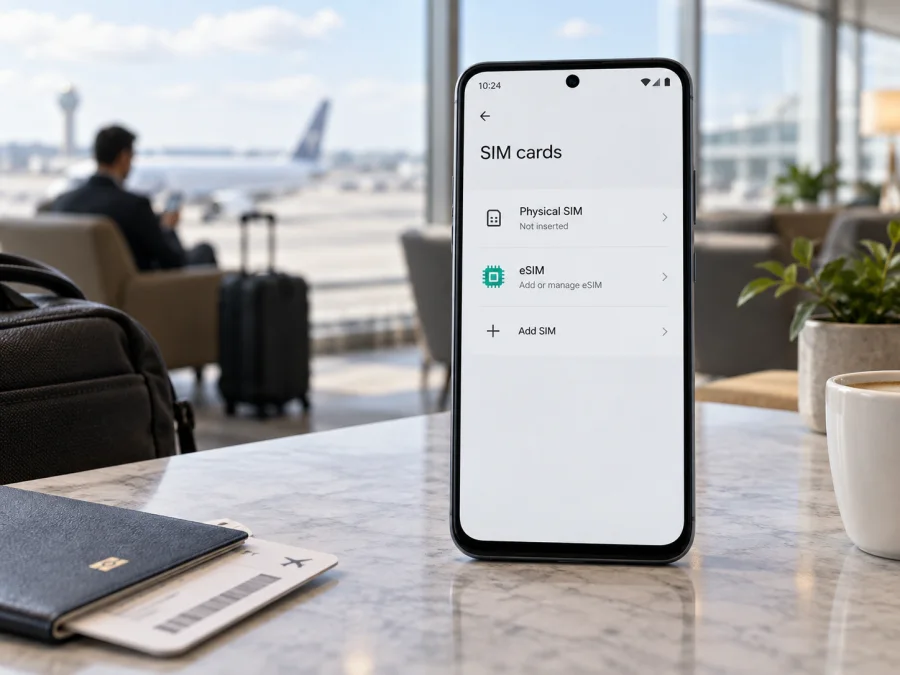
Motorola Moto G54 128GB eSIM compatibility: what to check
Does Motorola Moto G54 128GB support eSIM? Not in every regional configuration, so storage capacity alone cannot confirm compatibility. Motorola’s official support information differs by market: one regional specification that lists 128GB describes a single nano-SIM slot, while another official Moto G54 specification lists one nano-SIM plus one eSIM. Check the full model code, EID, and SIM settings on the exact phone before buying a travel plan.
An eSIM is a digital SIM profile that can provide mobile data without replacing a physical SIM, but a plan cannot add eSIM hardware to an incompatible handset. The Moto G54 name covers market-specific configurations, so do not infer support from another owner’s phone, a 5G label, or an online listing that omits the model suffix.
Motorola Moto G54 128GB at a glance
| Item | Compatibility notes |
|---|---|
| Device | Motorola Moto G54 128GB |
| Storage | 128GB; this does not identify the SIM configuration |
| SIM | Motorola regional information includes nano-SIM-only and nano-SIM-plus-eSIM configurations |
| eSIM verdict | Regional and SKU-dependent; verify the actual handset |
| Checks | Full model number, EID, and “Add/Download eSIM” in Settings |
| Before purchase | Confirm the device is unlocked and accepted by the travel eSIM provider |
Motorola’s regional pages are the deciding evidence here. Its official specification page for a Moto G54 configuration listing 128GB and 256GB shows one nano-SIM slot. A different official regional specification identifies one nano-SIM plus one eSIM, and Motorola’s G54 support instructions include an eSIM setup path. These pages describe different configurations and should not be combined into a claim that all 128GB phones support eSIM. RAM, SIM hardware, supported network bands, firmware, and carrier provisioning may also differ by country. The full model identifier and device settings are more useful than the retail name alone.
Does Motorola Moto G54 128GB support eSIM?
The accurate answer is it depends on the exact market version and SKU. The official manufacturer information confirms that eSIM exists on some Moto G54 configurations, but it does not establish it for every phone sold as Motorola Moto G54 128GB. If the phone’s model code cannot be tied to a regional eSIM-capable specification, treat support as unconfirmed.
Find the complete model number in Settings > About phone and compare it with the box and seller’s listing. Ask Motorola or the seller to confirm whether that exact SKU has an EID and can download third-party eSIM profiles. A statement that a phone is “dual SIM” is not enough: it may refer to two physical SIMs, a physical SIM plus eSIM, or a hybrid arrangement.
Hardware support and network acceptance are separate checks. An eSIM-capable phone may still be carrier-locked or restricted by regional firmware, and a provider may not accept every model. Confirm that the phone is unlocked and that the plan works with its exact variant. The provider’s compatibility information also applies.
How to check EID and eSIM settings
Check the handset itself over Wi-Fi. Android menu labels can vary by update and region, so use Settings search if a path is named differently.
- Record the full model code. Open Settings > About phone and note the model or regulatory number and software version. Include every letter and suffix when asking for help.
- Look for an EID. Check About phone, Device identifiers, or SIM status. Depending on software, it may be under Settings > About phone > SIM status. An EID is the identifier for an embedded SIM; seeing one is strong evidence of eSIM hardware, but it does not prove that the phone is unlocked or that a particular provider will accept it.
- Look for an eSIM command. Open Settings > Network & internet > SIMs and mobile network. Check for Add eSIM, Download a SIM, or Set up an eSIM. You can open the setup screen to confirm it is available; do not scan a plan’s QR code until you are ready to install it.
- Update and recheck. Install available Android updates, restart, and inspect the menus again. Updates may correct a hidden or outdated menu, but cannot add missing eSIM hardware.
- Confirm ambiguous results. If an EID appears but the setup option does not, ask Motorola whether that exact SKU and firmware support profile downloads. If neither an EID nor an eSIM option appears, treat it as incompatible unless Motorola confirms otherwise.
A general Moto G54 compatibility statement may refer to another market version.
<a id="kesim-device-compatibility"></a>
Compatibility checklist before you buy
Use this list for the phone you will actually travel with:
- [ ] Its full model code matches the box and the stated country or region of sale.
- [ ] Settings shows an EID, or Motorola confirms eSIM hardware for that exact SKU.
- [ ] Android offers an eSIM download or add-profile option.
- [ ] The device is unlocked and the provider accepts this model and regional version.
- [ ] The plan covers every destination and its data, validity, and activation terms fit your trip.
- [ ] You have Wi-Fi and the provider’s QR code or manual activation details for installation.
- [ ] You know which SIM is selected for data and how to prevent unintended roaming on your main line.
Check your device’s eSIM compatibility before choosing or paying for a plan.
Before buying a listed phone, ask for its model number and whether Settings shows an EID. “Moto G54 128GB” does not specify RAM, market, or SIM design. Ask the seller to confirm the exact unit, not just the Moto G54 family.
After confirming compatibility, review eSIM options for your trip. Kaspersky eSIM Store is an app and website where travellers can choose, arrange, and activate an eSIM with a mobile-data plan for an international trip. It is not a mobile operator or network owner. Check the plan’s destination, data allowance, validity, and terms; availability and service depend on the plan and local network conditions.
Installing and activating an eSIM on a compatible Moto G54
Keep the phone on Wi-Fi and install the profile on the device you plan to use. Many profiles cannot be freely moved after installation. Motorola’s G54 eSIM instructions use Settings > Network & internet > SIMs and mobile network.
- Read the plan terms. Confirm destinations, data amount, validity, activation trigger, and any device or hotspot limits. Travel eSIMs are often data-only and do not include a regular phone number, calls, or SMS unless stated.
- Prepare the installation. Arrange the plan in the app or website and display the QR code on another screen or have the manual code ready. Use stable Wi-Fi. Keep the code private; it may enable profile installation.
- Add the profile. In Android’s SIM and mobile network settings, select Add/Download eSIM and follow the prompts to scan the QR code or enter details. If your menu differs, search Settings for “eSIM” or use the Android eSIM installation instructions.
- Name and enable it. Give the profile a clear label such as “Travel data.” Keep your physical SIM’s call and message defaults if desired, and select the travel eSIM for mobile data when you need it.
- Set roaming carefully. Some travel profiles require data roaming on the eSIM. Follow the provider’s instructions, and check roaming separately for your home SIM to avoid unintended charges. Disable automatic data switching if the phone could fall back to your main line.
- Observe the activation rule. Installing a profile and starting its validity are not always the same event. Follow the plan terms; validity may begin on first connection or according to another stated trigger. Do not delete an unused profile without checking whether it can be restored.
- Test at your destination. Turn off airplane mode, enable the travel profile, select it for data, and wait for network registration. If instructed, select a supported network manually. Open a webpage with Wi-Fi off to check mobile data.
For another device, the iOS eSIM installation instructions cover the iPhone menu flow. They do not change whether this Motorola variant is compatible. If the Moto G54 reports that it cannot add an eSIM, stop and verify the SKU before purchasing or repeatedly attempting activation.
Using both SIMs while travelling
On an eSIM-capable configuration, you may be able to keep the physical SIM for calls or messages and use the travel eSIM for data. Motorola notes that dual-SIM settings are managed in Settings > Network & internet > SIMs and mobile network. Set the preferred SIM separately for calls, texts, and data, then check the selections again after restarting.
If you need verification texts, ask your home carrier whether incoming SMS works abroad and what it costs. Keep mobile data on the travel eSIM and disable roaming on the home line if that matches your needs.
Travel scenarios
Short city trip: verify EID and model at home, install on Wi-Fi if plan terms allow, and select the travel eSIM for data after landing. Keep essential tickets or maps available offline in case airport coverage is delayed.
Several countries: check that every stop is included in the plan’s destination list and that validity covers the itinerary. A regional plan may suit a multi-country route, but actual service still depends on local network conditions.
Keep your main number: leave the physical SIM enabled for calls or texts if needed, choose the eSIM for mobile data, and review each line’s roaming settings. Confirm the settings again after a restart or software update.
No EID or setup option: do not buy a plan on the assumption that another Moto G54 version is the same. Ask Motorola or the seller to verify the full code. If the unit is physical-SIM-only, consider a compatible local physical SIM or Wi-Fi instead.
Troubleshooting eSIM installation and data
The QR code is rejected. Check Wi-Fi, screen brightness, and whether the entire code is visible. Use manual entry only when the provider supplied those details. A code may be expired or already used; ask the provider before deleting a profile or trying it repeatedly.
There is no Add eSIM option. Check for an EID, update and restart Android, and search Settings for “SIM” or “eSIM.” Confirm the model code and region with Motorola. If both EID and the setup option are absent, an app or carrier code cannot be assumed to enable eSIM.
The profile installs but has no signal. Make sure the profile is enabled and selected for data, airplane mode is off, and the plan covers your location. Enable data roaming on that profile only if required. Allow time to register after arrival and restart once if needed.
Signal appears but data does not work. Check that the eSIM is the data line, the plan is active, and mobile data is on. Follow the provider’s APN or manual network instructions rather than guessing values. Test with Wi-Fi off.
The home SIM uses data abroad. Recheck the data default and automatic switching setting. Turn off roaming for the home SIM if appropriate for your account, while keeping any required roaming setting on the travel profile.
EID exists but activation fails. eSIM hardware does not guarantee acceptance by every provider. Check carrier lock, regional software limits, and activation details. Give the provider the model code and error message through its support channel, but do not send passwords or publish the QR code.
A profile was deleted. Avoid rescanning the same QR code until the provider confirms it can be reused. Some profiles need provider reissue. Ask how to restore access before resetting network settings or factory-resetting the phone; deleting a profile removes it from the device but does not necessarily cancel the plan.
Frequently asked questions
Is every Motorola Moto G54 128GB eSIM-compatible?
No. Motorola’s regional specifications differ, and 128GB identifies storage rather than SIM hardware. Check the full SKU, EID, and setup menu on your handset.
Does 5G mean eSIM is supported?
No. 5G describes network capability. eSIM requires separate hardware and the correct regional software configuration.
Is EID the same as IMEI?
No. They are different identifiers. EID relates to embedded SIM capability; IMEI identifies the device’s cellular equipment. Keep them private.
Will a travel eSIM provide a phone number?
Usually a travel data plan is for mobile internet, not ordinary calls and SMS, unless its terms explicitly include them. Internet apps can make calls over data.
When should I install it?
Follow the plan’s activation terms. If advance installation is allowed, setting it up on Wi-Fi before departure can simplify arrival. Installation may not start validity; the plan rules determine that.
Final device check and trip eSIM
Before paying for a plan, confirm that your Motorola Moto G54 128GB is the eSIM-capable regional version: record its full model number, check for an EID and Add eSIM in Android settings, and confirm that the phone is unlocked. If anything is unclear, ask Motorola or the seller to verify the exact SKU. The 128GB label alone cannot settle compatibility.
When the phone passes, use the Kaspersky eSIM Store app or website to choose, arrange, and activate an eSIM with mobile data for the country or countries on your itinerary. Compare destinations, data allowance, validity, and activation conditions. Installing over Wi-Fi and selecting the right data SIM before you rely on it can make arrival-day setup easier.


