Travel connectivity guide
Motorola Moto G54 5G eSIM: Compatibility & Setup
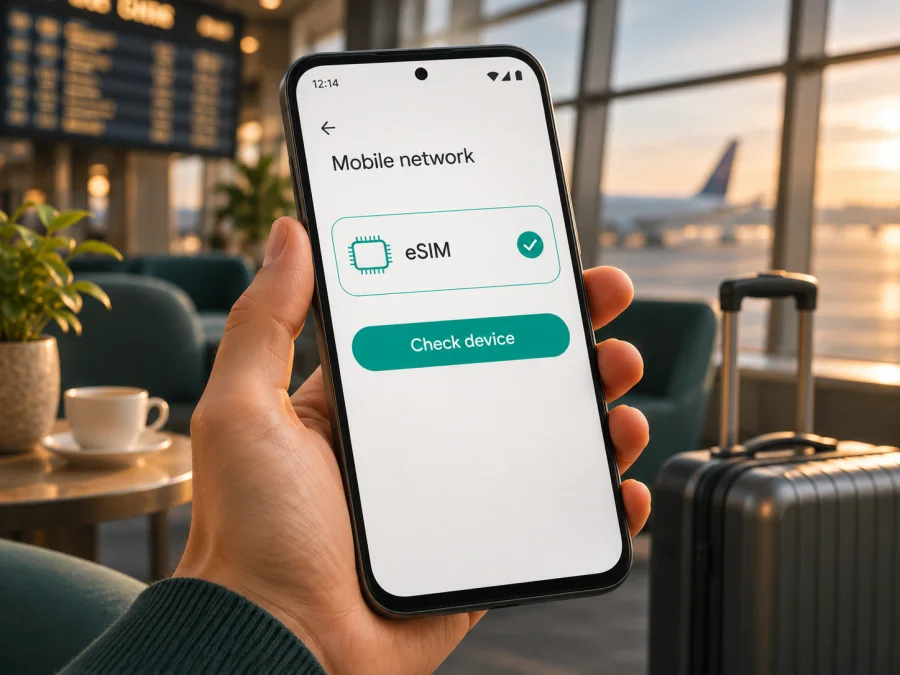
Motorola Moto G54 5G eSIM: compatibility and setup guide
Does the Motorola Moto G54 5G support eSIM?
Sometimes. “Motorola Moto G54 5G” by itself is not enough to confirm eSIM support. Motorola’s own documentation shows that the answer can vary by the exact regional or operator version. A Motorola Moto G54 5G sold with an eSIM-capable configuration can use a digital SIM, while another unit with the same retail name may offer only a physical nano-SIM. Check the phone you actually own, or ask the seller to confirm the exact model number and market before you buy an eSIM plan.
There is official evidence for both configurations. Motorola’s user guide for the Moto G54 5G describes eSIM setup but says the phone might support it. Motorola’s German-language specifications page lists one nano-SIM plus one eSIM. A Spanish-language specifications page on Motorola’s US support site lists one physical nano-SIM only. Those localized pages do not establish the sales market of your handset, map every SKU to a country or operator, or show that every Moto G54 5G has an eSIM. The reliable conclusion is therefore conditional: eSIM is supported on some Moto G54 5G versions, but support must be confirmed on the individual device.
| Check | What it tells you |
|---|---|
| Model name on the box | Identifies the family, but may not distinguish SIM hardware or regional software. |
| Model number / SKU | Helps Motorola or the seller identify the market version. Compare the full code, not only “Moto G54 5G.” |
| EID in the phone’s settings | Strong evidence that the device has an eSIM component. |
| “Add eSIM” or “Download a SIM” in SIM settings | Shows that the current software exposes eSIM setup. The wording and menu path can vary by Android version. |
| Carrier or manufacturer confirmation | Useful when the EID is hidden or the menus differ. Ask about the exact model number and country of sale. |
A 5G label does not guarantee eSIM. Network generation and SIM hardware are separate features. Likewise, two phones with similar storage, RAM, colour, or appearance can still have different market configurations. A carrier may also restrict eSIM activation or lock a handset to its own network. Treat the device’s own settings and a confirmation for the precise SKU as more useful than a marketplace title.
Regional and operator versions: what can differ?
A manufacturer can release a phone family in several markets while adjusting SIM options, supported bands, firmware, preinstalled software, or carrier settings. Retail listings sometimes shorten the product name and omit a regional suffix or model code. That is one reason a specification for a Moto G54 5G in one country should not be applied automatically to another country’s stock.
Operator branding can add another layer. A carrier-issued phone may be network-locked, require carrier approval, or use a customized software build. An eSIM-capable handset can still reject a profile if it is locked, if the carrier does not permit that plan, or if the activation method is not supported. Conversely, seeing two physical SIM status entries only confirms dual physical SIM capability; it does not prove eSIM capability.
When shopping for a used or imported phone, ask the seller for a photo of the Settings > About phone page and the SIM settings page. Confirm the complete model code, country or region for which it was made, whether it is carrier-unlocked, and whether Settings shows an EID or an eSIM setup option. Do not rely only on a generic “global version” label. If the seller cannot verify the feature, treat eSIM availability as unknown until you can inspect the handset in person.
How to check your Motorola Moto G54 5G
Do these checks before you choose or pay for a travel plan. Menu names can vary slightly with Android release, Motorola software updates, and regional firmware.
1. Look for an EID
An EID is the identifier associated with an eSIM component. On many Android phones you can find it under Settings > About phone > Device details or Settings > About phone > SIM status. On some software versions, use the Settings search field and search for “EID.” You can also try opening the phone dialler and entering *#06#; if the software supports it, the device information screen may display an EID alongside other identifiers.
If an EID is shown, note it for your own compatibility check, but do not post it publicly. An EID is a device identifier, not an activation code. You still need a valid eSIM profile and a compatible network plan. If no EID appears, continue with the next check; a menu can be hidden or named differently, so absence from one screen alone is not conclusive.
2. Check SIM and mobile network settings
Open Settings > Network & internet > SIMs & mobile network (or the closest equivalent on your installed Android version). Look for an option such as Add eSIM, Download a SIM, Set up an eSIM, or a separate eSIM entry. Motorola’s guide for supported Moto G54 5G units describes going to the network and SIM settings and choosing the eSIM download/setup option.
If you see the option, open it only far enough to confirm that the setup flow is available. You do not have to scan or install a plan just to check support. If neither an EID nor an eSIM option is visible, check for an official system update, restart the phone, and search Settings again. Then confirm the full SKU with Motorola Support or the retailer. Do not install unofficial firmware to try to add eSIM; a software change cannot safely guarantee that the necessary hardware exists.
3. Confirm the operator lock and market
If the phone was purchased through a mobile operator, ask that operator whether the device is unlocked and can accept a third-party travel eSIM. A phone may have eSIM hardware but still be restricted by a network lock or carrier policy. For imported devices, also confirm that the eSIM feature is enabled for the phone’s original market and software build.
Before choosing an eSIM plan, check whether your device is compatible. Verify the exact phone variant, the EID or setup option, and the destination and network conditions for the plan. Compatibility checks reduce the chance of buying a profile that the phone cannot install.
Prepare the phone before a trip
When the checks above confirm eSIM support, prepare the Motorola Moto G54 5G while you still have a reliable Wi-Fi connection. Keep the phone charged, install available Android and carrier-settings updates, and make sure you can unlock the screen and access your Google account. If possible, keep the QR code or activation details available on a second screen or another device; a phone cannot normally scan a QR code displayed on itself.
Kaspersky eSIM Store is an app and website where you can choose, arrange, and activate an eSIM with a mobile data plan for an overseas trip. First choose the destination or region and review the plan’s data allowance, validity period, supported destination, and activation conditions. Plans are intended for mobile data; a regular phone number, voice calls, and SMS are not included unless the individual plan terms say otherwise. You can continue to use your usual number through your existing SIM where your operator allows it, while selecting the travel eSIM for data.
If you want to review current destinations and available plans, visit Kaspersky eSIM Store. The homepage is a starting point for browsing; it is not a country-specific tariff page. Check the details shown for your destination and selected plan before checkout. Availability, network access, and plan conditions depend on the selected offer and the local network.
Install and activate an eSIM on Android
The exact labels on a Moto G54 5G depend on its software and whether the eSIM configuration is enabled. For Motorola’s documented setup flow, you need internet access and a profile supplied for your device. Keep your original physical SIM installed if you want to continue using it.
- Connect to Wi-Fi. A stable connection helps the phone retrieve the profile. Do not start installation while relying on the connection you are about to replace.
- Open the eSIM setup screen. Go to Settings > Network & internet > SIMs & mobile network and choose the eSIM download or setup option. On some builds, tap a plus sign or Add SIM first.
- Add the profile. Scan the QR code supplied with your selected plan, or enter activation details manually if that method is offered. Follow the phone’s prompts. A QR code is usually for one installation attempt or one device; check the plan instructions before scanning.
- Choose a label. Name the new profile something recognizable, such as “Travel data,” so you can distinguish it from your everyday SIM in the SIM manager.
- Set the data SIM. In SIM settings, choose the travel eSIM for mobile data when you want to use it. Keep calls and messages assigned to your usual number if that is what you prefer and your operator permits it. Check that automatic switching will not unexpectedly route data through your home SIM.
- Follow the activation instructions. Some plans become active when the eSIM is installed; others start when the phone first connects to a supported network or when a separate activation step is completed. Read the selected plan’s timing rules before installation so its validity begins when expected.
- Enable data roaming for the travel profile if required. Some travel eSIMs need roaming enabled to connect to a partner network. Enable it only for the eSIM profile as directed, and confirm your home SIM’s data roaming remains off if you want to avoid unexpected charges.
- Test the connection. Turn Wi-Fi off briefly, confirm the travel profile is selected for data, and load a webpage or open a map. If the trip has not started, the profile may not connect until you reach a supported destination.
For more detail, see the Android eSIM installation instructions and, if you are helping another traveller with an iPhone, the iOS eSIM installation instructions. Keep the activation QR code private. Avoid deleting an installed profile to troubleshoot unless the plan provider or support team tells you to: many eSIM profiles cannot be reinstalled from the same code after removal.
Using the eSIM for mobile data while travelling
Once you arrive in a country covered by your selected plan, the phone should register with a supported local network when the profile is active and configured for data. Connection time can vary. Open Settings > Network & internet > SIMs & mobile network and check that the travel eSIM is turned on and selected for mobile data. If there is a supported network selection option, automatic selection is a sensible first setting.
Keep your home SIM available for your usual number if needed, but review its roaming and mobile-data settings before departure. On a dual-SIM setup, the phone can keep a physical SIM and an eSIM ready, while data generally uses the SIM selected in settings. The active choices depend on the exact device software and carrier. A travel eSIM plan usually supplies mobile data rather than standard calling or SMS; internet messaging and calling apps can work over data, subject to their own requirements.
Consider a few practical scenarios:
- Short city break: install the profile over Wi-Fi before leaving, check the plan’s validity start rule, and use the eSIM for maps, transport apps, and messaging after arrival.
- Several countries in one itinerary: verify that the plan covers every country or territory on the route. A plan for one country should not be assumed to work across a border.
- Keeping your regular number reachable: leave the home SIM enabled for calls or verification messages if appropriate, but select the travel eSIM for data and check roaming charges with your home operator.
- Low or intermittent signal: switch off airplane mode, check the selected data SIM and roaming setting, and try automatic network selection. Coverage and performance depend on local network conditions and the specific plan.
Troubleshooting: when setup or data does not work
Start with the simplest checks, and change one setting at a time. Menu labels differ slightly across Android versions, but the principles are the same.
| Symptom | What to check |
|---|---|
| No “Add eSIM” option | Search Settings for “eSIM,” check for an EID, install available official updates, restart, and verify the full model number with Motorola or the seller. If the feature is absent after confirmation, this variant may be physical-SIM-only. |
| QR code will not scan | Raise screen brightness on the device displaying it, clean the Moto G54 camera lens, use a second screen, and check whether manual activation details are available. Confirm the QR code has not already been used. |
| Profile download fails | Reconnect to stable Wi-Fi, check date and time are set automatically, verify the code and activation instructions, and try again only if the provider says the profile can be retried. |
| eSIM installs but shows no service | Check that the profile is enabled, the destination is covered, the validity or activation condition has been met, and data roaming is enabled for that profile if required. Move to an area with a better signal. |
| Signal appears but apps are offline | Confirm the eSIM is selected as the mobile-data SIM, turn Wi-Fi off to test cellular data, check data limits, and review the APN only if the plan instructions specify a value. |
| Home SIM incurs data use | Recheck the preferred data SIM, disable automatic data switching if offered, and turn off data roaming for the home SIM. Review your home operator’s billing rules. |
| Calls or texts use the unexpected SIM | Set the preferred SIM for calls and messages separately from the mobile-data SIM. Some Android interfaces let you choose a SIM each time. |
| The phone is locked or profile rejected | Ask the original operator to confirm unlock status and ask the eSIM provider to check whether the plan supports the device and market version. A compatible radio alone does not remove a carrier lock. |
Compatibility checklist before you choose a plan
Use this checklist for the exact Motorola Moto G54 5G in your hand:
- [ ] I checked Settings for an EID and an eSIM add/download option.
- [ ] I recorded the complete model number and confirmed its region or sales market.
- [ ] Motorola or the seller confirmed eSIM capability for this particular SKU, especially if the menus are unclear.
- [ ] The handset is unlocked and can accept the eSIM profile I plan to use.
- [ ] The selected plan covers each destination on my itinerary and meets its activation requirements.
- [ ] I understand which SIM will be used for mobile data and how my regular SIM’s roaming charges are handled.
- [ ] I know where the QR code or activation details are and will not delete the profile without guidance.
If one of the first four checks is unresolved, postpone the purchase until you can verify the handset. A phone that supports 5G may still lack eSIM, and a plan’s destination coverage cannot compensate for missing eSIM hardware or a carrier lock. When the device does not support eSIM, alternatives include using a physical SIM that fits the phone and your travel needs, asking your home operator about roaming, or carrying another compatible unlocked device. Check local availability and terms for any alternative.
Frequently asked questions
Does every Motorola Moto G54 5G support eSIM?
No. Motorola documentation shows eSIM setup for supported units and a regional specification with one nano-SIM plus one eSIM, while another regional specification lists a single physical nano-SIM. The exact model number, market, and phone settings matter. Verify the individual device rather than relying on the family name.
Can I use a physical SIM and eSIM at the same time?
On a supported dual-SIM configuration, Motorola’s guide describes using a physical SIM with an eSIM. The exact available combinations and which line handles calls, messages, or data depend on the handset variant and software. Review SIM settings after installation.
Does 5G support mean eSIM is included?
No. 5G describes mobile network capability; eSIM describes a way to store and download a SIM profile. They are independent features, so the 5G name does not settle the eSIM question.
Will the travel eSIM give me a phone number?
A travel data eSIM is generally for mobile internet and does not include a regular number, voice calls, or SMS unless the selected plan explicitly says so. Internet-based messaging and calling apps may work over its data connection.
Final check before your trip
The Motorola Moto G54 5G can support eSIM in some configurations, but the retail name alone does not confirm that your unit can use one. Check for an EID and an eSIM setup option, then confirm the model code, region, and carrier-unlock status if there is any doubt. Once compatibility is clear, compare the destination coverage, data allowance, validity, and activation rules for the plan you choose.
Kaspersky eSIM Store helps you choose, arrange, and activate an eSIM with a mobile data plan for an overseas trip. Check your phone first, then browse available plans for your destination and prepare the profile over Wi-Fi. This simple order—verify the device, review the plan, install the profile, and select it for mobile data—helps you arrive with a clear setup and fewer surprises.


