Travel connectivity guide
Motorola Moto G54 eSIM Compatibility Guide
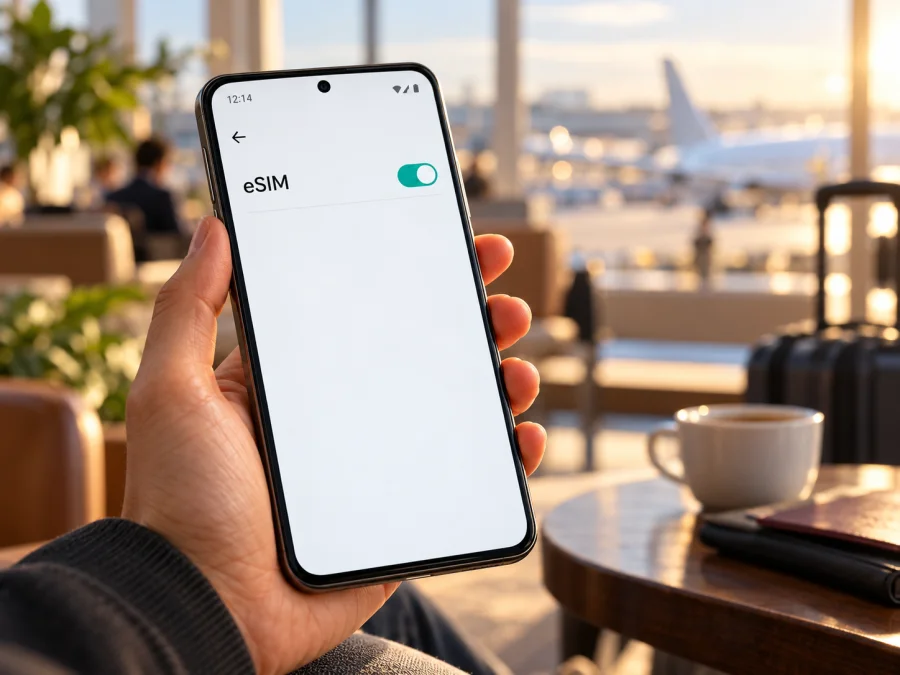
Does the Motorola Moto G54 support eSIM?
The short answer is: some Motorola Moto G54 regional versions support eSIM, but the name alone does not confirm that your individual phone does. Motorola’s own regional specification pages differ. The Germany support specification for the moto g54 5G lists one Nano-SIM and one eSIM; Motorola’s India specification lists two nano-SIM cards. Motorola’s moto g54 5G user guide also uses conditional wording (“might support”) and says to check the phone and carrier. These are distinct market configurations, so do not assume that an eSIM-capable version is sold or activated in every country.
For the phone in your hand, check its EID and SIM settings before choosing a travel plan. If neither appears, treat eSIM support as unconfirmed and ask Motorola or the seller to verify the exact model number and market variant. A product listing that only says “Moto G54” or “5G” is not enough to establish eSIM capability.
Motorola Moto G54 eSIM at a glance
| Check | What can be said |
|---|---|
| Exact device in this guide | Motorola Moto G54 |
| eSIM support | Variant-dependent; Motorola’s official regional information is not uniform |
| What the Germany specification says | One Nano-SIM plus one eSIM |
| What the India specification says | Dual SIM with two nano-SIM cards |
| Manufacturer setup guidance | The user guide describes eSIM setup conditionally and directs owners to check the device and carrier |
| Best individual-device test | Look for an EID and an option to add or download an eSIM in Settings |
| Before buying a travel plan | Confirm that this phone can install an eSIM, is unlocked, and is compatible with the plan and destination network |
The regional comparison follows Motorola Support’s “moto g54 5g – Technischen Daten” and Motorola India’s “moto g54 5G – Spécifications” (checked 17 October 2026). The conditional menu path is from Motorola’s “moto g54 5G” user guide, “Set up eSIM” section, checked the same day.
Check your Motorola Moto G54 before buying
Use more than one check where possible. The order below helps distinguish a capable variant from a general product-family description.
1. Look for an EID
An EID is the identifier associated with an eSIM-capable device. On many Motorola Android builds, open Settings → About phone → Device details and look for EID. Depending on software, the route may instead be under Settings → About phone → Status or a SIM-related screen. You can also search Settings for “EID.”
If an EID is displayed, that is a strong sign that the phone has an eSIM component. Record the model identifier alongside it and confirm with Motorola or the issuing carrier that this specific version is provisioned for eSIM. Do not share the full EID publicly; it is a device identifier and is best provided only to a trusted carrier or support team when requested.
If no EID is shown, restart the phone, install available official system updates, and search Settings again. Menu paths can vary. If it remains absent, treat eSIM capability as unconfirmed and ask Motorola support using the model number. A number shown on a box or in a third-party database is less decisive than the device’s own About screen and manufacturer confirmation.
2. Check for an eSIM menu
Motorola’s moto g54 5G user guide describes this route: Settings → Network & internet → SIMs & mobile network → Download new SIM. The wording may differ slightly by software build; look for Add eSIM, Download a SIM, or a similar action. The guide says that if the option is missing, contact the carrier to confirm whether the phone supports eSIM and to get activation instructions.
A visible add/download option is useful evidence, but stop before installing a profile if you are still unsure which variant you own. Conversely, the absent option alone is not a complete diagnosis: check for updates, confirm that the phone is not managed by an organization, and ask Motorola or the operator to check the exact model identifier. A factory reset is not a sensible first compatibility test.
3. Verify the phone is unlocked and suitable for the trip
An eSIM profile can install successfully while service still fails because a handset is carrier-locked, the plan does not cover the destination, or the local network is incompatible. Ask the original carrier whether the phone is unlocked for another provider. Check the plan’s supported destination, validity conditions, data allowance, and device requirements before paying. The destination, local network, and radio bands matter to service; the “5G” name alone does not promise a 5G connection abroad.
Use this checklist:
- [ ] The About screen shows the exact model identifier and the seller’s stated market matches it.
- [ ] The phone displays an EID or a supported eSIM download/add option.
- [ ] Motorola or the carrier confirms eSIM capability for this exact unit if the screen is ambiguous.
- [ ] The phone is unlocked for the eSIM provider you plan to use.
- [ ] Android and carrier settings are current, and the phone can connect to Wi-Fi for setup.
- [ ] The travel plan covers your destination and its activation/data conditions suit your dates.
- [ ] You know which line will provide mobile data and whether data roaming must be enabled for that eSIM.
Before contacting support, note the About phone model identifier, the country where the phone was purchased, Android version, whether an EID is displayed, and the exact SIM menu wording. A carrier or seller can use those details to check the specific hardware and its provisioning. Ask a direct question: “Does this exact model number support downloading a third-party travel eSIM in this market, and is it unlocked?” Keep the reply with your travel notes. If the answer is uncertain, wait to purchase until you can inspect the handset or obtain written confirmation; otherwise plan for a compatible device or physical SIM alternative. This avoids confusing general family-level support with compatibility of the unit you will carry.
Check your device compatibility before selecting a plan. This check matters especially for an imported Motorola Moto G54, because official regional specifications do not describe one universal SIM configuration.
Install an eSIM on a compatible Motorola Moto G54
Only continue if the phone has passed the checks above and you have received a valid eSIM profile or activation code. Keep a reliable Wi-Fi connection available. The exact labels can differ by Android version and market firmware, so follow the steps shown on your phone and the instructions supplied with the profile.
- Prepare the phone. Connect to Wi-Fi and keep the QR code or activation details accessible. If the code is on this screen, use manual details or another screen if offered.
- Open eSIM settings. Go to Settings → Network & internet → SIMs & mobile network and choose Download new SIM or the equivalent.
- Add the profile. Scan the QR code or enter the activation details, then follow the prompts. Do not repeatedly retry a one-time code after an error.
- Label it. When installation finishes, use a clear name such as “Travel data.”
- Set the data line. In SIM preferences, choose the travel eSIM for mobile data. Keep your home SIM for calls or texts if needed, and review automatic data switching.
- Configure roaming. Enable data roaming on the travel eSIM only if its provider requires it. Keep roaming off on your home SIM if you want to avoid its charges.
- Connect at the right time. Check when the plan starts. In the covered destination, turn off airplane mode, select the eSIM for data, and allow time for network registration.
Motorola’s official user guide advises connecting to Wi-Fi, opening the SIM and mobile network settings, and choosing the option to download a new SIM; if that option is absent, it directs the owner to check compatibility with the carrier. For screenshots and a general Android flow, see the Android eSIM installation instructions. The page notes that menu steps vary by model and its illustrated route is Samsung-specific, so use the Motorola menu names above for this phone. The iOS installation instructions are for Apple devices and do not replace the Android process, but are available for travellers setting up another device.
Do not delete an installed eSIM just to troubleshoot a temporary connection problem. Depending on the provider, a profile or QR code may be single-use, and reinstalling it may require support. First check the selected data line, destination, roaming setting, signal, and plan status. Remove a profile only if the provider or support team instructs you to do so.
Using a travel eSIM abroad
A travel eSIM can provide a separate data line without replacing your physical SIM. This can keep maps and messaging online while your home number remains available, subject to the exact phone and carrier configuration.
For a trip, think through the sequence before departure:
- Before selecting a plan: establish that this exact handset supports eSIM, is unlocked, and meets the plan’s requirements. Check the destination and any regional coverage description shown with the plan.
- Before payment: compare the plan’s data amount, validity period, activation timing, and any top-up or tethering conditions. Choose based on how you expect to use data: navigation and messaging usually need less than frequent video streaming or hotspot use.
- Before travel: install the profile where a dependable Wi-Fi connection is available if the provider permits advance installation. Keep the setup confirmation available offline. Avoid activating early if the plan’s validity begins at installation or first connection and that would waste time before the trip.
- After arrival: select the travel eSIM as the mobile-data line, enable data roaming on that line only if required by the provider, and check that mobile data is on. Keep automatic switching to the home SIM off if your goal is to keep data on the travel plan.
- During the trip: monitor remaining data and validity in the provider’s app or account. Use Wi-Fi for large downloads and updates if you want to conserve the plan. If you use a hotspot, confirm that both the device and plan allow it.
Kaspersky eSIM Store is an app and website where travellers can choose, arrange, and activate an eSIM with a mobile-data plan for an international trip. It is not the mobile operator or the owner of the network. Available plans, supported destinations, activation details, and local network access can change, so review the current terms displayed for the selected plan. The service’s public homepage describes its eSIM plans as data-only; unless a specific plan says otherwise, do not expect a regular phone number, standard calls, or SMS from a travel data eSIM. Internet-based messaging and calling apps can work over the data connection.
Troubleshooting: what to check first
“Add eSIM” or “Download new SIM” is missing
Search Settings for “SIM,” “eSIM,” or “EID,” then check the About phone screen. Restart and install official updates if available. Compare the model identifier with the regional specification for the market where the phone was sold. If there is still no EID or add option, contact Motorola or the original carrier with that identifier. Do not rely on an unrelated Moto G54 variant’s instructions as proof.
The QR code will not scan or the profile will not download
Confirm the phone is connected to stable Wi-Fi and that the code is readable, current, and intended for this device. A code already used on another phone or during an earlier setup may not work again. If available, try manual activation details supplied by the provider. Check that the phone has not reached any profile limit shown in its settings. If the code is rejected, contact the plan provider before deleting profiles or repeatedly retrying.
The eSIM installs but has no signal
Check whether you are physically in a destination covered by the plan and whether the plan has reached its allowed activation time. Turn airplane mode off, restart once, and give the phone time to register. In SIM settings, confirm the eSIM is enabled and the correct one is selected for mobile data. If needed, use the network selection option as directed by the plan provider. A lack of signal can reflect local network availability, location, or a plan restriction—not necessarily a faulty handset.
Signal appears, but apps cannot connect
Make sure mobile data is on and that the travel eSIM is selected for data. Check whether the plan requires data roaming on that line and whether the APN is set automatically or should be entered using the provider’s exact values. Turn off Wi-Fi briefly to test cellular data. Check the provider account for remaining data or validity, and disable any setting that switches data to the home SIM. Do not guess APN values; copy only the configuration supplied for the plan.
It worked at home but not at the destination
Check the plan’s actual destination list, start time, validity, and network requirements. Confirm that the eSIM remains enabled, mobile data is assigned to it, and roaming is configured as instructed. Move to an area with a clearer signal and restart the network connection. If service still fails, contact the plan provider with the phone model identifier, the error message, and the destination; avoid sharing the full EID in a public forum.
Frequently asked questions
Does every Motorola Moto G54 support eSIM?
No universal answer can be given from the family name. Motorola publishes different SIM configurations by region, including an official specification that lists Nano-SIM plus eSIM and another that lists two nano-SIM cards. Check the exact phone’s EID and SIM menu, then verify with the relevant carrier or Motorola support.
Is the India version eSIM-compatible?
Motorola India lists two nano-SIM cards for the moto g54 5G. That does not confirm eSIM for that configuration. Check the handset’s EID and ask Motorola or the seller; another market’s listing cannot settle it.
Does an EID guarantee that a travel plan will work?
An EID indicates eSIM hardware, but activation still depends on unlocking, a valid profile, and destination and carrier support. Check plan compatibility before purchase.
Can I keep my physical SIM and use a travel eSIM?
Motorola’s user guide describes using a physical SIM and eSIM together where supported. The precise dual-SIM behavior depends on the regional Moto G54 configuration and carrier support. If your phone offers both profiles, choose their call, text, and data roles separately and check the line settings after setup.
Will eSIM provide a local phone number?
A travel data plan usually provides internet access only. The Kaspersky eSIM Store public homepage describes the service eSIM as data-only and says it does not include a phone number for regular calls and texts. Check the current terms for the specific plan, and use internet-based calling or messaging apps when appropriate.
Can I move the eSIM to another phone later?
Do not assume that you can. Some activation codes are single-use or tied to the first device, and provider rules differ. Check the plan’s transfer conditions before installation. If the Moto G54 is replaced or reset, contact the provider before removing the profile or attempting another installation.
Does 5G branding mean the eSIM will use 5G abroad?
No. A 5G-capable handset still needs a compatible local network, frequency support, an eligible plan, and coverage at the location. It may connect using another supported generation. Review current network conditions for the destination rather than treating the device name as a guarantee.
Before you travel: verify the phone, then choose a plan
For the Motorola Moto G54, treat eSIM support as a regional-variant question. The strongest first checks are an EID in Settings and a visible add/download eSIM action. Compare the exact model identifier with Motorola’s specification for the relevant sales market, and ask the carrier or manufacturer if those checks disagree. An official specification for one region cannot confirm the hardware or software configuration of every Moto G54 sold elsewhere.
Once your unit is confirmed compatible and unlocked, choose a plan based on the countries or regions on your itinerary, the data you expect to use, the validity period, and when activation begins. Follow the Android setup flow for your software version, select the travel eSIM for mobile data only when you are ready, and configure roaming according to the plan instructions. If this Moto G54 does not show EID or eSIM setup, consider a compatible second device or a physical SIM route rather than relying on an unverified assumption.
You can browse current travel eSIM options and check destinations on the Kaspersky eSIM Store website. This is the general English store homepage, not a Moto G54-specific or country-specific tariff page; review the current destination and plan conditions there after confirming your device compatibility.


