Travel connectivity guide
Motorola Razr 2024 128GB eSIM Compatibility Guide
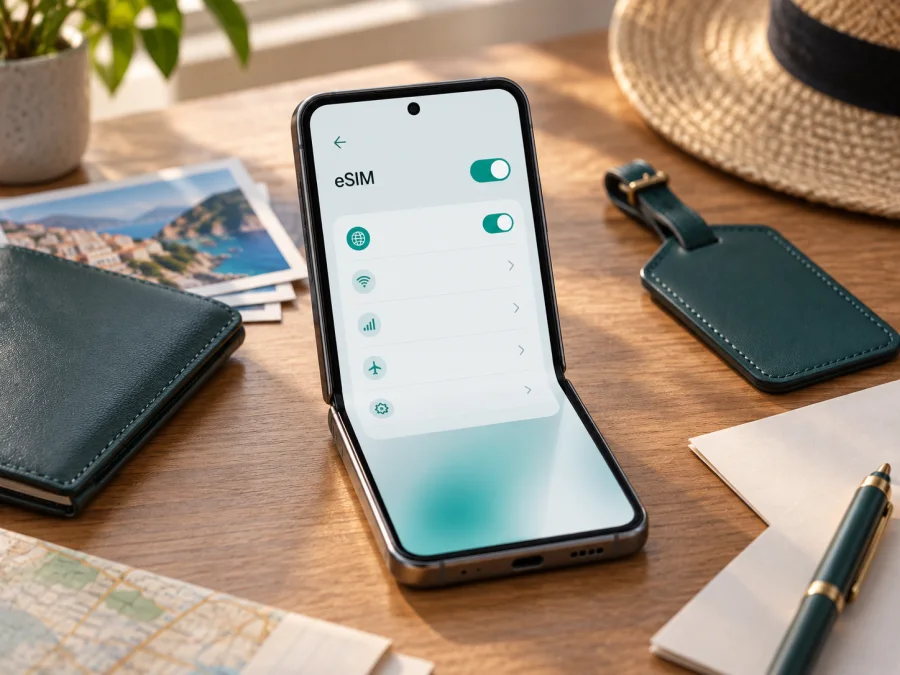
Does Motorola Razr 2024 128GB support eSIM?
Short answer: Motorola’s official support information for the 2024 Razr describes eSIM alongside a physical SIM and provides an Android setup path. The user guide also says eSIM availability may depend on the carrier. So, Motorola Razr 2024 128GB can support eSIM, but the storage label alone cannot confirm that every regional or carrier edition has it enabled. Check the exact phone for an EID and an eSIM download option, then confirm that it is unlocked before buying a travel plan.
The 128GB figure is storage, not the market or hardware build. Imported and carrier editions may differ. Check the EID and SIM menu, then confirm the model or IMEI with Motorola or the carrier.
Motorola Razr 2024 128GB at a glance
| Item | What to know |
|---|---|
| Device variant | Motorola Razr 2024 128GB |
| eSIM answer | Supported on compatible editions; check the individual handset |
| Physical SIM | Motorola describes eSIM in addition to a physical SIM |
| Storage | 128GB; this does not determine eSIM capability |
| Main variables | Market, carrier edition, firmware, and network lock status |
| Best first check | Look for an EID and an eSIM setup option in Settings |
Motorola’s documentation establishes eSIM support in the 2024 Razr line, but not identical availability on every phone sold under a similar listing. Titles may omit the model code, and carrier software can affect SIM controls. A physical SIM tray does not rule out eSIM, while “dual SIM” does not prove the second line is digital.
For a used or imported Motorola Razr 2024 128GB, ask for the model number and country of sale, and have the seller show the EID and SIM settings on the phone. A box label is not enough. Confirm with the original carrier that the device is unlocked; eSIM hardware can still reject another provider’s profile because of a network lock.
Check the handset before buying a plan
Menu names can vary with Android version, market, and carrier software. Try these checks on the phone you will take on the trip:
- Find the EID. Open Settings and search for “EID,” or check About phone → SIM status, Status information, or Device identifiers. An EID is associated with an eSIM chip and is a strong indicator of eSIM hardware, although activation can still be restricted by the carrier.
- Check the SIM menu. Go to Settings → Network & internet → SIMs & mobile network. Look for Download new SIM, Add eSIM, or similar wording. Motorola’s help instructions place the download option in this area.
- Search Settings. Try “SIM,” “eSIM,” or “download a SIM.” If no option appears, restart the phone and check for system updates. A missing menu can indicate a regional limitation, carrier setting, or software issue; it is not conclusive alone.
- Confirm unlock status. Ask the carrier that sold or activated the handset whether this exact model and IMEI can use another provider’s eSIM.
- Check the plan. Confirm the destination is covered and that the provider accepts this Android device. Ask support to verify a restriction before purchase if your phone’s details are unclear.
An EID is a long numeric identifier; share it only with a carrier or support team when needed. An EID plus an add/download control is a positive sign. If neither appears, ask Motorola or the original carrier to verify the variant.
Check whether your device is compatible
Compatibility checklist
Before ordering, make sure you can check each item:
- [ ] The handset is the Motorola Razr 2024 128GB you plan to travel with, not another Razr generation.
- [ ] Settings shows an EID or an eSIM setup control.
- [ ] The device is unlocked, or the original carrier confirms the intended eSIM is allowed.
- [ ] The eSIM provider supports your device and covers every destination on your route.
- [ ] You understand the plan’s data allowance, validity, and activation trigger.
- [ ] You have Wi-Fi and enough battery for setup.
kesim-device-compatibility
A completed checklist means the phone appears ready for setup; it cannot guarantee local coverage or service quality. Those depend on the plan and network conditions. If the EID is absent, the phone is locked, or the model number is uncertain, get confirmation before buying, especially for imported and carrier-supplied models.
Install and activate an eSIM
Connect to stable Wi-Fi first. Keep the QR code or activation details visible on another screen or printed page, since one phone generally cannot scan a code displayed on itself. Do not delete an installed profile just to repeat a scan: some profiles can only be installed a limited number of times or are tied to the first device. Follow the plan provider’s instructions if setup fails.
- Read the plan terms. Confirm destinations, data, validity, and when the plan starts. Some plans begin at installation; others start on first connection to a supported network. Follow the selected plan’s terms.
- Open SIM settings. On Motorola Razr 2024 128GB, try Settings → Network & internet → SIMs & mobile network → Download new SIM. If the label differs, search Settings for “eSIM” or “SIM.”
- Add the profile. Choose download or add a SIM, scan the provider’s QR code, or enter details manually if offered. Follow the prompts and stay on Wi-Fi until the profile finishes downloading.
- Name and select the line. Use a label such as “Travel data.” Keep your regular line for calls or texts if needed, and select the travel eSIM for mobile data when appropriate. Check the selected line before changing call, SMS, or data defaults.
- Set roaming as instructed. Some travel eSIMs require data roaming on that eSIM; others do not. Follow the provider’s instructions. Check that roaming is not enabled on your home line unless you intend to use it and understand its charges.
- Activate at the right time. If validity starts at first network connection, you may be able to install before departure and enable the profile on arrival. Other plans require earlier activation. Use the plan’s directions.
- Test the connection. At the destination, enable the travel line and mobile data. Turn Wi-Fi off briefly, load a simple page, and confirm data uses the travel eSIM. Check balance and validity in the provider’s account where available.
For Android setup help, see Android eSIM installation instructions. The iOS eSIM installation instructions apply to a separate Apple device.
Kaspersky eSIM Store is an app and website where you can choose, arrange, and activate an eSIM with a mobile data plan for an international trip. It helps you prepare a travel connection on a compatible phone; it is not a mobile operator and does not own a network. Compare the destination, data allowance, validity, and activation terms with your itinerary before choosing a plan.
Use the eSIM while travelling
A travel eSIM provides data without removing your home SIM. Select it for data and keep your usual line for other functions if needed. Dual-SIM behavior varies, so check the selected data line before departure and after landing.
Before departure: install over Wi-Fi, read the start instructions, and save support details for offline access. If validity starts on first connection abroad, leave the profile disabled until the recommended time. Consider turning off automatic data switching to avoid using the home line’s allowance when the travel eSIM signal is weak.
After arrival: enable the travel profile and select it for data. Turn on roaming for that line only if required. Give the phone a few minutes to register. If pages do not load, confirm the selected line, plan status, and remaining data.
On a multi-country route: check coverage for every stop and layover. A single-country plan may not include a nearby destination; verify each country in a regional plan too. Crossing a border may require registration on a new network, and briefly toggling airplane mode can prompt a fresh connection.
For maps and messaging: data can support navigation, translation, bookings, and messaging apps. Download offline maps and key documents before departure. Unless stated otherwise, treat travel eSIMs as data-only: a phone number, cellular calls, and SMS may not be included. Internet calls depend on the app and local availability.
Monitor data use because video, backups, updates, and hotspot sharing can consume an allowance quickly. Use data controls and Wi-Fi for large downloads. Check hotspot terms. If your home SIM stays active for calls or texts, review its roaming policy separately; selecting another line for data does not prevent all home-carrier charges.
Troubleshooting common problems
Change one setting at a time and note its original value so you can restore it.
No Add eSIM or Download new SIM option: search Settings for “eSIM,” check for an EID under device identifiers or SIM status, restart, and install available updates. If the option remains missing, contact Motorola or the original carrier with the full model number and IMEI. The unit may be a market or carrier version without eSIM enabled.
QR code will not scan: raise the brightness of the screen displaying it, clean the camera lens, and hold the phone steady. Make sure the code belongs to this plan and has not already been used. If necessary, display it on another device or use manual entry if available. Do not repeatedly delete and reinstall a profile unless support confirms it can be reused.
Download or activation error: reconnect to stable Wi-Fi, check that date and time are automatic, restart once, and confirm the activation details are complete and the plan has not expired. If the code is reported as used, contact the provider before retrying; the profile may already be assigned to the phone.
Profile installed, but no data: enable the travel eSIM, select it for mobile data, and check that you are in a covered destination. Turn on roaming for that line only if instructed. Confirm airplane mode is off, then restart or briefly toggle airplane mode to request network registration. Check plan validity and remaining data.
Signal but pages do not load: confirm mobile data uses the travel line, test with Wi-Fi off, and compare any APN details with the provider’s instructions rather than guessing. A temporary local outage or congestion can also interrupt service, so try again after a short wait.
Unexpected home-line charges: return to SIM settings and check the data line. Disable roaming on your home SIM if you do not want it to use partner networks, and turn off automatic data switching if available. Keeping the line active can still have consequences under your home carrier’s terms.
Avoid erasing the profile as an early fix. You may need a replacement activation code to reinstall it. Ask the provider whether it can be restored or transferred. If the issue is an absent EID, missing setup control, or network lock, Motorola or the original carrier can verify the handset configuration.
Frequently asked questions
Is eSIM supported on Motorola Razr 2024 128GB?
Motorola’s official 2024 Razr information describes eSIM and an Android download path, while noting that carrier availability may vary. The 128GB label cannot guarantee support on every regional or carrier version. Check the phone for an EID and setup option, and verify that it is unlocked.
Does 128GB storage affect eSIM compatibility?
No. Storage capacity describes space for files and apps. eSIM depends on the hardware, market version, firmware, and carrier configuration. Phones with the same storage can have different regional settings.
Can I use the eSIM and physical SIM together?
Motorola describes eSIM in addition to a physical SIM for the 2024 Razr. Whether both lines can remain active and how calls, texts, and data are routed depend on the exact edition and carrier. Choose each default in SIM settings and review your home carrier’s terms.
What if Settings shows no EID?
Check device identifiers and SIM status, search Settings, restart, and update the phone. If no EID or eSIM control appears, ask Motorola or the original carrier to check the exact model number and IMEI. Do not rely on a generic listing as proof.
Will the travel eSIM include a phone number?
Not necessarily. Many travel plans provide data only and do not include ordinary calls, SMS, or a number. Check the selected plan’s terms. Messaging and internet calls may work through apps over data, which is different from cellular voice service.
Can I install before the trip or move the profile later?
Installing over Wi-Fi before departure is convenient, but when validity begins depends on the plan. Some profiles may be tied to the first device or require provider assistance to transfer. Check the terms before installing, moving, or deleting a profile.
Final device check and travel eSIM choice
Before paying, check the Motorola Razr 2024 128GB you will carry: look for an EID, confirm that SIM settings offer eSIM download or addition, and verify that the carrier has unlocked it for your intended eSIM. If these checks conflict with the listing, ask Motorola or the original carrier to identify the regional version.
After compatibility is clear, choose a travel eSIM for the countries on your itinerary. Compare coverage, data allowance, duration, activation timing, and hotspot terms with how you expect to use the phone. Kaspersky eSIM Store is an app and website that helps you choose, arrange, and activate an eSIM with a mobile data plan for an international trip. Install it on the confirmed compatible handset, select it for travel data when appropriate, and keep your home SIM’s roaming terms in view.


