Travel connectivity guide
Motorola Razr 40 128GB eSIM: Check Compatibility
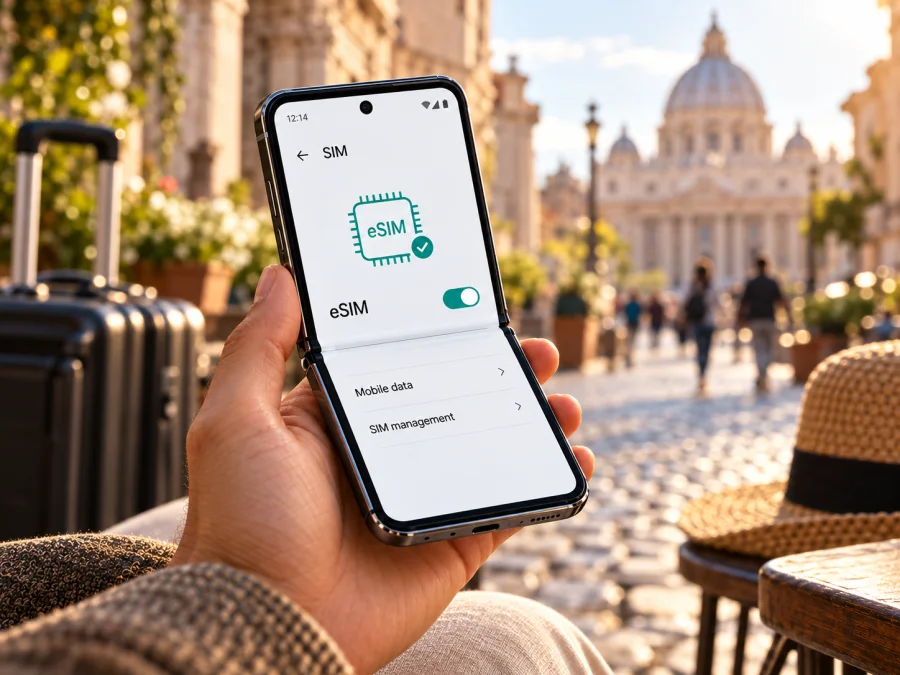
Motorola Razr 40 128GB eSIM: compatibility and setup guide
The Motorola Razr 40 128GB may support eSIM, but the storage label alone cannot confirm that the particular phone in your hand has eSIM enabled. Motorola’s support guide for the razr 40 describes eSIM setup and cautions that the phone might support it; the exact hardware version, country of sale, carrier customisation and software can matter. Treat the answer for this specific 128GB listing as check the individual unit before purchase. If its settings show an option to download an eSIM and it has an EID, that is strong evidence that the device can provision an eSIM. If either is missing, ask Motorola or the seller to verify the exact model code and market variant.
That distinction matters when preparing a trip. A phone can have two SIM options on its product family page while an individual regional or operator version differs. A capacity such as 128GB describes storage, not eSIM capability, carrier unlocking or support for a specific travel plan. This guide explains how to check those points, install a profile safely and select it for mobile data abroad.
Motorola Razr 40 128GB at a glance
| Check | What to know |
|---|---|
| Device named in this guide | Motorola Razr 40 128GB |
| eSIM answer | Possible on supported versions; verify the exact handset. “128GB” does not settle compatibility. |
| Manufacturer guidance | Motorola provides eSIM setup instructions for the razr 40, while noting that eSIM support may depend on the phone and carrier. |
| Software menu to look for | Settings → Network & internet → SIM cards, then an option to download or add an eSIM. Wording can differ by Android version and language. |
| Hardware identifier | EID, shown in device status information on eSIM-capable configurations. |
| Other checks | Confirm the exact model code, the handset is unlocked, the plan covers your destination and the provider accepts this device. |
| Best time to check | Before buying a travel plan, while you can still contact the seller or return the phone. |
Does the Motorola Razr 40 128GB support eSIM?
It can, but you should not assume that every Motorola Razr 40 128GB does. Motorola’s razr 40 instructions explain how to download and set up an eSIM. In the same instructions, Motorola qualifies support: the phone “might” support eSIM and directs customers to confirm details with their carrier. Its general help page is therefore useful evidence that the model family has eSIM-capable configurations, but it is not a guarantee for every unit sold under this product name.
The exact phrase “Motorola Razr 40 128GB” does not include the full model code or country variant. Retail listings often shorten names, and the same storage size can be offered in more than one market. To make a reliable decision, identify the handset’s model number in Settings → About phone, on the box label or in the seller’s specification sheet. Then check the actual phone for an EID and eSIM controls. If buying remotely, ask the seller to confirm both for the precise model code and provide a return option if eSIM is essential.
Why versions can differ
Keep these three checks distinct:
- Device capability: Does this precise handset expose eSIM hardware and the setup controls?
- Device status: Is it carrier-unlocked, and is the software configuration allowed to add a profile?
- Plan and destination: Does the travel eSIM plan support this device and include the country or region on your itinerary?
If the phone is new to you, ask the seller for the manufacturer model code rather than relying on a generic “global version” label. If the phone is already yours, the on-device checks below are more useful than an online listing for a similar-looking unit.
Check compatibility before you buy
Use this checklist on the handset itself whenever possible:
- [ ] Open Settings → About phone and note the full model number and software version.
- [ ] Open Settings → Network & internet → SIM cards. Look for Add eSIM, Download a SIM, Download an eSIM or similarly worded control.
- [ ] Open the phone information or SIM status page and look for an EID. On some Android versions, dialling
*#06#displays device identifiers, including EID where available. If the code does not show it, use Settings or ask Motorola support; do not treat that alone as a failure. - [ ] Confirm that the handset is not carrier-locked. Ask the current operator or seller if the status is unclear.
- [ ] Check that the device is not subject to an account, financing, management or activation restriction that would prevent adding a new profile.
- [ ] Check that the travel plan covers the destination and that the provider accepts the exact model and market variant.
- [ ] Make sure you can connect to Wi‑Fi during installation, particularly if you will install the profile before departure.
Quick decision: An EID plus a working eSIM setup option is a strong positive indication. If you see neither, do not buy a plan on the assumption that the 128GB version supports eSIM. Confirm with Motorola or the seller using the model code and your country of purchase. If the setting exists but installation fails, the issue may be carrier lock, plan eligibility, a temporary connection problem or an activation rule rather than missing hardware.
For a broader device check, use Check your device before placing an order. It is especially useful when the phone’s exact variant is not clear from its listing.
Prepare the phone for a travel eSIM
Before purchasing a plan, settle the compatibility questions and make sure the phone is ready to accept a new profile. Connect to a reliable Wi‑Fi network, install available Android updates, and confirm that you can unlock the device and open its network settings. If the phone is managed by an employer or has a carrier profile, check whether those controls restrict eSIM installation.
The travel eSIM discussed here is for mobile data. Do not assume it gives you an ordinary phone number, standard voice calling or SMS; those features depend on the specific plan terms. Internet messaging and voice apps may work over data, subject to the apps’ requirements.
Install and activate an eSIM on the Motorola Razr 40 128GB
Motorola’s menu labels can change slightly with Android updates, country settings and carrier software. The usual route on the razr 40 is Settings → Network & internet → SIM cards, followed by an option to download or set up an eSIM. Follow the instructions that come with your selected plan if they differ. For general guidance, see the Android eSIM installation instructions and iOS eSIM installation instructions; the Android guide applies to this phone.
Step-by-step setup
- Confirm compatibility first. Check that the EID and eSIM control are present and that the phone is unlocked. Do this before buying the plan whenever possible.
- Choose a plan for the destination. Review the listed countries, data allowance, validity period, activation conditions and any device requirements. A regional plan can be useful for a multi-country route if all destinations are included.
- Read the installation instructions. Check whether the plan is installed by QR code, app, or manual activation details. Keep the QR code or instructions accessible on another screen or printed page if the Razr will be used to scan it.
- Connect the phone to Wi‑Fi. Motorola recommends a network connection for eSIM setup when mobile service is unavailable. Keep Wi‑Fi connected until the profile finishes downloading.
- Open the SIM settings. Go to Settings → Network & internet → SIM cards and choose the option to add, download or set up an eSIM. If Android asks you to confirm a download, review the plan details before continuing.
- Scan or enter the activation information. Use the provider’s instructions. If scanning a QR code displayed on the same phone is not possible, open it on another device or use the manual method if the plan supports one.
- Wait for installation to complete. Keep the phone powered on and connected. Do not scan repeatedly or delete a profile because a screen appears to pause; first check the on-screen status and the plan’s installation guidance.
- Name the new line. A label such as “Travel” can help distinguish it from your home SIM. Labels are for your convenience and do not change the plan or its coverage.
- Select the data line. In SIM settings, choose the travel eSIM for mobile data when you want it to carry internet traffic. If you want the home SIM to keep handling calls or messages, verify that selection separately.
- Activate for the trip according to the plan terms. Some plans are intended to be installed before travel and used after arrival; others begin their validity at a different point. Follow the timing stated for that plan, rather than assuming installation and activation are identical.
- Test the connection. When the plan is ready for use and you are in a covered destination, turn on mobile data for the travel eSIM. If necessary, enable data roaming for that profile as instructed by the plan provider. Confirm that websites or apps load.
Kaspersky eSIM Store is an app and website where you can choose, arrange and activate an eSIM with a mobile-data plan for an international trip. Review the destination and plan conditions before continuing, and install only after confirming that the Razr can add an eSIM. The app or website helps you prepare the plan; the mobile network used in the destination is determined by the plan’s service arrangements.
QR-code and activation care
Use the travel eSIM for mobile data abroad
After arrival, open Settings → Network & internet → SIM cards and confirm that the travel line is enabled and selected for mobile data. If the plan instructions require data roaming, switch it on for the travel eSIM specifically. Check the selected line carefully: turning roaming on for the wrong SIM can lead to charges from your home operator. Keep the home line’s data roaming setting off unless you intend to use it and have checked its terms.
Troubleshooting: eSIM not found or no mobile data
Try the checks below in order. Menu names may vary by software version.
There is no “Add eSIM” option
Restart the phone and look again under Settings → Network & internet → SIM cards. Check the full model number and search the phone information page for an EID. Install pending system updates if appropriate. If the option and EID are still absent, contact Motorola or the seller with the model code and country of sale. The “128GB” capacity by itself cannot resolve whether this particular version supports eSIM.
The QR code will not scan or the download stops
Confirm that the phone is online through Wi‑Fi, the displayed code is legible, and the plan is intended for this device and destination. Use another screen to display the QR code, increase its brightness, and avoid reflections. Check the plan instructions for whether the activation code can be reused. If the phone reports that the code is already used or invalid, ask the plan provider to check its activation status before deleting profiles or repeating the process.
The eSIM is installed but does not connect
Check that the profile is enabled, selected for mobile data and within the plan’s coverage area. Confirm that the plan is active under its stated conditions and that data roaming is enabled for that profile only if required. Turn airplane mode on briefly and then off, or restart the phone. Check the status bar for signal. If the phone allows manual network selection, return to automatic selection unless the plan provider gives a specific instruction.
The phone says “No service” or “SIM not recognised”
Restart the device, check the eSIM profile’s status and confirm the line is enabled. Make sure the handset is carrier-unlocked and that the plan is compatible with the exact variant. Motorola’s troubleshooting guidance advises checking account setup with the carrier; for a travel data plan, contact the plan provider to verify activation and destination eligibility. Avoid erasing an installed eSIM unless support instructs you to do so.
Mobile data works on the wrong SIM
Open SIM settings and verify the line selected for mobile data. Confirm that the travel eSIM is on and that the home SIM’s roaming settings match your intentions. If you use dual SIM, test which line is selected after restarting; some settings can be reset or changed when a profile is added.
Connection is slow or intermittent
Check the signal level, your physical location and whether the plan’s supported network is available there. Move to an area with better reception, disable and re-enable the eSIM line, and restart the device. Check the plan’s data allowance and validity. If the issue persists, provide the plan provider with the destination, approximate location, time, model code and a description of the settings checked. Do not post your full EID, QR code or activation credentials publicly.
Frequently asked questions
Is eSIM guaranteed on every Motorola Razr 40 128GB?
No. Motorola publishes eSIM setup information for the razr 40 family but says the phone might support eSIM and advises confirming with the carrier. The 128GB storage label does not identify the SIM configuration. Verify the precise model and handset settings.
Can I tell from the box or online listing?
A listing that names eSIM is a useful clue, but it may cover more than one regional version. Check the full model number on the box and confirm that the EID and eSIM setup menu are present on the actual phone. If you cannot inspect it before purchase, ask the seller in writing about eSIM, carrier lock and the return policy.
Does an EID guarantee that my travel plan will work?
No. It indicates eSIM-related hardware capability, but the handset must also be unlocked and permitted to add the profile. The plan must accept the device and cover the destination. Review all three before ordering.
Can I use a physical SIM and an eSIM at the same time?
The Razr 40 supports SIM management, but available combinations and active-line behaviour can depend on the version and software. Check the SIM settings on your unit and test the intended arrangement before departure. Select the correct line for mobile data.
Does a travel eSIM replace my regular number?
A travel data eSIM is generally intended to provide mobile data for the trip. Whether it includes a phone number, voice or SMS depends on its specific terms. Keep your regular SIM if you need your home number, and check roaming charges with your usual operator.
Should I erase the eSIM if it stops working?
Not as a first step. Check that it is enabled, selected for data, within coverage and properly activated. Motorola warns that erasing removes the profile from the phone; ask the plan provider before deleting it, because restoration or reinstallation may require support.
Final check before your trip
For the Motorola Razr 40 128GB, the dependable answer is conditional: eSIM is available on supported razr 40 configurations, but the storage size does not establish that your exact regional or operator version has it enabled. Check the model code, EID and eSIM option in Settings, verify that the device is unlocked, and confirm that the plan supports both the handset and your destination.
Do those checks before buying a travel plan. Once compatibility is clear, choose a plan by destination, data amount, validity and activation conditions. Kaspersky eSIM Store’s app and website let you choose, arrange and activate an eSIM with a mobile-data plan for an international trip. Install it according to the plan instructions, select it for mobile data when appropriate, and keep your home SIM settings and roaming charges in mind. A few minutes spent checking the exact phone version can prevent an avoidable setup problem after you arrive.


