Travel connectivity guide
Motorola Razr 40 256GB eSIM: compatibility guide
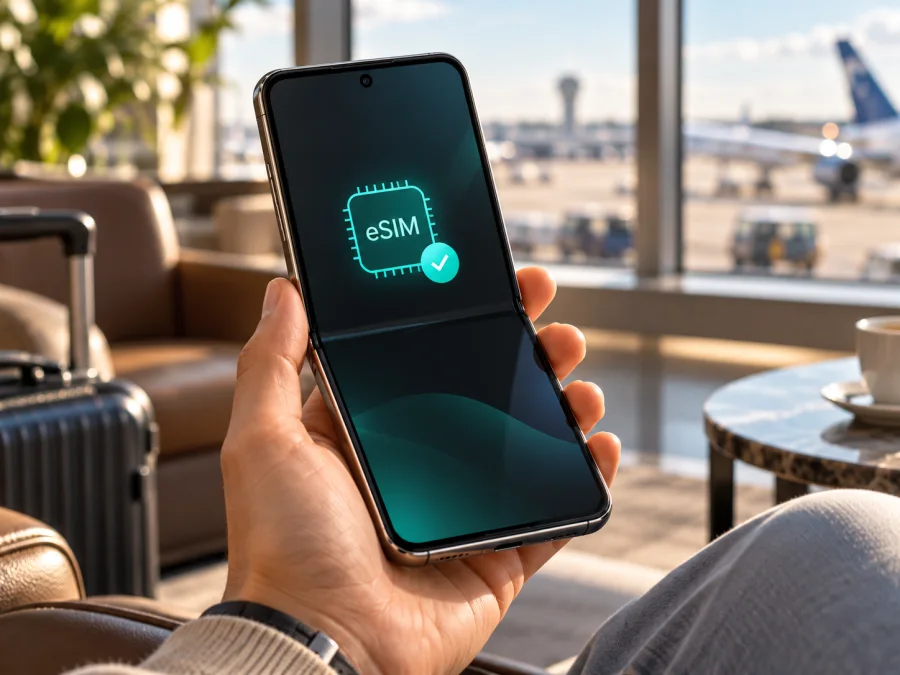
Motorola Razr 40 256GB eSIM: compatibility and setup guide
The Motorola Razr 40 256GB can use eSIM in configurations documented by Motorola, alongside a physical nano-SIM. Motorola’s support page describes eSIM setup for the Razr 40, and its product catalogue includes an 8 GB RAM / 256 GB storage configuration. However, “256GB” alone does not identify the regional model number, firmware, or carrier profile. Before choosing a travel plan, check that the individual phone exposes eSIM settings and is not restricted by its selling carrier.
This guide explains how to check compatibility, add a profile, select it for mobile data, and troubleshoot setup problems. Menu labels may vary by region or software version.
Does Motorola Razr 40 256GB support eSIM?
Yes, the Motorola Razr 40 supports eSIM in documented configurations. Motorola lists eSIM with nano-SIM in its Razr 40 specification material and publishes an eSIM setup guide for this model. This supports a practical answer for the 256GB variant, but it does not prove that every phone sold under the Razr 40 name has identical SIM hardware or carrier permissions.
The storage capacity does not itself enable eSIM. The important details are the phone’s exact model or SKU, the country where it was sold, its firmware, and whether the device is carrier-locked. A 256GB listing may refer to a retail configuration from one market, while another region may use a different model identifier or SIM configuration. Do not assume that another Razr generation, the Razr 40 Ultra, or a similarly named phone behaves identically.
Motorola’s public guidance also says to contact the carrier for details. This is relevant when a carrier supplied the handset, controls the device profile, or must enable eSIM provisioning. A phone may have eSIM hardware yet fail to download a profile because of a carrier restriction, network policy, or a mismatch between the travel plan and the device’s regional variant.
| Item | What can be stated for Motorola Razr 40 256GB |
|---|---|
| Device name in this guide | Motorola Razr 40 256GB |
| eSIM | Supported in Motorola-documented Razr 40 configurations; confirm on the exact handset |
| Physical SIM | Motorola lists a nano-SIM alongside eSIM in supported configurations |
| Storage variant | Motorola’s catalogue lists an 8 GB RAM / 256 GB configuration in at least one market |
| Network use | A compatible plan and available local network are still required |
| Main checks | Model/SKU, EID or Add eSIM menu, carrier lock, software, plan eligibility |
A “Razr 40 256GB” listing does not identify the regional configuration. If importing or buying second-hand, ask for the model number and confirm eSIM in Settings before purchase.
How regional and carrier versions can differ
Motorola sells market-specific configurations. Storage is only one part of the phone’s identity: model number, sales region, carrier build, and firmware can affect network bands, SIM options, and eSIM provisioning.
For a Razr 40 256GB, check the box label, invoice, or Settings → About phone → Model (wording varies). Record the identifier exactly as shown; do not infer it from the colour, storage listing, or the “Razr 40” name. If the device was sold by an operator, ask that operator whether the handset is unlocked and whether eSIM downloads are enabled. A phone bought unlocked may still have a region-specific configuration, so the on-device check remains useful.
Check three things separately: whether the handset shows an EID or Add eSIM option; whether the phone and plan can accept the profile; and whether the plan covers your destination on compatible networks. An EID does not prove the phone is unlocked or guarantee that every plan will install. A missing menu may reflect regional software or a carrier restriction, so confirm with the seller or carrier before paying.
Check eSIM on your own phone before buying
Use both the Settings menu and, when possible, the EID check. A menu can be renamed after a software update, so search Settings for “SIM” or “eSIM” if the path below is not exact.
Quick compatibility checklist
- [ ] Confirm the device is the Motorola Razr 40 256GB configuration you intend to use, and note its model number.
- [ ] Open Settings → Network & internet → SIM cards. Look for an option such as Download a new eSIM, Add eSIM, or Set up eSIM.
- [ ] Search Settings for EID. Depending on the software version, it may appear under About phone, SIM status, or a status-information screen.
- [ ] If the phone has an EID or an Add eSIM option, confirm with the seller/carrier that it is not locked and that eSIM activation is permitted.
- [ ] Check that the phone is online over Wi-Fi before installation and that its software is up to date.
- [ ] Read the travel plan’s country or regional coverage, data allowance, validity period, activation rules, and device requirements.
An EID is a long numeric identifier for the embedded SIM; it is different from the IMEI. Do not post it publicly or share passwords or one-time codes. It indicates eSIM capability but does not guarantee that a specific plan will be approved.
If you cannot find an EID, open the SIM settings and look for an eSIM download option. Restart once and check again after installing available system updates. If neither appears, contact the seller or carrier with the model number and ask whether that exact regional version supports eSIM. Do not buy a plan on the assumption that a menu will appear later.
For a broader device check, check whether your device is compatible. Confirm compatibility on the phone you will actually take on the trip, not just a related model in a product family.
What to check before choosing a travel eSIM
Once the device passes the check, review the plan. Kaspersky eSIM Store is an app and website where you can choose, arrange, and activate an eSIM with a mobile-data plan for an international trip. It is not a mobile operator and does not own the networks used; access depends on the selected plan and local network availability.
Match the named country or region to your full itinerary; a country plan may not include every stop. Compare the data allowance with your expected maps, messages, browsing, and video use. Check validity and when it starts: some plans begin at installation, others on first connection, so follow the selected plan’s terms.
A travel data eSIM usually does not include a regular number, calls, or SMS unless the selected plan says so. You can keep your regular SIM for calls and messages if its terms allow, while selecting the travel profile for data. Check home-line roaming charges before departure.
Before purchase, check the exact Razr model and carrier status, confirm the plan covers every intended destination, and review data, validity, and activation conditions. Choose an eSIM plan for your trip after confirming that the handset is eligible. The homepage is a starting point for browsing current destinations and plan information; it is not a country-specific tariff page.
How to install an eSIM on Motorola Razr 40 256GB
Before installing, connect to Wi-Fi and have the QR code or activation details ready on another screen. Check that the profile is meant for this phone; many QR codes can be used only once. Do not delete a working eSIM unless the provider explains how to restore it.
Install from the phone settings
- Connect to Wi-Fi. Keep the connection active while the profile downloads. Motorola recommends Wi-Fi when the phone does not already have a network connection.
- Open SIM settings. On the Razr 40, go to Settings → Network & internet → SIM cards.
- Choose the eSIM option. Tap the option to download or set up an eSIM. The exact label may differ by software version.
- Follow the activation flow. Scan the QR code or enter the activation details supplied with the plan. Check that the details are intended for this device and destination.
- Wait for the profile to download. Do not close Settings or switch off Wi-Fi during installation. A profile may take a few minutes to register.
- Name the profile. Use a clear label such as “Travel” or the destination name so you can tell it apart from your regular SIM.
- Choose how to use the SIMs. Keep your regular line enabled if you need its calls or messages, and select the travel eSIM for mobile data when appropriate.
- Set roaming for the correct line. If the selected plan requires data roaming, enable it on the travel eSIM only. Check the plan instructions and keep roaming disabled on your home SIM if you want to avoid unintended charges.
- Test the connection. When the plan is meant to be active, turn Wi-Fi off briefly and check a webpage or map. If there is no service, follow the troubleshooting steps below before removing the profile.
SIM profile choices vary by software and carrier. Installing an eSIM does not necessarily make it the default data line, so verify the selection.
If the QR code is displayed on the Razr itself, open it on a second device or use a supported manual method. Keep one-time activation details private.
For illustrated steps, see the Android eSIM installation guide. The iOS installation guide is useful if you are preparing another Apple device, but its menus do not apply to the Motorola Razr 40.
Install before departure or after arrival?
If allowed, install the profile in advance over dependable Wi-Fi. First check when validity begins: if it starts on first connection, keep the travel line off until needed; if it starts at installation, install closer to departure. After arrival, select the eSIM for data, enable roaming only if required, and allow time to register. Do not delete and reinstall it simply because connection is delayed; the QR code may not work twice.
Use the eSIM for mobile data while travelling
When both a physical SIM and travel eSIM are installed, decide which line should handle each function. On Android, the SIM settings normally let you choose a preferred line for mobile data, calls, and SMS. Set Mobile data to the travel eSIM for the period when you want to use its plan. Keep your regular SIM selected for calls and texts only if you understand its roaming terms and want to remain reachable on that number.
Before travel, review the following settings:
- Mobile data: Select the travel eSIM as the data line. Only one SIM may provide mobile data at a time on a given configuration.
- Data roaming: Turn it on for the travel eSIM only if the plan’s instructions require it. Roaming is a technical setting that may be needed for a travel profile; it does not by itself mean the plan is a conventional roaming charge from your home operator.
- Automatic data switching: If your software offers this setting, consider turning it off if you want to prevent the phone from switching data to your home SIM unexpectedly.
- Home SIM data: Review the home operator’s rates and disable mobile data or roaming on that line if you do not want it to use data abroad.
- Network selection: Leave automatic selection on first. Use manual selection only when the plan instructions or support team recommends it.
- Hotspot: If you plan to share the connection, confirm that tethering is supported by the selected plan and is permitted by its terms.
A useful arrangement is to keep your usual number for calls, use the travel eSIM for data, and make app calls over that data connection. Your home operator may still charge for calls received abroad. Wi-Fi can help with installation, but cellular data works only where the plan and a local network support it; a detected signal does not prove the destination is included.
Common eSIM problems and how to check them
There is no Add eSIM option
Check the model number and region, look for an EID, restart, install updates, and search Settings for “eSIM”. A missing menu may reflect the variant or carrier build. Contact Motorola support or the seller with the model identifier before considering a reset.
The QR code will not scan or the profile will not download
Connect to Wi-Fi, brighten the QR display, and confirm camera access. If the code is on the Razr, display it elsewhere or ask about manual entry. Check that it has not been used and is intended for this model. If it is rejected, ask the provider to check the activation record before requesting a replacement.
The profile is installed, but there is no signal
Confirm the eSIM is on and selected for data. Toggle Airplane mode, then restart if needed. Check destination and activation dates, enable roaming on that line if required, and leave network selection automatic unless advised otherwise. If registration still fails, contact the plan provider and original carrier.
Mobile data works on Wi-Fi but not on the eSIM
Turn off Wi-Fi to test cellular data. Confirm the travel profile is selected, the plan has started, has data remaining, and covers the country. Follow any APN instructions supplied with the plan rather than copying settings from another phone; restart after changes.
The phone uses the wrong SIM for data
Return to Settings → Network & internet → SIM cards and select the travel profile under mobile data. Review automatic data switching and disable it if you do not want fallback to the home SIM. The physical SIM can remain installed, but its presence does not automatically route data through the eSIM.
The phone is locked or activation is refused
Ask the original carrier or retailer whether the Razr is unlocked and whether eSIM provisioning is allowed for that device. A travel plan cannot remove a carrier lock. If the phone is financed, managed by an employer, or sold for a specific market, confirm any restrictions before attempting another installation.
The eSIM was deleted or the phone was replaced
A deleted profile may not be restored with the same QR code. Contact the plan provider about replacement or reissue before erasing or transferring it; some activated profiles cannot move to another phone.
FAQ
Is Motorola Razr 40 256GB eSIM compatible?
Motorola documents eSIM for supported Razr 40 configurations, and lists an 8/256 GB variant. Check the regional model number and EID or Add eSIM menu; storage alone does not guarantee identical settings in every market.
Can I use a physical SIM and an eSIM at the same time?
Motorola documents physical SIM plus eSIM on supported configurations. Dual-SIM options vary, so check which lines your phone lets you assign to calls, messages, and data.
Does seeing an EID guarantee that my travel eSIM will work?
No. An EID indicates eSIM capability, but the handset must also be eligible for the plan, unlocked, correctly configured, and able to connect to a supported network at the destination. Check the exact phone and plan before paying.
Does a travel eSIM replace my phone number?
Usually not. A travel data eSIM is intended for mobile internet and normally does not provide a regular phone number, calls, or SMS unless the plan explicitly includes them. You can use internet calling or messaging apps over data and keep your usual line for calls if its roaming terms suit you.
Should I enable data roaming?
Only on the eSIM line if the selected plan’s instructions require it. Some travel eSIM profiles need roaming enabled to connect through a local network. Keep an eye on which SIM is selected for data, since roaming on your regular line may incur charges under its own terms.
Can I install the plan before flying?
Often you can, but check when the plan’s validity starts. Installation may happen before the first connection, while some plans start their clock earlier. Follow the conditions shown for the specific plan and leave the eSIM’s data line off until you are ready if its instructions allow that.
Can I move the profile to a new phone later?
Do not count on it. Transfer rules depend on the profile and plan, and some eSIMs cannot be reused after installation or activation. Ask the provider about transfer or reissue before deleting a profile, resetting the phone, or replacing the device.
Final check: verify the phone, then choose a trip plan
For Motorola Razr 40 256GB, Motorola documentation supports eSIM on Razr 40 configurations and lists an 8/256 GB variant. Still check the exact model number, EID or Add eSIM option, and any carrier lock before buying. Then compare destination, data, validity, activation timing, and device conditions. Install over Wi-Fi, select the travel eSIM for data, and enable roaming only as its plan requires. Kaspersky eSIM Store helps you choose and activate a travel eSIM plan; access depends on the plan and local networks.
A final pre-departure checklist:
- [ ] The exact Razr 40 variant has an EID or an eSIM-add option.
- [ ] The phone is unlocked and the carrier permits eSIM activation.
- [ ] The plan covers the destination and its activation period matches the itinerary.
- [ ] The travel eSIM is selected for mobile data; home-line roaming is understood.
- [ ] You know how to contact the provider if the profile does not install or connect.
Check compatibility before choosing a plan, then browse current eSIM options for your trip. The destination and plan conditions shown at the time of selection determine what is available for your journey.


