Travel connectivity guide
Motorola Razr 40 eSIM Compatibility & Setup
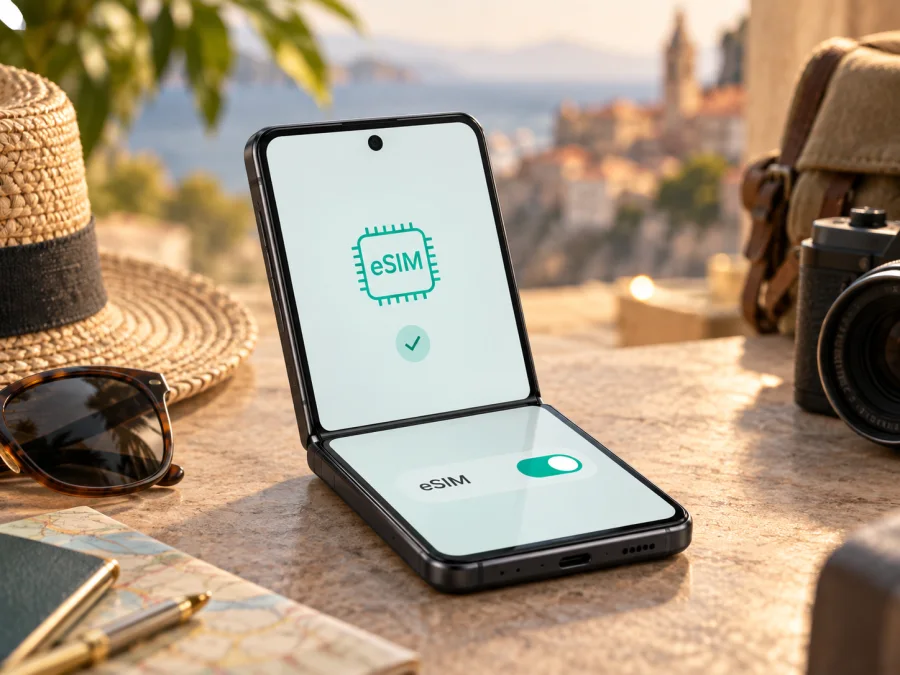
Motorola Razr 40 eSIM: compatibility, setup and travel use
The Motorola Razr 40 can use an eSIM in addition to its physical nano-SIM in supported versions. Motorola’s device-specific support information explains how to download and set up an eSIM, and regional specification pages list eSIM alongside nano-SIM. There is one important qualification: Motorola says that a phone might support eSIM and advises checking with the carrier. Availability can depend on the exact market version, software configuration and carrier provisioning. Before buying a travel plan, verify the phone you own rather than relying on the Razr 40 name alone.
An eSIM is a digital SIM profile stored in the phone. For travel, it can provide mobile data while your physical SIM remains available for your regular number if your settings and carrier allow both lines. Travel plans are often data-only; check their terms for calls, SMS or a standard number. Internet messaging and calling apps can work over data.
Motorola Razr 40 eSIM compatibility at a glance
| Item | What to know |
|---|---|
| Device in this guide | Motorola Razr 40 |
| eSIM capability | Supported on compatible market and carrier configurations; confirm on the individual phone |
| Physical SIM | The phone has a tray for a physical nano-SIM; eSIM may be available alongside it |
| Manufacturer setup path | Settings → Network & internet → SIM cards, then the option to download and set up an eSIM |
| Before purchase | Check for an EID or an eSIM download/add option, confirm the phone is unlocked, and check the plan’s destination coverage |
| Network generation | 5G capability does not by itself prove eSIM availability; the eSIM feature and network bands are separate checks |
Motorola’s instructions describe the Razr 40 settings route, but a specification sheet for one country cannot guarantee identical SIM features in every market. Check the phone’s settings and exact regional model, then confirm with the seller or carrier if anything is unclear.
What the model name does and does not tell you
“Motorola Razr 40” identifies a family sold in different markets. Carrier software or restrictions can affect the eSIM menu, especially on imported phones. Updates can move menu labels but cannot add eSIM hardware to an unsupported variant.
If you are buying a used phone, ask the seller to show its EID and eSIM menu and confirm that it is unlocked. Compare the model number in Settings → About phone with the regional listing; if they do not match, ask Motorola or the carrier to verify compatibility.
Check the phone before choosing a plan
Check the actual phone. Android versions may label the controls “SIM cards,” “Download a SIM” or “Add eSIM.”
- Find the EID. Search Settings for “EID,” then check About phone or SIM status. It signals eSIM hardware but does not guarantee every provider will work.
- Open SIM settings. Go to Settings → Network & internet → SIM cards and look for “Download a SIM,” “Set up an eSIM” or “Add eSIM.”
- Confirm model and market. Note the model number and software build in About phone; compare them with the regional listing.
- Check unlock status. Ask the seller or carrier whether the phone can accept another provider’s eSIM.
- Check plan terms. Confirm device acceptance, destination coverage, activation timing, data allowance and validity.
When checking a listing, match the exact model number rather than relying on a shared product-family name. The Razr 40 is distinct from the Razr 40 Ultra and from later Razr generations, even when their appearance is similar. A seller may describe a phone as “dual SIM” to mean two physical SIMs, a physical SIM plus eSIM, or different combinations by region. Ask which arrangement applies to the unit being sold and request confirmation that its software exposes eSIM setup.
A useful pre-purchase check is to compare three things: the model number in About phone, the SIM options currently shown on that device, and the carrier or seller’s written confirmation for that market. Check that the handset is not still tied to a contract or carrier profile that blocks another provider. If support staff confirm eSIM, keep the answer with the order details. This does not replace checking whether a particular travel plan supports the phone, but it helps identify regional differences before you pay for a plan.
If you cannot inspect the device directly, ask the seller to include the exact model code in writing and confirm that the displayed eSIM option belongs to that same phone. A product photo from a different listing is not a reliable substitute.
Check whether your device is compatible before ordering. If you cannot inspect the phone, ask for a settings screenshot showing the eSIM option, with personal details hidden.
EID and add-eSIM checks: how to interpret the result
The EID identifies the phone’s eSIM component for provisioning. It differs from the IMEI and the ICCID of an individual profile. If requested, provide the EID through the provider’s secure process rather than posting it publicly. Its location can vary by Android release, so search Settings for “EID” and check About phone or SIM status.
A visible setup option is a useful compatibility signal. If it is missing, connect to Wi-Fi, restart, install available system updates and check again. Confirm that the phone is not carrier restricted. If the menu remains absent, do not keep retrying a QR code; ask Motorola or the carrier to verify the exact model and market software. Treat support as unconfirmed until then.
The EID and menu confirm only the device side: the provider must also support this phone, destination and activation method. A profile may use a QR code, an app or manual details. Keep activation codes private; a QR code may be single-use and tied to one device.
Install and activate an eSIM
Connect to Wi-Fi and keep the provider’s instructions accessible on another screen. Do not erase a working profile to make room unless the provider directs you to; restoring it may require a replacement.
For a visual walk-through, see the Android eSIM installation instructions or, if you are helping an iPhone user with a different device, the iOS eSIM installation instructions. The Razr 40 runs Android, so follow the Android steps on this phone. The iOS page is included for readers who are preparing another compatible device; iPhone menu labels do not apply to the Razr 40.
Step-by-step setup on the Motorola Razr 40
- Confirm compatibility and unlock status. Check the EID or add-eSIM option, exact model and carrier lock.
- Connect to Wi-Fi. Keep it on until the profile appears in SIM settings.
- Open SIM settings. Go to Settings → Network & internet → SIM cards and select the download or add-eSIM option.
- Add the profile. Scan the provider’s QR code, use its app or enter activation details as instructed.
- Wait for confirmation. Keep the setup screen open, then check that the new line appears in SIM cards.
- Label the line. Use a clear name such as “Travel data” or the destination.
- Choose data and roaming. Select the travel eSIM for mobile data. Enable roaming on that line only if the provider requires it; check roaming on your home SIM to avoid charges.
- Wait for service. The profile may not register until you reach a covered destination. Follow the plan’s start conditions.
Installing a profile and starting plan validity may be separate events. Check whether the plan starts at installation, first network connection or another stated point, and note any activation deadline.
Before departure and after arrival
If the plan allows early installation, set it up before departure. Label the profile clearly, select the intended data line and check that your normal number remains available for calls or messages if needed. Dual-SIM behavior depends on software, carrier and plan.
After landing, enable the eSIM, select it for data and follow the provider’s roaming instructions. Allow time for registration. Use manual network selection only if the provider recommends it; otherwise leave selection automatic.
A travel data eSIM can be useful in several ordinary situations:
- At the airport: use data for maps, messages or transport details. Install in advance only if the plan permits it.
- On a city break: estimate navigation and browsing needs; save offline maps as backup.
- On a multi-country route: confirm every country and stopover is included.
- Keeping your home number: if dual-SIM is supported, leave the physical line available and select the travel eSIM for data. Check home roaming charges.
- Sharing a hotspot: confirm tethering is allowed and monitor data use.
Kaspersky eSIM Store is an app and website where you can choose, arrange and activate an eSIM with a mobile-data plan for an international trip. Review destination, data, validity, activation and tethering terms. The service is not a mobile operator or network owner; connection depends on the plan and local coverage.
Troubleshooting: when setup or data does not work
Start by identifying which stage has failed: adding the profile, activating it, registering on a network or using mobile data. Changing several settings at once can make it harder to see what fixed the issue. Check the following items in order and keep the provider’s activation instructions close by.
| Symptom | What to check |
|---|---|
| No “Add eSIM” or download option | Search Settings for EID; check Network & internet → SIM cards; connect to Wi-Fi and update Android; confirm the exact model and market version with Motorola or the carrier |
| QR code is rejected | Check that it is for this phone and has not already been used; improve the screen brightness or camera focus; request a replacement activation method from the provider if the code is expired or consumed |
| Profile downloaded but shows no service | Check whether the plan starts only at the destination; make sure the eSIM is enabled; check destination coverage, roaming instructions and network selection |
| Signal appears but internet does not load | Select the travel eSIM for mobile data; check that mobile data is on; enable data roaming on the travel line if instructed; confirm APN settings only if the provider supplied them |
| Home SIM is using data | Reopen SIM cards and set the travel eSIM as the preferred mobile-data line; review roaming settings for the home SIM |
| Connection is intermittent | Move to an area with better signal, wait briefly, toggle airplane mode once, then restart the phone; check for a service outage or local coverage limitation |
| Profile disappeared or was erased | Contact the eSIM provider before trying another QR code; profile reissue rules vary and deleting the profile does not necessarily cancel the plan |
For a rejected QR code, check Wi-Fi, screen brightness and camera focus, and confirm the code belongs to this plan. Display it on another device or use manual entry if offered. Keep QR and activation codes private. If Android says the code was already used, ask the provider about reissue rather than repeatedly scanning it.
If an installed profile cannot connect, check the plan’s destination and start conditions. At the destination, make sure the eSIM is enabled and selected for data, mobile data is on, and required roaming is enabled on that line. Enter APN details only when the provider supplies them.
With two SIMs, confirm which line is the data default. Roaming on the home SIM may incur charges, and the ability to receive calls while using data can vary by carrier.
Do not delete a profile as an early fix. Motorola notes that erasing it removes its associated service from the phone and restoring it may require the carrier; erasing the profile does not necessarily cancel the plan. Ask the provider before removal or a factory reset.
FAQ
Does every Motorola Razr 40 support eSIM?
Motorola provides Razr 40 setup instructions and regional specifications listing eSIM, while also advising users to check with their carrier. Verify the exact market model, software and carrier status on your own phone.
Can I use a physical SIM and an eSIM together?
Supported versions can use the physical nano-SIM and eSIM together. Dual-line behavior and routing depend on the software and carrier, so select the data line and review home roaming terms.
Will a travel eSIM give me a regular number?
Travel eSIM plans are often data-only; check the plan for number, call or SMS inclusion. Internet calling and messaging apps can use data.
Can I install the eSIM before I travel?
Often you can, but the timing depends on the plan. Some plans start on installation; others start when the phone first connects in the destination or under a different stated condition. Read the activation and validity rules before installing.
Final device and trip check
Before choosing a travel plan, verify the eSIM option or EID on your Motorola Razr 40, check that the phone is unlocked, and confirm that the plan supports your exact device and destinations. Review its data allowance, validity, start conditions, roaming guidance and hotspot rules. Install over Wi-Fi using the Android steps, give the profile a clear label, and select it as the data SIM when you need it. When the phone and plan have both been confirmed, Kaspersky eSIM Store can help you choose, arrange and activate an eSIM plan for mobile data during your trip. Save the provider’s setup details somewhere secure and keep offline directions available as a backup.


