Travel connectivity guide
Motorola Razr 40 Ultra 128GB eSIM Guide
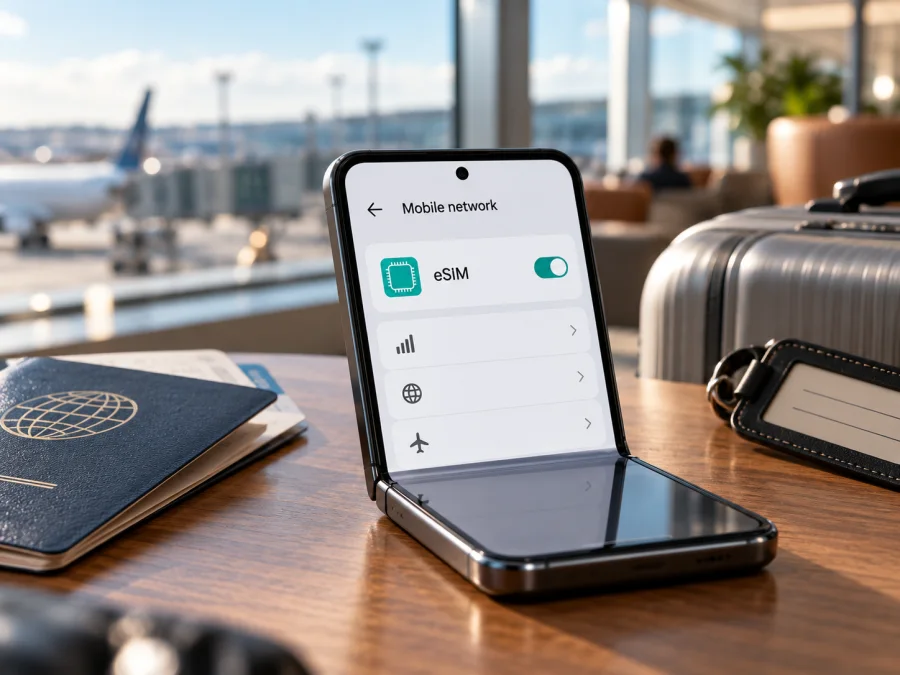
Motorola Razr 40 Ultra 128GB eSIM: compatibility and setup guide
The short answer is that Motorola documents eSIM support for the motorola razr 40 ultra family, but the exact Motorola Razr 40 Ultra 128GB variant in this search cannot be confirmed from the public manufacturer specifications reviewed. Motorola’s current support pages describe eSIM alongside a physical nano-SIM and give instructions for downloading a profile; the specification page we could verify lists 256GB storage, not 128GB. That means the family-level evidence is useful, but it does not prove that every regional or operator version sold as 128GB has eSIM enabled. The task does not identify a country of sale or a specific operator, so this guide cannot assign the handset to a particular market version.
Before choosing a travel plan, check the exact phone in person: look for an EID and an option to add or download an eSIM in Settings. Ask the seller for the full model number and the market the device was made for. If those checks pass, the phone is unlocked, and the plan supports the destination and device, you can install an eSIM for mobile data. If the eSIM menu and EID are absent, treat the phone as not ready for eSIM until Motorola or the seller confirms otherwise.
Does Motorola Razr 40 Ultra 128GB support eSIM?
Motorola’s support material for the Razr 40 Ultra family identifies eSIM as an available SIM type in its specification information and describes how to add an eSIM profile. The setup article is conditional, however: it says the phone might support eSIM and advises contacting the carrier. The public specification page we checked associates the name with a 256GB configuration, so it does not establish the eSIM status of a separately listed 128GB device. The most accurate answer for this exact task variant is therefore possible and supported by family-level documentation, but not verified for every 128GB regional SKU.
Storage capacity alone does not tell you whether a handset contains an enabled eSIM function. Product names can be reused across markets, and a regional model number, firmware, carrier configuration, or local sales version can affect which SIM options appear. Do not assume that a listing’s “128GB” label identifies the radio or SIM variant. Likewise, a foldable design, 5G branding, or a physical SIM tray does not by itself prove eSIM support.
Motorola’s current support pages checked on 17 October 2026 provide two useful pieces of evidence: family-level specifications list “eSIM + Nano-SIM”, and the Razr 40 Ultra help page explains that eSIM may be supported and shows the setup flow. Those sources establish that the product family has eSIM-capable configurations. They do not provide a separate 128GB SKU-specific confirmation in the materials available for this guide. If the phone is an import, a carrier-branded unit, or a marketplace listing with incomplete model details, verify the exact handset rather than relying on the family name.
| Check | What is known | What it means for this 128GB listing |
|---|---|---|
| Product family | Motorola’s support information documents eSIM alongside nano-SIM for Razr 40 Ultra configurations. | Positive family-level evidence, not a guarantee for every market version. |
| Exact storage variant | The official specification page reviewed shows 256GB; it does not confirm the 128GB listing. | The exact storage/SKU combination remains unverified. |
| Phone software | Motorola describes an eSIM download option under Network & internet and SIM settings. | Menu presence on the handset is a practical compatibility check. |
| Operator and plan | The carrier or travel-plan provider must support the device and activation method. | A compatible handset can still be rejected by a particular operator or plan. |
| Network use abroad | Bands, roaming arrangements, coverage, and plan terms vary by destination. | eSIM capability alone does not promise service or coverage in a place. |
Regional and operator versions
A model sold under the same family name can have different model identifiers or configurations depending on where it was distributed. A carrier may also restrict activation or require a particular eligibility check. Motorola’s family support documentation is not a guarantee that every operator will provision every device, and a network operator’s compatibility page may be narrower than the manufacturer’s product family page.
Ask the seller for the model number shown in the phone’s About phone screen or on its original packaging. Request confirmation in writing that this exact model number supports eSIM in the country where it was sold, and ask whether the unit is carrier-unlocked. If you are buying online, do this before paying or before the return window expires. The 128GB capacity should remain part of the conversation: confirm that the seller is describing the exact variant you intend to buy, rather than a product-family page for another storage configuration.
Check compatibility before you buy a travel plan
Use this quick checklist on the phone you plan to take abroad:
- [ ] Open Settings and find Network & internet or SIMs & mobile network. Look for an option such as Download a SIM, Add eSIM, or Set up eSIM. Wording can vary with software version and region.
- [ ] Check Settings → About phone and look in device details or SIM information for an EID. An EID is an identifier associated with the embedded SIM hardware. Do not post it publicly; share it only with a trusted carrier or support team if requested.
- [ ] Confirm the exact model number with the seller or in About phone. The words “Razr 40 Ultra” and “128GB” alone are not enough to identify every regional configuration.
- [ ] Ask whether the phone is unlocked. A device locked to its original operator may refuse a travel profile even if its hardware supports eSIM.
- [ ] Check that the eSIM plan covers every country or region on your route, and read its data allowance, validity period, activation conditions, and any speed or hotspot limits.
- [ ] Make sure you can connect to Wi-Fi during installation and keep the QR code or activation details available on another screen or printed copy.
- [ ] Verify that the exact phone model is accepted by the eSIM plan’s provider before purchase.
If you want a broader device check, check whether your device is compatible. For this particular 128GB Razr listing, the decisive check is still the EID and eSIM-add option on the handset you will use.
If the EID or menu is missing, restart the phone, install any available system update, and check again. Search Settings for “eSIM” or “SIM” because menu labels can differ. If they remain absent, contact Motorola support and the seller with the model number and market of sale. Do not buy a travel plan on the assumption that a firmware change will add eSIM support; a software update cannot be assumed to enable hardware or regional features that are unavailable on that device.
How to install and activate an eSIM
For the Razr 40 Ultra family, Motorola describes the setup route as Settings → Network & internet → SIMs & mobile network, followed by the option to download and set up an eSIM. The exact label may differ slightly by software version. Follow the activation instructions supplied with your specific plan, since some providers use a QR code and others offer an in-app installation flow or manual activation details.
Before installation
- Confirm the phone has a visible EID or eSIM setup option and is not carrier-locked.
- Connect the phone to reliable Wi-Fi. The eSIM profile must be downloaded before it can register on a mobile network.
- Read the plan’s activation rules. Some plans start their validity when installed, while others start at first network connection; do not assume one timing rule applies to every plan.
- Keep the QR code accessible. If it is displayed on the Razr screen itself, you may need another phone, a computer, or a printed copy to scan it.
- Decide which existing SIM should remain the default for calls and texts, and which profile should provide mobile data during travel.
Add the profile
- Open Settings on the Razr. Go to Network & internet and then SIMs & mobile network or the closest matching SIM menu.
- Select Download a SIM, Add eSIM, or the option to download and set up an eSIM. If your screen uses different wording, search Settings for “eSIM”.
- Follow the on-screen steps. Scan the QR code supplied for your plan, or choose the provider’s alternative activation method if offered.
- Wait while the profile downloads and installs. Keep the Wi-Fi connection stable, and do not close Settings or remove a profile during the process.
- Give the new line a clear label, such as “Travel data” or the destination name, so you can distinguish it from your home SIM.
- If prompted to choose defaults, select your home SIM for calls and SMS if you want to keep using it, and choose the travel eSIM for mobile data when appropriate. Your plan may be data-only and may not include an ordinary phone number, voice calls, or SMS.
- Leave the eSIM switched off until you are ready to use it if your plan’s instructions recommend waiting. When you arrive, enable the line and follow the provider’s activation directions.
- Open the mobile network settings and confirm that mobile data is assigned to the travel profile. Turn on data roaming for that eSIM only if its plan instructions require it.
For a visual walkthrough, use the Android eSIM installation instructions. See the iOS installation instructions only when setting up an Apple device.
An installed profile and an active data connection are separate things. Installation downloads the eSIM credentials. Activation or first use follows the plan’s stated rules. Network service then depends on a supported destination, local partner network, signal, account status, and the handset’s network settings. If the phone says the profile is installed but has no service, check the travel plan instructions and the steps below before deleting anything.
Use the eSIM for mobile data on a trip
A travel eSIM is most useful when its profile is ready before departure and the data line is easy to identify. Before leaving, connect to Wi-Fi, check that the eSIM is installed, and review the plan’s validity start condition. If the instructions say to activate after arrival, leave the profile disabled until you reach the destination. If they say to install before travel, installation alone may or may not start the plan—check the terms for that exact profile.
After landing, open the SIM settings and turn on the travel eSIM. Set it as the line for mobile data. Keep your home SIM available for incoming calls or messages if you need it, while checking the roaming settings for that line to avoid unintended charges from your home operator. If you do not need the home SIM for data abroad, make sure mobile data is assigned to the travel profile rather than left on automatic selection.
When using a data-only travel eSIM, regular calls and SMS may continue through your usual SIM if that line remains active and your operator permits roaming. Internet-based messaging and calls can work through apps over the data connection, subject to the app and plan. Do not assume the eSIM includes a standard phone number or voice service unless the terms say so.
For a multi-country itinerary, compare the plan’s actual destination list with every stop on your route. A country-specific plan may not cover a neighboring country or transit stop; a regional plan may have a different list and conditions. Check the amount of data against your likely use: maps, messaging, ride-hailing, email, and occasional browsing need less than frequent video streaming or hotspot use. Download maps, tickets, and key travel details over Wi-Fi before you go, and monitor data usage on the phone and in the plan account where available.
If you use a hotspot, verify that tethering is allowed by the plan and select the travel eSIM as the data line. Keep an eye on cloud backups, automatic app updates, and video playback, which can consume data in the background. A travel eSIM can reduce dependence on public Wi-Fi, but it does not guarantee signal everywhere; coverage and speed depend on local networks, buildings, terrain, congestion, and the agreement behind the plan.
Kaspersky eSIM Store is an app and website where travelers can choose, arrange, and activate an eSIM plan for mobile data abroad. To browse current destinations and plan details, visit the Kaspersky eSIM Store. Review the displayed destination, data amount, validity, price, and activation conditions before selecting a plan; the store is not a mobile network operator and does not itself provide network coverage.
Common eSIM problems and what to check
There is no eSIM or download option
Search Settings for “eSIM” and inspect Network & internet → SIMs & mobile network. Check About phone for an EID or SIM details. Restart the phone, install available updates, and check again. If the menu and EID remain absent, ask Motorola or the seller to verify the exact model number and market. Do not assume an unofficial firmware change can add a missing regional or hardware feature.
The QR code will not scan or the profile will not download
Use a stable Wi-Fi connection, raise the brightness on the screen displaying the QR code, and keep the phone steady. If the QR is shown on the Razr itself, use another display or a printed copy. Check whether the code has already been used and whether the provider offers an app or manual activation method. Keep the error message and contact the provider before deleting a profile.
The profile is installed but there is no signal
Confirm that the destination is covered by the plan, the eSIM line is enabled, and that it is selected for mobile data. Follow the plan’s instruction about data roaming. Toggle airplane mode briefly or restart the phone. Signal depends on the local network and location; eSIM capability alone does not guarantee service.
Data uses the wrong SIM or disappears quickly
In SIM settings, choose the travel eSIM for mobile data and turn off automatic data switching if you want to avoid home-SIM roaming. Check the plan’s remaining allowance and validity, then review Android data usage for background syncing, app updates, backups, and streaming. Use Wi-Fi or restrict background data for high-use apps as needed.
The device is locked or the provider says it is unsupported
An operator lock may prevent a profile from activating even when an EID is present. Ask the original operator whether the phone is unlocked, then ask the travel-plan provider to check the full model number and regional version. Do not erase an installed profile as an initial fix: Motorola advises removing an eSIM only when support tells you to, and some profiles cannot be installed again by scanning the same code.
Frequently asked questions
Is eSIM definitely supported on Motorola Razr 40 Ultra 128GB?
Motorola documents eSIM for Razr 40 Ultra family configurations, but the reviewed official specification does not separately verify the 128GB variant. Check the handset’s EID and eSIM menu, then confirm its model number and sales market with the seller.
Does 128GB storage affect eSIM?
Storage capacity does not establish eSIM support. Regional SKU and software configuration matter, so verify the phone rather than relying on the product family name.
Where can I find the EID?
Look in Settings → About phone under device or SIM details, or search Settings for “EID” or “SIM”. Menu paths vary. Also check Network & internet → SIMs & mobile network for an Add or Download eSIM option.
Can I keep my physical SIM active?
Motorola documents eSIM alongside nano-SIM for family configurations. Exact line combinations vary, so select the data SIM explicitly and check which line handles calls or messages. Do not assume both lines can use mobile data at once.
Does installation mean the travel plan is active?
Not always. Installation, activation, and the validity start can be separate. Follow the conditions for the specific plan; service also depends on compatibility, unlock status, settings, destination, and local coverage.
What if my version has no EID?
Wait to buy a travel eSIM until Motorola, the seller, or the provider confirms compatibility. Alternatives include a suitable roaming option on the physical SIM, a local physical SIM where available, or another compatible unlocked device.
Final check before your trip
For Motorola Razr 40 Ultra 128GB, family-level Motorola documentation supports eSIM on Razr 40 Ultra configurations, but the reviewed public specifications do not identify the 128GB variant separately. Verify the exact model number, find the EID or the eSIM download option, and confirm that the device is unlocked and accepted by the plan provider. Then match the plan’s destination, validity, data allowance, and activation rules to your itinerary.
Once those checks are complete, install the profile over Wi-Fi, label it clearly, and select it for mobile data when you are ready to use it. If the exact handset fails the compatibility check, choose a physical-SIM or other compatible-device option instead. Browse the Kaspersky eSIM Store to review current travel destinations and plan conditions, and make the final choice only after the phone and plan have both been checked.


