Travel connectivity guide
Motorola Razr 40 Ultra 1TB eSIM: Compatibility Guide
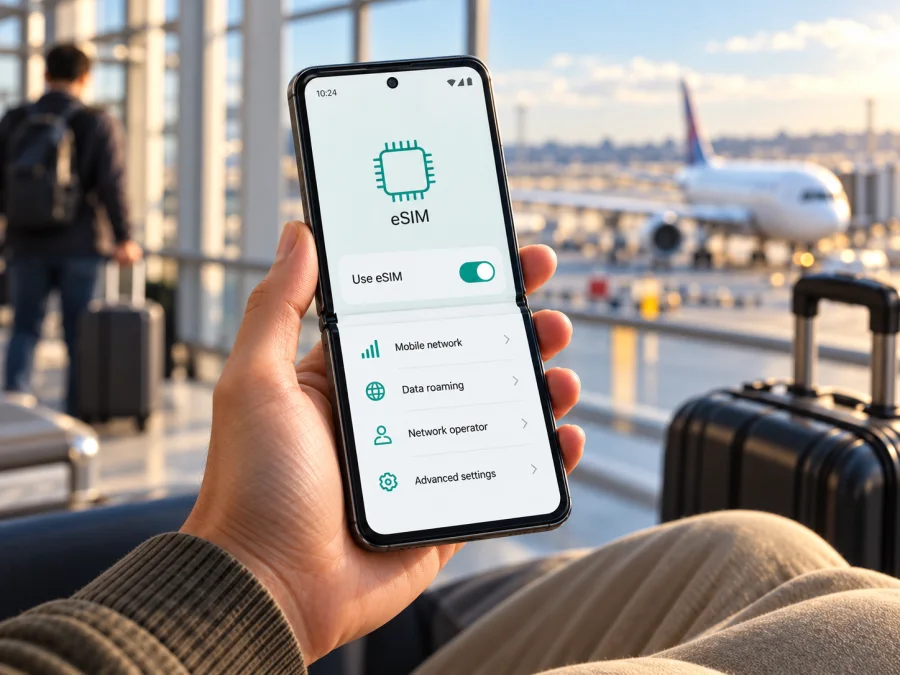
Motorola Razr 40 Ultra 1TB eSIM: compatibility and setup guide
The Motorola Razr 40 Ultra family supports eSIM in at least some regional configurations. Motorola’s support pages describe eSIM setup for the razr 40 ultra and list eSIM alongside a nano-SIM in published specifications. There is an important qualification for this exact query: I could not verify an official Motorola configuration with 1 TB of internal storage. The official specification page reviewed for this article lists 512 GB. So the family’s eSIM capability is documented, but the combination “Motorola Razr 40 Ultra 1TB” should be treated as unverified until you check the exact model number and settings on the phone you have or plan to buy.
If your regional version exposes eSIM controls and is unlocked, you can add a travel data profile through Android settings. Verify the handset before paying for a plan.
Does the Motorola Razr 40 Ultra 1TB support eSIM?
The most accurate answer is conditional. Motorola documents eSIM support and setup for the razr 40 ultra family, including the model identified in a UK compliance document as XT2321-1. Its regional specifications describe eSIM plus nano-SIM. However, those sources do not establish that every market version, carrier version, firmware build, or advertised 1 TB listing has the same capability. In particular, Motorola’s specification page reviewed here lists a 512 GB storage configuration, not 1 TB. A seller’s “1TB” label could be an error, a bundle description, a modified listing, or another product designation; it is not proof of a factory 1 TB Razr 40 Ultra variant.
| Item | What can be confirmed | What you should verify |
|---|---|---|
| Device family | Motorola documents eSIM support for the razr 40 ultra family. | Confirm that the handset is genuinely this model, rather than a similarly named Razr. |
| Published model reference | Motorola identifies XT2321-1 as motorola razr 40 ultra in a regional compliance document. | Read the model number in Settings and compare it with the box and seller documentation. |
| SIM configuration | Motorola regional specifications list eSIM with nano-SIM. | Check the actual phone for an EID and an option to add or download an eSIM. |
| Storage claim | The official specification page checked lists 512 GB. | Ask the seller to explain any “1TB” label and verify the storage reported by Android. |
| Carrier and country | Availability may vary by market, carrier and software. | Ask the original carrier or seller whether this particular unit can download an eSIM profile and is unlocked. |
eSIM capability alone is not enough: software must expose the setup controls, and carrier restrictions can prevent provisioning or network use. Labels such as “unlocked,” “dual SIM,” “5G,” or “1 TB” do not confirm support.
Why regional and carrier versions matter
A device family can be sold under different regional model numbers. SIM configuration, supported bands, firmware and carrier provisioning can vary even when the retail name is similar. Motorola’s setup guide says to check carrier details, so regard family-level eSIM documentation as a strong indication, then verify the unit in your hand.
Carrier lock and eSIM availability are separate questions. A phone can contain eSIM hardware but be restricted to its original carrier; another market version may expose eSIM settings that a carrier build does not. Before buying an imported or used Razr, request its full model number, country of sale and a view of the SIM settings. Avoid accepting “unlocked,” “5G,” “dual SIM” or “1TB” as proof of eSIM support.
How to check EID and eSIM settings
An EID is the identifier associated with a device’s embedded SIM hardware. Its presence is a strong sign that the handset has eSIM capability, though you should still confirm that the eSIM controls are available and that the carrier has not restricted service. Menu labels can vary slightly by Android version, region, or Motorola software update.
- Check the phone’s identity. Open Settings and look under About phone for the model number. Compare it with the box, invoice, and information supplied by the seller. A Motorola support compliance page associates XT2321-1 with the razr 40 ultra; other suffixes should be checked separately.
- Look for an EID. In Settings, use the search field and search for EID. Depending on software, the details may be under About phone, Device details, or the SIM status information. If an EID appears, record only that you found it; do not post the full identifier publicly.
- Look for eSIM controls. Open Settings > Network & internet > SIMs & mobile network. Look for an option such as Download a SIM, Add eSIM, or Set up eSIM. Motorola’s razr 40 ultra guide uses this general path and directs users to follow the on-screen steps.
- Check whether the setting is available. If the option appears but is greyed out, check for a carrier restriction, device management policy, or software update. A missing option can indicate an unsupported regional version, a carrier limitation, or a software issue; it is not enough on its own to identify the cause.
- Confirm network unlock status. Ask the original carrier or seller whether the device is unlocked for use with another provider. If you can, test an ordinary SIM from a different carrier before travel. An eSIM-capable but locked phone may reject a travel profile or prevent it from connecting.
- Confirm with Motorola or the seller. Share the full model number and market of origin with Motorola support or the seller and ask specifically whether that unit supports downloading a third-party eSIM profile. Ask the carrier about its own provisioning separately.
Before choosing a plan, confirm:
- [ ] The model number on the phone matches the device being sold.
- [ ] An EID is visible, or Android offers an eSIM setup option.
- [ ] The phone is carrier-unlocked and not restricted by a work or school profile.
- [ ] Android is updated and you can connect to Wi-Fi for installation.
- [ ] The seller has explained any unusual “1TB” storage claim.
- [ ] The eSIM plan covers the country or region on your itinerary.
- [ ] The plan’s data allowance, validity period, activation conditions, and refund terms suit your trip.
Check your device before choosing a travel plan. Use compatibility tools as a first check; verify the phone’s EID or eSIM menu and ask the carrier or seller if needed.
Installing an eSIM on the Motorola Razr 40 Ultra 1TB
These steps apply only if your specific phone has eSIM controls. Keep Wi-Fi available and read the plan’s activation rules first: installing a profile and starting its validity may be different events.
- Confirm support and unlock status. Find the EID or eSIM option and check that the handset is not carrier-locked.
- Connect to Wi-Fi. Motorola recommends Wi-Fi when the phone has no network connection.
- Open SIM settings. Go to Settings > Network & internet > SIMs & mobile network. Labels can vary by software.
- Add the profile. Tap Download a SIM, Add eSIM, or the equivalent option. Scan the supplied QR code or use direct installation if offered.
- Wait for the download. Keep the phone online and follow the activation instructions. Treat a QR code as private and potentially single-use.
- Label and select the line. Give the profile a name such as “Travel data” and choose it for mobile data when appropriate.
- Check roaming and APN. Enable data roaming on the travel eSIM only if its instructions require it. Enter an APN only when the provider supplies one.
- Test data. When the plan is valid and you are in a supported destination, turn off Wi-Fi briefly and load a webpage.
Motorola’s razr 40 ultra guide describes the Android network-settings route. For more detail, see the Android eSIM installation guide. The iOS eSIM installation guide covers Apple devices and is included for comparison. Kaspersky eSIM Store is an app and website where you can choose, arrange, and activate an eSIM with a mobile-data plan for an international trip.
If data does not start immediately, do not delete the profile. First check the plan’s activation conditions, destination, selected data line, roaming setting, APN and network status. Ask the provider for help before removing a profile that may be difficult to reinstall.
Using the travel eSIM for mobile data
A travel eSIM can provide data for maps, messages, bookings, translation and email abroad. If the handset and software allow it, you may keep a physical SIM active for calls or verification texts while selecting the travel eSIM for mobile data. Check your home operator’s roaming charges and disable data roaming on the home line if you do not intend to use it. Enable roaming on the travel profile only when its instructions require it.
Choose a plan for the whole itinerary. A single-country option may suit a one-country trip; a multi-country journey requires checking every destination. Match the data allowance and validity period to expected use. Video calls, navigation, backups and hotspot sharing can consume data quickly, so consider limiting automatic updates and photo backups over mobile data.
Kaspersky eSIM Store helps users choose and activate an eSIM with a suitable data plan for an international trip. Review destination coverage, allowance, validity, activation timing and plan conditions. Do not assume that a data plan includes a phone number, standard calls or SMS unless its terms say so; internet calling and messaging apps use data.
Common problems and what to check
“Add eSIM” is missing
Search Settings for EID and inspect Network & internet > SIMs & mobile network. Update Android and restart. If the option remains absent, check the model number, market of origin, carrier restrictions and device-management settings. Ask Motorola or the seller about that exact variant before buying a plan.
The QR code will not scan or the profile will not download
Raise the brightness on the screen showing the QR code, clean the camera lens and keep the phone steady. Confirm the code is for this purchase and has not already been used. Ensure Wi-Fi works and the setup screen stays open. If Android reports an activation limit or unavailable profile, contact the issuer rather than repeatedly retrying. Do not share the QR code publicly.
The profile is installed, but there is no service
Check that the destination and date are covered, the profile is enabled, and the travel eSIM is selected for mobile data. Follow the plan’s roaming and APN instructions, then toggle airplane mode, restart, and wait a few minutes. Availability depends on the local network and location; test elsewhere before assuming the profile is faulty.
The phone uses the wrong SIM or data does not load
Review the preferred mobile-data line and disable roaming on the home SIM if you do not intend to use it. Confirm that the plan has data remaining and that any required APN is correct. Turn Wi-Fi off for a short test, and check data-saver settings if only some apps fail.
The eSIM disappeared after reset or replacement
A reset or profile deletion can remove an eSIM. Motorola says the carrier may need to restore an erased profile. Contact the profile issuer before resetting the device or deleting the eSIM; a replacement code may be required. Removing a profile does not necessarily cancel the associated plan.
Frequently asked questions
Is eSIM supported on every Motorola Razr 40 Ultra 1TB?
Motorola documents eSIM for the razr 40 ultra family, but I could not verify an official 1 TB configuration or guarantee every regional and carrier variant. Check the exact handset for an EID and an add-eSIM option.
Does the 1 TB version exist?
I could not confirm an official 1 TB Razr 40 Ultra. The Motorola specification page reviewed for this guide lists 512 GB. Ask the seller for the model number and verify storage in Android.
Can I use nano-SIM and eSIM together?
Motorola’s published regional materials list eSIM with nano-SIM. Whether both can be active together and how lines can be assigned depends on the version, software and carrier; check SIM settings on your phone.
Does installing a travel eSIM cancel my home SIM or include calls and texts?
Adding a profile does not cancel a physical SIM subscription. A travel plan may be data-only, without a phone number, calls or SMS. Read its terms and check your home operator’s roaming conditions.
Should I install before departure, and can I transfer it later?
Install before travel if Wi-Fi is available and the plan permits it, but check when validity starts. Do not assume you can transfer an eSIM or reinstall it after deletion; ask the provider before replacing phones or erasing the profile.
Final check before your trip
For the Motorola Razr 40 Ultra 1TB, confirm the exact model and storage claim first: Motorola’s family documentation supports eSIM, but I could not verify an official 1 TB SKU, and the published storage specification I checked is 512 GB. On the handset itself, look for an EID and the Android option to download or add an eSIM. Confirm that the unit is unlocked, that the profile can be installed, and that the selected plan covers every country on your route.
Once those checks are complete, compare the plan’s data allowance, validity, activation timing, and conditions with the way you expect to use your phone. Kaspersky eSIM Store is an app and website for choosing, arranging, and activating an eSIM with a mobile-data plan for an international trip. Browse available travel eSIM options after confirming that this exact Razr can use eSIM. Keep the home line’s roaming settings and the travel line’s data settings clear, and save your provider’s setup instructions before departure.


