Travel connectivity guide
Motorola Razr 5G 128GB eSIM Compatibility Guide
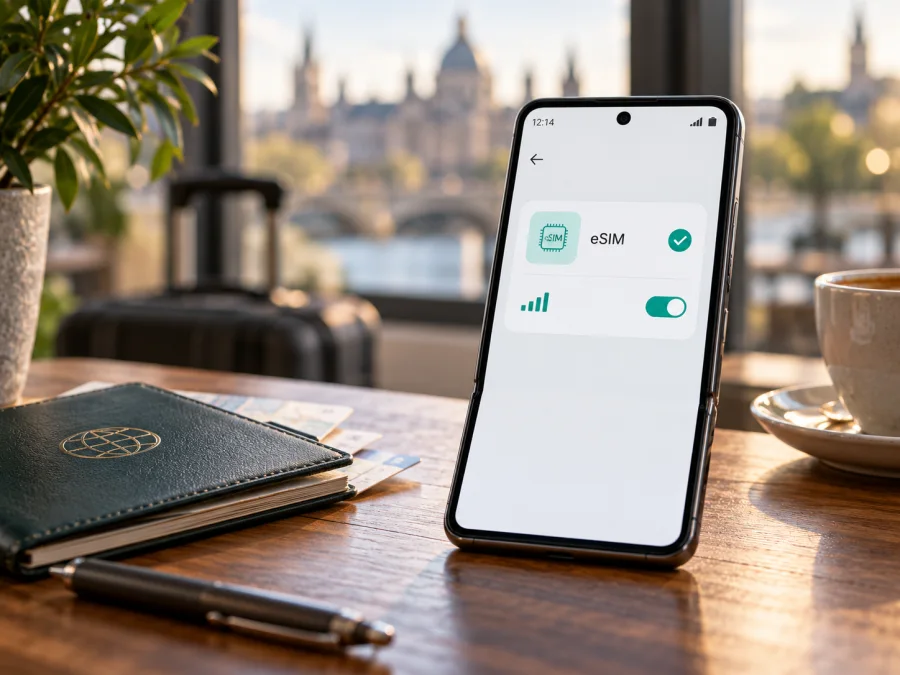
Motorola Razr 5G 128GB and eSIM: compatibility and setup guide
The Motorola Razr 5G 128GB is a foldable Android phone, but the “128GB” storage label alone does not identify its SIM hardware or sales market. Motorola’s own Razr 5G guide says the phone might support eSIM alongside a physical SIM and asks users to confirm with their carrier. Its documentation therefore does not establish that every device sold under this name can add a travel eSIM. Check the exact phone in Settings and with the seller or operator before choosing a plan.
This guide explains what that qualified support statement means, how to check your individual handset, and what to do if eSIM is available. It also covers the documented US operator case separately from other markets. If no EID or eSIM setup option appears, treat the handset as unconfirmed for eSIM until Motorola or the operator confirms the model code.
Does Motorola Razr 5G 128GB support eSIM?
Possibly, depending on the exact regional and operator variant; the 128GB description is not enough to confirm it. Motorola’s Razr 5G online user guide describes eSIM as a possible feature and gives a setup path, while its separate product help page says to contact the carrier for details. These are conditional statements, not a guarantee for every Razr 5G 128GB unit.
There is also a market-specific qualification. Motorola’s US activation page for the original razr describes eSIM activation for existing customers with an active T-Mobile account, including a carrier QR-code process. That guidance is tied to the US T-Mobile customer and account scenario. It should not be read as confirmation that an unlocked device from another country, a different operator version, or a different network can use the same process. Motorola’s user guide additionally notes that 5G availability depends on a suitable plan and network coverage and that the phone is not compatible with every 5G network; 5G branding does not establish eSIM support.
| Item | What can be established |
|---|---|
| Device name supplied | Motorola Razr 5G 128GB |
| Storage modifier | 128GB is retained as part of the requested variant; storage capacity does not identify SIM capability. |
| eSIM status | Conditional. Motorola says the Razr 5G might support eSIM; confirm the actual handset. |
| Physical SIM | The Razr 5G guide describes a physical SIM tray as well as the possible eSIM feature. |
| Operator example | Motorola documents an eSIM path for existing US T-Mobile customers with an active account. This is not a universal carrier guarantee. |
| Geographic status | The official sources reviewed do not confirm eSIM for every regional SKU or establish that all countries/operators support it. |
| Best confirmation | Check EID/eSIM settings, then confirm the full model code, software build, and eligibility with the seller or intended operator. |
Check compatibility before choosing a travel plan
Use the handset itself as the first check. The menu names below follow Motorola’s Razr 5G guide; wording can vary with software, language, or operator customisation.
Quick compatibility checklist
- [ ] Open Settings and then About phone. Record the full model number and software/build information.
- [ ] Look for an EID in the device or SIM details. An EID is the identifier associated with the embedded SIM hardware. Its presence is useful evidence, but the operator must still accept the exact model and account.
- [ ] Open Settings → Network & internet → SIM cards. Look for an eSIM setup, download, or add option. Motorola gives this route in the Razr 5G guide.
- [ ] Check with the seller or operator that the handset’s full model code is eligible for eSIM in the intended country and network. Ask whether it is carrier-locked.
- [ ] Confirm that the eSIM can be added while the phone is connected to Wi-Fi, and that the destination plan supports this device and its network bands.
- [ ] Keep the physical SIM active until you know how the phone handles switching. Motorola’s guide says that on a device using both a physical SIM and eSIM, only one may be active at a time in the documented setup.
If an EID is visible, save it for the operator if requested, but do not post it publicly. If the eSIM option is missing, search Settings for “SIM” and check for system updates; then ask Motorola support or the seller to confirm the variant. Menu absence is a reason to pause, not proof that an unverified online listing is accurate.
Compare the model number in About phone with the box. If the seller cannot identify the regional version, ask for confirmation before buying.
Before buying a travel plan, confirm both eSIM capability and the absence of a carrier lock. A plan page can describe its destination and data conditions, but it cannot make an unsupported or locked handset accept an eSIM profile.
What regional and operator versions can change
“Motorola Razr 5G 128GB” is not a complete regional identifier. An imported phone may have a different model code, firmware, or SIM configuration from a similarly named local unit.
Operator rules are separate from hardware: activation may be limited by carrier, account type, or market. Motorola’s US help page lists a T-Mobile process for existing customers with an active account; it does not establish support for every US operator, prepaid account, or international version.
The official material reviewed does not map every 128GB model code to countries or operators. Ask the seller for the sales market and the issuing operator to check that exact model. If unconfirmed, allow for physical-SIM-only use.
How to check the EID and eSIM menu
Start with the phone’s settings rather than scanning a plan QR code. Keep Wi-Fi available and leave the physical SIM in place until you have confirmed that the correct eSIM option exists.
- Open Settings. Search the settings screen for “EID”, “SIM”, or “eSIM”. Search is useful if the menu has been renamed by a software update.
- Check About phone. Open the device details or SIM status screens and look for an EID. Record the full model number and software version at the same time.
- Open the SIM settings. On the Razr 5G guide’s documented software path, go to Settings → Network & internet → SIM cards. Look for an option to set up, download, or add an eSIM.
- Compare both checks. A visible EID and an eSIM setup control are strong signs that the handset has eSIM capability. They do not confirm carrier eligibility, account status, or availability in the country where you plan to use it.
- Ask the operator to verify eligibility. Provide the exact model code and, if requested, the EID privately through the operator’s approved support channel. Ask whether the device can download a third-party travel data profile as well as the operator’s own eSIM.
If neither appears, stop before scanning QR codes and confirm the exact model with Motorola or the seller. If that version has no eSIM, use a supported physical SIM or another compatible phone. Check whether your device is compatible before choosing a travel plan.
How to install an eSIM on Motorola Razr 5G 128GB
Proceed only after you have confirmed eSIM support on your own handset, checked that it is not locked against the profile you plan to use, and obtained a valid eSIM from the provider. The interface may differ from Motorola’s example depending on Android version and carrier software. Keep the QR code or activation details accessible on another screen or printed page if the Razr will be used to scan it.
- Connect to Wi-Fi. Keep the phone online during profile download. Motorola’s Razr 5G guide specifically advises Wi-Fi when a network connection is not otherwise available.
- Open the SIM controls. Go to Settings → Network & internet → SIM cards. If this route is not present, search Settings for “SIM” or “eSIM”.
- Choose the eSIM setup option. Tap the control to add, download, or set up an eSIM. Follow the wording shown on your software version.
- Scan the provider’s QR code or enter activation details. Use manual entry only if the eSIM provider supplies those details and supports that method. Never reuse a QR code after a provider reports that it has already been consumed.
- Confirm the download. Wait for the profile to finish installing. Avoid closing Settings or disconnecting Wi-Fi during the process.
- Name the profile. A label such as “Travel data” can help distinguish it from your regular line. The label is for your convenience and does not change the plan.
- Choose when to use it. If you want to preserve the profile for later, leave it installed and disabled until the provider’s instructions say to enable it. Installation and plan activation are not always the same event; check the plan’s own terms for when its validity starts.
- Select mobile data for the trip. In SIM settings, choose the travel eSIM for mobile data when you are ready to use it. Keep your home line’s call and message settings as you prefer.
- Enable data roaming only if required. Some travel eSIM profiles need roaming enabled to connect to their partner network. Follow the profile’s instructions and check the selected line before enabling it. Data roaming on your home SIM may incur separate charges.
- Test the connection. Turn Wi-Fi off briefly and open a simple webpage. Check that mobile data is assigned to the travel eSIM and that the status bar shows a network connection. Turn Wi-Fi back on after the test if needed.
See Motorola’s on-device guidance and the Android eSIM installation instructions. The iOS instructions apply only if you are also setting up an iPhone.
A note about the US T-Mobile process
Motorola’s US razr activation page describes a particular route for an existing customer with an active T-Mobile account: finish phone setup, choose the eSIM as the active SIM, add a mobile network, connect to Wi-Fi, and download the carrier profile using the QR code provided by T-Mobile. This is specific to that account and carrier process. It is not a general procedure for every operator or for a travel data eSIM.
Using the eSIM for mobile data while travelling
An eSIM can be useful when you want mobile data for maps, messages, booking details, and other online tasks without removing your usual physical SIM. Whether that arrangement works on this phone depends on the variant and profile described above. A travel eSIM is generally for mobile data; check plan terms before expecting a phone number, calls, or SMS.
Before leaving, choose a plan for the country or region on your route and read its data allowance, validity, supported networks, activation timing, hotspot rules, and any top-up conditions. Coverage and performance depend on the local network and location. A plan for one country may not apply to a neighbouring country or a transit stop. If a regional plan is available, verify each destination rather than assuming that the name of a region includes every place on your itinerary.
A practical sequence:
- At home: Confirm support and unlock status, review plan terms, and install over Wi-Fi if advance installation is allowed.
- Before departure: Choose which line handles calls and which uses data. Disable automatic data switching if you want to avoid data use on the home line.
- On arrival: Enable the travel profile, select it for data, follow roaming instructions, then test a webpage with Wi-Fi off.
- During the trip: Check the active data SIM and monitor usage through the provider if available.
- After the trip: Switch data back to your preferred line. Follow the provider’s advice before deleting the profile.
Kaspersky eSIM Store is an app and website where you can choose, arrange, and activate an eSIM with a suitable plan for mobile internet on an international trip. It is a way to prepare a travel data profile, not a mobile operator or a guarantee of coverage. Once you have confirmed the handset, you can browse the Kaspersky eSIM Store homepage for current destinations and plans. Check the conditions shown for the specific destination before making a selection.
Common problems and checks
The eSIM menu or EID is missing
Search Settings for “EID” and “SIM”. Check the complete model number, not just “Razr 5G 128GB”, and compare it with the box. Restart the phone and install available system updates, then check again. If the controls remain absent, ask Motorola or the seller to verify that the exact regional model includes eSIM. Do not assume that resetting the phone will add a feature that the hardware or software configuration does not provide.
The QR code will not scan or the profile will not download
Use stable Wi-Fi and make sure the QR code is clear and unused. Enter activation details manually only if the provider supplied them. If download fails again, contact the issuer before deleting or replacing the profile.
The profile installed but there is no service
Enable the profile and select it for mobile data. Check destination, activation conditions, roaming instructions, and network selection. Toggle airplane mode, then restart. If needed, ask the provider to confirm activation and the seller/operator to confirm this handset variant.
Mobile data works on the wrong SIM
Open SIM settings and inspect the mobile-data selection. Turn off automatic data switching if available, then confirm the home SIM is not selected for data. Keep an eye on the setting after restarting or switching SIMs. If your regular line remains selected, the phone may use its home plan and incur charges under that plan’s terms.
The operator says the device is unsupported or locked
Give the operator the complete model code and confirm the sales region. Ask whether the restriction relates to the handset, the network, the account, or the specific eSIM product. If the phone is carrier-locked, only the original carrier can explain its unlock conditions. A travel eSIM cannot override a network lock. Consider a physical local SIM if your phone supports it and the seller/operator confirms that route, or use another compatible unlocked device.
Data does not work after activation
Check that the profile and mobile data are on, the plan covers your location, and its validity has started. Change the APN only if the provider gives you a value. If signal is absent, move to an open area; correct installation cannot guarantee local coverage.
Frequently asked questions
Is eSIM guaranteed on every Motorola Razr 5G 128GB?
No. Motorola’s Razr 5G guide says the device might support eSIM and recommends checking with the carrier. The storage size does not identify the regional SIM configuration. Confirm the EID, eSIM menu, full model code, and operator eligibility for your own phone.
Does the US T-Mobile instruction apply to a travel eSIM?
Not automatically. Motorola’s US page describes activation for eligible existing T-Mobile customers with an active account. A travel data profile may have a different issuer and installation process. Use the directions supplied with the specific profile and confirm that your phone’s version can accept it.
Can I use my physical SIM and travel eSIM together?
The Razr 5G guide says that if the phone has an eSIM and a physical SIM is inserted, only one SIM can be active at a time in its documented setup. Check your own software controls and operator requirements before relying on simultaneous use. Keep the home line’s roaming and mobile-data settings in mind.
Is the eSIM menu missing proof that the phone cannot support eSIM?
It is a strong reason to investigate, but menu naming can vary by software and operator configuration. Search Settings and check the model details. If no EID or setup control appears after updates, get confirmation from Motorola or the seller before purchasing a plan.
Will an eSIM give me a local phone number?
A travel data plan should not be assumed to include a regular number, calls, or SMS. Check the exact plan terms. Internet messaging and calls through apps can work over data where those services are available, but they are not the same as a cellular phone number.
Should I install the travel profile before I leave?
That depends on the plan’s instructions. Some profiles can be installed in advance and enabled later; other plans may begin their validity at installation or first network connection. Check the activation and validity wording before scanning the QR code, and use Wi-Fi for setup.
Final check before your trip
For Motorola Razr 5G 128GB, eSIM compatibility is conditional until the exact hardware and operator version are identified. Look for the EID and the eSIM setup option, confirm the full model code and carrier-lock status, and ask the operator or profile provider to check that specific handset. If any of those checks remain uncertain, do not assume the profile will install; use a confirmed compatible phone or a supported physical-SIM option instead.
Once compatibility is established, select a plan for the actual destinations on your itinerary and review its data, validity, activation, and network conditions. Kaspersky eSIM Store helps you choose, arrange, and activate an eSIM with a plan for mobile internet on an international trip. Check your device and browse current travel destinations before you choose a plan.


