Travel connectivity guide
Motorola Razr 5G 256GB eSIM Compatibility
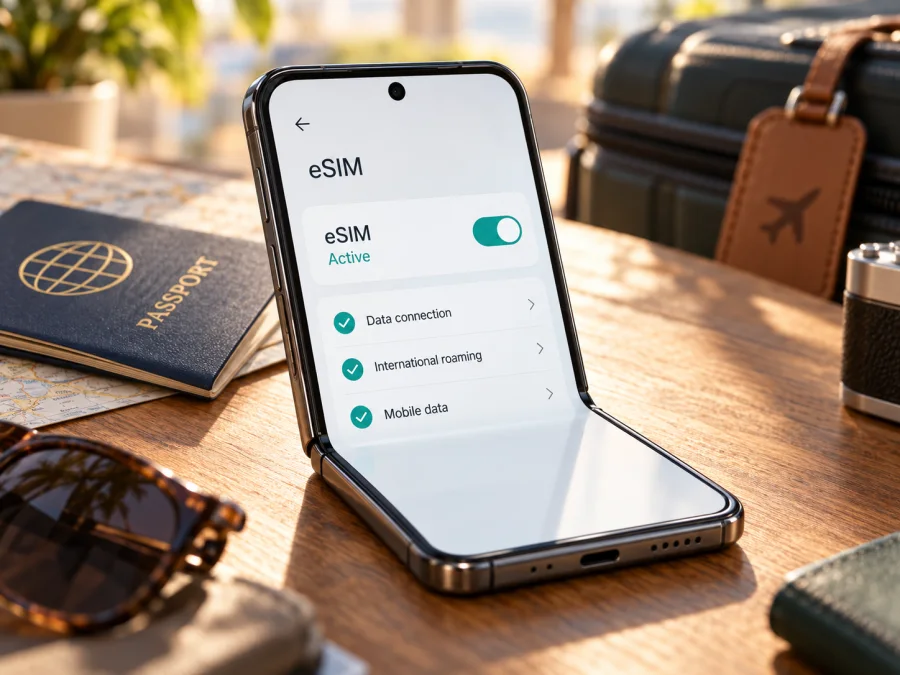
Motorola Razr 5G 256GB and eSIM: compatibility and setup
Short answer: the Motorola Razr 5G 256GB can support eSIM. Motorola’s published Razr 5G specifications list a 256GB model with one nano-SIM and one eSIM, and Motorola’s Razr 5G support instructions describe adding an eSIM profile. That confirms eSIM capability for the documented product family, but does not prove that every handset sold under this name can use every provider’s eSIM. The sales region, exact model number, software build, carrier configuration and network provider all matter. Before buying a travel data plan, check the EID or eSIM controls on your own phone and confirm that it is not carrier-locked.
The storage size in the name identifies the variant discussed here; it does not by itself identify a country-specific SKU. Treat “supports eSIM” as a strong indication for this model, then use the checks below as the final decision for your individual handset.
This guide separates three questions that are easy to conflate: whether the model family contains eSIM hardware, whether the individual phone exposes that capability, and whether a particular provider can activate a profile on it. Checking each one before purchase helps avoid a last-minute setup problem abroad.
Does Motorola Razr 5G 256GB support eSIM?
Yes, for the documented Razr 5G configuration, with regional and carrier qualifications. Motorola’s Razr 5G specifications list Dual SIM as one Nano SIM plus one eSIM, and Motorola support documents an eSIM setup flow for the model. This confirms the capability for the published configuration; it does not guarantee that every handset sold under this name can activate every provider’s eSIM.
Motorola released the Razr 5G in different markets and through different carriers. A carrier-branded phone may have eSIM activation limited to that carrier or may be network-locked. Motorola also cautions that eSIM is not supported everywhere, and that simultaneous nano-SIM and eSIM use may depend on software updates. A physical SIM tray or “256GB” label alone does not confirm an available eSIM menu, country of sale or unlock status.
| Item | Confirmed information | Check on your phone |
|---|---|---|
| Variant | Motorola Razr 5G 256GB | Match the full model name and model number. |
| Storage | 256GB is listed for the Razr 5G configuration | Storage does not identify the regional SKU. |
| SIM setup | Motorola lists one Nano SIM plus one eSIM for the documented configuration | Look for an EID or eSIM option; ask about carrier restrictions. |
| Network | The family supports 5G | Local bands, coverage and plan access vary by market and operator. |
The 5G mark does not guarantee eSIM service or 5G service on every network. For a travel data eSIM, the individual phone must accept profile downloads and have compatible service at the destination. The exact plan and local network determine whether it connects through LTE or 5G.
Why regional and carrier versions matter
A product name can stay the same while its model number, SIM provisioning and supported frequencies differ. Motorola’s support guidance directs users to their carrier for eSIM eligibility and activation. Its carrier-specific activation instructions show that operator procedures can differ, even when the phone hardware supports eSIM. A carrier’s support for its own customers does not establish that it will activate a travel profile from another provider.
If you are buying an imported or used Motorola Razr 5G 256GB, ask for the model number, original sales market and proof that the phone is unlocked. When possible, inspect Settings in person. “Has eSIM” may refer to the hardware family without confirming that eSIM is enabled on that particular unit. A software update or factory reset does not reliably remove a carrier lock.
Contact the carrier that locked the phone to confirm its unlock status and any remaining account conditions. If you plan to use a third-party travel data profile, ask whether this exact model can add it. An EID is useful evidence of eSIM hardware, but it does not override a carrier lock or provider restriction.
Check eSIM compatibility before you buy
Use several checks when the phone’s history is unclear. The settings menu shows whether current software exposes eSIM controls; the EID is evidence of an eSIM component; the carrier or seller can verify the unlock status; and the provider can confirm that it accepts the exact device.
On-phone compatibility checklist
- [ ] In Settings, look under About phone, Device details or SIM status for EID or eSIM. Labels vary by software and region.
- [ ] Open Settings → Network & Internet → SIM cards and look for an eSIM setup or add option. Its presence does not guarantee that a specific provider accepts the handset.
- [ ] Confirm that the phone is carrier-unlocked. Contact the original carrier if the status is unclear.
- [ ] Install available system updates and connect to Wi-Fi for profile download.
- [ ] If the menu or EID is missing, ask the seller, carrier or eSIM provider to check the exact model number before buying a plan.
- [ ] Share EID or IMEI only with official support when requested, never in a public post.
You can check your device before choosing a travel plan. If you cannot find an EID, restart the phone, update its software and search Settings for “eSIM.” Regional menu labels differ, so ask Motorola support or the carrier to identify the SKU if results remain unclear. If both the EID and setup controls are absent, wait for confirmation before purchase.
Find the EID or eSIM menu
Start at Settings → About phone. The EID may appear under Device details, IMEI, or SIM status. Do not confuse it with an IMEI, which identifies the handset, or an ICCID, which identifies a SIM profile.
If needed, check Settings → Network & Internet → SIM cards. Motorola’s Razr 5G instructions show an eSIM setup control in this menu. Depending on software, you may see Add eSIM, Download a SIM, a plus sign or a carrier-branded option. A Wi-Fi connection may be required. If neither the EID nor an eSIM control appears, verify the exact model and regional software before scanning an activation code.
An EID does not guarantee that a particular plan, operator or country will work; an eSIM menu does not prove that the phone is unlocked. Confirm both device capability and provider acceptance.
How to install and activate an eSIM
Install the profile over dependable Wi-Fi, ideally before departure. Keep your regular SIM available if you need its number for calls or verification messages. Display a QR code on another screen or print it, and do not share it: a code may be usable to add the profile.
Step-by-step setup on the Razr 5G
- Prepare the phone. Confirm the EID or eSIM option, install available Android updates, verify that the handset is unlocked and connect to Wi-Fi.
- Open SIM settings. Go to Settings → Network & Internet → SIM cards. Search Settings for “SIM” or “eSIM” if the labels differ.
- Add the profile. Tap the eSIM setup or download option. Scan the provider’s QR code, enter manual details if provided, or follow its in-app activation steps.
- Wait for installation. Keep Wi-Fi connected. When prompted, label the profile something recognizable, such as “Travel data.”
- Check activation timing. Profile installation and plan activation may be separate. Follow the selected plan’s terms; do not assume validity begins on a particular day.
- Choose the data line. At the destination, select the travel eSIM for mobile data. Keep the home line for calls only if you need it and understand its roaming charges.
- Set roaming as directed. Some travel profiles require data roaming on that eSIM. Verify that the setting belongs to the travel profile, not the home SIM.
- Test cellular data. Turn Wi-Fi off briefly, confirm the travel line is selected and open a simple webpage once the plan should be active.
For installation screenshots, see the Android eSIM installation instructions. The iOS steps apply to Apple devices, not to this Motorola; they may help another traveller in your group: iOS eSIM installation instructions. Follow the provider’s activation details if its flow differs from a general Android guide.
Do not remove a profile just because it will not connect. Some activation codes are single-use, and reinstallation may require a replacement. Save the error message and order reference, check Wi-Fi and ask the provider before deleting the profile or resetting network settings.
Using the eSIM for mobile data while travelling
Before departure, check that the plan covers every country on your route. Review its data allowance, validity, activation conditions, hotspot rules and any speed or fair-use limits. A regional label does not prove that every destination is included; confirm the countries in the live plan details.
On arrival, go to Settings → Network & Internet → SIM cards and set the travel profile as the mobile data SIM. If the Razr configuration allows only one active SIM, use the active-SIM selector. Keep the home line enabled only if you need calls or texts and have checked its roaming terms. Assign data explicitly to the travel profile to avoid using the home operator’s roaming allowance.
Arrival checklist:
- Turn off Wi-Fi briefly to test cellular service.
- Confirm the travel eSIM is enabled and selected for mobile data.
- Allow time for a local network to register.
- Enable roaming for the travel profile if its instructions require it.
- Open a webpage and check the plan’s account or data balance.
For a short trip, maps, messaging and transport apps use less data than video uploads, hotspot use or cloud backups. For a multi-country route, compare the plan’s coverage and validity with your dates. Download maps and travel documents over Wi-Fi in advance; still monitor your allowance and the plan’s conditions.
Kaspersky eSIM Store is an app and website where you can choose, arrange and activate an eSIM with a mobile-data plan for an international trip. It does not make a phone compatible by itself. You can browse Kaspersky eSIM Store to check current destinations and data plans; this homepage is a starting point, not a country-specific tariff.
A travel data eSIM should not be assumed to include a regular phone number, voice calls or SMS unless its plan explicitly says so. Internet calls and messaging apps can use its data. Your usual SIM may remain available for calls and verification messages, subject to your home operator’s roaming charges.
Common problems and checks
No EID or Add eSIM menu
Restart, search Settings for “EID” or “eSIM,” and install available updates. Confirm the model number, sales region and carrier branding with the seller or Motorola. A refurbished phone may have different provisioning from the original listing. If both EID and setup controls are missing, ask the provider to verify that exact SKU before purchase.
The profile will not download
Check Wi-Fi and confirm that the QR code belongs to this order and has not already been used. Use manual entry only if the provider supplied those details. Do not share the QR code or repeatedly remove the profile; give support the error message and order reference.
The installed eSIM has no service
Check that the plan is active and covers your location. Confirm that the profile is on, selected for data and allowed to roam if required. Try automatic network selection, then move somewhere with a clearer signal. Indoor location and local coverage can affect registration.
Data still uses the home SIM
Choose the travel eSIM under mobile data and turn off automatic data switching if that option appears. Keep the home line for calls only if needed, after reviewing its roaming charges. Verify which SIM the phone reports as using data.
Data does not load
Check the plan’s status, remaining data and destination coverage. Turn Wi-Fi off for the test and enable roaming only on the eSIM if instructed. Enter an APN only when the provider supplies it; avoid changing unrelated network settings.
The phone says the eSIM is unsupported
The exact carrier or regional version may be restricted, the handset may be locked, or the provider may not accept it. Record the model number and message. Confirm unlock status with the original carrier, then ask the eSIM provider about that particular Razr 5G variant.
Should I delete the profile and start again?
Not as a first step. Removing it can invalidate a single-use code, and deleting the handset profile may not cancel a plan. Contact the provider for recovery instructions and protect QR codes and device identifiers from public sharing.
FAQ
Does the 256GB version add eSIM support?
“256GB” specifies storage. Motorola’s published Razr 5G configuration lists eSIM plus nano-SIM, but regional and carrier restrictions still apply. Check the actual handset’s EID, eSIM menu and unlock status.
Can I use physical SIM and eSIM at the same time?
The documented configuration lists one nano-SIM and one eSIM. Motorola notes that actual use can depend on carrier and software; some configurations may need an update. Check your SIM settings and ask the carrier before relying on both lines being active simultaneously.
Does 5G guarantee that a travel eSIM works?
No. Radio bands, eSIM activation, carrier acceptance and destination coverage are separate requirements. A plan may connect through LTE even on a 5G phone.
Is an EID proof that the phone is unlocked?
No. The EID identifies eSIM capability; a carrier lock is separate. Confirm unlock status with the carrier that supplied the handset.
Should I install the eSIM before travelling?
Installing over Wi-Fi in advance can make setup easier, but follow the provider’s timing instructions. Profile installation, activation and the start of validity may be different events.
Can the travel eSIM replace my usual number?
Do not assume a data plan includes a phone number, calls or SMS. Internet messaging and calls may work over data; the usual SIM can handle its number if enabled, subject to home-network charges.
Final check before choosing a travel eSIM
For Motorola Razr 5G 256GB, Motorola’s published information supports eSIM use on the documented Razr 5G configuration, but your exact sales region, carrier, software and lock status determine whether the profile can be activated. Before paying for a travel plan, check for an EID or eSIM setup menu, confirm that the phone is unlocked, and verify that the plan accepts your model and covers every destination on your route.
When those checks are complete, choose a plan by destination, data amount and validity, then install and activate it using the provider’s instructions. In Kaspersky eSIM Store, the app and website help you select, arrange and activate an eSIM data plan for an international trip. Start from the Kaspersky eSIM Store homepage to review current travel options, and make the final compatibility check on the phone before purchase.


