Travel connectivity guide
Motorola Razr 5G eSIM: compatibility and setup
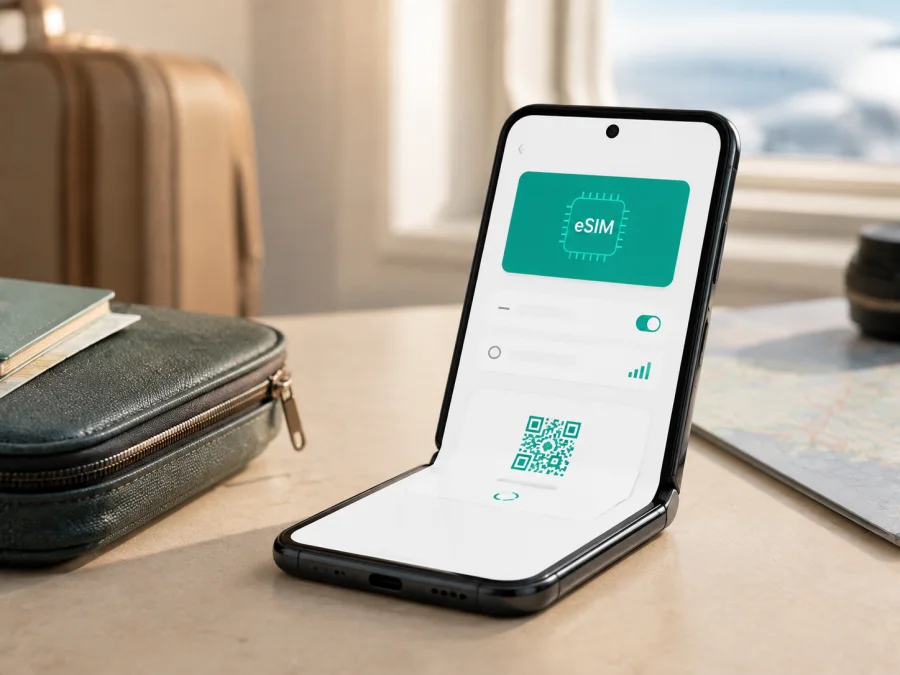
Motorola Razr 5G eSIM: compatibility and setup
If you want to use a travel eSIM on Motorola Razr 5G, the practical answer is conditional: compatible versions can support eSIM, but you should verify the individual phone before buying a plan. Motorola's official support instructions for razr 5G include an eSIM setup flow, while also saying that your phone may support eSIM and that support should be verified with the service provider. A listing with the model name alone is therefore not enough.
This guide shows how to check your Motorola Razr 5G, add an eSIM when available, and use it for mobile internet abroad. Regional and carrier versions can differ.
Quick answer: does Motorola Razr 5G support eSIM?
Motorola Razr 5G can support eSIM in some versions. Motorola's official razr 5G support material shows the path Settings > Network & internet > SIM cards and describes downloading an eSIM. It also uses cautious wording and tells users to check with their service provider. Treat eSIM as available on your unit only when the handset exposes an eSIM option, shows an EID, or the carrier confirms support for the exact model and region.
If the menu and EID are absent, do not assume that a QR code will work. Confirm the model, software and carrier status first.
Motorola Razr 5G eSIM compatibility at a glance
| Item | What to expect |
|---|---|
| Device checked | Motorola Razr 5G |
| eSIM | May be available alongside a physical SIM, depending on version |
| Official setup path | Settings > Network & internet > SIM cards |
| EID | Should be present on an eSIM-capable unit; its location varies by Android build |
| Physical SIM | A physical SIM tray is documented for the phone |
| Dual-SIM behavior | Depends on configuration; some versions allow only one SIM to be active at a time |
| 5G | Needs a suitable plan and local coverage; 5G is not universal |
| Main variables | Region, carrier customization, model number and firmware |
Every unit sold as Motorola Razr 5G may not have identical eSIM hardware or software.
Why Motorola Razr 5G versions can differ
One phone family can be released through several carriers and markets. Carrier requests, regional network bands and software builds can make two visually identical Motorola Razr 5G units expose different eSIM options.
Open Settings > About phone and note the exact model number and Android version. You can also find the model number on the box or purchase documents. Do not post your IMEI or EID publicly; give those identifiers only to a trusted retailer, carrier or support representative when needed.
Carrier locking is separate from eSIM hardware: a phone may contain the component and still reject a travel profile. Ask whether it is unlocked for another eSIM, not only whether it works with its original physical SIM. Software updates can alter labels, so investigate a missing menu rather than guessing.
<a id="kesim-device-compatibility"></a>
Check compatibility before buying a plan
Use this checklist on the exact Motorola Razr 5G you will take abroad:
- [ ] Open Settings > Network & internet > SIM cards and look for eSIM, Add eSIM, Download a SIM or similar wording.
- [ ] Check Settings > About phone for the exact model number and Android version.
- [ ] Look for an EID under About phone, SIM status, Status information or the closest available status screen.
- [ ] Confirm that the phone is not carrier-locked.
- [ ] Check that the travel eSIM supports Android and your destination country or region.
- [ ] Review the plan's data allowance, validity, activation conditions and data-only limitations.
- [ ] Make sure Wi-Fi or another working internet connection is available during installation.
- [ ] Keep your physical SIM available if you need your usual number for calls or messages.
Verify the EID and eSIM menu
An EID identifies an embedded SIM. It is not the IMEI or the QR code used to install a profile. Labels vary by Android release, language and carrier software.
Inspect SIM settings
- Open Settings.
- Tap Network & internet.
- Tap SIM cards or Mobile network.
- Look for an eSIM row, an add button or Download a SIM.
- Open the option without confirming installation if you are only checking.
Motorola's official razr 5G instructions use the SIM cards screen. An eSIM choice there indicates that the phone exposes the feature; if only the physical SIM appears, check status and ask the carrier or retailer.
Inspect device status
- Open Settings > About phone.
- Select SIM status, Status information or a similar page.
- Look for EID or an embedded-SIM identifier.
- Compare the model number there with the one on your purchase record.
Some versions place EID in a submenu. Use Settings search for “EID”, “eSIM” or “SIM”. An IMEI, serial number or Android ID is not an EID. If no EID or eSIM option appears, confirm the exact commercial version before purchasing.
Check your device compatibility before you select or pay for a travel plan. This is particularly important for an imported, refurbished or second-hand Motorola Razr 5G.
What a travel eSIM is useful for
A travel eSIM can provide mobile internet for maps, translation, ride booking, reservations and messages abroad without removing your physical SIM. Select it for data while keeping your usual line available according to its own roaming settings and charges.
Kaspersky eSIM Store is an app and website where you can choose, arrange and activate an eSIM with a suitable mobile-internet tariff for an overseas trip. It helps you review the destination, allowance, validity and other plan conditions. Kaspersky eSIM Store is not a mobile operator, network owner or mobile-internet provider; the connection depends on the selected plan and relevant local operator networks.
After confirming eSIM support and unlock status, you can choose an eSIM plan for your trip. Select the destination matching your itinerary and compare allowance and validity with your expected use.
Prepare before installation
Have a compatible, unlocked Motorola Razr 5G, reliable Wi-Fi, the QR code or installation details from your profile, account access and enough battery. Check the destination, dates and activation conditions first.
If the QR code is displayed on Motorola Razr 5G itself, use another trusted screen, an installation button if provided, or manual details exactly as supplied. Do not share a QR code publicly.
For broader platform guidance, see the Android eSIM installation instructions and the iOS eSIM installation instructions. The Android page is the relevant guide for Motorola Razr 5G; the iOS page is provided for users who are comparing installation flows on another device.
Install eSIM on Motorola Razr 5G
Button names can vary. Follow the text on screen and stop if the phone does not show an eSIM option.
1. Connect to Wi-Fi
Connect Motorola Razr 5G to reliable Wi-Fi and keep it on while the profile downloads.
2. Open SIM settings
Open Settings > Network & internet > SIM cards or Mobile network. Select eSIM, Add eSIM or Download a SIM.
3. Start setup
Tap the eSIM installation option. If it is absent, return to the compatibility checks rather than forcing a QR-code installation.
4. Scan the QR code
Display the QR code on another screen and scan it with Motorola Razr 5G. Keep it complete, flat and well lit. Use manual activation only when the plan supplies those details.
5. Download the profile
Review the profile and confirm the download without interrupting Wi-Fi. Downloading it is not necessarily the same as starting validity; check your account.
6. Name the line
Label the profile Travel data or with the destination name so you can distinguish it from the physical SIM.
7. Select mobile data
When Android asks which SIM handles data, choose the travel eSIM. Keep calls and SMS on your usual line if intended. Dual-SIM behavior varies, and some configurations allow only one SIM to be active.
8. Enable roaming if required
Open the travel eSIM settings and enable Data roaming only when the plan requires it. Check the selected line carefully because roaming on the primary SIM can create home-network charges.
9. Test the connection
Turn Wi-Fi off briefly and open a simple webpage. Confirm the travel eSIM is selected for data, then restore Wi-Fi if you want to conserve the allowance.
Activate and use eSIM during a trip
Installation places the profile on the phone; activation and first data use can follow different plan rules. Check when validity starts.
Before departure
If the plan allows early installation without starting validity, download it at home, label it and leave it off until needed. If installation starts validity, wait. Keep account details accessible and do not repeatedly delete and reinstall the profile.
After arrival
Connect to trusted Wi-Fi, turn on the travel eSIM, select it for data and allow a few minutes for registration. If data does not start, toggle airplane mode once and recheck the active SIM and roaming setting.
Keep your primary number
Set the travel eSIM as the data line and review roaming on the physical SIM. Disable primary-line roaming if you do not want home-plan charges. A travel eSIM is normally data-only, not a replacement number, voice line or SMS service.
Troubleshooting Motorola Razr 5G eSIM
The eSIM option is missing
Check the model number, Android version and updates, restart the phone, and search Settings for “eSIM” or “EID”. If neither appears, ask the carrier or retailer to verify the exact version. Do not factory-reset first.
The QR code will not scan
Increase the code screen's brightness, clean the camera area, hold the phone steady and include the whole code. Confirm it belongs to the intended plan and has not been used. Copy manual fields exactly.
The profile will not download
Check Wi-Fi, battery and storage. A captive-portal network may require browser sign-in, so try another connection. Confirm the phone is unlocked and the plan matches the destination. Contact support before repeated retries or deletion.
The profile is installed but there is no signal
Confirm that the travel eSIM is on and selected for data, then check whether roaming is required. Toggle airplane mode once and wait. Automatic network selection is the safest starting point; use manual selection only when instructed.
Mobile data uses the wrong SIM
Return to Settings > Network & internet > SIM cards, choose the travel eSIM for data and test with Wi-Fi disabled. Check that physical-SIM roaming is off if needed.
The connection is slow or stops
Check the allowance, validity and destination conditions. Move to a clearer-signal location and toggle airplane mode once. 5G may not be available on Motorola Razr 5G: plan, coverage and bands must align. LTE can be normal; an APN change cannot restore an expired allowance.
You are asked to delete the eSIM
Do not delete it merely because data is unavailable. Motorola's guidance says to erase an eSIM only when instructed; restoration may require the provider. First check the active line, roaming, registration and plan status.
FAQ
Is Motorola Razr 5G definitely compatible with eSIM?
No universal guarantee applies to every unit. Official Motorola instructions show that razr 5G may support eSIM and provide setup steps, but they also require verification with the service provider. Check the eSIM menu and EID on your phone.
Can I use a physical SIM and eSIM together?
Possibly. Motorola documentation describes eSIM alongside a physical SIM, but some configurations allow only one SIM to be active. Check the SIM manager on your phone.
Does a travel eSIM replace my number?
Usually not. A travel eSIM for mobile internet normally supplies data rather than a standard number, voice calls and SMS. Those features apply only when the selected plan states otherwise.
Do I need Wi-Fi to install it?
You need an internet connection to download the profile. Wi-Fi is simplest when mobile service is unavailable.
Will 5G always work with the travel eSIM?
No. 5G depends on the plan, local network, supported bands and coverage. Motorola also cautions that the phone is not compatible with all 5G networks, so LTE may be the expected connection.
What if the phone is carrier-locked?
Ask the original carrier to confirm unlock status and eligibility for another eSIM. eSIM hardware does not bypass a network lock.
Conclusion: check first, travel connected
Motorola Razr 5G can suit a travel eSIM when the exact unit exposes the feature, is unlocked and can register on a supported destination network. The reliable decision comes from the phone itself: inspect Settings > Network & internet > SIM cards, look for an EID, confirm the model and review the plan's allowance, validity and activation rules. A 5G label does not guarantee 5G service in every place, and regional or carrier versions can behave differently.
Before purchase, verify the device and choose an eSIM tariff that fits your route and data needs. Kaspersky eSIM Store helps you choose, arrange and activate an eSIM for mobile internet abroad through its app and website. It is not the operator or network behind the service, so the final connection remains subject to the selected plan and local operator conditions.
Final trip check: verify Motorola Razr 5G eSIM support and unlock status; save the plan details; install at the right time; select the travel eSIM for mobile data; review roaming on your primary SIM; test a small amount of traffic; and keep support details available.


