Travel connectivity guide
Motorola Razr 60 eSIM: compatibility and setup
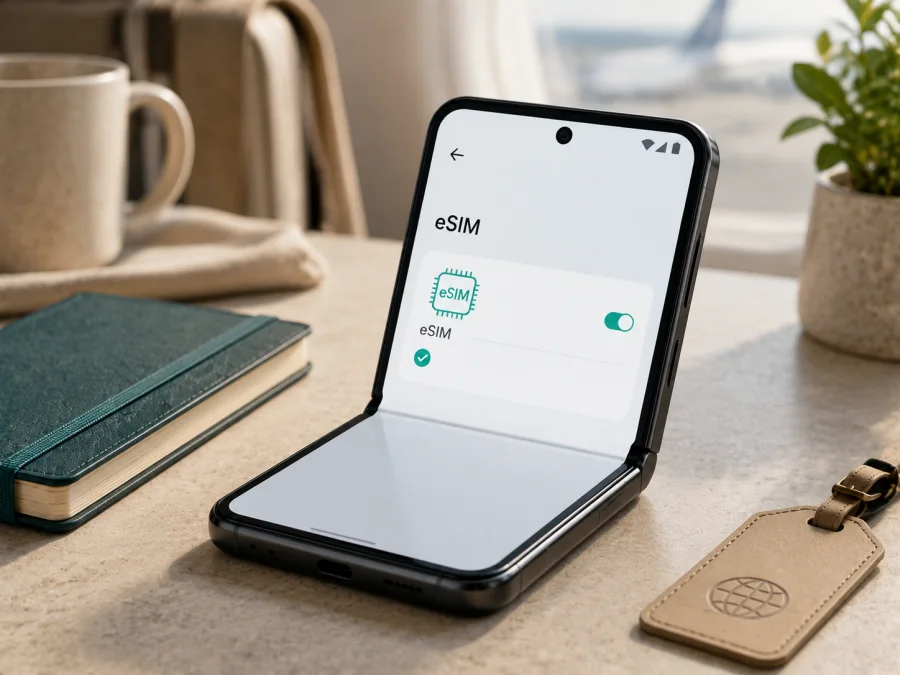
Motorola Razr 60 eSIM: compatibility, setup and travel data
The Motorola Razr 60 is a foldable 5G smartphone that can use a physical nano-SIM and, on supported versions, an eSIM. This lets you keep your everyday number on one line and use a separate eSIM profile for mobile data abroad. The qualification matters: Motorola’s official specifications list eSIM + nano-SIM, while also noting that some specifications vary by market. Before buying a travel plan, check the phone in your hand, its software and its carrier-lock status.
Here, eSIM means an embedded digital SIM profile installed in the phone. In the Kaspersky eSIM Store context, it is intended for mobile internet during an international trip. The app and website help you choose, arrange and activate an eSIM with a suitable travel data plan; they are not a mobile operator, network owner or source of coverage.
Quick answer: does Motorola Razr 60 support eSIM?
Yes. Motorola support documentation for the standard Motorola Razr 60 lists eSIM + nano-SIM, and its user guidance describes downloading and setting up an eSIM. The documentation also says that the phone might support eSIM and that the carrier should be contacted for details. The accurate answer is therefore: eSIM support is officially documented for supported Motorola Razr 60 configurations, but the exact regional and carrier version must be confirmed before purchase.
This is especially important for imported stock, operator-branded phones and refurbished devices. A listing that says “5G” or “dual SIM” is not proof that the exact handset can download a travel eSIM. An EID and an eSIM setup control in the phone’s own settings are stronger evidence. The device must also be unlocked if you intend to use a profile from another provider.
Motorola Razr 60 eSIM specifications
| Item | Current Motorola documentation | What to confirm on your phone |
|---|---|---|
| Device | Motorola Razr 60 | The exact name and regional SKU |
| Network | 5G with 4G LTE support | Bands and roaming compatibility for your route |
| SIM arrangement | eSIM + one nano-SIM on listed versions | Whether your market version exposes eSIM |
| Operating system | Android 15 is listed | Installed version and available updates |
| Storage | 256 GB is listed in the US specification | Retailer’s exact memory option |
| RAM | 8 GB LPDDR4X is listed; memory can vary by market | The configuration shown in About phone |
| Setup | Download-and-set-up-eSIM menu on supported phones | EID and add-eSIM control in Settings |
| Travel use | Separate profile for mobile data | Destination, validity and activation rules of the plan |
These details identify a commonly documented version; they do not merge Motorola Razr 60 with another Razr model. A different family name means a separate compatibility question.
Regional and carrier differences
Motorola publishes support pages by market. Current pages for the Razr 60 describe eSIM + nano-SIM in several regions, but the same manufacturer documentation warns that certain specifications may vary by market. The user guide also uses cautious wording about eSIM and tells the user to check with the carrier. Together, these statements mean that the model family has an eSIM-capable configuration, but a retail unit may not expose identical features everywhere.
Differences can come from regional hardware or firmware, carrier provisioning, a network lock, an old Android build or the plan’s destination rules. A locked device can reject a travel eSIM even with an EID, and a compatible phone still needs a plan covering the route. Do not rely on a marketplace photo or “dual SIM.” If the region is unclear, ask for the exact SKU and confirm the device is unlocked; eSIM capability and permission to use another provider are separate things.
How to verify eSIM compatibility on your exact phone
The best check is performed on the phone itself before paying. Menu names can differ by language and Android update.
<a id="kesim-device-compatibility"></a>
1. Find the EID
Open Settings, search for EID, or open About phone and the SIM or status area. A compatible phone normally shows a long EID; some versions display it under SIM status. Do not post the full number publicly.
An EID is strong evidence of eSIM hardware, but it does not guarantee carrier activation. Continue with the lock and plan checks.
2. Find the eSIM action
Go to Settings → Network & internet → SIMs & mobile network. Look for Download and set up an eSIM, Add eSIM or similar wording. This opens the guided download and QR-code flow.
If you see only physical-SIM controls, connect to Wi-Fi, update, restart and search again. If there is still no EID or add-eSIM action, pause the purchase and ask about the exact SKU. A QR code cannot create eSIM hardware that the phone does not expose.
3. Check the lock and connection
Look for a carrier restriction or ask the original operator to confirm unlock status. Make sure Wi-Fi works and the phone is updated. Finally, confirm that the plan covers the destination and supports the phone’s activation method.
When these checks are complete, Check your device once more before selecting a plan. This small step is more reliable than assuming every Motorola Razr 60 sold worldwide has identical eSIM behavior.
Compatibility checklist before buying
- The device is exactly Motorola Razr 60, not another Razr 60-series variant.
- An EID is visible in Settings or device-status information.
- An eSIM download or add-eSIM action appears under the mobile-network menu.
- The handset is unlocked, or the carrier confirms that another profile can be used.
- Android is updated and Wi-Fi is available for installation.
- The plan covers every country, territory or regional segment on your route.
- You have checked its data allowance, validity and start condition.
- You know whether data roaming must be enabled for the travel profile.
- You understand which line will handle mobile data and which will handle calls or messages.
- The activation email, QR code or in-app profile is available.
Resolve uncertainty before payment. Read the selected plan’s activation, transfer, refund and reuse conditions. Travel eSIM plans are generally for mobile internet, not a new number, voice service or SMS unless stated otherwise.
How to install an eSIM on Motorola Razr 60
Install over stable Wi-Fi, before departure or after arrival according to the plan’s activation rule. If the QR code is on a phone, use another screen for the Razr 60 to scan it.
1. Prepare the profile
Charge the phone, connect to Wi-Fi and open the Kaspersky eSIM Store app or website. Keep the QR code or manual activation data ready and private.
2. Open SIM settings
Go to Settings → Network & internet → SIMs & mobile network. Tap Download and set up an eSIM, Add eSIM or the closest option. If it is missing, return to the compatibility checks.
3. Download the profile
Follow the prompts and scan the QR code, or enter manual details if supported. Keep the phone online until the profile appears. Installing it does not necessarily start validity; follow the plan’s condition.
4. Name and enable the line
Name the line Travel data or the destination. When Android asks which line handles mobile data, choose the travel eSIM and disable automatic switching if needed.
5. Activate at the appropriate time
Some plans begin on installation, while others start on first connection to an eligible network. Follow the plan’s rule; if activation is intended for arrival, leave the profile disabled until then. Connection can take a few minutes.
For a general walkthrough, see the Android installation instructions. The iOS installation instructions are available for a traveller using an iPhone; they are not the menu path for Motorola Razr 60.
Using eSIM for mobile data abroad
After landing, open Settings → Network & internet → SIMs & mobile network, enable the travel profile and select it for Mobile data. If required, enable data roaming for that eSIM only. This lets it use an eligible partner network; it does not require roaming on the home SIM.
Keep your home number available only if you understand your operator’s roaming charges. To avoid accidental data use, turn off mobile data for the home SIM, disable automatic switching and check the tethering line. Unless the plan says otherwise, ordinary calls, SMS and a separate number are not part of a mobile-data eSIM; messaging and calling apps can work over data.
Before departure
Install at home over Wi-Fi, but read when validity begins. Keep the travel profile disabled until the correct time, then enable it, select it for data and wait for registration.
After arrival
If the plan starts on installation, use reliable airport or hotel Wi-Fi. If the profile is already installed, turn it on and check mobile data instead of reinstalling it.
On a multi-country route
Check whether one regional plan covers all stops. Crossing a border does not extend a country-only plan. Select the correct profile and allow time for registration. The Razr 60’s 5G label does not guarantee 5G in every country: local networks, bands, plan rules and signal conditions matter.
When using hotspot
If tethering is allowed, select the travel eSIM as the data line before enabling the hotspot. A laptop may consume more data, so monitor the allowance.
Common problems and solutions
The eSIM option is missing
Confirm the model name, search Settings for “EID” and “eSIM,” restart the phone and install updates. If neither appears, the regional SKU may not expose eSIM or the carrier may have restricted it. Contact the seller, carrier or Motorola support before purchasing.
The QR code will not scan
Increase brightness, remove glare, keep the whole code visible and use stable Wi-Fi. If manual activation is offered, enter it carefully. A code can be one-time or tied to a previous installation; contact support before repeated scans.
The profile downloads but does not activate
Confirm that the profile is enabled for mobile data, then check the destination, activation window and data-roaming requirement. Try airplane mode briefly, then restart. A profile installed on another phone may not be transferable.
There is no service after arrival
Check airplane mode, data line, network selection, destination and validity. Move to a stronger-signal location and allow time for registration. A compatible phone cannot create service where the plan has no eligible network access.
Data uses the home SIM
Verify the mobile-data line, disable automatic switching, turn off data for the home SIM and reconnect. You can keep the home line for calls or SMS, but check roaming terms.
The device is locked
An EID does not remove a carrier lock. Ask the original operator to unlock the phone and confirm that another eSIM profile is allowed. If the seller promised an unlocked phone, keep the purchase documents and contact the seller before deleting a profile.
The connection is slow
Check network rules, radio mode and local congestion. The Razr 60’s 5G capability is not a guarantee of 5G in every destination.
FAQ
Is Motorola Razr 60 compatible with eSIM?
Yes, Motorola’s current support specifications list eSIM + nano-SIM and its support instructions describe setup. Market variation and carrier involvement still make the EID, eSIM menu and unlock status important checks.
Can I use eSIM and the physical SIM together?
Supported versions document one nano-SIM plus eSIM. Keep both profiles available if desired, but choose the travel eSIM for data and confirm your home operator’s roaming charges.
Will eSIM give me a new phone number?
Not usually in this travel-data context. Kaspersky eSIM Store is for mobile internet abroad; calls, SMS and a new number are not included unless the selected plan says so.
Will an imported Razr 60 work?
It may, but check the market, firmware, carrier lock and destination plan. Treat the EID and eSIM-add control as evidence, not a generic listing.
Can I delete the eSIM after travel?
Only when the plan allows it and you no longer need the profile. Motorola warns that erasing an eSIM removes its calling, messaging and mobile-data capability; deletion does not necessarily cancel a service. Disable it instead if you may need it again.
Is Kaspersky eSIM Store a mobile operator?
No. It is an app and website where you can choose, arrange and activate an eSIM with a plan for mobile internet during an international trip. It is not a carrier, network owner or mobile-internet provider; conditions come from the selected plan.
Final device check and trip eSIM choice
For Motorola Razr 60, the official answer is positive for supported configurations: eSIM + nano-SIM is documented and an eSIM setup flow is described. The responsible final check is still device-level: find the EID, confirm the eSIM download option, check that the phone is unlocked and review the plan’s destination and activation terms. If the menu is missing or the regional version is unclear, ask the seller, carrier or Motorola support before payment.
After compatibility is confirmed, use the Kaspersky eSIM Store app or website to choose a plan that matches your route, review its data allowance and validity, and complete activation. Before departure, decide which line will handle mobile data, whether roaming is required for the travel profile and how the home SIM will be prevented from using data accidentally. After arrival, allow the phone time to register and recheck the selected data line.
In short: check Motorola Razr 60 first, then choose the eSIM plan that matches your trip.


