Travel connectivity guide
Motorola Razr 60 Ultra 128GB eSIM Guide
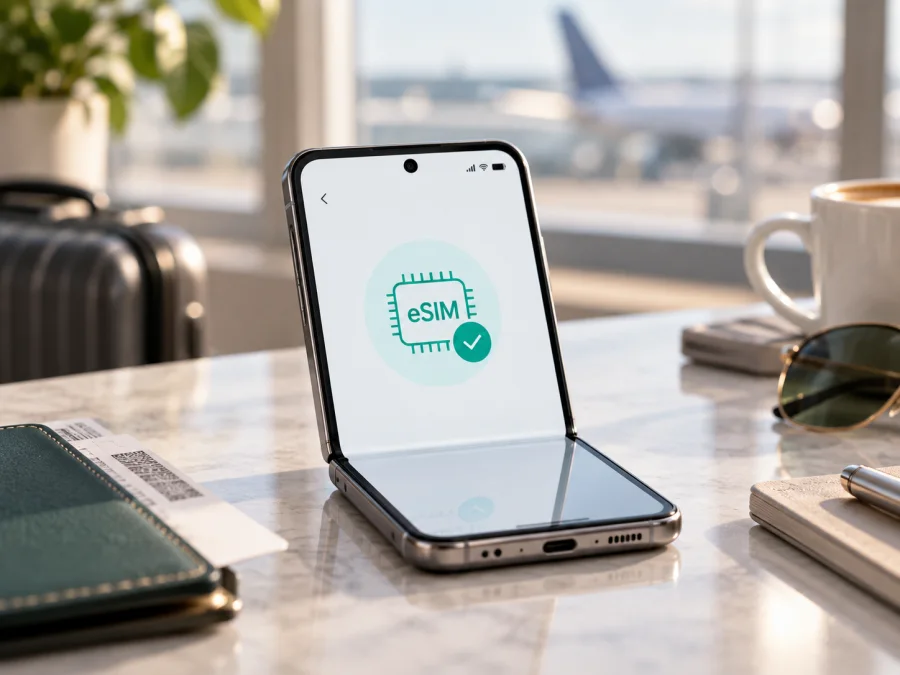
Motorola Razr 60 Ultra 128GB eSIM compatibility and setup guide
If you are checking whether the Motorola Razr 60 Ultra 128GB can use an eSIM, the practical answer is: the Razr 60 Ultra family supports eSIM in supported regional configurations, but Motorola’s public specifications do not establish that every 128GB-labelled unit has the eSIM hardware and software enabled. Confirm the exact phone before buying or installing a travel plan. Motorola says specifications can vary by market, and its support guide gives a direct on-device check: look for an EID or an eSIM download option. An EID is the strongest quick indication that the phone has an eSIM profile facility.
A product name and storage capacity alone do not identify a phone’s market SKU or carrier configuration. Confirm the exact Motorola Razr 60 Ultra 128GB using the checks below.
Quick compatibility summary
| Item | What to know about Motorola Razr 60 Ultra 128GB |
|---|---|
| Device name | Motorola Razr 60 Ultra 128GB |
| eSIM status | Supported by the Razr 60 Ultra family in supported configurations; verify this specific 128GB unit |
| Physical SIM | Motorola lists eSIM alongside a physical SIM on its official specifications page for supported markets |
| Best confirmation | Find an EID under About phone, then check for Add/Download eSIM in SIM settings |
| Potential limitation | Market, model/SKU, carrier lock, firmware, and local carrier support can affect availability |
| Before a travel plan | Confirm EID, unlocked status, compatible network bands, and the plan’s supported destination |
eSIM capability does not guarantee every plan will work. The handset must support the profile, be unlocked, and work on a network covered by the plan.
What Motorola’s information confirms
Motorola’s official Razr 60 Ultra specifications list “eSIM + physical SIM” and warn that specifications may vary by market. The official setup guide also describes downloading an eSIM from SIM settings, while noting that availability may depend on the phone and carrier. This confirms eSIM capability in the product family, with regional and operator-specific exceptions possible.
The 128GB listing needs extra checking: Motorola’s support page lists 512GB storage and 16GB RAM, not a 128GB SKU. That does not rule out local listings, but the requested variant cannot be matched to that official page. Storage does not enable eSIM; regional hardware, firmware, and carrier configuration do. Confirm the full model number and EID with the seller or Motorola.
The safest conclusion is conditional: consider this exact 128GB-labelled unit compatible only after its own EID or eSIM settings confirm the feature. Family specifications do not guarantee every regional handset.
Why region and carrier version matter
Phones sold under the same family name can differ in radio bands, SIM trays, firmware, and carrier approvals. “128GB” identifies storage, not the phone’s regional radio SKU. Check the model number in Settings > About phone and on the packaging. Carrier-sold devices may also be locked or have operator-specific activation rules. An unlocked phone may still lack eSIM on a particular variant; an eSIM-capable phone may still reject a profile while locked.
Before buying, ask whether this exact model has an EID in the sale country, whether it is unlocked for another provider, and whether it supports travel eSIM profiles. If the seller’s listing conflicts with Motorola’s regional information or the phone’s Settings screen, get written clarification before purchasing a non-refundable plan. Do not rely only on a marketplace title or a compatibility list for a different storage version.
Check eSIM on your Motorola Razr 60 Ultra 128GB
Do these checks while connected to Wi-Fi if possible. Menu labels vary by Android version and carrier software.
1. Find the EID
An EID identifies the embedded SIM facility. Motorola’s guide gives the route Settings > About phone > Device details; look for “EID” or “EID · eSIM”. You can also search Settings for “EID”. Keep the number private and share it only with official support if needed. An EID indicates eSIM capability, but not unlock status or plan compatibility.
2. Look for the add-eSIM control
Open Settings > Network & internet > SIMs & mobile network. Depending on Android version, the control may say “Download new SIM”, “Add eSIM”, or “Set up an eSIM”. Motorola describes the download-and-set-up option. If it is missing, restart, install available system updates over Wi-Fi, then check again. Confirm the model number with Motorola or the seller; resetting the phone cannot add missing eSIM hardware. If an EID exists but the menu is absent, ask whether firmware or carrier policy restricts setup.
3. Check SIM status and confirm before paying
Review SIM status in About phone or mobile network settings. If the phone is network-locked, ask its original carrier to unlock it before using another provider. Then confirm the exact model, destination coverage, and that the plan supports eSIM downloads.
- [ ] An EID appears in Settings.
- [ ] SIM settings show Add eSIM or Download new SIM.
- [ ] The phone is unlocked and its regional model number is known.
- [ ] The plan covers the destination and can be installed over Wi-Fi.
Check your device against these points before choosing a plan. This helps avoid buying a profile the particular handset cannot install.
Troubleshooting and profile checks
If the EID or add-eSIM menu is missing, search Settings for “EID” and “eSIM”, restart, update Android, and verify the model number. If the phone was advertised as 128GB, ask the seller to confirm its eSIM capability for that region.
If the QR code is rejected, confirm it belongs to this plan, has not expired or been used, and is being scanned from a clear display. Keep the phone online. Use a manual activation code or provider app only if the provider supplies that method. Never share the QR code publicly.
If the profile installs but does not connect, make sure the eSIM line is enabled and selected for mobile data. Toggle Airplane mode briefly, wait for registration, then restart if necessary. Confirm that you are in a covered destination and within the plan’s validity period. Enable data roaming for the travel line only if required by its provider, and enter APN details only when the provider gives them.
If data is using the wrong line, check the default mobile-data SIM and disable automatic data switching if available. Review roaming settings on your home SIM. A weak signal or 4G/LTE instead of 5G can reflect local coverage, available bands, or the regional phone SKU; leave network selection automatic and check the plan’s network details.
Do not delete an offline profile as a troubleshooting step. Some QR codes are single-use and some profiles cannot be transferred. If a profile was removed, contact its provider about reinstalling or reissuing it. Share EID or IMEI only through official private support channels.
Install and activate a travel eSIM
Most travel data eSIMs are installed by scanning a QR code or using an in-app installation flow. Screens vary by Android build and provider. Use Wi-Fi and follow the plan’s instructions if they differ from Motorola’s general path.
- Check eligibility first. Verify EID, the add-eSIM option, unlock status, destination coverage, plan validity, data allowance, and whether activation starts at installation or at first network connection. Read the plan conditions before checkout.
- Prepare the phone. Connect the Motorola Razr 60 Ultra 128GB to Wi-Fi, update Android if needed, and open Settings > Network & internet > SIMs & mobile network. Do not delete an existing eSIM unless its provider tells you to.
- Start adding the profile. Tap Download new SIM, Add eSIM, or the equivalent option. Scan the supplied QR code when prompted. If it is displayed on this phone, use the provider’s manual or app-based flow.
- Confirm the download. Follow the prompts and keep Wi-Fi on. A download may fail if the code was used, expired, or assigned to another device.
- Label the line. Give the new profile a clear label such as “Travel data” so you can distinguish it from your home SIM.
- Choose how each line is used. Keep your usual number available for calls or messages if desired, and select the travel profile for mobile data when appropriate. Choose it for data when ready to use it.
- Activate according to the plan rules. Some profiles can be installed before departure but connect only in the covered destination. Others may begin their validity period when installed or when they first connect. The plan terms determine when validity starts; installation and activation are different events.
- Test the connection. At the intended time, enable the travel line, turn on mobile data for it, and wait for network registration. Enable roaming for that line only if required. Enter APN details only if supplied by the provider.
Motorola’s general instructions for Android eSIM setup explain the Android flow. If you are helping an iPhone user travelling with you, the separate iOS eSIM instructions cover that platform. The Motorola Razr 60 Ultra 128GB uses Android.
Keep the home SIM and travel data separate
A common travel setup is to leave a home SIM enabled for important incoming calls or SMS and use the travel eSIM for data. Check your home carrier’s roaming charges before departure. Select the data line in SIM settings and disable data switching if it might use the home line. Menu wording varies. Data-only plans may not include calls or SMS; internet calling apps can use their data.
Do not delete the travel profile just because it is temporarily offline. Some eSIM profiles cannot be reinstalled after removal, and a QR code may be single-use. Check provider transfer or reissue rules before moving the plan.
Practical travel scenarios
Before departure
If the plan allows it, install the profile at home over Wi-Fi and leave the line switched off until needed. Check when its validity starts: at purchase, installation, or first connection. These are different events, and the plan terms decide which applies. Keep the QR code and activation details private.
After landing and on a multi-country route
Enable the travel line, select it for mobile data, and allow time for network registration. Turn on data roaming for that eSIM if its instructions require it; keep roaming off for your home line if you want to avoid charges. For a multi-country trip, check that every destination and transit stop is covered. 5G depends on local coverage, supported bands, plan terms, and the exact regional model. Data may still work over 4G/LTE when available.
Maps, messaging, and hotspot
A data eSIM can support maps, bookings, email, and internet messaging where service is available. Download offline maps before leaving and monitor data use: video, cloud backups, and automatic updates can consume a plan quickly. Check whether hotspot use is permitted. A travel data plan may not include an ordinary phone number, calls, or SMS; internet calling apps can use its data.
Returning home
Switch mobile data back to your home SIM or disable the travel line. Follow the provider’s deletion guidance and check transfer rules before removing the profile. Many eSIMs cannot simply be moved to another phone.
Frequently asked questions
Does Motorola Razr 60 Ultra 128GB support eSIM?
Motorola documents eSIM for the Razr 60 Ultra family, but specifications vary by market. The official specification page reviewed lists 512GB/16GB, not a 128GB SKU. Confirm the exact Motorola Razr 60 Ultra 128GB using its EID, SIM menu, regional model number, and unlock status.
Is an EID enough to prove that a travel plan will work?
No. It indicates eSIM capability, but the phone must also be unlocked, accepted by the provider, and compatible with a supported destination network.
Can I use a physical SIM and eSIM together?
Motorola lists eSIM plus physical SIM for supported configurations. Whether both can be active together depends on the regional device and software; check its SIM manager and carrier rules.
Does a travel eSIM replace my phone number?
Usually a travel data eSIM is for internet access and does not include regular calls, SMS, or a phone number unless the plan expressly says so. Keep your home line for its number and manage roaming charges.
Should I install before travelling, and can I transfer it?
Advance installation over Wi-Fi is convenient if the plan allows it. Check when validity begins. Do not assume a profile can be moved or its QR code reused; follow the provider’s transfer and reissue rules.
Final device check and travel eSIM
Before choosing an eSIM plan for a trip, confirm that your Motorola Razr 60 Ultra 128GB shows an EID and an Add eSIM or Download new SIM control, identify its regional model number, and verify that the handset is unlocked. Then check the destination, supported network, data allowance, validity start, roaming requirements, and any hotspot restrictions for the plan you are considering. If any of those details are uncertain, ask Motorola, the seller, carrier, or plan provider before purchase.
Kaspersky eSIM Store is an app and website that helps you choose, arrange, and activate an eSIM with a mobile data plan for an international trip. After the device check, you can review an option for your destination and follow its installation guidance. Compatibility is the first step: confirm the exact phone, then choose the travel eSIM that fits your route and data needs.


