Travel connectivity guide
Motorola Razr 60 Ultra 512GB eSIM: setup guide
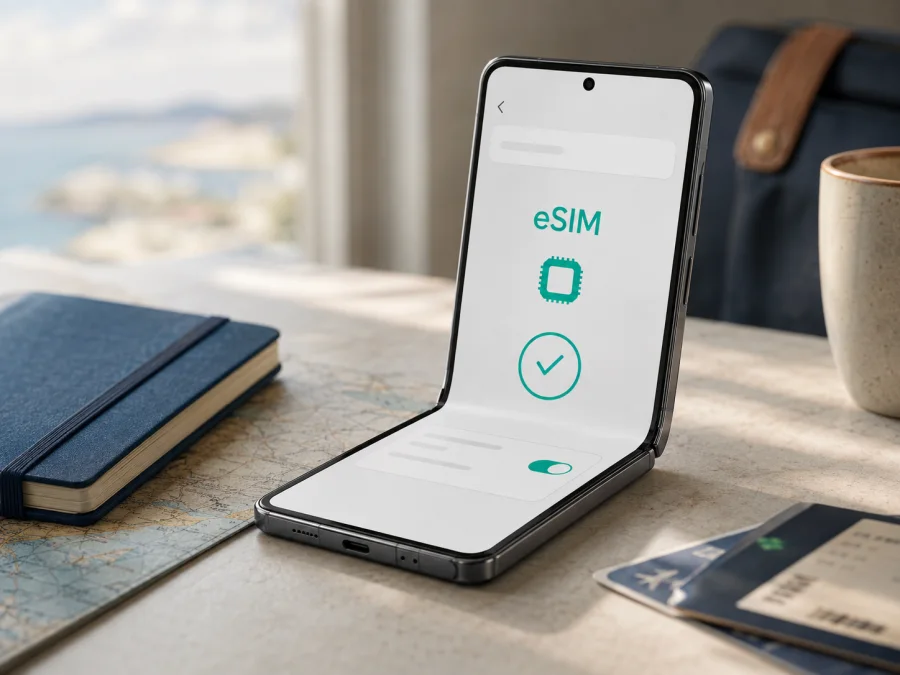
Motorola Razr 60 Ultra 512GB eSIM: compatibility and setup
The Motorola Razr 60 Ultra 512GB is an Android foldable with 512 GB of built-in storage and 16 GB of RAM. Motorola’s current support specification for this configuration lists “eSIM + physical SIM,” so the device is designed to accept a digital SIM profile. Motorola also says that some specifications vary by market and that carrier eligibility matters. The practical answer for your handset is: eSIM is supported when the retail unit shows an EID and an option to download or add an eSIM in Settings.
That qualification matters for mobile internet abroad. Storage and RAM do not activate eSIM by themselves, and a shop listing may omit the regional model code. Before you buy a travel eSIM tariff, check the phone in your hands, confirm that it is unlocked, and make sure the tariff covers every country or region on your route.
Quick answer: does the Motorola Razr 60 Ultra 512GB support eSIM?
Yes. Motorola’s current official specification for the 512 GB/16 GB configuration lists “eSIM + physical SIM.” Its support instructions also describe downloading and setting up an eSIM from the mobile-network settings. This confirms that the named configuration can use a digital SIM in supported markets.
It is not a guarantee that every imported or operator-branded unit exposes the same function. Motorola’s user guidance uses conditional wording, asks users to check with their service provider, and notes that not all carriers support eSIM. Regional hardware, a carrier policy, a different firmware build, or an operator lock can change what is available. Check the EID and menu on the exact Motorola Razr 60 Ultra 512GB before purchase or before relying on it during a trip.
| Item | What to expect for this variant |
|---|---|
| Exact device | Motorola Razr 60 Ultra 512GB |
| Operating system | Android 15 in Motorola’s listed specification |
| Internal storage | 512 GB built in; usable space is lower after system software and other factors |
| RAM | 16 GB LPDDR5X in the listed configuration; availability can vary by market |
| SIM capability | eSIM + physical SIM in the current official specification |
| Mobile networks | 5G sub-6 and 4G LTE; bands depend on the regional model and local network |
| Travel-data role | A compatible eSIM tariff can provide mobile internet; tariff terms set destination, traffic and validity |
Why the market and operator version matter
The same product family may be sold with different model numbers, radio bands, SIM trays, software packages, or carrier policies. An imported or operator-branded unit can hide eSIM or be locked even when a similar phone supports it. A 512 GB label identifies storage, not the complete network configuration, and a working domestic SIM does not prove that a travel profile will install.
Firmware can change the labels or location of controls. You may see “SIMs & mobile network,” “Mobile network,” “Download an eSIM,” or similar wording. Follow the wording on your screen. If there is no EID and no add-eSIM control, ask the seller or carrier to confirm the exact model code before buying.
What to check before buying an eSIM tariff
Use this checklist on the exact phone, rather than relying only on a listing:
- Confirm the model name and storage variant in Settings > About phone > Device details. It should correspond to Motorola Razr 60 Ultra 512GB or the seller’s exact regional equivalent.
- Look for an EID in Device details. It is the identifier used by an eSIM-capable device, not an IMEI and not a phone number.
- Open the SIM or mobile-network settings and look for an option to add, download, or set up an eSIM.
- Check that the phone is unlocked. A carrier-locked device may reject a travel profile even when eSIM hardware is present.
- Update Android and ensure you can connect to Wi-Fi during installation.
- Read the tariff conditions: destination, regional coverage, traffic allowance, validity, activation rule, top-up options, refund terms, and whether data roaming is required.
- Have the QR code displayed on another screen, or be ready to open the profile in the app if the phone cannot scan its own display.
The result should be clear before you pay: an EID shows that the phone has an eSIM identity, while the add-eSIM control shows that Android can expose the installation flow. The tariff and carrier still have to accept the device. If one of these checks is missing, do not treat the storage label or a seller’s generic “dual SIM” wording as proof. Confirm the regional model and ask support about the profile’s eligibility first.
This check is especially important for a phone bought online or brought back from another country. Ask for the model code shown on the box or invoice and compare it with the code in Device details. If the seller cannot confirm the market version, consider the handset unverified for travel eSIM use until you can inspect it. A clear pre-purchase check can prevent a non-refundable activation attempt and leaves your physical SIM available for your usual number.
For a direct settings check, check your device before selecting a travel tariff. Compatibility belongs before payment, not after an installation attempt.
How to find the EID
Open Settings, then About phone, followed by Device details. Motorola’s user guide describes the EID and eSIM entry in this area for a supported phone. Depending on software, you may need to scroll, open SIM status, or search Settings for “EID.” Do not share the EID publicly; provide it only to a trusted service or support specialist when specifically requested.
An EID is strong evidence, but activation also needs an eligible profile, supported carrier or tariff, an unlocked device, and a connection for provisioning.
How to install and activate an eSIM
Keep the Motorola Razr 60 Ultra 512GB charged, connect it to Wi-Fi, and have the QR code or activation details ready. If the profile is visible in the Kaspersky eSIM Store app or website, sign in first. Do not erase an existing eSIM during setup.
1. Check the device and tariff
Confirm the EID, add-eSIM menu, unlocked status, destination, validity, and activation rule. Installation is not a substitute for compatibility checking.
2. Connect to Wi-Fi
Open Wi-Fi and connect before starting. Motorola recommends Wi-Fi when the phone has no mobile-network connection.
3. Open mobile-network settings
Go to Settings > Network & internet > SIMs & mobile network. On another build, search Settings for “eSIM” or “SIM.”
4. Choose the eSIM option
Tap the control to download, add, or set up an eSIM. Continue only if the displayed account and tariff are the ones you intend to install.
5. Scan the QR code
Scan the QR code supplied with the profile. If it is shown on the Razr itself, display it on a laptop, tablet, or second phone. Keep the code private.
6. Download the profile
Wait while Android downloads and registers it. Keep Wi-Fi active and do not restart the phone during the download. The waiting time depends on the device, profile, and network.
7. Name the line
Give the profile a clear label such as “Travel data” or the destination name.
8. Select the data line
When Android asks which SIM should use mobile data, choose the travel eSIM when you want the travel tariff to carry data. If you are still at home, keep your primary line selected until the appropriate activation point.
9. Review roaming and switching
Open the new eSIM’s settings. Enable data roaming for that eSIM only if the tariff instructions require it. Consider disabling automatic data switching so the phone does not move data to your primary SIM unexpectedly.
10. Test the connection
Turn off Wi-Fi briefly, check that mobile data is assigned to the travel eSIM, and open a simple webpage. The profile may need a few minutes to register with a local network.
For platform-specific help, see the Android installation instructions and the iOS installation instructions. The Motorola Razr 60 Ultra 512GB follows Android’s settings flow.
How to use the eSIM for mobile internet while travelling
Kaspersky eSIM Store is an app and website where you can choose, arrange, and activate an eSIM with a suitable tariff for mobile internet on an overseas trip. It is not a mobile operator, network owner, or provider of mobile internet. The eSIM connects according to the selected tariff and the local networks available at the destination.
Before departure
Check the destination and route, compare traffic and validity with the trip, and note when validity begins. Some profiles start on installation; others on first connection. The tariff conditions decide this. Choose traffic for maps, work, messaging, video, and hotspot use. Install over Wi-Fi only when the activation rule allows it, and save the QR code securely.
At the destination
Open Settings > Network & internet > SIMs & mobile network, turn on the travel eSIM, and select it for mobile data. Enable data roaming for it if required. Check that your primary line is not selected for data and automatic switching is off. Turn off Wi-Fi and test a webpage or map.
The travel eSIM is primarily for data. It normally does not provide a local number, voice calls, or SMS unless the tariff says otherwise. You can keep your primary SIM for calls if your operator’s roaming terms allow it, but charges may apply.
During the trip
Watch traffic, validity, and balance in the profile or app where the eSIM was arranged. Video, backups, updates, and hotspot use consume data quickly. If you cross a border, verify that the regional tariff includes the new country. Kaspersky eSIM Store helps you choose a direction; speed and coverage depend on the tariff, network, destination, and device version.
After the trip
After the trip, set your primary SIM as the mobile-data line and turn off the travel eSIM. Do not erase it casually: restoration may require the service provider, and deletion does not itself cancel a service.
Troubleshooting: when eSIM does not work
There is no EID or add-eSIM option
Restart the phone and check Settings > About phone > Device details again. Search Settings for “EID” and “eSIM,” install an available official update, and confirm the model code with the seller. If the EID and menu remain absent, treat the handset as unverified.
The QR code will not scan
Increase the second screen’s brightness, clean the camera lens, and hold the code steady. Do not use a blurred or already-used code. For a single-use code, contact support before repeating a failed attempt.
The profile will not download
Reconnect to Wi-Fi, check that the EID belongs to this phone, and confirm that the tariff was not installed elsewhere. A profile may not be transferable after activation. Save any Android error and ask support.
The eSIM is installed but there is no signal
Verify that the travel line is on and selected for mobile data. Check roaming, toggle airplane mode, and restart if needed. Give registration a few minutes, then confirm destination and activation.
Mobile data uses the wrong SIM
Return to SIMs & mobile network, set the travel eSIM as the data line, and disable automatic switching. Check app and hotspot settings and your home operator’s terms.
FAQ
Is eSIM supported on the Motorola Razr 60 Ultra 512GB?
Yes. Motorola’s current specification for the 512 GB / 16 GB configuration lists eSIM plus a physical SIM. Confirm the EID and add-eSIM option because regional differences can change availability.
Can I use a physical SIM and eSIM together?
The listed configuration supports eSIM alongside a physical SIM. The active-line combination can depend on hardware, software, and carrier policy.
Does 512GB storage guarantee eSIM?
No. Storage is one identifying detail; model code, region, carrier policy, firmware, EID, and the eSIM menu determine whether a profile can be installed.
Does the travel eSIM replace my regular number?
Usually no. A data travel eSIM does not include a standard number, calls, or SMS unless the tariff says so. Use internet messengers or your primary line according to roaming terms.
Does an eSIM include calls and SMS?
Not for a mobile-data travel tariff unless its terms say so. Internet apps use the eSIM’s allowance.
What if the phone is carrier-locked?
An operator lock can prevent registration. Confirm unlock status before purchase; Motorola’s eSIM support does not override a network lock.
Key takeaways
The Motorola Razr 60 Ultra 512GB is officially documented with eSIM plus physical SIM capability in the 512 GB / 16 GB configuration. The handset should show an EID and add-eSIM control, and the tariff must be eligible for the destination.
Kaspersky eSIM Store helps you choose and activate an eSIM tariff for mobile internet during an overseas trip. Review destination, traffic, validity, timing, and roaming conditions.
Device check and travel eSIM choice
- Open Settings > About phone > Device details and find the EID.
- Open Settings > Network & internet > SIMs & mobile network and confirm you can add or download an eSIM.
- Confirm that this exact Motorola Razr 60 Ultra 512GB is unlocked and running current software.
- Match the tariff to each country or region on the route.
- Compare traffic, validity, activation rules, roaming requirements, and refund or transfer conditions.
- Choose and activate the travel eSIM in Kaspersky eSIM Store, then select it for mobile data when ready.
If any check is inconclusive, pause and ask the seller, carrier, or support team to verify the regional variant before buying. Once clear, the Motorola Razr 60 Ultra 512GB can be prepared for mobile internet abroad.


