Travel connectivity guide
Motorola Razr 60 Ultra 8GB RAM eSIM
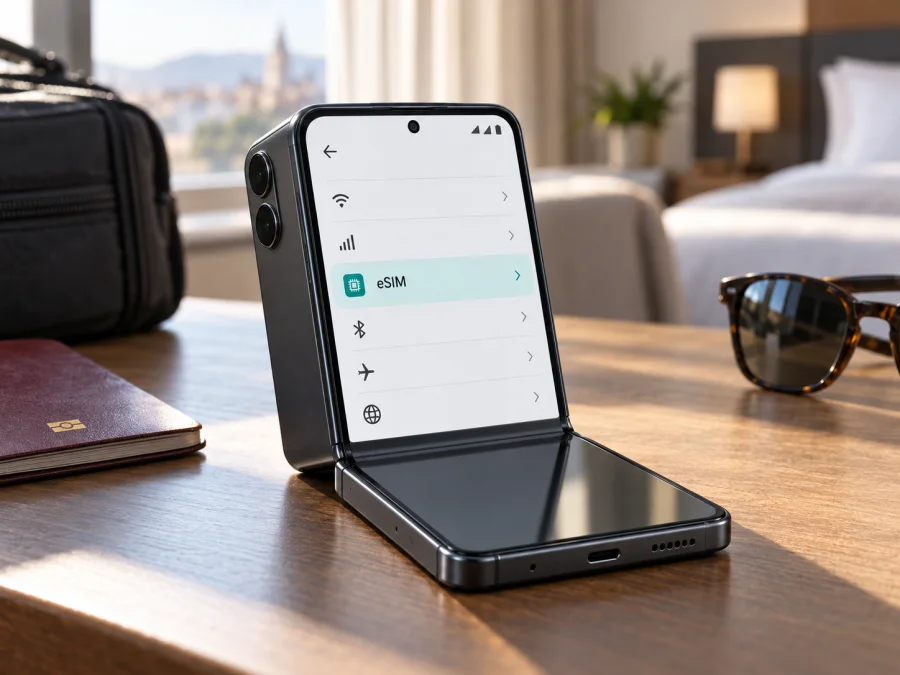
Motorola Razr 60 Ultra 8GB RAM eSIM compatibility and setup
The short answer is: the Motorola Razr 60 Ultra family supports eSIM in some markets, but support must be confirmed for the exact regional and carrier version you own. Motorola’s current regional specifications list eSIM alongside a physical SIM and state that specifications may vary by market. Its support guide also describes downloading an eSIM on a compatible phone. These statements establish support for the model family, not a guarantee for every retail SKU, firmware build, or operator-branded unit.
There is an extra detail for the name in this article. The input variant is Motorola Razr 60 Ultra 8GB RAM, but current official Motorola specification pages reviewed for this model list 16GB RAM and do not confirm an 8GB retail configuration. This does not prove that a listing using “8GB RAM” is false: the seller may mean another market, use an abbreviated title, or refer to memory expansion terminology. It does mean the RAM label alone cannot identify the phone’s hardware or eSIM configuration. Check the model code, country of sale, system information, and eSIM menu on the actual unit before relying on it.
For travel, treat eSIM readiness as a device-by-device check. Look for an EID and an option to add or download an eSIM, confirm the phone is not carrier locked, and make sure the selected plan covers your destination. If the phone has no EID or eSIM menu, pause before buying a travel plan and ask Motorola or the seller to verify the exact model code.
At a glance
| Item | What to know |
|---|---|
| Variant covered | Motorola Razr 60 Ultra 8GB RAM |
| eSIM answer | Supported on documented regional versions; not guaranteed for every market or carrier variant |
| Physical SIM | Motorola documents a physical SIM tray; configurations vary by market |
| RAM listing | The 8GB label was not confirmed in the official specifications reviewed; check the retail SKU |
| EID check | Settings → About phone → Device details, or search Settings for “EID” |
| eSIM setup | Settings → Network & internet → SIMs and mobile network → Download new SIM; labels can vary |
| Before a plan | Verify eSIM menu/EID, carrier unlock status, destination, data allowance, and validity |
Does Motorola Razr 60 Ultra 8GB RAM support eSIM?
The most accurate answer is potentially yes, depending on the exact unit. Motorola’s regional Razr 60 Ultra specifications list “eSIM + physical SIM.” Motorola’s setup instructions also describe downloading an eSIM from the phone’s mobile network settings. The specification page warns that some details vary by market. This is evidence that eSIM versions exist, not proof that every phone sold under a similar name has an enabled eSIM.
The 8GB RAM wording makes exact identification particularly important. The current official specifications reviewed identify a 16GB RAM configuration and do not document an 8GB version. Do not infer eSIM support or lack of support from the RAM number. Ask the seller for the precise model or SKU code and country of origin, then check that code with Motorola support for that market. If possible, inspect the handset in Settings before purchase.
Regional hardware can differ in SIM trays, eSIM availability, network bands, and carrier provisioning. “Dual SIM” alone does not confirm eSIM: it may mean two physical cards or a physical card plus eSIM.
Carrier approval is separate: a carrier may need to support the phone’s IMEI or model code, and a network lock can prevent another provider’s profile from working. Check the carrier’s eSIM compatibility list for the exact unit.
Check the exact phone before buying a plan
Run this checklist on the handset you intend to use. Menu names can change with Android updates, language, or carrier software.
- [ ] Confirm that the product is Razr 60 Ultra, not another Razr 60 model or generation.
- [ ] Open Settings → About phone → Device details and look for EID. If needed, search Settings for “EID.”
- [ ] Open Settings → Network & internet → SIMs and mobile network and look for Download new SIM, Add eSIM, or a similar option.
- [ ] Ask what “8GB RAM” means in the listing. Compare About phone details and the model code with the box or invoice.
- [ ] Ask whether the exact regional SKU supports eSIM and whether the device is unlocked. For a used phone, check that it is not restricted by an operator or management profile.
- [ ] Check that supported network bands and the plan’s destination networks are suitable for your trip.
An EID is a device identifier associated with eSIM hardware. Its presence is a strong sign of eSIM capability, but does not guarantee that a particular carrier will activate service. If neither an EID nor an eSIM option appears, ask Motorola or the seller to verify the model code. Do not assume that an 8GB RAM label identifies the exact regional hardware or eSIM variant.
Check whether your device is compatible before choosing a travel plan.
What eSIM does on a foldable phone
An eSIM is a digital SIM profile stored in compatible phone hardware. You install it using the plan provider’s instructions, often through an app or QR code. When enabled and connected to a supported network, it can provide mobile data under the plan’s terms.
The Razr 60 Ultra’s folding design does not change the setup: use Android’s SIM settings to add and manage the profile. A travel eSIM can let you keep your regular physical SIM in place while using a separate data plan abroad. However, a data-only eSIM should not be assumed to include a regular phone number, voice service, or SMS. Check the plan details. Internet calling and messaging apps can be used over data; calls and texts on your usual number remain subject to your home carrier’s settings and charges.
Install and activate an eSIM
Before starting, connect to stable Wi-Fi, charge the phone, and keep the activation details available. Read the plan instructions first: some profiles can be installed before departure but only start validity when they connect to a supported network; other plans use different activation rules. Do not delete a profile as a first troubleshooting step, because a one-time code may not be reusable.
- Confirm the exact variant. Recheck the model code and look for an EID or eSIM download option. Resolve any mismatch in the “8GB RAM” listing before proceeding.
- Connect to Wi-Fi. Keep the phone online during profile download. A weak or captive network can interrupt installation.
- Open SIM settings. Motorola’s support guide gives this route: Settings → Network & internet → SIMs and mobile network. Choose Download new SIM or the similarly named option.
- Add the profile. Follow the provider’s method. Scan its QR code or enter an activation code only as directed. If installation is offered through an app, complete the steps there.
- Wait for completion. Do not close Settings, disconnect Wi-Fi, or restart unless prompted. Once the profile appears, label it “Travel data” or another name you can recognize.
- Choose SIM roles. Select which line handles mobile data. Keep your primary line enabled for calls or messages only if you understand your home carrier’s roaming charges. Disable automatic data switching if it could move data back to the home line.
- Set the activation time. Follow the plan’s validity rules. You may be able to install at home and leave the profile off until arrival; another plan may require activation during installation or before a deadline.
- At your destination, enable the travel line. Select it for mobile data. If the provider requires data roaming, enable roaming for the travel eSIM only. Avoid enabling it on your home SIM unless you intend to use that service.
- Test the connection. Turn Wi-Fi off briefly, confirm that mobile data works, and check data balance or validity in the provider’s app or account.
See the Android eSIM instructions and the iOS eSIM instructions if you are also preparing an iPhone.
Using the phone on a trip
Install before departure, connect after landing. If the plan permits, add the profile at home over Wi-Fi and leave it switched off until the activation window or arrival. At the destination, enable it, select it for mobile data, and wait for registration.
Keep your usual number available. If you use a physical SIM for your number and a travel eSIM for data, decide which line should handle calls, messages, and mobile data before leaving. Data-only plans do not replace voice or SMS. Check your home carrier’s roaming costs and turn off data roaming on that line if you want to avoid accidental data use.
Cross borders. A country-specific plan may stop at the border. For a multi-country itinerary, verify every destination. For a regional plan, check included countries, network partners, validity, and fair-use terms.
Manage usage. Maps, ride services, translation, and messaging use data. Download offline maps and travel documents over Wi-Fi, disable automatic app updates on mobile data, and monitor usage. Video calls, streaming, and hotspot sharing can consume data quickly; check whether tethering is allowed by your plan.
Kaspersky eSIM Store is an app and website where travelers can choose, arrange, and activate an eSIM with a mobile data plan for an international trip. Review the destination, data amount, validity, and other terms before selecting an option. Once you have verified your handset and carrier-unlock status, choose an eSIM plan for your trip that matches your route and expected use. Connectivity depends on the plan conditions, supported local networks, and coverage where you travel.
Common problems and checks
No add-eSIM option: restart, update Android over Wi-Fi, and search Settings for “SIM” or “eSIM.” Check About phone for an EID. If neither appears, ask Motorola or the seller to verify the model code; a market-specific build may not include eSIM.
QR or download fails: confirm Wi-Fi works and the code has not already been used. Increase the QR display brightness and avoid a cropped image. Contact the plan provider before deleting a profile or requesting a replacement for a single-use code.
Profile installs but will not connect: enable the profile and select it for mobile data. Check airplane mode, mobile data, destination coverage, and plan dates. Enable roaming for the travel eSIM if required. Restart, wait for registration, and use automatic network selection unless instructions say otherwise.
Activation or data fails: check that the phone is unlocked and the carrier supports the model code; confirm the travel eSIM is selected for data rather than the home SIM. Change APN or manual network settings only when the provider supplies values.
Service stops across a border: verify the new country is included, toggle airplane mode, and check the selected network. Reception varies by location. Do not erase or transfer a profile casually; some plans require a new activation code, and removal does not necessarily cancel service.
Troubleshooting checklist
Before contacting support, note the model code, Android version, EID status, profile status, country, and error message. Check Wi-Fi for installation, mobile data and airplane mode for service, the selected SIM for data, plan validity and destination, and any roaming or APN requirements. Keep the profile installed while troubleshooting.
If the phone has no EID, ask Motorola or the seller whether the exact SKU has eSIM enabled. If it has an EID but cannot download or register a plan, contact the eSIM plan provider with the error and installation status. Hardware and carrier provisioning are separate from plan activation support.
Frequently asked questions
Does the 8GB RAM version definitely have eSIM?
There is no universal guarantee from the name alone. Motorola documents eSIM on some Razr 60 Ultra versions, but specifications vary by market. Official specifications reviewed list 16GB RAM, not 8GB. Check the exact model code, EID, eSIM menu, and carrier status.
Can I use a physical SIM and eSIM together?
Motorola lists both on supported versions. Simultaneous use depends on regional hardware, software, and carrier support; confirm in the SIM manager.
Does a travel eSIM replace my regular number?
Usually not. A travel data eSIM does not include a number, calls, or SMS unless the plan terms say so. Check roaming charges on your regular line.
Should I install before travelling?
If permitted by the plan, installing over Wi-Fi can be convenient. Check when validity starts and follow the provider’s activation timing.
Before you go
The Motorola Razr 60 Ultra 8GB RAM may be suitable for a travel eSIM, but the exact regional unit matters. Motorola confirms eSIM on some Razr 60 Ultra versions and documents an Android download flow; market differences and the unverified 8GB RAM listing mean you should inspect the handset rather than assume every unit matches the published family specification.
Check the model code, find the EID, and confirm that an eSIM can be added in Settings. Verify that the phone is unlocked and that your chosen plan covers every country on the itinerary, with enough data and validity. Kaspersky eSIM Store is the app and website where you can choose, arrange, and activate an eSIM with a mobile data plan for travel. Confirm compatibility first, then select a plan that fits where and how you will use data.


