Travel connectivity guide
Motorola Razr 60 Ultra eSIM Compatibility
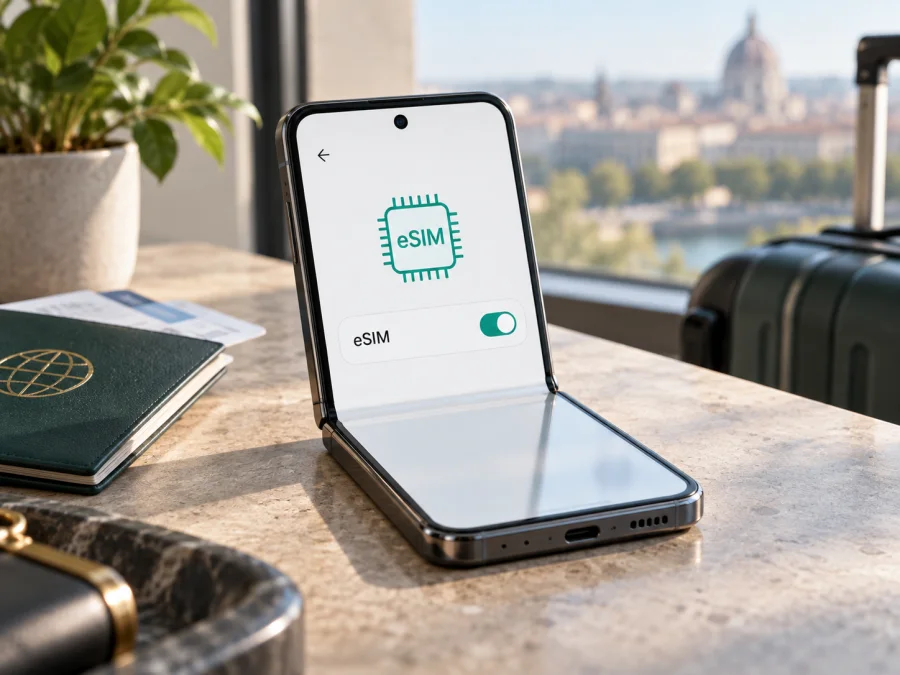
Motorola Razr 60 Ultra eSIM compatibility and setup
The Motorola Razr 60 Ultra supports eSIM alongside a physical SIM in Motorola’s published specifications for supported markets. That means you can add a compatible digital SIM profile and use it for mobile data while travelling. There is one important qualification: Motorola says specifications can vary by market, and its user guide tells owners to confirm eSIM availability with their carrier. The name “Motorola Razr 60 Ultra” alone therefore cannot confirm the capabilities of every regional or carrier-supplied unit.
Before choosing a travel plan, check the phone itself. Look for an EID in About phone or for the option to download or add an eSIM in the SIM settings. If neither appears, ask the seller or carrier to confirm the exact model code and market version. Do not pay for a plan until you know that your particular phone can install an eSIM and is not locked to a carrier.
Does the Motorola Razr 60 Ultra support eSIM?
Yes, supported versions of the Motorola Razr 60 Ultra support eSIM and a physical SIM. Motorola’s official specification pages for the Razr 60 Ultra list “eSIM + physical SIM.” Motorola’s device guide also describes downloading a new SIM through Android settings. At the same time, the specification page warns that some details vary by market, while the guide says the phone might support eSIM and directs owners to their carrier if the eSIM option is missing. Treat eSIM as supported on versions where it is available in the phone’s settings, rather than assuming every unit sold under the same name has identical SIM hardware or firmware.
| Item | What to know |
|---|---|
| Exact device covered | Motorola Razr 60 Ultra |
| eSIM | Supported on compatible regional versions; verify on your own phone |
| Physical SIM | Motorola specifications list eSIM plus a physical SIM for supported versions |
| Software | Android; menu labels can differ by software version and region |
| Network access | The phone must be unlocked and compatible with the networks used by the selected plan |
| Best check | Find the EID or the eSIM download/add option in Settings before purchase |
The word “compatible” covers more than the presence of an eSIM chip. The phone needs an active eSIM feature in its regional software, the mobile operator or plan must accept that model, and the phone must be permitted to use another network. A carrier-branded device can have a network restriction even when its hardware supports eSIM. A software update can also change menus or fix a setup issue, but it cannot add eSIM hardware to a variant that does not have it.
Why versions can differ
SIM configurations and carrier support can vary by sales market. The same product name may cover different model codes, firmware or carrier certifications, and Motorola’s guide uses cautious wording where configurations differ. If the phone is imported, second-hand or carrier-supplied, check its model code and sales region with the seller or carrier, and confirm it is unlocked. Do not rely on a list for another Razr generation.
Check compatibility before buying a plan
Run through these checks while you still have a connection to Wi-Fi:
- Open the SIM settings. On the Razr 60 Ultra, try Settings → Network & internet → SIMs & mobile network. Look for an option such as Download a new SIM, Add eSIM or Set up an eSIM. Wording can change between Android versions.
- Look for the EID. Open Settings → About phone → Device details or search Settings for “EID”. An EID is the identifier associated with an eSIM component. If it is present, that is a useful sign, but still check that the eSIM setup option is available and the phone is unlocked.
- Check the model and region. Compare the full model code in About phone with the packaging or the seller’s listing. Ask Motorola support or the selling carrier about eSIM support for that exact regional version.
- Confirm carrier lock status. If the phone was sold with a mobile plan, ask the original carrier whether a travel eSIM from another provider can be added.
- Check the plan’s terms. Confirm that the destination is covered, that the plan fits your trip dates and data needs, and that the phone’s supported network bands are suitable for the destination. Availability and conditions depend on the plan.
- Keep Wi-Fi available. An internet connection is normally needed to download an eSIM profile. Install it before departure when convenient, or use trusted Wi-Fi at your destination.
<a id="kesim-device-compatibility"></a> Use this quick rule: if the EID and eSIM setup control are both present, the phone is unlocked, and the plan accepts the device and destination, you have a strong compatibility indication. If the control is absent, contact Motorola or the carrier with the complete model code before buying. Check your device against these points before you choose a travel eSIM.
How to install and activate an eSIM
Use stable Wi-Fi and keep the provider’s instructions or QR code on another screen or on paper. Follow the provider’s activation directions if they differ from this general flow.
- Confirm compatibility. Find the EID or setup option, check that the phone is unlocked, and review the plan’s destination, data, validity and activation rules.
- Connect to Wi-Fi. Keep it on during setup. Do not erase an existing eSIM profile to restart.
- Open SIM settings. Go to Settings → Network & internet → SIMs & mobile network and choose Download a new SIM or the matching eSIM option.
- Start activation. Scan the provider’s QR code from another screen, enter details manually if supplied, or use the provider’s app.
- Download the profile. Follow the prompts and keep Wi-Fi connected until setup finishes.
- Label the line. Use a name such as “Travel” or the destination.
- Choose activation timing. Check whether validity starts at installation or first connection. Install early only if the plan’s terms allow it; leave the profile off until advised.
- Select mobile data. Choose the travel eSIM when you are ready to use it. Keep the home line only if needed and review its roaming charges.
- Set roaming if needed. Enable data roaming for the travel profile only when the provider’s instructions require it.
- Test service. In a covered area, wait a few minutes and open a webpage. If it fails, follow the checks below.
For screenshots or menu guidance, see the Android eSIM installation instructions. The iOS eSIM installation instructions are for iPhone users and are included as a reference if you are helping someone set up another device.
Avoid deleting the profile to restart setup: a QR code may be single-use, and a replacement may need to come from the provider. Check transfer or reissue rules before resetting the phone or changing devices.
Using the eSIM for mobile data on a trip
Before travel, decide which line handles data. You can often keep your home SIM for calls or texts and select the travel eSIM for mobile data, but check home-carrier roaming costs and turn off data roaming on the home line if appropriate. On arrival, enable the travel profile, select it for mobile data and turn on its roaming setting only if the plan requires it. If it does not register, toggle airplane mode or restart, then allow a few minutes. Service depends on the plan’s supported local networks and actual coverage.
Match the data allowance to your trip. Maps, messaging, ride-hailing and translation use data; streaming, video calls and photo backups can use much more. Download maps over Wi-Fi and monitor Android’s data usage. For a multi-country trip, check every stop in the plan’s coverage terms. A short city break may need less data than a remote-work trip with frequent calls; choose validity and allowance accordingly.
Kaspersky eSIM Store is an app and website where you can choose, arrange and activate an eSIM with a mobile-data plan for an international trip. Compare the destination, data allowance, validity and activation terms before selecting a plan. The service does not replace your regular phone number: unless a particular plan explicitly says otherwise, a travel data eSIM does not include ordinary voice calls or SMS. Internet calling and messaging apps can work over data, subject to the app and local network conditions.
Troubleshooting common problems
The eSIM option is missing
Search Settings for “eSIM” and check both Network & internet and About phone. Restart the phone and install available system updates over Wi-Fi, then check again. If the EID and setup option are still absent, the regional variant or firmware may not expose eSIM. Confirm the full model code with Motorola or the selling carrier; do not rely on instructions for another Razr model.
The QR code will not scan
Raise screen brightness on the device showing the code, clean the Razr’s camera lens and hold the camera steady. Avoid glare and make sure the complete QR code is visible. If the code is on the Razr display, show it on another device instead. If scanning fails repeatedly, ask the provider whether manual activation details are available. Do not post the QR code publicly; it can contain information used to download your profile.
The profile will not download
Check that Wi-Fi works, turn off any captive portal that needs a browser sign-in, and confirm that the phone’s date and time are automatic. Make sure the QR code has not already been used and that the plan has been issued for eSIM activation. A carrier lock, unsupported regional variant or temporary provider-side issue can also prevent installation. Save the exact error message and contact the plan provider before deleting any profile.
The eSIM installed but there is no service
Confirm that the profile is enabled and selected for mobile data. Check that the plan is active, the destination is included and the phone is in an area with partner network coverage. If the instructions require it, enable data roaming on the travel eSIM. Toggle airplane mode, restart the device, and wait a few minutes for network registration. Where the plan allows multiple networks, try automatic network selection first; contact the provider before manually changing settings you cannot restore.
Mobile data does not work, or the wrong SIM is using it
Return to SIM settings and verify the chosen mobile-data line. Check that mobile data is turned on for the travel profile and that any required access point settings were entered exactly as provided. Disable data roaming on the home SIM if you want to avoid it being selected accidentally. If signal bars appear but pages do not load, test more than one app and confirm that the plan still has data and validity remaining.
Calls or texts are unavailable
Many travel eSIM plans provide data only. Keep your home SIM enabled for ordinary calls or SMS if needed, and check your home carrier’s roaming terms. For internet calls, use a messaging app over the selected data connection. Do not assume that an eSIM plan includes a phone number unless its product terms explicitly confirm it.
When to contact support
Contact the plan provider for a rejected activation code, profile provisioning issue, plan balance question or network partner issue. Contact Motorola or the selling carrier if there is no EID or eSIM menu, if the phone appears locked, or if you need to confirm the exact market variant. Include the phone model code, Android version, country, error wording and the steps already tried. Never send your full QR code or account password in a public forum.
Frequently asked questions
Can I use a physical SIM and an eSIM together?
Motorola lists eSIM plus physical SIM on compatible versions. Dual-SIM behaviour may vary by regional model and software, so check the SIM manager on your phone.
Does every Motorola Razr 60 Ultra have eSIM?
Motorola lists eSIM, but warns that specifications can vary by market. Check the EID and settings on your phone and confirm its model code with the seller or carrier.
Can I install the travel eSIM before my flight?
Usually, yes, over Wi-Fi. Check whether validity starts at installation or first connection, and follow the provider’s timing advice.
Should data roaming be on?
Some travel profiles need data roaming enabled because they connect through a partner network. Follow the provider’s instructions and select the travel eSIM first. You can keep roaming off for your home SIM to reduce the chance of unexpected charges, subject to your home carrier’s settings.
Will this eSIM replace my regular number?
Not usually. A travel eSIM plan commonly supplies mobile data rather than a regular number for calls and SMS. You can keep your existing number on the physical SIM if you want, but check roaming costs and line settings.
Before you leave
Check the Motorola Razr 60 Ultra itself: confirm the EID or eSIM setup menu, verify that the phone is unlocked, and make sure the plan covers every destination on your route. Then compare the package’s data allowance, validity and activation rules with how you expect to use your phone. After those checks, choose an eSIM for the trip, install it over Wi-Fi and save the provider’s support details where you can find them. This simple check helps you travel with a clearer plan for mobile data and fewer surprises at arrival.


