Travel connectivity guide
Motorola Razr+ 128GB eSIM: compatibility guide
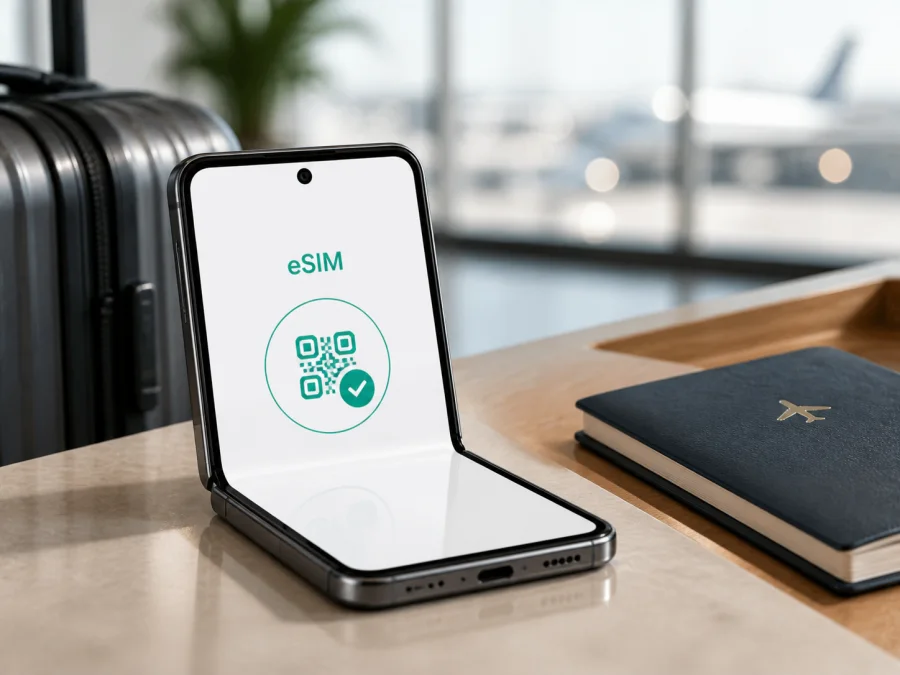
Motorola Razr+ 128GB eSIM: compatibility, setup and travel guide
If you are checking whether Motorola Razr+ 128GB can use an eSIM for mobile internet abroad, the short answer is: the Razr+ family is documented by Motorola as supporting eSIM with a physical SIM, but the exact 128GB listing must be verified on the phone. Motorola’s official Razr+ 2023 material describes eSIM use. Its US Plus specification lists 256GB, while a separate official 128GB specification is for the non-Plus motorola razr (2023). “128GB” may therefore identify a market or catalogue configuration rather than the same regional SKU.
Storage capacity does not decide eSIM capability. Check the EID, add-eSIM option, model number and operator-unlock status before purchasing. Keep Motorola Razr+ 128GB separate from other Razr generations.
Quick answer for Motorola Razr+ 128GB
Motorola’s current support instructions for the Razr+ 2023 family say that the phone might support an embedded SIM in addition to a physical SIM and direct the user to Settings > Network & internet > SIMs & mobile network to download and set up an eSIM. Its official product specifications also show “eSIM + physical SIM” for the US product page. This is strong evidence for the Plus family, but the manufacturer’s wording leaves room for carrier and regional variation. A seller’s “128GB” label is not enough to prove the same regional configuration.
For your Motorola Razr+ 128GB:
- eSIM support is expected when the phone is the eSIM-capable Razr+ regional variant.
- It is not confirmed for every exact 128GB label until EID and the add-eSIM menu are visible.
- Active-line combinations and activation depend on the regional model, firmware and carrier.
Treat the handset as compatible only after its own settings confirm it. If the EID and add-eSIM control appear, it has the device-side path for installing a travel eSIM. If neither appears, do not buy a tariff based only on a marketplace title.
What the exact device name tells you
The input name contains one important modifier: 128GB. It must remain part of the target, but it does not identify a universal worldwide specification. Motorola uses different commercial names in different markets, including motorola razr+ and motorola razr 40 ultra. Do not merge those names or storage versions.
| Item | What applies to Motorola Razr+ 128GB |
|---|---|
| Exact device label | Motorola Razr+ 128GB |
| Product family | Motorola Razr+ foldable smartphone family |
| Storage modifier | 128GB, as supplied in the device name |
| Official family evidence | Motorola documentation for Razr+ 2023 describes eSIM use; the product specification lists eSIM + physical SIM |
| Exact 128GB certainty | Confirm the regional SKU; the US Plus and 128GB Razr specifications are not the same listing |
| Main purchase condition | Verify EID, add-eSIM menu, unlocked status and tariff requirements |
The table does not add a generation, RAM, 5G or Cellular configuration absent from the input.
Why regional and operator versions matter
An eSIM is built into the phone, but related models can have different model numbers, SIM arrangements or software by market. A carrier can also restrict activation or lock a device to its network, so an imported phone may show a different menu.
Motorola’s support wording says the phone might support eSIM and tells the user to contact the carrier. Check the handset instead of inferring compatibility from the family name.
Before relying on Motorola Razr+ 128GB for a trip, compare these details:
- Read the model number in Settings > About phone and compare it with the box and invoice.
- Check whether an EID and an Add eSIM or Download new SIM control are displayed.
- Confirm that the phone is unlocked and ask whether eSIM is enabled for that exact model and market.
Compatibility checklist before you choose a tariff
Complete this checklist while you have the phone and stable Wi-Fi:
- [ ] The handset is exactly the Motorola Razr+ 128GB unit, not a similarly named Razr or another generation.
- [ ] Settings shows an EID, or the device diagnostic screen reports an eSIM identifier.
- [ ] SIM settings includes an option to add or download an eSIM.
- [ ] Android is updated and the handset is not operator-locked, or the lock is known to allow the travel eSIM.
- [ ] The tariff covers every country or region on your route.
- [ ] You have checked data amount, validity, activation rule, supported network and hotspot policy.
- [ ] You know whether the plan requires data roaming on the travel line and how to prevent home-SIM data roaming.
If one of the first three checks fails, pause before payment: a setting cannot turn a physical-SIM-only regional model into an eSIM model.
<a id="kesim-device-compatibility"></a>
Check your device before purchase
Use Check your device as a quick reminder: confirm the EID, open the SIM settings and verify the operator lock before selecting a tariff. For this page, the check applies to the complete label Motorola Razr+ 128GB, not to every Razr phone. A visible add-eSIM option is the most useful final confirmation because regional firmware can change what a family specification suggests.
How to find the EID and eSIM controls
Motorola’s Android menu names can change slightly with Android and My UX updates.
- Open Settings.
- Tap About phone and look for EID. On some builds, use device details or SIM status.
- Return to Settings.
- Open Network & internet.
- Tap SIMs & mobile network. Some versions show SIMs or Mobile network.
- Look for Download new SIM, Set up an eSIM, Add eSIM or an arrow beside an eSIM entry.
You can also try the standard Android code *#06# if the dialler accepts it and look for an EID in addition to IMEI numbers. Never publish these identifiers publicly.
An EID confirms embedded-SIM hardware, but the profile still needs a compatible destination network, correct activation conditions and an unlocked device. If the menu is missing, update and restart before concluding that the regional version lacks eSIM.
How to install an eSIM on Motorola Razr+ 128GB
Prepare the exact QR code or activation details, a charged phone and Wi-Fi. Display the code on another screen if necessary. Do not remove a working physical SIM while testing.
- Connect Motorola Razr+ 128GB to reliable Wi-Fi.
- Open Settings > Network & internet > SIMs & mobile network.
- Choose Download new SIM, Set up an eSIM or the equivalent control.
- Select the QR-code option and scan the travel profile.
- Confirm the download and wait for the profile to be added.
- Label it Travel data and choose which line handles mobile data.
- Complete activation according to the tariff terms; validity may start at installation or first network connection.
If labels differ, use the closest path under SIMs and mobile network. Do not confuse adding a profile with erasing one or scan a single-use code repeatedly. If installation stops, check the SIM list first.
The project has separate pages for both platforms: read the Android installation instructions and read the iOS installation instructions. The Android page is relevant to Motorola Razr+ 128GB; the iOS page does not change the Motorola menu path.
Activate the travel profile
Installation and activation are not always identical. A profile can appear in the SIM list while its data service is not selected. Check its label, status and mobile-data permission.
Before departure, you may install the profile over Wi-Fi and leave it disabled, depending on the tariff’s activation rule. If validity starts at installation, do not install too early; if it starts on first supported-network connection, advance installation can simplify arrival. Do not delete a profile to “start over”, because many QR codes cannot be reused.
After landing:
- Open Settings > Network & internet > SIMs & mobile network.
- Turn on the travel eSIM and set it as the mobile-data line.
- Turn on data roaming for that profile if the tariff requires it.
- Keep data roaming off for the home SIM and turn off automatic data switching.
- Wait for registration, then open a simple webpage with Wi-Fi off.
The roaming setting applies to the selected profile, not automatically to the home line. Check the label carefully and disable mobile data on the home SIM abroad.
Practical travel scenarios
Short trip or multi-country route
Choose a tariff whose validity covers the trip and whose destination list includes every stop. Install over Wi-Fi if the activation rule allows it. On arrival, select the travel eSIM for data, prevent home-line data roaming and prepare maps or tickets offline. If service drops at a border, reselect the profile and allow time for registration.
Work trip and hotspot
Verify hotspot support in the tariff conditions. The Motorola Razr+ 128GB can share selected mobile data when the software and plan allow it, but tethering may be limited. Video calls and cloud backups can quickly use a small allowance.
Keeping your home number
A travel eSIM is generally for mobile internet, not a replacement phone number. Unless the plan says otherwise, use messaging and calling apps over data and review home-line roaming costs.
Common problems and checks
No EID or add-eSIM option
Confirm the model number and storage label, update Android, restart and check About phone and SIM settings. If the EID is still absent, the unit may be a regional or operator configuration without eSIM, or the listing may confuse the standard Razr with the Plus family. Ask the seller or carrier to verify the SKU and do not buy a profile yet.
QR code will not scan or the profile will not download
Raise the brightness, enlarge the code and keep the camera steady. Display it on another screen if necessary. Reconnect to Wi-Fi, check automatic date and time, and confirm the EID belongs to this handset. Check the SIM list before requesting a replacement because a one-time code may have partly installed. Do not erase a working profile.
The profile is installed but there is no service
Turn on the travel profile, set it as mobile data, enable its data roaming if required and check destination coverage. Leave automatic network selection on first, then toggle airplane mode and restart. Confirm that the phone is unlocked and contact the provider with the exact model if service remains unavailable.
Signal is present but apps have no internet
Check the selected data SIM, test with Wi-Fi off, review data permission and check the allowance. Follow APN instructions only when the tariff provider supplies them. To stop home-line data, select the travel eSIM, disable automatic data switching and turn off roaming on the home SIM.
You want to erase the eSIM
Do not erase it simply because the trip is over. Motorola says erasing an eSIM removes its calling, messaging and mobile-data capability from the phone but does not cancel the service. Remove it only when you understand reinstallation or support instructs you.
FAQ
Does Motorola Razr+ 128GB support eSIM?
Official Motorola documentation supports eSIM use on the Razr+ family and lists eSIM plus physical SIM for the relevant product configuration. However, its official 128GB specification is for a non-Plus Razr, while the US Plus page lists another storage configuration. The exact Motorola Razr+ 128GB unit is compatible only when its own EID and add-eSIM menu confirm the feature.
Do I need to unlock the phone?
Yes, an operator-locked handset may reject a travel eSIM even when its hardware supports it. Confirm unlock status with the original operator or seller; an EID does not override a carrier lock.
Will a travel eSIM give me a normal phone number?
Not by default. A travel eSIM from Kaspersky eSIM Store is positioned for mobile internet abroad. Unless the plan says otherwise, use messaging and calling apps over data rather than expecting ordinary calls or SMS.
Can I install after landing?
Yes, if the phone has Wi-Fi or another connection and the tariff is valid. Installing before departure is often easier, but check when validity starts so an early installation does not reduce useful days. Active-line arrangements can vary by regional firmware and carrier.
Kaspersky eSIM Store for a trip
Once your phone passes the checks, Kaspersky eSIM Store can help you choose a destination and an eSIM tariff for mobile internet during an overseas trip. The app and website let you review plan details, complete the order and activate the eSIM on a compatible device. It is not the mobile operator, network owner or mobile-internet provider; connectivity is delivered through networks covered by the selected plan.
Compare destinations, data allowance, validity, activation timing and hotspot requirements. Keep the order information until tested.
Final device check and trip eSIM choice
Before paying for a tariff for Motorola Razr+ 128GB, complete this final sequence:
- Confirm the exact model number and full 128GB label.
- Find the EID and confirm that Download new SIM, Set up an eSIM or Add eSIM is visible.
- Verify that the phone is unlocked.
- Select a tariff covering every destination and the full trip.
- Install over Wi-Fi according to the activation rule.
- At the destination, select the travel eSIM for data, review roaming and test a webpage with Wi-Fi off.
If the EID or add-eSIM control is missing, ask the seller or carrier to validate the regional version. If both are present, Motorola Razr+ 128GB has passed the device-side check, but the plan and destination still need to match. This prevents an unusable QR code or unexpected home-line roaming after landing.


