Travel connectivity guide
Motorola Razr+ 2024 256GB eSIM: compatibility
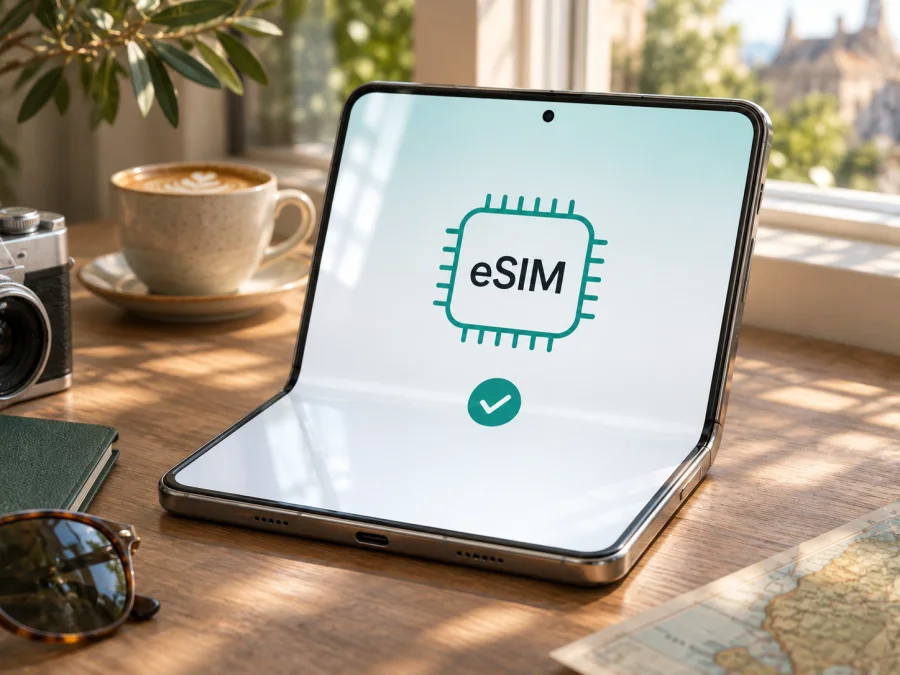
Motorola Razr+ 2024 256GB eSIM: compatibility and setup
Short answer: the Motorola Razr+ 2024 256GB can support eSIM, but the storage description alone does not identify the phone’s market, exact model code, carrier configuration, or software. Motorola’s Canadian specifications for the razr+ 2024 list 256GB storage, 12GB RAM, and “eSIM + physical SIM.” Motorola’s US support instructions are more conditional: they say the phone might support eSIM and advise checking with the carrier. Treat eSIM as confirmed for your own handset only after the eSIM controls or EID appear in its settings and the carrier or eSIM plan accepts that model and device status.
That distinction matters if you bought the phone used, imported it, or received it through a mobile operator. A listing that says “256GB” is not enough to establish eSIM availability. Check the region and model code printed in Settings > About phone, look for the eSIM menu, and confirm that the device is unlocked for the network you intend to use. The steps below help you make those checks before buying a travel data plan.
Does the Motorola Razr+ 2024 256GB support eSIM?
Motorola’s published specifications for the Canadian razr+ 2024 identify both eSIM and a physical SIM. The Canadian specification page also lists 256GB of internal storage and 12GB of RAM. This is direct manufacturer confirmation for that regional specification. Motorola’s US support page describes eSIM support conditionally and supplies setup steps for a carrier-provided profile. In other words, eSIM capability exists on at least the manufacturer-documented versions of this phone, but the name and storage capacity by themselves do not prove that every phone sold under a similar name has the same configuration or that every carrier will activate it.
The result for a particular Motorola Razr+ 2024 256GB is therefore check the handset, not only the product title. A 256GB capacity is a storage option, not an eSIM identifier. An unlocked phone may still have regional firmware or carrier provisioning that affects setup, while a carrier-locked phone can reject an otherwise compatible travel eSIM. The seller’s exact model code and the menus on the actual device are more useful than a generic compatibility list.
| Item | What can be established | What to check on your handset |
|---|---|---|
| Device name | Motorola uses the name razr+ 2024 in its North American materials. | Confirm the full model name and model code in About phone. |
| Storage | Motorola’s Canadian specification lists 256GB. | Check About phone or the original invoice; storage does not confirm eSIM. |
| RAM | The same Canadian specification lists 12GB RAM. | Use the exact regional product page if comparing specifications. |
| SIM capability | The Canadian specification lists eSIM plus physical SIM. The US setup page says the phone might support eSIM. | Look for EID and an option to download or add an eSIM. |
| Carrier access | Motorola says carrier details and eligibility matter. | Ask whether the exact model code is accepted and whether the phone is unlocked. |
| Travel data | eSIM may be used for a compatible data plan where the plan is available. | Check the plan’s destination, activation rules, network access, and device requirements. |
Why regional versions matter
The same product family can be described differently across markets, and a retail title may omit the model code. Motorola’s Canadian page provides a clear “eSIM + physical SIM” specification for the 2024 razr+. Its US support article uses “might support,” then directs owners to the carrier for details. These statements should not be collapsed into a guarantee for every device sold internationally. They reflect that both the phone configuration and service provider’s activation support matter.
Do not infer compatibility from a similar-looking Motorola model or a name used in another country. A regional or carrier edition, or a different model code, can change the answer. If buying online, request the About phone model code and confirmation that the carrier supports eSIM on that unit.
Check compatibility before buying a plan
Use this checklist with the physical handset if possible. A “yes” to one item does not replace the others: a phone can have eSIM hardware but still be locked or unsupported by a particular provider.
- [ ] Find the model code. Open Settings > About phone and note the model or regulatory model number. Menu wording can vary by Android version or market.
- [ ] Look for an EID. In About phone, open device or SIM details and search for EID. An EID is an identifier associated with the embedded SIM capability. Do not share it publicly; provide it only through a trusted carrier or support channel if requested.
- [ ] Check for an eSIM control. Open Settings > Network & internet > SIMs & mobile network. Look for Download a new SIM, Set up an eSIM, or a similarly worded add/download option. Motorola’s US instructions use this area for eSIM setup.
- [ ] Ask the network provider about the exact code. Confirm that it can activate eSIM on this model and that the handset is not restricted to another network. “Unlocked” should be confirmed in the phone’s status or by the seller/carrier; do not assume it from appearance or purchase location.
- [ ] Check the plan requirements. Confirm that it is a data plan for the country or route you need, and review compatible devices, activation timing, validity, data allowance, and whether data roaming must be enabled.
- [ ] Make sure you can get online during installation. Wi-Fi is useful if the mobile connection is not yet available. Keep the QR code or manual activation details accessible on another screen or in a printed copy.
Find EID and the add-eSIM menu
Start with the settings search field and search for EID or SIM. If that does not help, open Settings > About phone and inspect Device details, SIM status, or a similarly named subsection. Android labels can change between system versions and regional builds. The EID is usually a long identifier; you do not need to memorize it. The key question is whether the handset exposes an EID and an option to add or download an eSIM profile.
Next open Settings > Network & internet > SIMs & mobile network. Motorola’s US support instructions direct owners to this menu to download and set up an eSIM. If the device shows Download new SIM or Set up an eSIM, it can attempt an installation, but activation still depends on the profile and network provider. If neither EID nor eSIM controls appear, do not try to force a profile onto the phone. Check for a software update, restart, and ask Motorola or the seller to confirm the model code and its regional capabilities. If the menu remains absent, treat eSIM compatibility as unconfirmed and use another connection option until it is resolved.
For an additional check, use the device compatibility checker. It is a helpful screen, but the EID/menu and the provider’s acceptance of the exact model are decisive. If the checker and handset disagree, ask support to verify the model code before checkout.
How to install and activate an eSIM
Installation adds a digital SIM profile to the handset. It does not necessarily mean the travel data plan is already active: the plan may have its own activation date or start condition. Read the instructions supplied for that specific plan and keep your primary SIM available for calls or messages if you still need it.
- Confirm compatibility and unlock status. Check EID, the add-eSIM setting, the model code, and carrier acceptance before purchase. Connect to stable Wi-Fi and keep the phone charged.
- Get the profile from the plan provider. Depending on the service, you may receive an in-app installation flow, a QR code, or manual activation details. Avoid scanning a QR code sent by an unknown party.
- Open the Motorola SIM settings. On the documented US software path, go to Settings > Network & internet > SIMs & mobile network. Choose the option to download or set up an eSIM and follow the prompts. Labels may differ by software version.
- Scan or enter the activation information. If using a QR code, display it on another device or print it so the phone can scan it. If setup asks for details manually, enter them exactly as supplied. Do not repeatedly scan a one-time code if an installation attempt fails; first check the provider’s instructions about retries or replacement codes.
- Wait for profile installation. Keep the phone connected to Wi-Fi until setup finishes. Give the profile a recognizable name such as “Travel data” so it is easy to distinguish from your home SIM.
- Choose what the profile is for. If the eSIM is for mobile data, select it as the preferred mobile-data SIM when you are ready to use it. Keep calls and texts assigned to your regular line if that is your preference and your plan supports it.
- Follow the plan’s activation timing. Some plans activate when installed, while others start on a selected date or when the device connects to a supported network. Do not assume installation starts or delays validity; check the terms shown with the plan.
For related installation guidance, see the Android instructions and the iOS instructions. The iOS page is for iPhone and does not describe Motorola menu names; use the Android instructions and your plan’s activation details for this phone.
If you are using Kaspersky eSIM Store, the site and app let you choose and activate an eSIM with a mobile-data plan for an overseas trip. The eSIM is intended for data; it does not automatically replace your usual phone number for regular calls or SMS. Check the current plan details for your destination and install the profile only after you have confirmed device compatibility.
Use the eSIM for mobile data while travelling
Before leaving, decide which SIM should handle each job. You may keep your home SIM enabled for calls or messages and select the travel eSIM for mobile data, subject to the available settings and your home carrier’s charges. On the Motorola software path, SIM preferences are under Settings > Network & internet > SIMs & mobile network. Check the selected line after installation and again after arriving; an operating-system update or a changed profile can affect the active selection.
When you reach the destination, turn on the travel profile if it is not already active, select it for mobile data, and enable data roaming for that eSIM if its instructions require it. Data roaming lets the eSIM connect through an allowed partner network; it does not by itself mean the plan is usable everywhere. Coverage, local network availability, supported radio bands, plan validity, and the plan’s destination rules still apply. Keep the home SIM’s data setting off if you want to avoid accidental data use or roaming charges from your regular carrier. Check the home provider’s terms for calls and messages while abroad.
Use a small amount of data first: open a web page or messaging app, then check that the eSIM is still selected for mobile data. If both SIMs are active, confirm that the phone has not switched data back to the home SIM. Disable automatic data switching if your software offers it and you want to keep data on the travel profile. For Wi-Fi calling, navigation, ride-hailing, and other apps, test logins before departure where possible. A data-only eSIM can support internet-based messaging and calls in apps, but it does not itself provide an ordinary mobile number unless the plan explicitly says otherwise.
Practical travel scenarios
- Install before departure: first check whether installation starts plan validity. If the plan should begin later, follow its directions for keeping the profile inactive until travel.
- Install after landing: use Wi-Fi, add the profile, select it for data, and enable roaming for that eSIM if required. Allow time to register before troubleshooting.
- Cross a border: confirm the plan covers each destination and remains valid; regional plans can have country-specific conditions.
- Keep your usual number: retain your home SIM for calls or messages if desired, but check charges and assign mobile data to the travel eSIM.
Common issues and checks
| What you notice | What to check |
|---|---|
| No Add eSIM or Download new SIM option | Verify the exact model code and region, install available system updates, restart, and ask Motorola or the seller whether this unit has eSIM enabled. Do not assume storage size confirms support. |
| No EID is shown | Search Settings for “EID,” check About phone or SIM details, and confirm with the manufacturer for the exact model. If still absent, treat compatibility as unconfirmed. |
| QR code will not scan | Increase screen brightness on the device displaying the code, clean the camera, use a second screen or printed copy, and check whether manual installation is supported. Confirm that the code is intended for this device and has not already been used. |
| Profile download fails | Connect to stable Wi-Fi, turn off any restrictive network filter temporarily if appropriate, restart the phone, check date and time settings, and verify that the profile is still valid and intended for this model or market. Contact the plan provider before requesting a new code. |
| eSIM installs but shows no service | Confirm that the eSIM is switched on, your location is covered by the selected plan, the plan is active, and the handset is unlocked. Toggle airplane mode once, wait for registration, then restart if needed. |
| Signal appears but there is no internet | Select the travel eSIM for mobile data, check the plan’s remaining data and validity, enable data roaming for that eSIM if required, and check APN settings only if the plan instructions specify them. |
| Data is charged to the home SIM | Recheck the preferred mobile-data line, turn off automatic switching if available, and disable mobile data on the home SIM if you do not need it. Confirm roaming terms with your home carrier. |
| The eSIM worked at home but not abroad | Check destination eligibility, coverage, activation timing, roaming setting, and supported network selection. Ask the plan provider whether manual network selection or an APN change is required before changing either. |
| The phone says it is locked or not eligible | Ask the original carrier to confirm unlock status and eSIM eligibility for the exact model code. A travel eSIM cannot bypass a network lock. |
Avoid deleting an installed profile as a first troubleshooting step. Some eSIMs cannot be reinstalled with the same QR code, and removing a profile may require the plan provider to issue a replacement. Motorola’s support instructions also caution owners to erase an eSIM only when directed by a support technician. If the profile is present, document its status and contact the provider before removing it.
Frequently asked questions
Is eSIM guaranteed on every Motorola Razr+ 2024 256GB?
No. Motorola’s Canadian specifications for the 2024 model list eSIM and physical SIM, while its US support guide says the phone might support eSIM and directs owners to their carrier. The text “256GB” does not reveal the exact regional configuration. Check the model code, EID, add-eSIM menu, and provider eligibility on the actual phone.
Can I use a physical SIM and an eSIM together?
Motorola’s Canadian specification lists eSIM plus a physical SIM for that regional version. Whether both lines can be enabled and how the phone routes calls, messages, and data depend on the device configuration, software, and carrier. Check the SIM settings on your own phone and avoid assuming that two installed profiles can both use mobile data at once.
Does an unlocked phone always accept a travel eSIM?
No. An unlocked status removes a network restriction, but the phone must also support eSIM and the plan or provider must accept its model and region. Confirm all three before purchase: handset capability, no carrier lock, and plan compatibility.
Which settings should I check first if there is no internet?
Make sure the eSIM is on, selected for mobile data, active for the destination, and allowed to use data roaming when required. Check the plan’s data balance, validity, and any APN instructions. If the phone has no network registration, verify device unlock status and network availability before changing advanced settings.
Before your trip: verify, then choose
For the Motorola Razr+ 2024 256GB, make the decision in this order: confirm the exact model code and market; look for an EID and an eSIM setup option; ask the carrier or seller to confirm that this handset is unlocked and eligible; then review the destination plan’s data, validity, and activation conditions. Motorola’s regional documents establish eSIM support for some versions, but the retail name and 256GB capacity alone do not settle compatibility for every unit.
Once the phone passes those checks, browse the Kaspersky eSIM Store for a suitable destination plan and review its current conditions before choosing. The site and app help you select, arrange, and activate an eSIM with mobile data for an overseas trip. Install the profile over a reliable connection, select it for mobile data when ready, and keep your home SIM settings and roaming charges in mind. If any compatibility check is unclear, resolve it with the phone seller, carrier, or plan support before purchase.


