Travel connectivity guide
Nibok eSIM: Mobile Internet in Nauru
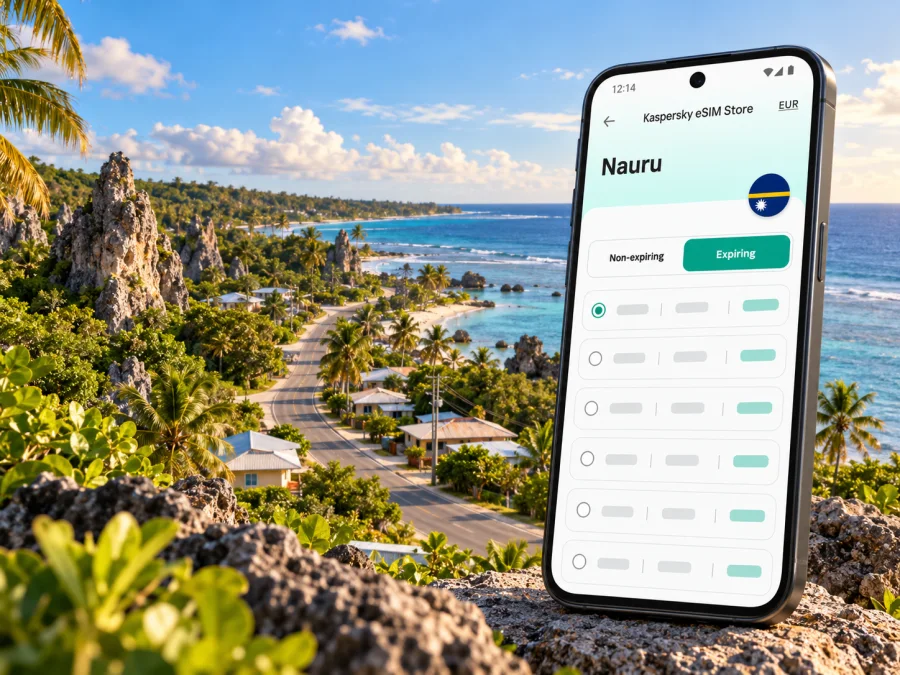
Nibok eSIM: Mobile Connection and Internet Guide
Nibok is a district in the Republic of Nauru, not a large city with a separate urban transport or telecom system. That distinction matters when planning mobile internet: a visit to Nibok is part of a small-island trip, and the practical questions are whether a travel eSIM is supported on your exact phone, whether a plan covers Nauru, and what to do if mobile data is unavailable at a particular stop.
Use this guide to plan arrival, navigation and everyday connectivity around Nibok without assuming that coverage, speed or eSIM availability is guaranteed. The district sits within a compact island where short distances can still involve unfamiliar roads, limited visitor services and changing network conditions. A little offline preparation makes your phone useful even when it cannot reach a network.
What to know about Nibok before you travel
Nauru’s 2021 Population and Housing Census identifies Nibok as one of the country’s districts. The same census counted 724 residents in Nibok in 2021. That figure describes the census year; it is not a current estimate or a measure of visitor facilities. For a visitor, the useful takeaway is simple: plan for a local district within a small island, rather than expecting the services of a conventional city centre.
Nauru is a single island in the Pacific, with a road network connecting its districts. The government’s visitor information says there is no public transport and recommends arranging a hire car. Confirm transport with your accommodation or local contact before setting out. Do not rely on a navigation app to find frequent buses, ride-hailing or dense city-style services in Nibok.
Mobile data can help with directions, messages, translation and contacting your host. Save your address, key phone numbers and meeting details offline, and agree any important pickup before leaving a reliable connection.
Arrival in Nauru and getting to Nibok
Nauru’s airport is on the island, away from Nibok. Once you arrive, the next stage is a local transfer by road. Confirm the pickup location and time in advance, and ask whether the driver can be reached by ordinary call, messaging app or both. A newly installed eSIM may need a few minutes to register after you enable it, so avoid making your first contact depend on a data-only connection working immediately.
Before departure, download an offline map covering Nauru and mark your accommodation, the airport and any agreed meeting point. Save the map on the phone that will be used for navigation; a downloaded map on a companion’s device will not help if you split up. Keep a screenshot of the booking and address as well.
At the airport, check the eSIM’s status only after you have completed arrival formalities and can pause safely. If it connects, test a basic web page or send a short message. If it does not, keep the phone’s primary SIM available for calls if your home operator permits roaming, use airport or accommodation Wi-Fi where offered, and contact your host using the method you agreed in advance. Do not delete and reinstall an eSIM profile as a first troubleshooting step; some profiles are intended for a limited number of installations.
A simple arrival checklist
- Keep your booking, address and host contact details available offline.
- Confirm your road transfer and a backup way to contact the driver.
- Download the map area before leaving home or while connected to trusted Wi-Fi.
- Wait until you are stationary before changing mobile-data settings.
- Check the selected data line and the eSIM’s status before troubleshooting further.
- Keep enough battery for navigation and messages; carry a power bank if you have one.
Choosing mobile internet for Nibok
A travel eSIM is useful only when the exact plan includes Nauru and your phone can install and use that eSIM. Country availability, network partners, data allowance, validity period, activation rules and supported network technologies can differ by plan. Review those details on the plan page before purchase. The fact that a phone supports eSIM does not prove that a particular Nauru plan is offered or that it will connect in every part of the island.
Kaspersky eSIM Store is an app and website where you can select, order and activate an eSIM with a suitable plan for mobile internet on an international trip. It is not a mobile network operator. The local network connection depends on the plan’s stated arrangements and the networks available in Nauru. Treat any network name, coverage note, price or data amount shown at checkout as the current source for that specific plan, and check it again close to travel if your booking was made well in advance.
What to compare before choosing
| Check | Why it matters for a Nibok trip |
|---|---|
| Destination coverage | Confirm that the plan explicitly includes Nauru; a regional plan may have a different list of included destinations. |
| Network and technology | Service depends on the plan’s partner network and the network available where you are. Do not assume 5G, a particular carrier or a fixed signal level. |
| Data allowance | Maps, messaging and web searches use data. Video calls, photo backups and automatic updates can use much more. |
| Validity and activation | Check when the validity period begins and whether installation, first connection or another event starts it. |
| Tethering rules | If you plan to share data with a laptop or another phone, confirm that the plan and your device allow it. |
| Calls and SMS | A data eSIM may not include a local number, ordinary calls or SMS. Keep another way to reach people when needed. |
| Refund and installation terms | Review what happens if the phone is incompatible, the plan is not installed, or travel dates change. |
eSIM compatibility: check the exact phone
Check your exact phone model and regional variant before paying. eSIM availability can vary between versions sold in different markets, and some devices are carrier-locked. Manufacturer specifications for the exact model, the phone’s mobile-network settings and your current carrier are more reliable than a generic list of compatible product families. If you are uncertain, check whether your device supports eSIM and confirm that the phone is unlocked for use with another provider.
A device that supports eSIM in one country may have a different hardware or software variant elsewhere. Dual-SIM behavior also varies: you may be able to keep your home number active while using the travel eSIM for data, but the settings and roaming charges depend on your phone and home operator. Before travel, write down how to switch the mobile-data line and how to turn off data roaming on the home SIM.
For a tablet, laptop or smartwatch, verify that the exact device supports eSIM and that the selected plan accepts that device category. Do not assume that a phone plan can be installed on every eSIM-capable product. If you plan to use a hotspot, test the setting at home and check plan conditions first.
For a trip to Nauru, visit Kaspersky eSIM Store to check current destination options. Confirm that any plan you consider includes Nauru; the store page does not guarantee a specific Nibok tariff or local coverage. If you do not find a suitable option, check your home operator’s roaming terms or ask your accommodation about practical local connectivity before you travel.
Install ahead, activate deliberately
Install the eSIM while you have a stable internet connection, preferably before departure. Follow the plan’s instructions and keep the QR code or activation information accessible on a second screen or printed copy if needed. Installation and activation are not always the same step: a profile can be installed before the trip while mobile data is enabled later, depending on the plan instructions. Read the plan’s validity rules so you do not start a limited period earlier than intended.
Before installation, confirm compatibility, unlock status, a stable internet connection and access to the QR code or activation details. For step-by-step help, use the Android eSIM installation instructions or the iOS eSIM installation instructions.
Before you leave
- Check the plan. Confirm Nauru is included, then read the data, validity, activation and device conditions.
- Connect to Wi-Fi. Keep the phone charged and use a reliable connection while installing the profile.
- Add the eSIM. Follow the on-screen steps for your device and label the line something easy to recognize, such as “Travel data.”
- Keep your home line clear. Decide which line should handle calls and SMS and which one should use mobile data.
- Set a reminder. If the plan should only be activated on arrival, note the exact setting to change after landing.
- Prepare offline materials. Save maps, bookings, contacts and essential travel information on the device.
After landing
- Open the mobile-network settings when you are safely stopped.
- Select the travel eSIM for mobile data if the plan instructions say it is ready to use.
- Turn on data roaming for that eSIM only if the plan instructions require it.
- Keep data roaming off on your home line unless you have checked its roaming charges and want to use it.
- Wait a few minutes for network registration, then test a simple message or web page.
- If it remains offline, check the plan details and signal, restart the phone once, and contact support through an available Wi-Fi connection if necessary.
A network may take several minutes to register. Avoid repeatedly switching settings while moving between roads or trying to navigate. If you need internet later rather than immediately, leave the travel line installed but disabled until the plan’s stated activation point. The correct sequence depends on the plan, so use its instructions rather than assuming all eSIMs activate in the same way.
Getting around and using data around Nibok
Because Nibok is a district and Nauru has no public transport according to the government’s visitor guidance, plan movement as a series of arranged road journeys. Ask your accommodation about the practical pickup point, estimated drive and return arrangement. Save the driver’s contact details and your destination offline. If your plans change, send a message while you still have a working connection rather than waiting until you are already on the road.
Navigation apps are helpful for orientation, but local directions may be clearer when paired with a named landmark, a host’s instructions or a map pin shared before departure. Confirm the spelling of the place and the meeting side of the road. If the driver suggests a route or stopping point that differs from your map, ask for clarification rather than assuming the app has the latest local information.
The island’s size can create a false sense that every outing is easy to improvise. Small distances do not guarantee frequent signs, continuous signal or services along the way. Before leaving your accommodation, check your battery, carry water and download the route. For a trip with several stops, keep a note of the planned order and the return plan. A map screenshot can be more dependable than loading a new route when mobile data is weak.
| Situation | Prepare on your phone | Useful fallback |
|---|---|---|
| Transfer from the airport | Booking details, map pin and driver contact | Agree on a meeting point and backup contact method in advance |
| Short outing within Nibok | Offline map, destination name and return time | Ask your host to confirm the route before departure |
| Crossing to another district | Island-wide offline map and planned stops | Save the next contact and address before leaving coverage or Wi-Fi |
| Work call or online meeting | Test data, microphone and hotspot before the appointment | Arrange a Wi-Fi location and a dial-in or rescheduling option |
| Low battery or weak signal | Screenshot of route and essential details | Return to a known location or ask a local contact for help |
Accommodation, work and short stays
Choose accommodation based on the whole itinerary, not on an assumption that the room or surrounding district will have a particular mobile signal. Ask the host what internet access is available, whether it reaches the room, and whether guests can use it for work calls. Wi-Fi availability and quality can vary, so do not schedule a critical meeting until you have tested the connection or agreed on a backup.
For remote work, prepare documents offline and tell colleagues what to expect from an island connection. Join calls from a stationary place, close background syncing and keep an audio-only option available. No eSIM can promise a particular speed or uninterrupted service at your desk or along every road.
Practical data habits for a small-island trip
- Download the island map and accommodation directions on Wi-Fi.
- Turn off automatic app updates and photo backup over mobile data.
- Use text messages or voice notes when a video call is unnecessary.
- Keep navigation open only when you need it, and save the destination in advance.
- Check the data counter on your phone, while remembering that a device counter may not match the plan’s billing measurement exactly.
- Avoid depending on public Wi-Fi for sensitive tasks unless you trust the network and understand its terms.
- Keep your physical SIM in place if you need its number for calls or verification, but review its roaming settings.
- Store an emergency contact and accommodation information somewhere accessible offline.
If the eSIM does not connect
Start with the basic checks: confirm the plan includes Nauru, the eSIM line is enabled, the correct line is selected for mobile data, and the phone has a signal. Review the plan’s instructions for data roaming and network selection. A restart can help the device register again, but allow time for the network to appear before repeating changes.
If you are indoors or in a place with a weak signal, move to a safe open location and test again. Do not assume that a failed connection means your phone is defective; service can depend on coverage, local network availability, device settings and the particular plan. Use accommodation Wi-Fi or another trusted connection to review the order and contact the relevant support channel. Keep screenshots of the settings and any error message, but do not share security codes or private account information publicly.
If the eSIM is not listed in settings after installation, check the installation instructions and your order details before removing anything. Some QR codes or profiles may not be reusable after deletion. If your plan is not compatible or does not cover the destination, use an alternative you have checked in advance, such as your home operator’s roaming service or an available local option. Make sure you understand the cost and registration requirements of any alternative before using it.
Frequently asked questions
Is Nibok a city?
Nibok is a district of Nauru, rather than a separate city with a distinct urban transit system. Use the name Nibok for your destination, and confirm the exact address or meeting point with your host.
Will an eSIM work throughout Nibok?
That cannot be guaranteed. It depends on whether your plan includes Nauru, the local network arrangement, your exact device and conditions at your location. Check the plan details and keep offline navigation and a backup contact method.
Does every Nauru eSIM include calls and texts?
No assumption is safe. A travel eSIM may be data-only and may not provide an ordinary phone number, calls or SMS. Check the plan terms and keep your primary number available if you need it.
Can I install the eSIM before flying?
Usually you can install a profile before travel if the plan supports that timing, but installation and activation may be separate. Read when validity begins and follow the specific plan’s instructions so you do not activate earlier than intended.
What if I need reliable internet for work?
Test the available connection before an important meeting and arrange a backup with your host. Download files, send meeting details in advance and do not rely on a single mobile connection for a critical call.
Can I use the same plan on a tablet or laptop?
Only if the exact device supports eSIM and the plan permits that device type. Check both before purchase; a phone-compatible plan is not automatically suitable for every device.
Make a simple connectivity plan
For Nibok, the most useful setup is a verified plan, an eSIM-compatible and unlocked device, an offline map, saved contacts and a confirmed road transfer. Check the conditions for Nauru, install the profile over a stable connection, and enable mobile data according to the plan’s activation guidance. Keep expectations practical: availability and performance can differ by network, place and device.
Before your trip, visit Kaspersky eSIM Store and check whether a suitable option is available and choose only a plan whose destination, data allowance and validity fit your itinerary. Kaspersky eSIM Store helps you select, order and activate an eSIM for mobile internet abroad. Follow the installation guidance for your device, keep your offline travel details accessible, and confirm your transport arrangements before setting out in Nibok.


