Travel connectivity guide
Nokia XR21 eSIM: compatibility and setup
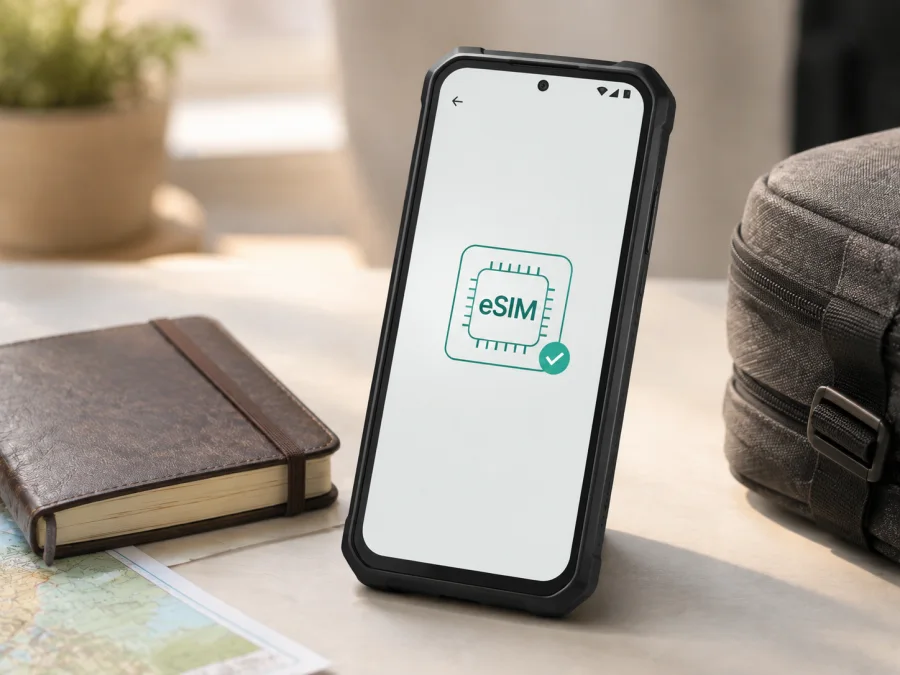
Nokia XR21 eSIM: compatibility, setup and travel use
If you are planning to use mobile data abroad, Nokia XR21 is a practical candidate for an eSIM-based travel setup. The current HMD specifications for Nokia XR21 list eSIM alongside nano-SIM support, and the official Nokia XR21 user guide includes a dedicated eSIM activation flow. That means the answer is yes: a standard Nokia XR21 variant can support eSIM. The important qualification is that a phone’s exact sales region, carrier software, firmware and SIM configuration still matter. Before you pay for a travel plan, confirm that your own handset shows an eSIM option or an EID.
Keep the exact name Nokia XR21 in mind when checking a listing. Do not substitute Nokia XR20, HMD XR21 or another similar model. HMD’s current XR21 specification identifies a 128 GB phone with 6 GB RAM, a Snapdragon 695 5G platform and eSIM or nano-SIM configurations. The HMD specification and Nokia XR21 user guide were checked on September 7, 2026.
Quick answer: does Nokia XR21 support eSIM?
Yes. HMD documents eSIM support for Nokia XR21 and provides instructions for downloading an eSIM from Settings > Network & internet > SIMs. With a physical SIM inserted, look for Add eSIM; without one, look for Download eSIM instead?.
The phone can store several eSIM profiles. HMD’s user guide says that Nokia XR21 may hold up to 10 depending on their size, but storage is not the same as simultaneous use. A dual-SIM version may use two physical SIMs or one physical SIM and one eSIM, while a single-SIM configuration may allow only one active SIM. Check the on-screen options.
The practical conclusion is simple: Nokia XR21 is eSIM-compatible according to current official HMD information, but your specific unit must be checked before purchase. A carrier lock, a market-specific build, missing firmware support or a reseller’s incorrectly described variant can prevent activation even when the model family supports eSIM.
Nokia XR21 specifications relevant to eSIM
| Item | Nokia XR21 information | Why it matters for travel eSIM |
|---|---|---|
| Device | Nokia XR21 | Use the exact model name when checking compatibility. |
| eSIM | Listed by HMD as supported | The phone has a digital SIM profile path in supported configurations. |
| Physical SIM | Nano-SIM; HMD lists nano-SIM + nano-SIM as a maximum two-SIM configuration | A physical home SIM can potentially remain available with an eSIM, subject to the unit’s configuration. |
| Mobile network | 5G platform and 5G network support | A travel plan uses the networks and bands allowed by its terms and local coverage. |
| Storage | 128 GB | Profile storage and app space are separate from the plan’s data allowance. |
| RAM | 6 GB | RAM does not determine eSIM support, but it identifies the documented XR21 configuration. |
| Activation path | Settings > Network & internet > SIMs | This is the first place to look before buying a plan. |
| Installation connection | Wi‑Fi may be required when no physical SIM is active | Download the profile before departure or connect to reliable Wi‑Fi after arrival. |
Regional, carrier and firmware differences
The model name does not reveal every sales configuration. Country, carrier software, Android build or an imported, second-hand or repaired unit can change behavior. If SIMs, Add eSIM or Download eSIM instead? is missing, update and restart, then ask the seller or carrier to confirm the IMEI and software.
Treat the official model statement as a starting point and the handset’s settings as the final check. A listing or forum cannot replace an EID or menu check. Do not buy a non-refundable plan until Nokia XR21 passes that check and is unlocked.
How to check Nokia XR21 compatibility before buying
Use both checks below. You do not need to install a plan to check the hardware and settings.
Check for an eSIM menu
- Open Settings.
- Tap Network & internet.
- Open SIMs.
- Look for Add eSIM if a physical SIM is inserted, or Download eSIM instead? if no physical SIM is inserted.
- If the phone shows an eSIM setup screen, stop before downloading a profile unless you are ready to install it.
Menu wording can change after an Android update. Search Settings for “eSIM”; if the search and SIM page show only physical-SIM controls, verify the software version and region.
Check for an EID
An EID is an identifier associated with the eSIM component. On Android it is commonly displayed in a device-status or SIM-status area, although the exact location can vary. Open Settings, search for EID, and review About phone, SIM status or the relevant device information page. If an EID is displayed, save it privately for support or carrier verification; do not publish it in a screenshot.
An EID is useful evidence, but activation also requires an unlocked phone, a supported plan and suitable software. A missing EID entry can be a regional UI issue, so check for Add eSIM and ask the seller or carrier before rejecting the phone.
Compatibility checklist
- [ ] The back of the phone, box or Settings page identifies the device as Nokia XR21.
- [ ] The phone shows Add eSIM or Download eSIM instead? under Settings > Network & internet > SIMs.
- [ ] An EID is visible in the phone information or SIM-status area, where supported.
- [ ] The phone is not locked to a carrier that blocks another eSIM profile.
- [ ] The phone can connect to Wi‑Fi for the initial download.
- [ ] Android and carrier settings are up to date.
- [ ] The selected eSIM plan covers the destination and matches your expected data use.
- [ ] You know when the plan starts, when data is consumed and whether data roaming must be enabled.
- [ ] You have kept your home SIM’s settings available if you need calls or SMS on that line.
Check your device before selecting a plan if any item is uncertain. Compatibility is a device-and-configuration question, not only a model-name question.
What to prepare before installation
Have the activation QR code or manual details available in the Kaspersky eSIM Store app or site after the selected purchase flow. Keep the code private. If it is displayed on Nokia XR21 itself, use a second screen or manual entry when available; a one-time code may not work from an old screenshot.
Connect Nokia XR21 to stable Wi‑Fi before starting. HMD notes that Wi‑Fi is needed when no physical SIM is inserted. Do not erase an existing eSIM while troubleshooting, and read the plan’s activation and validity conditions because installation and data use may begin at different times.
For general reference, the project’s setup guides are available here: Android installation instructions and iOS installation instructions. Nokia XR21 follows the Android path; the iOS page is included as a separate reference for users managing other devices.
Install and activate an eSIM on Nokia XR21
Follow this sequence when you are ready to add the travel profile.
- Confirm the plan and connection. Check the destination, data allowance, validity period and activation conditions. Connect Nokia XR21 to Wi‑Fi, especially if no physical SIM is active.
- Open the SIM manager. Go to Settings > Network & internet > SIMs, or search Settings for “SIM” or “eSIM”.
- Start eSIM setup. Tap Add eSIM when a physical SIM is present. If there is no physical SIM, choose Download eSIM instead?.
- Scan or enter the code. Scan the plan’s QR code, or tap Need help? > Enter it manually and enter the supplied details exactly.
- Download the profile. Tap Continue, then Download. Keep Wi‑Fi connected until it finishes.
- Name the line. If asked, use a clear label such as “Travel data” or the destination.
- Turn the profile on. Open the new eSIM and switch on Use eSIM.
- Choose mobile data. Set the travel eSIM as the data line. Keep the home SIM for calls or messages only when its roaming terms are clear.
- Enable data roaming if required. Some travel eSIMs use a partner network and require roaming for that profile. Enable it only for the travel eSIM when the plan says to do so, never blindly on your home line.
- Test the connection. Turn off Wi‑Fi briefly, wait for a data indicator and open a small webpage. Then review the eSIM settings.
To switch profiles, open Settings > Network & internet > SIMs, select one and switch on Use eSIM. Moving to a physical SIM can disconnect the eSIM. Removing a profile may not cancel its plan and may prevent re-download, so ask support first.
Use Nokia XR21 for mobile data while travelling
Separate your home line from your data line. Install the eSIM over Wi‑Fi, but set it as the mobile-data line only when you want the travel plan to carry traffic. Before takeoff, rename the lines, check the data selection and disable automatic switching if it could move traffic to the home SIM. Keep the home line enabled for calls or SMS only when its roaming terms are acceptable.
On arrival, switch off airplane mode and allow Nokia XR21 time to register. Enable data roaming for the travel eSIM if required. Start with automatic network selection; use manual selection only when the plan names a partner and automatic selection fails.
Maps, ride-hailing, translation, messaging and boarding passes generally use less data than continuous video or hotspot use. Review the remaining allowance in the app or account area, restrict background data where useful, download offline maps and use Wi‑Fi for system updates. These steps control consumption but do not change the plan’s terms.
Kaspersky eSIM Store is an app and website where you can choose, arrange and activate an eSIM with a suitable mobile-data plan for a foreign trip. It is not the operator, network owner or coverage provider. Availability and activation rules depend on the selected plan and its network partners. A travel eSIM is generally for mobile data, not a regular number, calls or SMS unless stated.
After the first third of this guide, you can review travel eSIM options in Kaspersky eSIM Store once Nokia XR21 has passed the checks. Compare the destination, term and allowance with your itinerary, and read when the plan begins.
Common problems and checks
“Add eSIM” is missing
Confirm Settings > Network & internet > SIMs, search for “eSIM”, update and restart. If the menu is missing, check the EID and contact the seller or carrier with Nokia XR21 details. Imported or locked units may differ.
The QR code will not scan
Increase brightness, clean the lens and hold Nokia XR21 steady. Confirm the code belongs to this plan and is unused. If available, use Need help? > Enter it manually.
The profile will not download
Check Wi‑Fi, storage, date and time, and whether another profile is active. Hotel or airport Wi‑Fi may need sign-in first. Review profiles before deleting: deletion may prevent re-download and does not cancel the plan.
The eSIM is installed but there is no mobile data
Confirm Use eSIM, select it for mobile data, check airplane mode and enable roaming for the travel eSIM if required. Restart Nokia XR21 and follow the plan’s network guidance.
Calls or SMS stopped working
Review the default line and re-enable the home SIM if its operator allows use abroad. A data travel eSIM may not include a number; keep home-line roaming and data controls separate.
The connection is slow or unstable
Check signal, selected network, data limits and plan geography. Buildings, congestion and local coverage matter. Nokia XR21 5G does not guarantee 5G on every partner network; try 4G/LTE if permitted.
FAQ
Is Nokia XR21 compatible with a travel eSIM?
Yes, HMD’s current specifications and user guide confirm eSIM support. Confirm Add eSIM, Download eSIM instead? or an EID on your unlocked handset before buying.
Can Nokia XR21 use a physical SIM and an eSIM together?
HMD documents eSIM and nano-SIM combinations, but the active arrangement depends on the dual-SIM or single-SIM version. Check SIM settings.
How many eSIM profiles can Nokia XR21 store?
The user guide says up to 10 may be stored depending on size; they cannot all be assumed active. Do not erase one until reissue or reinstallation is confirmed.
Do I need Wi‑Fi to install the eSIM?
If no physical SIM is inserted, HMD says Wi‑Fi is required. Use stable Wi‑Fi in every case.
Can I move the travel eSIM to another phone later?
Do not assume transfer is possible; the plan conditions decide whether replacement or re-download is allowed. Ask support first.
Does the travel eSIM replace my normal number?
Usually no. A travel data eSIM is for mobile internet. Your home SIM can remain available for calls and SMS if settings and roaming terms allow it.
What if Nokia XR21 says the eSIM is unavailable in my region?
Check updates, region and carrier status, look for an EID and ask whether the unit is eSIM-enabled. Do not rely on a generic listing.
Final device check before your trip
Nokia XR21 is listed by HMD as an eSIM-compatible 5G phone, but your handset is the final check. Confirm the exact model, Add eSIM or Download eSIM instead?, an EID where available, an unlocked status and current software. Then verify the destination, allowance, validity, activation timing and roaming requirement.
After that, use Kaspersky eSIM Store through its app or website to choose and arrange a suitable travel eSIM, install it over Wi‑Fi and set it as the mobile-data line. Keep home-SIM settings separate and monitor use. HMD confirms support, while regional, carrier and firmware differences make verification essential.


