Travel connectivity guide
Nothing Phone 3 128GB eSIM: Compatibility & Setup
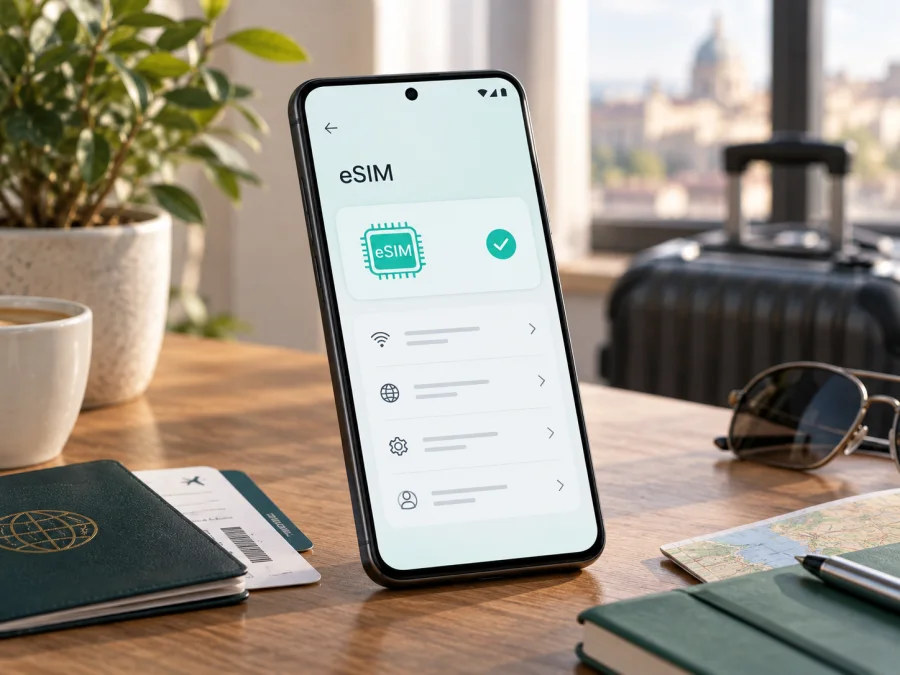
Nothing Phone 3 128GB eSIM compatibility and setup
If you are considering a travel data plan, the short answer is encouraging: Nothing’s official support information says Phone (3) supports eSIM, and its product information describes eSIM as enabled. That supports eSIM use on the Phone (3) family, including a handset advertised as Nothing Phone 3 128GB. Still, check the exact handset before buying a plan. Nothing’s current official store listing that we reviewed shows a 12+256GB configuration, not a 128GB one. Storage capacity does not by itself determine eSIM capability, but a listing that differs from the manufacturer’s published configuration may refer to a market-specific SKU, a seller description, or a different device. Confirm the model number, EID and eSIM menu on the handset itself.
This distinction matters because “supports eSIM” describes a phone family, while your ability to add a particular plan depends on the actual regional model, firmware, carrier lock status and the plan’s requirements. If an EID is present and the settings offer an option to add an eSIM, those are useful device-level signs. If either is missing, do not assume that a QR code or a plan purchase will make the feature appear.
Does Nothing Phone 3 128GB support eSIM?
Nothing’s current official support information confirms eSIM support for Phone (3), and its product information describes eSIM as enabled. On that evidence, the Phone (3) family supports eSIM. Storage capacity alone does not determine eSIM capability, so “128GB” is not a reason to assume support is absent.
There is a qualification for this exact listing: the official store configuration reviewed is 12+256GB, not 128GB. Nothing confirms Phone (3) eSIM support, but that does not verify every seller’s “Nothing Phone 3 128GB” listing as an official regional SKU. Confirm the model number, EID and eSIM menu on the actual handset.
| Item | What to know |
|---|---|
| Requested name | Nothing Phone 3 128GB |
| Manufacturer family | Phone (3) |
| eSIM status | Supported for Phone (3), according to Nothing |
| 128GB configuration | Not shown in the official store listing reviewed; verify the SKU |
| Possible differences | Market, regional model, carrier lock and software |
| Before purchase | Confirm EID or Add eSIM, and carrier-unlocked status |
If the model or storage description is unclear, ask the seller for the regional model code and compare it with Settings → About phone. A product title alone is not enough to verify an individual handset.
Why regional and carrier versions need checking
A phone family can have regional configurations with different firmware, SIM arrangements, network bands or carrier provisioning. A carrier-sold or refurbished unit may also be locked. Nothing’s family-level eSIM confirmation does not certify every imported or customized handset for every plan.
Ask the seller for the exact model number and sales region, and whether the phone is unlocked. For a carrier-bought device, ask that carrier whether another provider’s eSIM can be used. If support requests an EID, share it only through an appropriate private channel; do not post it publicly.
Check Nothing Phone 3 128GB before buying a plan
Menu wording can vary slightly by Nothing OS version. These checks help establish whether the particular phone can add a profile:
- Confirm the model. Open Settings → About phone and compare the model name and number with the listing.
- Find the EID. Search Settings for “EID,” or check About phone, Status or SIM status. EID is the eSIM identifier; it is not the IMEI.
- Look for eSIM setup. Open Settings → Network & internet or Mobile network, then look for Add eSIM or Download a SIM. You can inspect this without scanning a QR code.
- Check for a carrier lock. If unclear, ask the seller or original carrier whether another provider’s profile is allowed.
- Update software. Install an available stable update over Wi‑Fi and restart before setup.
- Review plan conditions. Check destination coverage, data, validity and activation timing, including any stopovers.
Check your device before purchase. An EID and Add eSIM option are useful signs, but a carrier lock or plan restriction can still prevent activation. If both are missing after an update and restart, confirm the regional SKU with Nothing or the seller before paying.
What is an EID, and what if it is missing?
An EID identifies the eSIM capability in a phone. It is different from the IMEI and from an eSIM QR code, which contains profile activation details. Check Settings search, About phone, SIM status and the mobile network screen; the location varies by software version.
If you cannot find an EID, update and restart, then check for Add eSIM again. If both remain absent, verify the exact regional model with Nothing or the seller. A QR code cannot add eSIM hardware, and random reset steps or dialer codes are not a reliable substitute.
How to install and activate an eSIM
Set up the profile on reliable Wi‑Fi with enough battery. Some QR codes can be used only once, so do not delete a profile unless its instructions or support team says to. For step-by-step guidance, see the Android eSIM installation instructions or the iOS eSIM installation instructions if assisting someone with an Apple device.
- Confirm compatibility. Check for an EID or Add eSIM option and verify the phone is unlocked.
- Prepare the code. Keep the QR code or manual activation details available. If the code is on the phone, use manual entry if offered.
- Open SIM settings. Go to Settings → Network & internet → SIMs (or the equivalent) and choose Add eSIM or Download a SIM.
- Install the profile. Scan the QR code or enter the supplied details. Keep Wi‑Fi connected while the profile downloads.
- Label the profile. Use a clear name such as “Travel” to distinguish it from your everyday SIM.
- Choose activation timing. Plans may begin validity at purchase, installation or first connection. Follow the plan’s terms.
- Select the data line. In SIM settings, choose the travel eSIM for mobile data. Check the home SIM’s data and roaming settings to avoid unintended charges.
- Enable roaming if required. Some travel plans use a partner network and require data roaming on that eSIM. Follow the plan instructions.
- Test at the destination. Allow a few minutes for registration, then briefly turn off Wi‑Fi and open a simple webpage.
A profile can be installed before travel but connect only in a supported destination. Installation and activation are not always the same event, so check when the plan’s validity starts.
Using the eSIM for mobile data on a trip
Select the travel profile as the mobile-data SIM when you want to use it. You may be able to keep your usual number available for calls or messages, but check your home carrier’s roaming charges and turn off data on that line if needed. The number of profiles that can be stored or active depends on the device configuration.
For a short trip, install the profile over Wi‑Fi before departure if the plan allows it, then turn it on after landing. For a multi-country route, confirm that the plan includes every destination and any stopovers. Check the data allowance and validity period; download offline maps on Wi‑Fi and monitor usage in Android settings if you want to conserve data.
Kaspersky eSIM Store is an app and website where you can choose, arrange and activate an eSIM with a suitable mobile-data plan for an international trip. The plan terms identify its destination, data allowance, duration and activation rules. These travel plans are intended for mobile data unless their terms say otherwise; do not assume they include a phone number, regular calls or SMS. Network coverage and speed can vary by location and local conditions.
Common problems and checks
The QR code will not scan. Increase screen brightness, clean the camera lens and keep the full code in frame. Use manual entry if provided. Do not share activation details publicly.
There is no Add eSIM option. Search Settings for “EID” and “eSIM,” confirm the exact model number, update and restart. If the EID and menu remain missing, ask Nothing or the seller to verify the regional SKU.
The profile installs but has no service. Check that you are in a covered destination and that the plan is active. Confirm the profile is on and selected for data; enable data roaming for that profile if instructed. Toggle Airplane mode once or restart, then allow a few minutes for registration.
Mobile data does not work. Check mobile data is enabled for the travel profile, confirm the allowance has not run out, and ensure the phone has selected an allowed network. Enter APN details only if the plan provides them; do not guess.
The phone rejects the profile. Confirm the QR code belongs to this plan and has not already been used. Verify the phone is unlocked and its date and time are automatic. Some codes are single-use; contact plan support before deleting or reinstalling the profile.
The wrong line uses data. Recheck the selected data SIM. Disable data or roaming on the home SIM if you want to avoid charges, while keeping only the services you need.
Service is slow or intermittent. Move to an area with a stronger signal, check the selected network against plan instructions and toggle Airplane mode. Local congestion, indoor coverage and device bands affect performance; eSIM compatibility does not guarantee a particular speed.
Frequently asked questions
Is Nothing Phone 3 128GB definitely eSIM-compatible?
Nothing confirms eSIM support for Phone (3). The store configuration reviewed lists 12+256GB rather than 128GB, so verify the exact handset using its model number, EID and Add eSIM setting.
Does 128GB storage affect eSIM?
No. Storage capacity alone does not determine eSIM support. The exact regional model, software and carrier lock status matter.
Can I install an eSIM before travel?
Often yes, over Wi‑Fi, but the plan’s activation and validity rules determine when to install or turn it on.
Can I use my usual SIM and travel eSIM together?
The available active-line options depend on the phone configuration. Choose the travel eSIM for data and review home-carrier roaming charges.
Does a travel eSIM include a phone number?
Usually it is data-only unless the plan terms explicitly say otherwise. Internet calling and messaging apps are separate services.
What if the eSIM is lost after a reset?
Do not assume the QR code can be reused. Check the plan instructions and ask support whether a replacement profile is available before resetting.
Check your device and choose a trip eSIM
Before you pay, confirm that your own Nothing Phone 3 128GB shows an EID or an Add eSIM option, identify its exact model and region, and make sure it is not locked to a carrier. Then check that the selected plan covers every destination on your itinerary and that the data allowance, duration and activation timing fit your plans. If the listing’s 128GB specification cannot be reconciled with the official configuration, get confirmation from the seller or Nothing support first.
After those checks, Kaspersky eSIM Store can help you choose, arrange and activate an eSIM with a mobile data plan for your international trip. Keep the QR code and activation details private, install the profile over a reliable connection, and select the correct line for mobile data when you arrive. A few minutes of checking before purchase can make setup clearer and help you travel with a better understanding of how the eSIM will work. For example, if you rely on your usual number for verification messages, decide whether to keep that SIM enabled and check its roaming terms before departure. If you plan to use only mobile data from the travel profile, confirm that the data selector points to that profile and test it with Wi‑Fi briefly turned off once you reach a covered area. Keep the plan instructions available offline in case you need to review a setting without a connection.


