Travel connectivity guide
Nothing Phone 3 256GB eSIM: compatibility guide
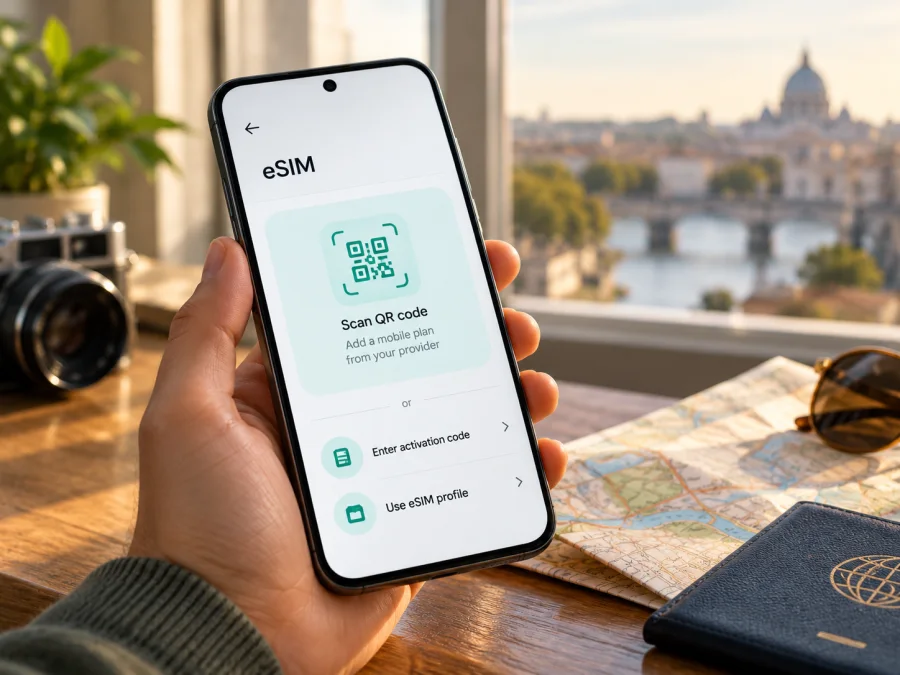
Nothing Phone 3 256GB eSIM: compatibility and travel setup
If you are checking whether the Nothing Phone 3 256GB can use an eSIM, the answer is yes for Phone (3): Nothing Support’s article “Does the Phone (3) support eSIM?” confirms support, and the manufacturer’s product page describes the model as eSIM-enabled. Regional Phone (3) listings for the US, India, Japan, and Spain show the 12+256GB configuration. Checked 1 November 2026. They do not provide a complete market-by-market eSIM table, so confirm that your exact handset has an EID or an option to add an eSIM and is not locked by a mobile operator before buying a travel plan.
This guide covers compatibility checks, setup, and travel use. The task label “Nothing Phone 3 256GB” is retained; Nothing styles the model “Phone (3)” and capacity “12+256GB.” RAM appears only where the manufacturer lists it.
Does Nothing Phone 3 256GB support eSIM?
Yes. Nothing’s official support article, “Does the Phone (3) support eSIM?”, states that Phone (3) supports eSIM. The manufacturer’s Phone (3) product page also describes eSIM as enabled and shows 12+256GB as a selectable configuration. This is direct confirmation for the model family and the capacity requested here; the product pages reviewed do not say that the 256GB storage option itself removes or adds eSIM support.
| Item | What is confirmed |
|---|---|
| Device in this guide | Nothing Phone 3 256GB |
| Manufacturer’s current model name | Phone (3) |
| Matching capacity shown by Nothing | 12+256GB |
| eSIM support | Nothing says Phone (3) supports eSIM |
| Operating system family | Nothing OS based on Android |
| Exact eSIM menu and market coverage | Check on the individual phone; menu wording and retail configurations can differ |
Regional and operator versions
Phone specifications and network features can vary by market. A phone sold through an operator may also be subject to a SIM lock, an account restriction, or activation rules imposed by that operator. Nothing’s public support answer confirms Phone (3) eSIM support in general, but the page does not explain every regional SKU or state that all operator-sold phones are unlocked. There is therefore no sound basis for promising that every handset labelled “Nothing Phone 3 256GB” has identical eSIM availability in every country.
Separate three checks:
- Hardware and software: does this handset expose an EID or an Add eSIM / Download a SIM control?
- Network lock: will the seller or original operator confirm that the device accepts another provider’s profile?
- Travel plan: does the plan cover your destination and support the phone’s available network bands and activation method?
If you are buying second-hand or importing a regional variant, inspect the settings on that exact handset. Do not rely only on the product family name, a seller’s generic specification page, or a photograph of another unit. If eSIM is missing from the settings, update Nothing OS over Wi‑Fi, restart the phone, and check again. If it is still absent, ask Nothing support or the seller to confirm the exact model and regional configuration before purchasing a plan.
Check eSIM compatibility before you buy
The most useful on-device evidence is an EID (the identifier for the phone’s embedded SIM) or a working control to add/download an eSIM. The exact menu names can vary with Android version, language, and Nothing OS release.
Try these checks while connected to Wi‑Fi:
- Open Settings and use the search field for “EID” or “eSIM.”
- Look under Network & internet, SIMs, or Mobile network for Add SIM, Set up an eSIM, or Download a SIM instead?. The wording may differ.
- Open About phone or Status information and look for an EID. If it is not visible there, search Settings for EID; some software builds place it under SIM status.
- If an EID appears, note that down privately if support asks for it. You do not need to publish or send it to a seller in an open forum.
- If the phone has a SIM tray, remember that a physical SIM slot does not establish whether eSIM is available. Check the separate eSIM setting.
- Ask the original carrier whether the phone is network-unlocked. A displayed eSIM menu cannot remove a carrier lock.
- Check the travel plan’s country or regional coverage, data allowance, validity period, activation timing, and supported installation method.
Compatibility checklist
- [ ] The exact phone shows an EID or an eSIM setup option.
- [ ] Nothing OS is up to date and the phone has restarted after updating.
- [ ] The handset is unlocked for use with another mobile provider.
- [ ] You can connect to Wi‑Fi or another internet connection during installation.
- [ ] The plan includes the destination and the type of data use you need.
- [ ] You understand when the validity period starts and whether the plan requires data roaming.
- [ ] You have a second screen or a saved activation method if you will scan a QR code.
For a quick additional check, check your device compatibility before choosing a travel data plan. If the menu, EID, or lock status is uncertain, resolve that question with the handset seller or Nothing support first.
How to install and activate an eSIM
For the cleanest setup, install the profile while you have a reliable internet connection, before departure if the provider’s instructions allow it. Keep the QR code or activation details available on another screen or on paper: the phone cannot scan its own displayed code with its own camera. A manual activation code may be available if scanning is not practical.
The steps below use general Android wording. Nothing OS updates can move or rename settings, and the eSIM provider controls when a profile becomes active or starts its validity period. Follow the plan-specific instructions if they differ.
- Check first. Confirm that the phone has an EID or an eSIM setup option, is unlocked, and has enough battery. Connect to stable Wi‑Fi.
- Open the plan details. In the provider’s app or website, review destination coverage, data allowance, validity, activation rules, and whether the plan starts on installation or on first network connection.
- Start adding a profile. On the Nothing Phone 3 256GB, open Settings and look under Network & internet or SIMs. Choose Add SIM, Set up an eSIM, or a similarly named option.
- Scan or enter details. Select the QR-code method and scan the code displayed on another device. If the provider supplied manual details, use the manual entry option and copy them carefully. Do not share the QR code: it can contain the credentials needed to install your profile.
- Wait for the download. Keep the settings screen open and the internet connection stable while Android downloads the profile. If asked to confirm, approve the installation only for the plan you intended to add.
- Name the profile. Choose a label such as “Travel data” so you can distinguish it from your home SIM. A label is only for your own reference; it does not change the plan.
- Choose how it will be used. You may be asked which SIM to use for mobile data, calls, or messages. For a travel data-only plan, keep your regular SIM selected for calls and messages if you want to continue using it, and select the travel profile for mobile data when appropriate.
- Check the provider’s activation timing. Some profiles can be installed at home and used after arrival; others begin their validity at a different point. Follow the plan terms rather than toggling the profile repeatedly.
- At the destination, enable the profile. Turn on the travel eSIM and select it for mobile data. If the plan requires roaming, enable Data roaming for that eSIM only, as directed by the provider. Roaming settings for the travel profile can be separate from your home SIM.
- Confirm service. Turn off Wi‑Fi briefly and check whether mobile data loads a webpage. If it does not, verify the selected data SIM, coverage area, activation status, roaming setting, and any APN instructions from the plan provider.
The Android installation instructions provide a visual walkthrough; their menu labels may be written for a different Android manufacturer, so use the equivalent Nothing OS controls. The iOS installation instructions are included for readers helping a companion with an iPhone; they do not describe steps for this Android phone.
After installation, do not delete the profile just to troubleshoot a temporary network problem. Some eSIM plans cannot be reinstalled after removal or may require provider assistance to issue a replacement. First switch the profile off and on, restart the phone, and check the provider’s account or installation guidance.
Using a travel eSIM for mobile data
A travel eSIM is useful when you want mobile data for maps, translation, booking details, rides, and messaging while abroad. Before leaving, decide whether you need data immediately on arrival or whether you will install the profile after connecting to airport Wi‑Fi. If setup will happen after landing, keep the QR code or instructions accessible offline and make sure you can connect to a trusted network.
When two SIM profiles are active, the phone asks which one should handle mobile data. Select the travel eSIM for data only when you want its plan to carry that traffic. Calls and text messages may remain on your normal SIM, subject to your home carrier’s roaming conditions. A data-only travel eSIM does not automatically provide a regular phone number, voice service, or SMS; check the plan description. Messaging and internet calls can work through apps using data, but they still depend on the app and destination network.
Kaspersky eSIM Store is an app and website where you can choose, arrange, and activate an eSIM with a mobile-data plan for an international trip. You can compare a destination’s available plan details, such as allowance and validity, before deciding. It is not the mobile operator or owner of the local network. Review the provider and plan terms shown for your selected destination, including any restrictions on tethering or usage.
Common problems and checks
The phone has no Add eSIM option
Search Settings for “eSIM” and “EID,” check the SIM status screen, install available Nothing OS updates over Wi‑Fi, and restart. Confirm the model identifier with the seller. If neither an EID nor an eSIM control appears after those steps, ask Nothing support whether that exact regional version enables eSIM. Do not assume that 256GB capacity alone determines the feature.
The QR code will not scan
Increase the brightness of the screen showing the QR code, clean the Nothing Phone 3 256GB camera lens, and hold the phone steady at a comfortable distance. Make sure the code is not cropped or covered by a screen overlay. A code shown on the same phone cannot normally be scanned by its camera; use a second display or request manual installation details from the plan provider.
The profile will not download
Check the Wi‑Fi connection, disable any setting that blocks the provider’s activation page, and make sure the activation code has not already been used or expired. Verify that the phone is unlocked and that the plan is intended for an eSIM-capable Android device. If the code was accepted once but the download stopped, contact the provider before trying to install it repeatedly.
The eSIM appears but there is no service
Confirm the phone is in an area covered by the plan, the profile is switched on, and the travel eSIM is selected for mobile data. Check whether data roaming must be enabled for that profile. Restart the phone or briefly toggle airplane mode, then allow it time to register. If the plan specifies an APN, enter it exactly as instructed; do not guess an APN value.
The home SIM receives unexpected roaming charges
Review which line is selected for data and whether the home SIM’s data roaming is enabled. If you want to avoid using the home line for data abroad, select the travel eSIM for mobile data and disable roaming on the home SIM. Keep in mind that calls, messages, voicemail, or carrier features on the home line may still follow its own roaming terms.
Frequently asked questions
Does Nothing Phone 3 256GB support eSIM?
Nothing’s current Phone (3) support article says that Phone (3) supports eSIM, and the manufacturer lists a 12+256GB configuration. Check the exact handset’s EID or eSIM setup option before purchase, particularly for imported or operator-sold units.
Do I need to enable data roaming?
Some travel plans require data roaming on the travel eSIM to connect to a partner network. Enable it only for the eSIM if the plan instructions say to do so, and check the home SIM’s settings to avoid unintended roaming data use.
What if there is no EID in Settings?
Search the settings for EID and eSIM, look under SIM status, and check for system updates. If the identifier and setup option are both absent, ask Nothing support or the seller to confirm the regional model. Do this before purchasing a plan that cannot be returned after activation.
Before you choose an eSIM for your trip
First verify that your specific Nothing Phone 3 256GB shows an EID or an eSIM setup option and is not carrier-locked. Then match the plan to your destination or route, expected data use, validity period, and activation rules. Once those checks are complete, Kaspersky eSIM Store’s website or app can help you choose, arrange, and activate an eSIM plan for mobile data on an international trip. You can browse the Kaspersky eSIM Store to check the current destination options; the homepage is a general store entry point, not a country-specific tariff page.


