Travel connectivity guide
Nothing Phone 3a Pro 128GB eSIM: Setup & Compatibility
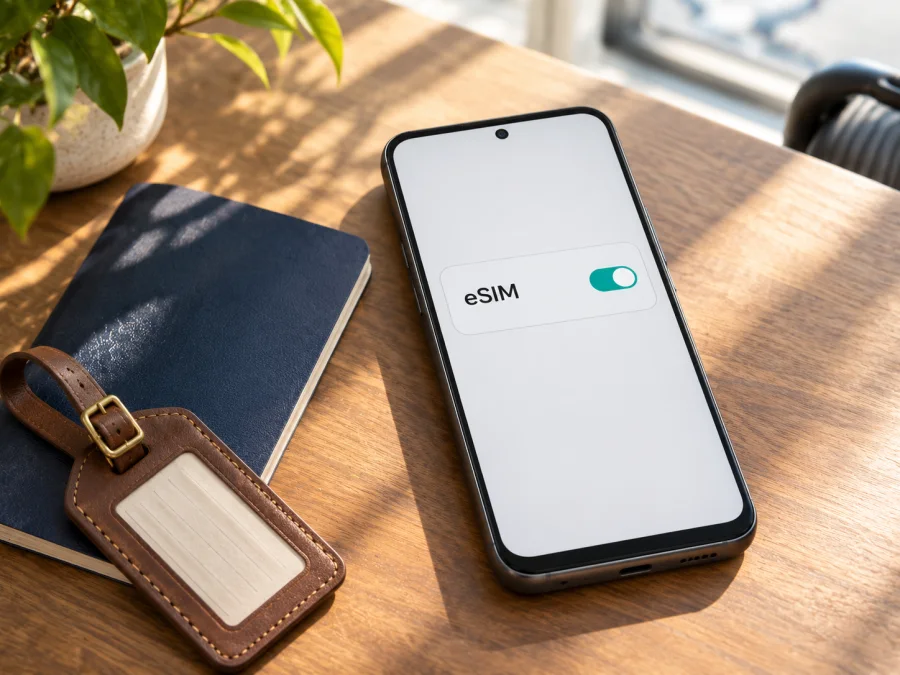
Nothing Phone 3a Pro 128GB eSIM: compatibility and setup guide
Quick answer: Nothing’s official European specifications say that the Phone (3a) Pro supports eSIM. The exact status of a Nothing Phone 3a Pro 128GB cannot be established from its storage label alone: Nothing’s India store lists an 8+128GB configuration, while its current European listing shows 12+256GB. The regional listings confirm that configurations differ, but do not identify every 128GB unit or its SIM capability. If you own a Nothing Phone 3a Pro 128GB, check the sales region, EID and Settings menu before buying or installing a travel plan.
Does Nothing Phone 3a Pro 128GB support eSIM?
The answer depends on the unit’s intended market and configuration. Nothing’s official European Phone (3a) Pro specifications list “eSIM: Yes” alongside Nano-SIM support. Its India-specific materials identify an 8+128GB configuration, while the regional eSIM specification excludes India. These are manufacturer statements for different markets; they should not be blended into a universal claim about every Phone (3a) Pro sold worldwide.
The phrase “128GB” describes internal storage. It does not tell you whether the embedded SIM feature is present, whether a carrier has enabled it, or whether the phone is unlocked. The “8+” in a listing usually describes the memory configuration, but even an exact RAM and storage combination should be matched to the region and model information shown on the box, invoice, Settings screen or the seller’s product page. Do not infer eSIM from the Pro name alone.
| Check | What it tells you | What it does not confirm |
|---|---|---|
| Phone name: Nothing Phone 3a Pro 128GB | Identifies the requested model and storage capacity | The market-specific SIM hardware or eSIM availability |
| Country where the handset was sold | Helps match the phone to the relevant Nothing specification | Whether a particular operator has unlocked it |
EID in Settings or by dialling *#06# |
Strong evidence that the handset has an eSIM identity | Whether a travel plan will work on the current software and network |
| “Add eSIM” in SIM settings | Shows that Android exposes an eSIM setup path | Whether the phone is carrier-unlocked or the plan covers your destination |
| Seller or carrier confirmation using the exact model code | Helps resolve a regional or operator variant | Whether a QR code remains usable after a previous activation |
Why regional and operator versions matter
Smartphones with the same retail name can be supplied in more than one market configuration. Manufacturers may vary SIM support, supported radio bands, firmware, certification and the software options available in a country. A product page may also describe a general series while a local listing names a specific memory variant. This is why an official specification for one region cannot automatically answer whether a device bought in another region has the same feature.
For the Phone (3a) Pro, Nothing’s current regional pages provide a clear caution: the European page lists eSIM, while India-specific wording excludes India; the India store currently displays an 8+128GB selection. This does not prove that all 128GB versions everywhere lack eSIM, nor that all versions called “Pro” support it. It shows that storage capacity is not a reliable compatibility key and that the intended sales market matters. If you bought the phone second-hand, imported it, or received it from an employer, the original market may differ from where you use it now.
Operator restrictions are a separate question. Some carriers sell devices locked to their own service or impose rules on eSIM activation. An EID can be present even when the handset is locked or a particular operator will not activate an eSIM on it. Ask the seller or original carrier whether the device is unlocked and whether eSIM service can be added. A travel eSIM profile also needs a supported local partner network and usable radio coverage at the destination; neither is guaranteed simply because the phone supports eSIM.
Check EID and eSIM settings before you buy
Use the phone itself whenever possible. Menu labels can vary with Nothing OS version, region and carrier settings, so treat the paths below as common Android routes rather than guaranteed wording.
- Check the dialler. Open the Phone app and enter
*#06#. If the handset supports eSIM, the information panel may show an EID, usually a long numeric identifier. Do not post the EID publicly or send it to an unknown seller. If nothing appears, continue with Settings; some software builds handle the code differently. - Open SIM settings. Try Settings → Network & internet → SIMs or Settings → Mobile network. Look for Add eSIM, Download a SIM instead?, Set up an eSIM, or a similarly named control. Search Settings for “eSIM” if the path differs.
- Check the status of the control. A working “Add eSIM” path is a positive sign. If the option is missing, greyed out, or replaced by a message that the feature is unavailable, note the full message and check the market variant with Nothing or the carrier.
- Check the model details. Open Settings → About phone and record the model number, software version and build number. Compare these with the box label and invoice. Do not share IMEI or EID in a public post.
- Ask for confirmation before paying. Give the seller the exact model code, storage variant and country where it was originally sold. Ask whether that exact device has an EID, supports adding an eSIM, and is unlocked for the operator or travel plan you intend to use.
Compatibility checklist
Before choosing a plan, make sure each item is clear:
- [ ] The exact device is Nothing Phone 3a Pro 128GB, not another Phone (3a) model.
- [ ] You know the country or region where this particular handset was sold.
- [ ] An EID is displayed or the Settings menu offers Add eSIM.
- [ ] The device is not restricted by an operator lock or an unpaid contract.
- [ ] Android and Nothing OS are updated using the normal system update route.
- [ ] The eSIM plan supports the destination and matches your trip dates and data needs.
- [ ] You have reliable Wi‑Fi or another internet connection for downloading the profile.
Check whether your device is compatible before placing an order. If the phone does not pass the on-device checks, pause and ask the manufacturer, seller or carrier to confirm the exact unit. That short check can prevent a plan from being purchased for a phone that cannot install it.
Choosing a travel eSIM for mobile data
If the handset passes the compatibility checks, decide how you want to use it during the trip. A travel eSIM is a digital mobile profile: it is downloaded to the phone rather than inserted as a plastic card. The selected plan may connect through local partner networks, according to its terms. Coverage, speed, supported networks and activation rules depend on the destination and the specific plan.
Check the plan details before ordering: destination coverage, data allowance, validity period, when validity begins, whether tethering is permitted, and any stated speed or fair-use limits. An eSIM plan intended for data may not include a regular phone number, voice calls or SMS. Keep your existing SIM available for calls or verification codes if needed, and check its roaming charges with your home carrier. Messaging and internet calls can continue through apps using a data connection, subject to those apps’ own account requirements.
Kaspersky eSIM Store is an app and website where you can choose, order and activate an eSIM with a mobile-data plan for an international trip. It does not determine whether the Nothing handset has eSIM hardware or whether it is carrier-unlocked. First verify the phone; then compare the destination and plan conditions shown for your journey. You can browse current travel eSIM options on the Kaspersky eSIM Store website. The homepage is a general store entry point, not a country-specific tariff page.
How to install and activate an eSIM
Exact labels may differ between Nothing OS releases. Install only after verifying that your phone has eSIM capability and is unlocked. Keep the QR code or activation details private; many activation codes are intended for a single use.
- Prepare a connection. Connect to stable Wi‑Fi, charge the phone, and install pending system updates before travel. Keep the order confirmation and eSIM instructions accessible on a second screen or printed copy if you plan to scan a QR code.
- Choose and order the plan. Select the destination or region and review data, validity, supported networks, activation timing and restrictions. Complete the order through the chosen store or provider.
- Open the Android eSIM setup. Go to Settings → Network & internet → SIMs (or Mobile network) and tap Add eSIM. Select the option to download or scan a SIM when prompted.
- Scan the QR code or enter details manually. Display the QR code on another device and scan it with the Nothing Phone 3a Pro 128GB. If you received manual activation details, use the manual entry option exactly as instructed. Do not scan a code that belongs to another order.
- Wait for profile download. Keep Wi‑Fi connected and do not close the setup screen. Follow any on-screen prompts to name the new line, such as “Travel data”. A profile can take a few moments to download.
- Choose when to enable it. If the trip is later, follow the plan’s advice about leaving the profile off or scheduling activation. Do not assume that installing a profile and starting the plan’s validity are the same event.
- Set the data line at the destination. Turn on the travel eSIM, select it as the mobile-data SIM, and enable data roaming for that profile only if the plan’s instructions require it. Check the selected line before browsing.
- Test carefully. Turn Wi‑Fi off briefly and load a simple webpage. If data does not work, check the troubleshooting steps below before deleting or reinstalling the profile.
For visual steps, see the Android eSIM installation instructions. The iOS eSIM installation instructions are also available for travellers setting up a separate Apple device; iOS steps do not apply to this Nothing phone.
Use the eSIM for data and keep control of roaming
After setup, review the SIM controls in Settings. Set the travel profile as the data SIM and check which line handles calls and messages. If the phone offers a default line for calls, choose the home SIM or ask the caller to use an internet messaging app, according to your preference. Avoid switching on data roaming for the home SIM unless your carrier’s charges and plan allow it.
Some travel eSIMs require data roaming to be enabled on the eSIM profile to connect to a partner network. This setting does not itself add data or make a plan valid; it allows that profile to use supported roaming networks according to its plan. Confirm the instruction in the plan details. If you must enable roaming, make sure the toggle is associated with the travel eSIM rather than the home SIM.
Common problems and what to check
“Add eSIM” is missing
Search Settings for “eSIM” and check for an EID using the dialler code. Restart once and install available official system updates. If neither EID nor an add option appears, check the exact model code and original sales region with Nothing or the seller. A missing menu is not fixed by repeatedly scanning a QR code. It may indicate a regional version without eSIM or a restriction that needs confirmation.
The QR code will not scan
Increase the brightness on the screen displaying it, clean the phone camera and hold the code steady. If possible, enter the manual activation details provided with the plan. Check that the QR code is for this order and has not already been used. Do not forward it to other people; if the code is reported as invalid, contact the plan’s support team for the next step.
The profile downloads but does not connect
Confirm the eSIM is enabled and selected for mobile data. Turn airplane mode on briefly and then off, or restart the phone. Check that you are in a covered location, the plan is active for the destination and the validity period has begun. If the instructions require roaming, enable data roaming on the travel profile only. Give the phone a short time to register on a supported network.
The phone shows signal but apps have no internet
Check the mobile-data selector, the plan’s remaining data and any activation requirements. Temporarily disable Wi‑Fi to test the cellular connection. If the plan supplies access point settings, compare them with the provider’s instructions and enter them exactly; do not guess an APN. Check that a VPN, private DNS or data-saving setting is not interfering, then retry one basic webpage.
The eSIM works but the wrong SIM is using data
Open SIM settings and confirm the travel profile is selected for mobile data. On dual-SIM devices, call, text and data preferences can be separate. Keep the home line from being selected for data if you want to avoid its roaming charges. Check the status bar and data usage after changing the selection.
Installation fails or the profile disappears
Ensure Wi‑Fi is stable, the phone has available storage and the software is current. Avoid repeated attempts if the activation code may be single-use. Do not delete a working profile to troubleshoot unless the provider instructs you to; some profiles cannot be installed again after removal. Save any error message and contact the eSIM plan’s support channel with the order details, without publishing your EID, QR code or full IMEI.
A carrier says the device is incompatible
Ask whether the issue is eSIM hardware, a carrier lock, an unsupported model code, a policy restriction or a network-band issue. These are different problems and can have different remedies. A phone may have an EID but still be blocked from a particular carrier. If the seller cannot confirm the exact regional version, use the seller’s return or exchange process before buying a travel plan.
FAQ
Is every Nothing Phone 3a Pro 128GB eSIM-compatible?
No universal claim is safe. Nothing’s official European page lists eSIM support. Its India store lists an 8+128GB configuration, but that listing does not settle eSIM capability. Check the individual phone’s EID and Settings menu, as well as its original market and operator status.
Does 128GB mean the phone has eSIM?
No. Storage capacity and eSIM capability are separate. The storage figure alone does not identify the market-specific SIM configuration.
Can I install a travel eSIM before flying?
Usually setup can be completed in advance over Wi‑Fi, but the plan may start at a particular point such as first network connection or a scheduled activation time. Follow the selected plan’s instructions and verify when validity begins.
Will a travel eSIM keep my usual phone number?
A data plan generally does not provide a second regular phone number unless its terms explicitly say so. You can keep your home SIM for calls or messages if the device and carrier allow it, while using the travel eSIM for mobile data.
Can I move the profile to a replacement phone?
Do not assume so. Many eSIM activation codes can be used only once, and transfer rules depend on the profile and provider. Check the plan terms or contact support before removing the profile or changing devices.
What if there is no EID but the retailer says eSIM is supported?
Ask the retailer to verify the exact handset’s model code and regional configuration, and request support from Nothing or the original carrier. ## Before you travel: verify the phone, then choose the plan
For Nothing Phone 3a Pro 128GB, treat eSIM support as market-dependent. Nothing’s European specifications confirm support on that regional Phone (3a) Pro version. The India store lists a different 8+128GB configuration, but the accessible product listing does not establish its eSIM status. That difference cannot be settled by the 128GB label alone. Check for an EID and an Add eSIM option, confirm the original sales region and carrier unlock status, and ask the seller or manufacturer to verify the exact model code if anything is unclear.
Once the handset passes those checks, choose a travel plan for the right destination and review its data allowance, validity, activation timing and network conditions. Kaspersky eSIM Store’s website and app let you choose, order and activate an eSIM plan for mobile data on an international trip. Start with the current travel eSIM options, then follow the Android setup instructions and test the data line before relying on it. Compatibility first, plan choice second, and a final settings check after arrival make for a more predictable setup.


