Travel connectivity guide
Nothing Phone 3a Pro 512GB eSIM Guide
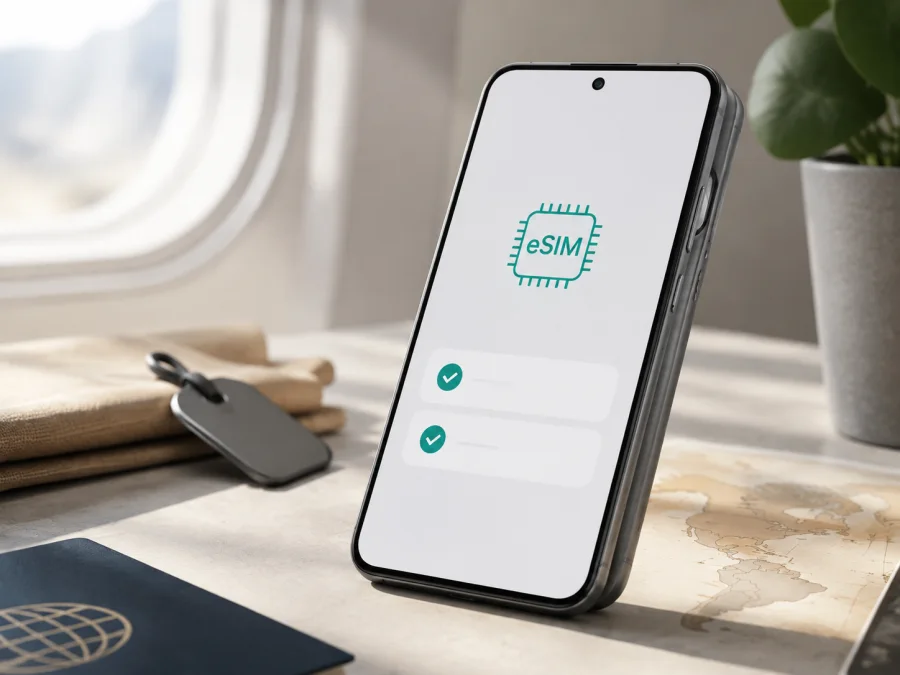
Nothing Phone 3a Pro 512GB eSIM: compatibility, setup and travel guide
The Phone (3a) Pro model is listed by Nothing with eSIM support, but the exact Nothing Phone 3a Pro 512GB should be verified on the handset before you choose a plan. Storage does not enable eSIM: check the regional hardware, software, carrier status and the EID or “Add eSIM” option in Settings.
This matters for an imported or carrier-supplied phone. Nothing lists “eSIM: Yes” and a Nano-SIM slot for the Phone (3a) Pro, but its public pages show 12+256GB rather than this 512GB configuration. Check the phone and seller details.
Quick answer
For the exact device name in this guide, Nothing Phone 3a Pro 512GB, treat eSIM as potentially compatible, with a positive model-level indication but a required device-level confirmation. If Settings exposes an EID and a way to add a mobile plan, the phone has the eSIM capability needed for a travel data profile. If there is no EID and no eSIM menu after an update and restart, do not buy an eSIM plan for this phone yet.
An eSIM is a digital SIM profile stored in the phone’s built-in secure hardware. It can be used as a second line alongside a physical SIM, or as the main data line when you travel. A travel eSIM normally supplies mobile data for a selected destination. It is not automatically a replacement for your regular phone number, and it does not automatically include voice calls or SMS. Check the individual plan conditions for any additional services.
What the official specifications tell us
The manufacturer’s regional product specifications for the Phone (3a) Pro identify eSIM as supported and list Nano-SIM (4FF) and dual-SIM capability. They also identify the model as a 5G device. These are useful model-level signals, but a specification page is not a substitute for checking an imported or carrier-customised handset. The device name supplied for this page includes 512GB; it does not state a RAM value, so no RAM amount is assumed below.
| Item | What to know for Nothing Phone 3a Pro 512GB |
|---|---|
| Exact variant | Nothing Phone 3a Pro 512GB |
| eSIM | Listed as supported for the Phone (3a) Pro model in current regional Nothing product specifications |
| Physical SIM | Nano-SIM (4FF) is listed; the phone is described as dual SIM |
| Mobile networks | 5G dual-mode capability is listed; usable bands depend on market and carrier |
| Storage | 512GB, as stated in the supplied device name; confirm the seller’s exact SKU |
| RAM | Not stated in the supplied name; do not infer a RAM configuration from “512GB” |
| Software | Nothing OS and menu names can change with updates or regional software |
| Final test | Look for an EID and “Add eSIM” or equivalent in Settings |
Nothing also documents products under closely related names. Do not transfer a statement about the standard Phone (3a), Phone (3), another generation or another market to Nothing Phone 3a Pro 512GB without checking the actual handset. The Pro model’s official product listing is the relevant model-level reference here, while the 512GB label is an additional variant detail that needs confirmation from the seller or phone.
Does Nothing Phone 3a Pro 512GB support eSIM in every market?
Not necessarily. The safest answer is “the Phone (3a) Pro model is listed as eSIM-capable, while the exact 512GB unit must be checked.” A regional edition can have different radio hardware, firmware, certification or carrier provisioning. A phone intended for one market may also show different menu wording from a phone sold elsewhere. A carrier can restrict activation even when the hardware includes an eSIM.
Confirm three things separately: hardware (an EID), software (an “Add eSIM” control) and service (the chosen carrier or travel plan accepts the unit). An unlocked retail phone is the simplest case. An imported phone can work, but confirm its country version and bands; a carrier-branded phone may need unlocking. A 5G badge or two physical-SIM positions does not prove eSIM support. If a seller claims the 512GB edition is compatible, ask for a settings screenshot showing EID or Add eSIM. Do not share the full EID.
Compatibility check before you buy
Use this check before you buy, especially if the phone is imported, refurbished or carrier-supplied.
1. Check for an EID
Open Settings and search for “EID”. On Nothing OS it may be under About phone or SIM status. You can also dial *#06#. An EID alongside IMEI entries is strong evidence of eSIM hardware; an IMEI is not an equivalent.
2. Look for the eSIM control
Open SIM or mobile-network settings and look for “Add eSIM”, “Download a SIM instead?” or “Add mobile plan”. Wording varies by Nothing OS version and language. A visible control means the phone can begin adding a profile, although the plan can still have carrier restrictions.
3. Confirm the phone is unlocked
Ask the original carrier or seller whether the handset is network-unlocked. An EID can be present while a carrier restriction still blocks another provider’s profile. Check the lock status or test a SIM from another provider.
4. Check the market and software
Record the sale country, model identifier and Nothing OS version in About phone. Install available stable updates and restart before testing again. Do not rely on a screenshot from another regional unit.
5. Check the plan conditions
Confirm that the profile covers your country or region, activation window, validity, data allowance and supported networks. Check whether data roaming is required and whether installation is single-use or transferable. These terms vary by plan.
Check your device before purchasing a data plan. If the EID and add-eSIM control are present, the phone is unlocked and the plan matches your destination, the basic compatibility checks are in place.
How to install an eSIM on Nothing Phone 3a Pro 512GB
Prepare stable Wi-Fi or mobile data, enough battery, the QR code or activation details and your screen-lock credential. Keep the QR code on another screen or print it; the phone cannot scan a code displayed on its own screen unless another activation method is provided.
For a general Android walkthrough, see the Android eSIM installation instructions. If you also manage an iPhone for a travel companion, the iOS eSIM installation instructions cover that platform. The menu labels below are a practical Nothing OS guide, not a promise that every software build uses identical wording.
1. Open mobile-network settings
Unlock the phone, open Settings, choose Network & internet or Mobile network, then open SIMs or SIM card management.
2. Start adding the profile
Tap Add eSIM, Add mobile plan or the plus icon, then choose the QR-code or download-a-SIM option.
3. Scan the QR code
Point the camera at the supplied QR code and wait for Android to read it. If manual details are supplied, enter them exactly and treat them as a one-time credential.
4. Download the eSIM
Review the profile name and destination, tap Download, Add or Continue, and keep the connection active until the download finishes.
5. Name and configure the line
Name the profile, keep the regular SIM enabled if needed for its number, and select the travel eSIM as the mobile-data line. Turn off automatic data switching if you want to avoid primary-SIM roaming charges.
6. Activate at the right time
Read when validity begins: at installation or at first supported-network connection. At the destination, enable the travel profile, select it for data and enable data roaming for that profile only when the plan requires it.
Using the eSIM for mobile data while travelling
Keep the home SIM available for calls or verification messages and use the travel eSIM as the data line. Save profile and support details offline, and note the profile name so you do not disable the wrong line at the airport.
Arriving at an airport
After landing, use airport Wi-Fi if needed, turn on the travel profile and make it the data line. Enable roaming for that profile only if required. Wait a few minutes, then test a website or message.
Keeping your home number reachable
Leave the physical SIM active for incoming calls or SMS, but check prompts because roaming charges may apply. Use messaging apps over travel data. A data-only eSIM does not create a local number.
Crossing borders
For a multi-country plan, confirm the next country is included. The profile may remain installed while access changes, but coverage depends on the plan. For a country-specific plan, check eSIM capacity before adding another.
Sharing data
Hotspot can help a laptop but uses data quickly. Check the plan and battery, set a data warning and pause automatic updates or cloud backup if needed.
Common problems and fixes
There is no Add eSIM option
Search Settings for EID and check About phone or SIM status. Install the latest stable update for your market and restart. No EID may indicate a regional or carrier variant without eSIM hardware. If EID is present but the menu is missing, ask the seller or carrier whether the build restricts eSIM. Do not buy a profile until clarified.
The QR code will not scan
Increase the second screen’s brightness, clean the lens and hold the code flat. Use reliable Wi-Fi. Move a same-phone code to another screen or use supplied manual details. A used code may not scan again; contact support.
The profile will not download
Check the connection, battery and eSIM profile limit. Confirm the code belongs to this purchase and is within its activation window. Retry on another trusted connection; do not reset first.
The eSIM is installed but there is no service
Switch on the profile and select it for data. Check destination, network and APN details. Toggle airplane mode briefly, allow registration time and enable roaming if required. Make sure the home SIM is not the data line and the device is unlocked.
Data is not being used from the travel plan
Confirm in the SIM manager that the travel profile is the default data SIM. Test with Wi-Fi off and review Android data usage. Check whether the plan starts at installation or network connection, and make sure home-SIM data is not being used.
The connection is slow or intermittent
Move to a clearer-signal location, wait for network selection and check supported networks. Avoid forcing 5G if the signal is unstable; automatic selection or LTE may be more consistent. Coverage and speed depend on location, congestion and local conditions, so no eSIM guarantees service everywhere.
You want to move the eSIM to another phone
Do not delete the profile until you know that the plan supports transfer or reissue. Activation codes may be single-use. Contact support with the order details before replacing a working profile.
FAQ
Is Nothing Phone 3a Pro 512GB eSIM compatible?
The Phone (3a) Pro model is listed by Nothing with eSIM support, so compatibility is plausible. The exact 512GB unit still requires EID and Add eSIM checks because public official configuration information does not separately document 512GB. Regional, carrier and software differences can change the result.
Does 512GB mean the phone has eSIM?
No. Storage capacity and eSIM hardware are separate features. Use the EID and SIM-settings checks, then confirm that the device is unlocked and that the selected plan supports the destination.
Can I keep a physical SIM and an eSIM together?
The model-level specifications describe dual-SIM operation, but the active-line combination depends on the unit and software. Check the SIM manager. When both are available, you can generally keep the home physical SIM for its number and set the travel eSIM as the data line.
Will the travel eSIM provide a phone number?
Not by default. Kaspersky eSIM Store travel options are intended for mobile internet; a data-only plan does not include ordinary calls, SMS or a separate number unless its conditions say otherwise. Use messaging apps over data.
When should I install the eSIM?
Install before departure when permitted without starting validity, so setup issues can be resolved on reliable internet. If validity starts at installation, follow the plan’s activation rules and check timing first.
Is Kaspersky eSIM Store a mobile operator?
No. Kaspersky eSIM Store is an app and website where you can choose, arrange and activate an eSIM with a suitable mobile-data plan for an international trip. It is not the network owner, mobile operator or underlying mobile-internet provider. Access remains subject to the plan and local network conditions.
Can I use the eSIM as a VPN?
No. Kaspersky eSIM Store is not a VPN or a tool for bypassing restrictions; its travel use case is selecting and activating an eSIM plan for mobile internet.
Final device check and trip eSIM choice
Before you pay for a travel data plan, run the complete check on the exact Nothing Phone 3a Pro 512GB in your hands: confirm the EID, find Add eSIM, identify the market and software version, verify that the phone is unlocked, and make sure the plan covers your destination and travel dates. Check whether installation or first network registration starts validity, whether data roaming is required, and whether the profile can be transferred.
Once those points are clear, Kaspersky eSIM Store can help you choose a destination and a suitable eSIM plan for mobile internet during your overseas trip. Review the plan’s data allowance, validity and conditions, then install and activate the profile using the steps above. If the EID or eSIM menu is missing, pause the purchase and confirm the regional variant with the seller or carrier first. That check is the most reliable way to avoid buying a plan that the exact phone cannot use.


