Travel connectivity guide
Nothing Phone 3a Pro 8GB RAM eSIM: Setup Guide
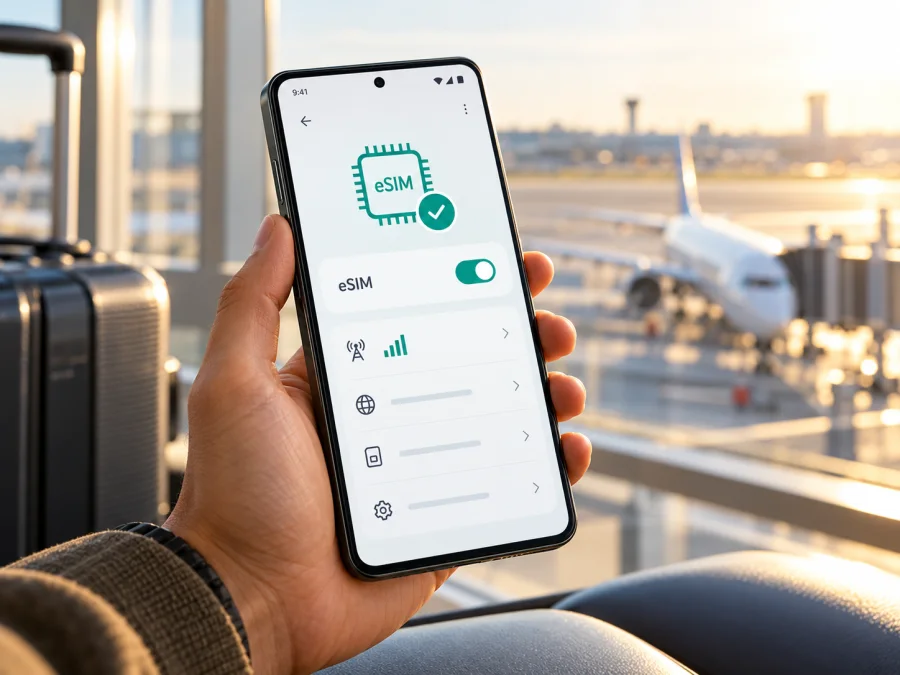
Nothing Phone 3a Pro 8GB RAM eSIM: compatibility and setup
Quick answer
The exact Nothing Phone 3a Pro 8GB RAM configuration is not confirmed as eSIM-compatible by the accessible official specification for that regional variant. Nothing’s European Phone (3a) Pro page lists eSIM; its India store lists an 8+128GB configuration but does not expose an eSIM specification in the accessible product details. Nothing’s general support information also gives a Japan-only qualification for eSIM. These sources do not establish that every 8GB unit has eSIM, or that RAM determines support.
Treat the exact unit as unconfirmed until you check it. Look for an EID and an option to add or download an eSIM, then confirm that the phone is not carrier-locked. If neither eSIM indicator appears, do not buy a plan expecting it to work. This guide shows what to verify and how to install a profile only if your phone supports it.
What “8GB RAM” tells you—and what it does not
The memory modifier helps identify the device, but it is not an eSIM compatibility code. Nothing’s India store lists an 8+128GB Phone (3a) Pro; its European product listing shows another capacity and explicitly includes eSIM. Those market pages do not prove that memory size causes any difference.
Regional builds and carrier-supplied phones can differ in model code, software, SIM options, and lock status. A carrier may restrict another provider’s profile even when eSIM hardware is present. Check your own unit, including its model code and SIM settings; the country of sale and local carrier are relevant. Ask the seller to confirm eSIM for the precise model code if you cannot inspect it before purchase.
Nothing Phone 3a Pro 8GB RAM: what is confirmed
| Detail | What is known |
|---|---|
| Exact 8GB configuration | India store lists 8+128GB; accessible specs do not confirm eSIM. |
| Phone (3a) Pro eSIM | Nothing’s European listing says eSIM is supported. |
| Regional guidance | Nothing support also gives a Japan-only qualification, without resolving every regional SKU. |
| Exact handset and carrier status | Check the model code, EID, eSIM menu, and lock status on your unit. |
| Travel service | Depends on plan destination, local network, and plan conditions. |
An official European listing confirms an eSIM-enabled version exists, not that every imported or carrier-supplied 8GB handset has the feature. The missing entry on the accessible India page is not proof that your individual unit lacks it. Verify before relying on eSIM.
Compatibility checklist
- [ ] Identify the phone’s model code and sales region in Settings, on the box, or on the purchase record.
- [ ] Find an EID or an Android option to add/download an eSIM.
- [ ] Confirm the phone is unlocked for another provider’s profile.
- [ ] Connect to Wi-Fi for setup and install available stable system updates.
- [ ] Check plan destination, data allowance, validity, and activation terms.
- [ ] Keep the QR code or supported manual details available during setup.
The eSIM compatibility guidance covers general model-family checks; verify regional and imported handsets separately.
How to check eSIM support on your own phone
Use these checks before you order a plan. Menu wording can differ slightly between Nothing OS releases, countries, and carrier customisations.
1. Look for an EID
An EID identifies the phone’s embedded SIM capability. Look in Settings → About phone → Status/SIM status or Settings → Network & internet → SIMs; labels differ by software. You can also enter *#06# in the dialler. An EID is a good sign, but also check for an eSIM control and confirm the phone is unlocked.
Do not post the EID or IMEI publicly. If there is no EID, check another system screen and the complete model code. If the add-eSIM option is also missing, ask Nothing support or the seller to verify that regional unit rather than assuming an update will add the feature.
2. Find the add-eSIM control
Open Settings → Network & internet → SIMs or the equivalent SIM screen. Look for Add eSIM, Download a SIM, or Add mobile plan. Nothing’s support material places SIM preferences under network settings, but labels vary by software version and market. If the option is present but setup fails, connect to Wi-Fi and restart after updates. A menu alone does not guarantee a particular plan will be accepted.
3. Check the lock status and ask the seller
A carrier-locked phone may reject a different provider’s profile despite having an EID. Ask the original carrier or retailer whether the exact model code is unlocked for third-party eSIMs. Keep the invoice and model code in case support needs to distinguish a regional version.
Installing and activating an eSIM
Continue only after confirming that your Nothing Phone 3a Pro 8GB RAM displays eSIM support and is unlocked. Installation requires an internet connection, usually Wi-Fi, and the activation method supplied with the plan. A QR code is generally scanned from another display or printed copy; some providers offer a manual activation route. A one-time activation QR code should be treated as private and may not be reusable after installation.
Before you begin
Connect to Wi-Fi, charge the phone, and confirm the plan’s destination, data, validity, and activation terms. Keep the QR code on another screen or use manual details only if supplied by the provider. Decide which line will handle calls and which will use data. Do not delete a profile while troubleshooting unless support confirms it can be restored; activation codes may be single-use.
Android installation steps
- Open Settings → Network & internet → SIMs (or the equivalent SIM-management screen).
- Tap Add eSIM, Download a SIM, or the nearest option.
- Scan the provider’s QR code from another screen, or use manual entry if supplied.
- Follow the prompts to download the profile. Keep Wi-Fi connected.
- Label it Travel data so you can identify the profile.
- At your destination, enable it and select it for mobile data. Keep your usual line for calls/texts if desired, subject to its roaming terms.
- Enable data roaming for the travel profile only if the plan instructions require it. Wait several minutes, then test a webpage with Wi-Fi off.
For a provider walkthrough, see the Android eSIM installation instructions. Nothing OS labels can differ, so follow the phone’s prompts.
iPhone instructions
This article is for an Android phone; the iOS instructions are included only for travellers who may install a profile on a separate iPhone. See the iOS eSIM installation instructions. Do not follow iPhone menu steps on the Nothing handset.
Installation versus activation
Downloading a profile and starting its data validity are not always the same event. Some plans can be installed ahead of time and activated later; others follow different terms. Check the current plan conditions before scanning the QR code. Installation stores the profile, activation allows it to connect under the plan’s rules, and data use depends on an eligible local network.
Using a travel eSIM on a trip
After arrival, enable the travel profile and select it for mobile data. If your home SIM stays active, check its roaming settings and charges first. Some travel plans require data roaming on the travel profile; change that profile’s setting only, as instructed. With two SIMs, recheck the selected data line after a restart.
Kaspersky eSIM Store is an app and website where you can choose, arrange, and activate an eSIM plan for mobile data on an international trip. The plan’s destination, allowance, validity, network availability, and permitted use are specific to its terms. A data-only plan does not provide a standard phone number, cellular voice, or SMS unless its terms say otherwise. Internet calls and messages can work through apps when data is available.
Practical travel scenarios
- Data on landing: Install over Wi-Fi before departure if permitted, then enable at the plan’s stated start time and select it for data.
- Keep your home number: If the handset supports the required dual-SIM mode, route data through the travel eSIM and check home-carrier charges. Disable automatic data switching.
- Several countries or hotspot use: Confirm each destination and whether tethering is allowed. Regional plan names may not include every territory, and connected laptops can use data quickly.
Common problems and what to check
“Add eSIM” is missing
Check the EID in Settings and the device information screen, install available Nothing OS updates, and restart. Confirm the full model code and country of sale. If the EID and eSIM control remain absent, ask the seller or Nothing support to verify that exact regional unit. Do not infer support from another market’s product page or the RAM label.
The QR code will not scan or the download fails
Display the complete code on another screen at good brightness, clean the camera, and check that the code belongs to this plan and has not already been used. Reconnect to stable Wi-Fi and restart if a download stalls. Use manual entry only if the provider supplies it. Do not delete another profile to make room unless you know it can be restored; activation codes may be single-use.
The eSIM installs but has no service
Check that the travel line is enabled, the plan covers your current destination, and it is selected for mobile data. Follow the provider’s instructions for data roaming and APN settings. Briefly toggle airplane mode or restart, then wait several minutes for registration. If manual network selection is available, return it to automatic unless the provider says otherwise.
There is signal but no internet
Check mobile data, the selected data line, plan validity, and remaining allowance. Test a basic webpage with Wi-Fi off. Change APN settings only when the plan provider supplies the exact values. Note your location, network name, and error before contacting support.
The phone rejects the profile or uses the wrong SIM
Confirm that the handset is unlocked and that the plan supports the device and destination. In SIM preferences, select the travel profile for data and disable automatic data switching if available. If the profile is rejected, keep the error message and model code for support; share an EID only through a trusted support channel when asked.
Frequently asked questions
Does Nothing Phone 3a Pro 8GB RAM definitely support eSIM?
The exact 8GB SKU is unconfirmed in the accessible official specification. Nothing’s European page lists eSIM for Phone (3a) Pro, while its India store lists an 8+128GB configuration without accessible eSIM specs. Its support guidance also gives a Japan-only qualification. Check your unit’s EID, eSIM control, and model code.
Does 8GB RAM mean the phone has eSIM?
No. RAM does not establish eSIM hardware, regional software, or carrier-unlock status.
Can an update add eSIM? Can I use it with my normal SIM?
An update may correct software on supported hardware, but do not assume it adds missing hardware. Dual-SIM use may be possible if the exact unit and carrier support it. Select the travel profile for data and check the home line’s roaming terms.
Should I delete a profile that stops working?
Not first. Check destination, line selection, mobile-data and roaming settings, and plan status; contact the provider. A QR code may not work a second time after deletion.
Final check before your trip
For Nothing Phone 3a Pro 8GB RAM, use the exact handset as the final source of truth. Confirm an EID and an add-eSIM control, verify that the device is unlocked, and make sure the chosen plan covers every destination on your route. If any of those checks is unclear, wait for confirmation for the specific model code before paying.
Once compatibility is established, compare the plan’s destination, data allowance, validity, and activation conditions with your itinerary. Kaspersky eSIM Store is an app and website where you can browse, choose, arrange, and activate an eSIM plan for mobile data on an international trip. Browse current destinations and plans. Install the profile over a reliable connection when allowed, select the correct SIM for mobile data after arrival, and keep your home-line roaming settings under control.


