Travel connectivity guide
Nothing Phone 4a Pro 128GB 5G eSIM
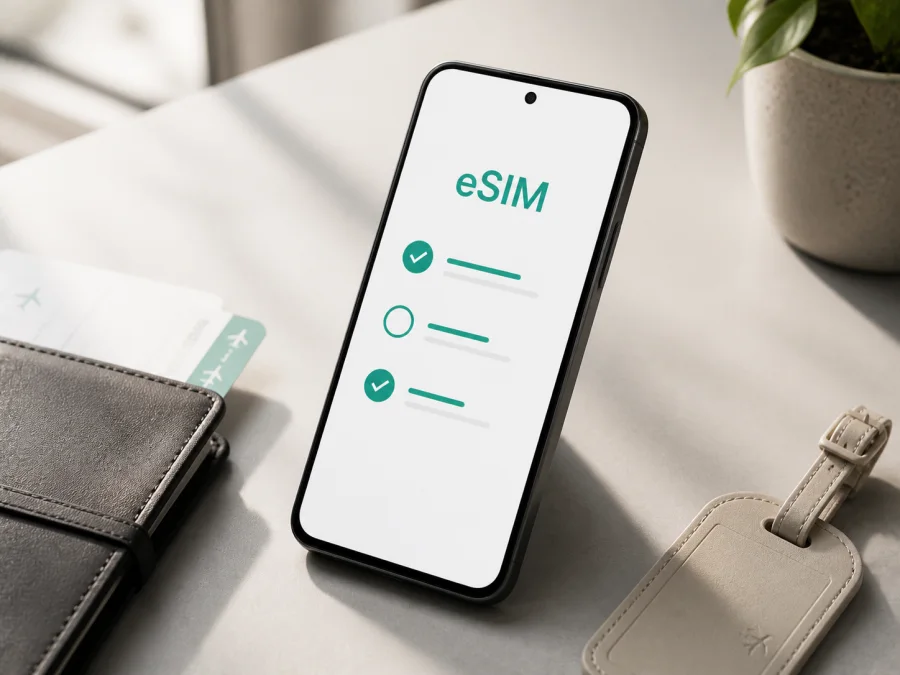
Nothing Phone 4a Pro 128GB 5G eSIM: compatibility and setup
The short answer is conditional: Nothing Phone 4a Pro 128GB 5G can support eSIM where the specific regional model, firmware and mobile operator allow it, but the name alone does not guarantee compatibility. Nothing’s current product information for the Phone (4a) Pro family includes an eSIM availability warning: eSIM and 5G functionality depend on local telecom services and may not be available in every region. Treat this exact 128GB 5G device as ready for a travel eSIM only after you find an EID or an eSIM-addition control in its settings.
What the exact device name tells you
The requested name is Nothing Phone 4a Pro 128GB 5G. The 128GB part describes storage, while 5G describes the advertised mobile-network generation. Neither label, by itself, proves that an eSIM profile can be downloaded. RAM is not stated in the supplied name, so it should not be inferred from a retailer listing or used as a compatibility test. If a seller presents the phone as an 8+128GB configuration, confirm that the sales region and model identifier match the unit you will receive.
| Item | What to understand for this page |
|---|---|
| Exact device | Nothing Phone 4a Pro 128GB 5G |
| Storage | 128GB as stated; usable space is lower after system files and preinstalled software |
| RAM | Not specified in the supplied name; verify the seller’s exact configuration separately |
| Network label | 5G; actual bands and roaming access depend on the regional model and operator |
| eSIM status | Potentially supported, but conditional on market, firmware and operator service |
| Decisive check | An EID and/or an “Add eSIM” option in mobile-network settings |
| Travel use | A data eSIM for maps, messaging, bookings and other online services |
The safest answer is therefore not an unconditional “yes” for every unit. It is: check this particular Nothing Phone 4a Pro 128GB 5G in the device settings before buying an eSIM plan. If the EID and eSIM menu are present, the phone is a strong candidate. If both are missing, do not assume that an update or 5G signal will make eSIM available.
Why regional and operator versions can differ
The same family name can cover phones intended for different markets. The SIM tray, modem configuration, supported bands, firmware channel and carrier policies may differ, even if a retailer uses one generic specification table for every country.
The sales region can change the available eSIM control, modem bands and firmware. An operator may limit eSIM to selected plans or block activation on a locked phone, while the travel plan must also support the destination network. “128GB 5G” is a product description rather than a complete model number, and an EID does not guarantee registration on every network.
How to verify eSIM support on the phone
The most reliable check is performed on the phone itself. Wording may differ slightly by Nothing OS version, but the path normally starts in mobile-network settings.
Check for an EID
- Open Settings.
- Open About phone or About device.
- Select Status, SIM status or the section containing identifiers.
- Look for EID, the identifier associated with an embedded SIM.
If an EID is displayed, that is strong evidence that the phone contains eSIM hardware. Keep the number private; there is no need to publish it or send it to an unverified person. The EID still does not bypass a carrier lock or prove that every travel plan will activate.
Check for the eSIM control
- Open Settings.
- Select Network & internet, Mobile network or the closest equivalent.
- Look for SIMs, Mobile network or Add SIM.
- Check whether the menu offers Download a SIM instead?, Add eSIM, Set up an eSIM or a QR-code scanner.
An active Add eSIM control is another practical sign of compatibility. If the menu shows only a physical SIM and there is no EID, consider the unit unverified and do not buy a non-refundable plan. If an EID exists but the control is missing, check the software version, restart the phone, confirm that it is unlocked and ask about a regional restriction.
Pre-purchase checklist
- [ ] The phone is exactly Nothing Phone 4a Pro 128GB 5G, not another Nothing Phone or a similarly named 4a model.
- [ ] The About screen shows an EID, or the mobile-network menu shows an eSIM-addition option.
- [ ] The phone is not locked to a carrier.
- [ ] Nothing OS is up to date, and the phone has been restarted after any update.
- [ ] The selected eSIM plan covers the destination country or region.
- [ ] You have Wi‑Fi or another working internet connection for installation.
- [ ] You understand when validity and data use begin under the plan’s terms.
- [ ] You have a backup connection for first activation if needed.
<a id="kesim-device-compatibility"></a> After opening the EID and SIM settings, check your device once more before choosing a plan.
Choosing an eSIM for a trip
Once the phone passes the device check, match the plan to the actual journey. Select the country, region or route where you need mobile data, then compare data amount, validity period, activation conditions and any fair-use or hotspot limits shown for that plan. A short city break, a work trip with video calls and a multi-country itinerary can require different amounts of data.
Kaspersky eSIM Store is an app and website where you can choose, arrange and activate an eSIM with a suitable plan for mobile internet during an international trip. It helps you review the destination and plan conditions before installation. In this context, the eSIM is intended for mobile data abroad; it is not automatically a replacement for your usual phone number, voice calls or SMS. Unless the selected plan says otherwise, use your regular line for calls and texts, or use messaging and calling apps over mobile data.
After the EID/menu check passes, choose an eSIM plan for your trip and review its destination conditions in the app or on the site.
How to install and activate eSIM on Android
Install the profile over reliable Wi‑Fi. Keep the QR code on another screen, or use direct installation if the app supports it. Do not scan a code from the wrong account or delete a profile unless the plan allows reinstallation.
1. Prepare the phone
Confirm the EID or Add eSIM control, charge and unlock the phone, connect to Wi‑Fi, and note which SIM currently handles calls and data.
2. Open mobile-network settings
Go to Settings, then open Network & internet or Mobile network. Select SIMs, SIM manager or Add SIM, depending on the Nothing OS wording.
3. Start eSIM setup
Choose Add eSIM, Download a SIM or the equivalent. Select QR-code setup, or follow the app’s direct-installation flow if offered.
4. Scan the QR code
Point the camera at the QR code and wait for the download. Keep Wi‑Fi active. If the code is on the same phone, display it on another device or use the plan’s matching manual details.
5. Finish the download
Confirm the plan when Android displays its summary and label it Travel data. Installation and registration can take several minutes.
6. Select the data line
Select the travel eSIM for mobile data. Keep the primary line for calls if needed, or turn it off to avoid roaming charges. Avoid automatic data switching until you understand billing.
7. Enable data roaming if required
Some travel plans require Data roaming for the eSIM because it uses a partner network. Enable it only for that profile and verify that the home line is not selected for roaming data.
8. Test the connection
When the plan’s activation condition is met, turn off Wi‑Fi briefly. Confirm the travel eSIM is selected for data, the phone registers on an allowed network, and a simple webpage opens. If validity starts on installation, do not install far in advance.
For the full Android flow, see the Android eSIM installation instructions. If you are preparing an eSIM on an iPhone instead, use the iOS eSIM installation instructions; the menus differ, but the same compatibility and plan checks apply.
Using the eSIM for mobile internet while travelling
Keep the primary SIM for your normal number and assign mobile data to the travel eSIM. Save maps and key booking details offline, then enable the travel profile after landing and confirm that it is the active data line.
Arrival and navigation
Use the eSIM for maps, transport, translation and messages. A profile installed before departure may connect after the phone finds a supported destination network, provided its activation conditions are met.
Work and data control
For email, cloud documents, maps and calls, check the data balance in the app or plan account. Set backups and updates to Wi‑Fi; video can consume data quickly.
Multi-country route
Confirm whether one regional plan covers every stop. 5G branding does not guarantee 5G everywhere; the phone may use 4G and still provide data if the plan and local network permit it. Coverage and network selection depend on local conditions.
Hotspot and return home
If you share the connection, check whether tethering is allowed and turn the hotspot off afterward. On returning home, switch data to the primary SIM and pause the travel profile. Do not erase it until you are sure it is no longer needed.
Common problems and what to check
There is no “Add eSIM” option
Return to About phone and look for an EID. If neither the EID nor an eSIM control exists, the exact regional unit is probably not ready for eSIM activation. Check the model identifier, software version and sales region. Ask the seller or manufacturer support before purchasing a plan; another Phone (4a) Pro review is not proof for your unit.
The QR code will not scan
Increase the display brightness, clean the camera lens and hold the phones steady. Use manual activation only with matching plan details. Make sure the code belongs to this account and has not been used; deletion can affect reinstallation.
The profile will not download
Check Wi‑Fi, free storage, date and time, then restart the phone. Confirm that it is unlocked and that the plan covers the destination. Save any regional or operator error message for support.
The eSIM is installed but there is no data
Confirm in SIM settings that the travel profile is enabled and selected for data. Check Airplane mode, mobile data and registration. Enable data roaming for that profile if required. Change the APN only when the plan gives a specific value.
The phone connects to the wrong line
Disable automatic data switching and select the travel eSIM manually. If the home SIM is selected for data, the travel plan will not be used. Turn off data roaming on the home line or temporarily disable it after confirming that you still have the calls and messages you need.
The connection is slow or falls back from 5G
5G in the device name does not guarantee 5G service everywhere. Check the local network, plan coverage and network mode. A busy cell or local spectrum can result in 4G; restart the connection and test again.
The phone is blocked or the plan cannot activate
An operator lock or plan restriction can prevent registration. Ask the seller or operator to confirm the unlock status. Kaspersky eSIM Store can help with the eSIM flow for a trip, but it cannot remove a device restriction and is not the destination network owner.
FAQ
Does Nothing Phone 4a Pro 128GB 5G definitely support eSIM?
Not every unit can be treated as definite. The Phone (4a) Pro family has official eSIM functionality notices, but Nothing also states that availability depends on local telecom services and may vary by region. Confirm an EID and an Add eSIM option on the exact Nothing Phone 4a Pro 128GB 5G before buying a plan.
Does 5G guarantee a 5G travel connection?
No. 5G identifies device capability, not guaranteed service in every country. The regional model, bands, plan, local operator and coverage determine the connection. A compatible eSIM can still provide data over another network generation.
Can I keep my regular number active?
Usually, yes: keep the primary SIM for calls and messages and select the travel eSIM for data. Check roaming fees, disable automatic data switching and confirm the selected line.
Will an eSIM provide ordinary calls and SMS?
Not automatically. These travel plans are for mobile internet and do not include a separate number, calls or SMS unless the plan says otherwise. Messaging apps can work over data.
Should I install before departure?
Often, installing over stable Wi‑Fi is convenient, but activation and the start of validity depend on the selected plan. Read those conditions first. If the plan begins on installation, install close to departure rather than far in advance.
Final device check and travel eSIM
Before paying for a plan, verify the exact Nothing Phone 4a Pro 128GB 5G in person: find the EID, open the eSIM-addition menu, confirm that the phone is unlocked and check its Nothing OS version. Then choose an eSIM plan for the countries or regions on your itinerary, review its data amount and validity, and install it over reliable Wi‑Fi according to the plan’s instructions.
Kaspersky eSIM Store helps you choose, arrange and activate an eSIM with a suitable mobile-data plan for an international trip through its app and website. It is not a mobile operator, network owner or provider of mobile internet. If the phone passes the check, prepare the profile before departure and select it for travel data after arrival.


