Travel connectivity guide
Nothing Phone 4a Pro 128GB eSIM guide
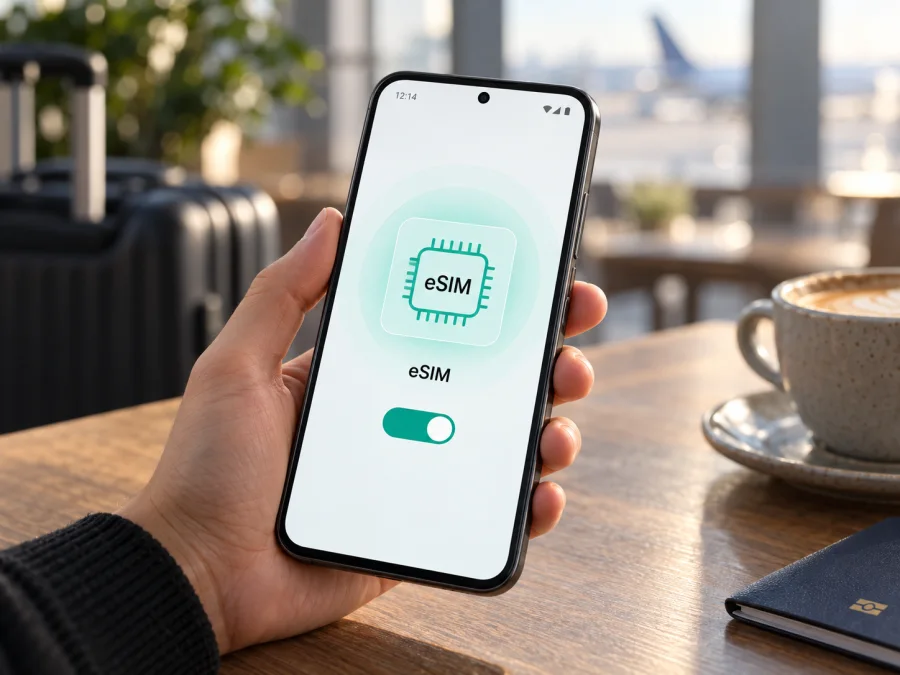
Nothing Phone 4a Pro 128GB eSIM compatibility and setup
The short answer
The name Nothing Phone 4a Pro 128GB does not by itself confirm eSIM capability. Nothing’s current support information says that eSIM is supported only on versions sold in Japan. This makes the sales region of the actual handset decisive: a Japan-market version may have eSIM, while a version intended for another market should be treated as a physical-SIM-only device unless its settings and EID prove otherwise. Storage capacity is not an eSIM identifier, and a seller listing that says “128GB” cannot establish which regional hardware or firmware you will receive.
Before buying an eSIM plan, check the exact unit. Look for an EID in the phone’s settings or on the regulatory/device information supplied with it, and confirm that Android offers an option to add or download an eSIM. If these indicators are absent, do not assume that a software update or an eSIM QR code can add the missing capability. Ask the seller or Nothing support to confirm the regional model and SKU. Even a compatible phone must also be unlocked and accepted by the provider whose plan you intend to use.
This guide explains what the regional caveat means, how to verify the phone before purchase, and how to install and use a travel data eSIM if your specific handset supports it. The steps are conditional: they apply only when the phone has eSIM hardware and the add-eSIM controls are available.
What the 128GB name tells you
Nothing sells the Phone (4a) Pro in multiple configurations and markets. Its international product listing includes an 8 GB RAM + 128 GB storage configuration, but that configuration label does not guarantee that every country receives identical cellular hardware or software. The manufacturer’s support answer is the strongest practical guide for eSIM eligibility: its eSIM-capable phones are the versions sold in Japan. Nothing also notes that cellular features can vary by region and depend on local telecom support.
| Item | What to know |
|---|---|
| Device named in this guide | Nothing Phone 4a Pro 128GB |
| Storage in the name | 128 GB; storage alone does not determine eSIM support |
| Regional rule from Nothing | eSIM is supported only on versions sold in Japan |
| Non-Japan version | Treat as not eSIM compatible unless Nothing confirms the exact model otherwise |
| Japan-market version | Potentially eSIM capable; verify EID and the Add eSIM menu on the actual phone |
| Other requirements | Current software, an unlocked handset, a supported plan and compatible local network |
A retail page can use a simplified product name, translate model punctuation, or omit the country code. Ask for the precise model or SKU, country of sale, and whether the handset is a Japan-market unit. A warranty region, charger, box language, or the fact that it accepts two physical SIM cards is not sufficient evidence on its own. If the seller cannot tell you the sales market, treat compatibility as unconfirmed before paying for a plan.
Why regional versions matter
Phone makers sometimes configure otherwise similar devices differently for local regulations, carrier requirements, radio bands, and product variants. eSIM support requires more than an Android menu: the handset needs the appropriate embedded SIM hardware, firmware support, and an available provisioning flow. The same marketing family can therefore have different SIM capabilities across countries. A model title that appears identical in a shop does not erase those distinctions.
Nothing’s public support page states a Japan-only rule for eSIM, while its product information cautions that eSIM and 5G availability can depend on region and local operator services. Read those statements together. They do not prove that every 128 GB handset has eSIM; they indicate that the regional unit matters and that operator support is another separate requirement. The safest specific answer is therefore: the Japan-sold version is the only version Nothing identifies as eSIM supported; the 128GB label alone cannot confirm that your unit is that version.
If you already own the phone, use its own settings as the final check. If you are shopping, ask the seller to photograph the About phone page and the SIM or network settings, or request written confirmation that the exact unit has an EID and can add an eSIM profile. Do not rely on a generic compatibility list for “Nothing Phone 4a Pro” if that list does not distinguish the sales region.
Compatibility check on the phone
Use this checklist before choosing or purchasing a travel plan:
- [ ] Identify the country or market for which the handset was originally sold; do not infer it from storage size.
- [ ] Open Settings → About phone and record the model information and software version.
- [ ] Search Settings for EID. On Android, you can also try Settings → About phone → SIM status or Settings → Network & internet → SIMs; menu names can differ by Nothing OS release.
- [ ] Open Settings → Network & internet → SIMs (or Mobile network) and look for Add eSIM, Download a SIM, or a similarly named option.
- [ ] If available, dial
*#06#and check whether an EID appears along with the IMEI numbers. Do not share a screenshot containing these identifiers publicly. - [ ] Confirm that the phone is not carrier locked and that your chosen plan supports the destination and the handset’s bands.
Check whether your device is compatible
An EID is a unique identifier associated with an eSIM-capable device. Seeing an EID is strong evidence that the phone has eSIM functionality; it is still sensible to confirm that the Add eSIM flow opens and that the phone is unlocked. If there is no EID and no add-eSIM control after installing available official software updates and restarting, assume that the unit cannot install an eSIM. Do not buy a plan hoping that the QR code will enable eSIM hardware.
An IMEI is not an EID. Most phones have an IMEI even when they accept only physical SIM cards. The SIM tray is also not decisive: a hybrid or dual nano-SIM tray can coexist with eSIM on some models, while a tray with two slots does not prove embedded SIM support. Check the specific identifiers and menus instead of counting SIM slots.
How to install an eSIM, if supported
Connect to stable Wi-Fi and keep the plan’s QR code or manual activation details on another screen. Check activation terms first: some codes are single-use, profiles may not transfer, and validity can start at installation.
- Choose a plan for your destination or route. Review coverage, data allowance, validity, activation timing, supported network, and hotspot conditions.
- Open the installation details in the app or website where you arranged the plan. Keep the QR code and activation details private.
- On Nothing Phone 4a Pro 128GB, open Settings → Network & internet → SIMs or Mobile network. Choose Add eSIM or Download a SIM. If the option is missing, stop; the regional unit may not support eSIM.
- Scan the QR code and follow Android’s prompts, or use manual entry if offered. Enter the supplied details accurately.
- Wait for the profile to download on Wi-Fi. Label it “Travel data” so you can distinguish it from your regular SIM.
- When ready, enable the profile and select it for mobile data. Enable roaming for the travel eSIM only if its instructions require it. Review your home SIM’s roaming settings to avoid charges.
Follow the Android eSIM installation instructions. The iOS eSIM installation instructions are for companions using iPhones; they do not apply to this device.
Installation may not start validity immediately. A plan can begin at installation, first connection, or a specified time, so follow its activation rule before scanning.
Activation and travel data settings
Activation may happen automatically or when the profile registers on a supported network. Follow the plan’s instructions, enable the travel profile, select it for mobile data, and turn on data roaming for that profile only if required. Check home-provider fees before keeping the regular SIM enabled; calls, SMS, voicemail, or background data can still incur charges. A travel data eSIM does not automatically include a phone number, voice, or SMS.
For multi-country travel, check coverage in every destination. Select the travel eSIM for data on arrival and test a webpage with Wi-Fi off. If it fails, confirm the profile is enabled, the location is covered, and APN or network settings match the plan guidance. An installed profile cannot guarantee local signal.
Practical scenarios
Before departure: Verify the region, EID, and Add eSIM setting. Check coverage and validity against the itinerary. Install before leaving only when plan terms allow it; keep the profile off until its stated activation point if appropriate.
On arrival: Disable airplane mode, enable the travel profile, select it for data, and wait for registration. Turn on roaming for that profile only when instructed. Avoid deleting and reinstalling a single-use QR profile.
Keep your home number: Leave a physical SIM available for calls or verification texts only after checking fees. Set the travel eSIM as the data line and review voice, SMS, and data defaults separately.
Change countries or return home: Confirm the next country is covered. At trip end, restore your usual data SIM; keep the travel profile only if it can be reused or topped up.
Common problems and what to check
No EID or Add eSIM option: Confirm region and model, install official updates, restart, and check SIM settings again. If both indicators remain absent, treat the unit as incompatible and ask Nothing or the seller about the SKU. A reset cannot add eSIM hardware.
QR code fails: Show the complete code on another screen at good brightness, clean the camera lens, or use manual entry. If the code was used or is invalid, contact the plan provider before deleting a profile.
Profile installed but no service: Ensure it is enabled and selected for mobile data. Enable roaming if required, toggle airplane mode once, and allow registration. Confirm plan validity and destination coverage.
Data is slow or unavailable: Check mobile data, selected SIM, and APN instructions. Try automatic network selection. Weak coverage, congestion, unsupported bands, or plan limits may affect service.
Home SIM keeps using data: Set the travel profile as the data SIM and disable automatic data switching if available. Check background downloads.
It fails on another trip: The profile may be single-use, device-locked, expired, or unavailable in that destination. Review terms and contact the plan provider before transferring or deleting it.
Frequently asked questions
Does every Nothing Phone 4a Pro 128GB support eSIM?
No. Nothing identifies Japan-sold versions as eSIM supported. The 128GB label does not establish sales region or hardware. Confirm the actual handset’s EID, Add eSIM menu, and model or SKU.
Does “dual SIM” mean eSIM?
No. It can refer to two physical nano-SIM cards. Look for an EID and an eSIM installation option on the actual device.
Can a software update enable eSIM?
An official update may add software features but cannot replace missing hardware. Update through Settings and recheck; if the EID and menu remain absent, ask Nothing about the exact model rather than installing unofficial firmware.
Does a travel eSIM include calls and texts?
Not necessarily. Travel plans are generally for data unless their terms say otherwise. Keep your regular number only if needed and after checking roaming charges.
When should I install it?
Follow the plan’s activation rules. Validity might start at installation, first network connection, or a specified time. Check before scanning the code.
What if a Japan-market phone has no eSIM menu?
Confirm its model code, install official updates, restart, then search Settings for EID and Add eSIM. If unavailable, ask Nothing support to verify that exact model and software version.
Key takeaway
Treat Nothing Phone 4a Pro 128GB as region-dependent for eSIM. Nothing’s current guidance identifies Japan-sold versions as eSIM-capable; the storage capacity does not settle compatibility. Check the sales market, EID, Add eSIM option, and carrier lock before choosing a plan.
Kaspersky eSIM Store is an app and website where you can choose, arrange, and activate an eSIM plan for mobile data on an international trip. Confirm this exact handset can install eSIM, the destination is covered, and the validity and usage rules fit your itinerary. If there is no EID or Add eSIM setting, choose a compatible device or another connection option rather than buying a profile you cannot install.
Final device and trip check
- Verify the region and model code for your Nothing Phone 4a Pro 128GB.
- Confirm an EID and a working Add eSIM option before purchase.
- Check that the handset is unlocked and the destination and local network are supported.
- Review data amount, validity, activation timing, roaming, and hotspot conditions.
- Install and activate only according to the plan instructions, then select the travel eSIM for mobile data.
When these checks are complete, you can choose an eSIM option for the trip with a clearer understanding of whether this exact device can use it.


