Travel connectivity guide
Nothing Phone 4a Pro 256GB 5G eSIM Guide
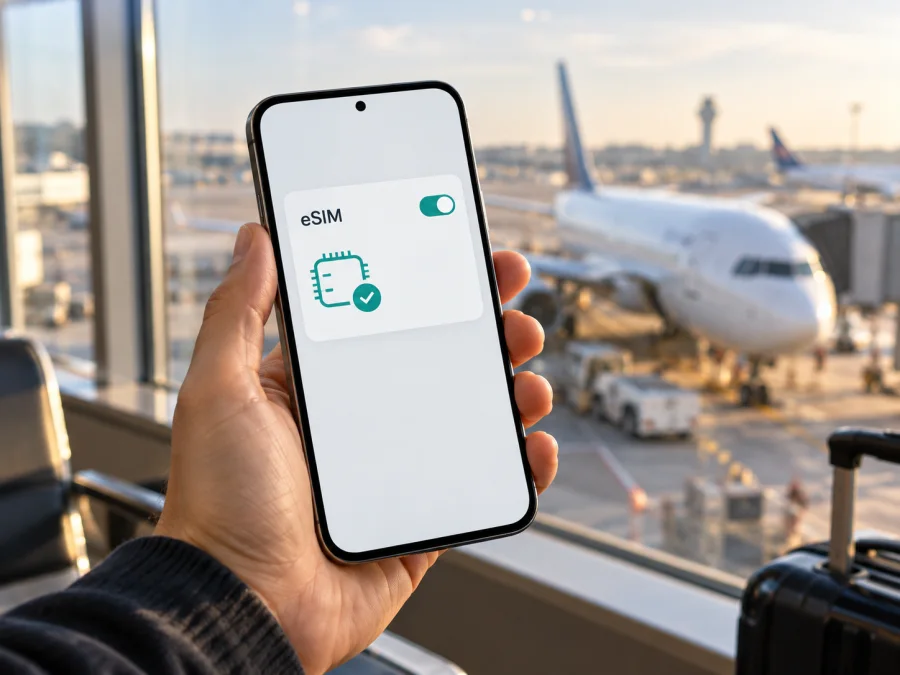
Nothing Phone 4a Pro 256GB 5G eSIM: compatibility and setup
Short answer: the 256GB storage label alone does not confirm eSIM support. Nothing Phone 4a Pro eSIM availability depends on the market version: A Phone (4a) Pro report published through Nothing Community’s Review Programme says the India model uses dual nano-SIM while other regional versions support eSIM; a Japanese carrier’s published specification for its 12GB/256GB Phone (4a) Pro lists nano-SIM and eSIM. If you have the India-market device, do not expect to add an eSIM. For another market, verify the exact handset in Settings before choosing a travel plan.
The name supplied here identifies the storage capacity and 5G capability, but not the RAM configuration, country of sale, model code, or carrier status. Those details matter. A retailer may use “Nothing Phone 4a Pro 256GB 5G” for more than one regional configuration, and two phones with the same storage capacity can have different SIM capabilities. Treat the phone itself—not the retail title or the fact that it supports 5G—as the authority for your specific eSIM check.
Does Nothing Phone 4a Pro 256GB 5G support eSIM?
Sometimes. A Phone (4a) Pro report published through Nothing Community’s Review Programme says eSIM is supported outside India, while the India-market edition offers dual nano-SIM only. That information says the India-market edition offers dual nano-SIM only. The distinction matters for a 256GB phone: Nothing and regional sellers list more than one memory configuration, so storage capacity does not reveal which market version you have. In Japan, for example, Rakuten Mobile’s 12GB RAM/256GB storage model specification explicitly lists both nano-SIM and eSIM. This Japanese carrier version confirms support for that specific operator market; it does not guarantee that every carrier will accept the phone or that every 256GB unit is the same model.
Before you buy a travel eSIM, check two things on the exact device: that the system exposes an EID or an option to add an eSIM, and that the phone is not carrier-locked. A 5G mark only describes supported mobile network technology. It does not prove that an eSIM chip is present, that the manufacturer enabled eSIM for that market, or that the phone can register with every network abroad.
| Check | What to know about this variant |
|---|---|
| Name supplied | Nothing Phone 4a Pro 256GB 5G |
| Storage | 256GB; this does not determine eSIM availability |
| Mobile network | 5G support does not by itself confirm eSIM support |
| eSIM status | Market-dependent: supported on non-India versions; India-market version is dual nano-SIM only |
| Specific operator market | Rakuten Mobile’s Japan 12GB/256GB listing specifies nano-SIM and eSIM |
| Best confirmation | Find an EID or “Add eSIM” in the phone’s settings; confirm the exact model and unlock status with the seller or carrier |
| Travel use | A compatible eSIM plan can provide mobile data in its stated destination, subject to plan and local network terms |
Keep geographic availability separate from operator compatibility. “Outside India” describes a regional device variant; “Japan” in the Rakuten specification identifies one operator market. Neither guarantees that every imported phone works with every carrier abroad. Bands, software, lock status, and destination-plan coverage also matter.
Why the market version changes the answer
Phone makers sometimes ship the same product name with different radios, SIM trays, memory options, or software settings across markets. A regional change can be small and easy to miss in a listing: the front and back of the phone may look identical, the storage may still be 256GB, and the 5G icon may appear in both versions. Yet one version can have an eSIM profile menu while another accepts only physical SIM cards.
For this phone, published regional information identifies the India-market version as dual nano-SIM, while Nothing Community’s Phone (4a) Pro Review Programme report says eSIM is available outside India. Rakuten Mobile’s Japan-market specification lists nano-SIM and eSIM for its 12GB/256GB product. Treat the region and operator market as separate facts: an imported device may have originated in a different market, and eSIM hardware does not guarantee that every operator accepts it. Check the model number, original sales region, and unlock status with the seller.
Check your phone before buying a plan
Use this quick checklist on the device you will take on the trip:
- [ ] Open Settings and look for About phone or Device details. Record the model number and software version.
- [ ] In Settings, search for EID. On Android, it may appear under About phone, SIM status, or a SIM-management screen. Menu labels can vary by Nothing OS release and region.
- [ ] Open Settings → Network & internet or Mobile network / SIMs. Look for Add eSIM, Download a SIM, or a similar option. If there is no option, update the phone and check again; do not assume a software update will add hardware or regional support.
- [ ] If you can access the dialler, try
*#06#. On a device with eSIM capability, the device identifiers screen may show an EID as well as IMEI numbers. If no EID appears, confirm through Settings and the manufacturer or seller; dialler behaviour can vary. - [ ] Confirm that the phone is unlocked. A SIM lock can prevent a profile from registering even when the phone has eSIM hardware.
- [ ] Check that your destination and intended use are covered by the eSIM plan, and read its activation and validity conditions.
An EID confirms eSIM capability; it does not confirm that the phone is unlocked or that a particular plan covers your destination. Check those points separately if the seller listing is unclear.
<a id="kesim-device-compatibility"></a>
If you want a broader model check, check whether your device is compatible with eSIM. For this exact Nothing variant, the EID and add-eSIM menu remain the most useful on-device signs. An EID is a unique identifier associated with an eSIM-capable device; it is not itself a plan, activation code, or guarantee that a particular provider accepts the handset. Likewise, a QR code cannot make eSIM work on a phone whose regional hardware or software does not support it.
What you need before installation
Before starting, connect to Wi-Fi, sign in to the account where the eSIM was issued, and keep its QR code or activation details available on another screen. If the code is displayed on the Nothing Phone itself, use manual entry if the plan supports it. Confirm that the plan covers your destination and has not already been installed elsewhere; many profiles cannot simply be moved after activation. Avoid deleting a profile unless the provider confirms it can be reinstalled. Keep your regular SIM active if you need its number, and decide which line should handle calls and mobile data.
How to install an eSIM on Nothing Phone 4a Pro 256GB 5G
The menu names below follow common Android and Nothing OS wording. Names may shift after software updates, and an India-market phone without eSIM support will not show the eSIM addition flow. For screenshots and current step-by-step help, see the Android eSIM installation instructions. The iOS installation instructions are for Apple devices and are included for travellers setting up another device.
- Confirm compatibility. Find the EID or an add-eSIM option and check that the phone is unlocked. Stop if the phone is the India-market dual-nano-SIM version or Settings provides no eSIM option.
- Connect to Wi-Fi. Keep the phone online during profile download. Do not rely on the travel eSIM for its own initial installation.
- Open SIM settings. Go to Settings → Network & internet → SIMs or Settings → Mobile network. Tap Add eSIM or the closest equivalent.
- Scan the activation QR code. Point the camera at the code supplied with your plan. If the phone asks for confirmation, review the plan name and proceed only if they match your purchase.
- Use manual details if needed. If scanning is unavailable, choose the manual entry option and enter the activation details exactly as provided. Do not reuse a code that has already been installed unless the plan instructions say it can be reused.
- Wait for the profile to download. Keep Settings open and maintain Wi-Fi until the phone confirms that the eSIM has been added. The process can take several minutes.
- Name the line. Choose a clear label such as “Travel data” so you can distinguish it from your usual SIM. The label is for your own use and does not change the plan.
- Choose default services. Keep your usual line for calls or texts if desired. Set the travel eSIM as the mobile-data line when you are ready to use it.
- Enable the profile at the right time. Some plans can be installed before departure but should be enabled or used only when you reach the destination. Read the plan’s activation rules; installation, activation, first network connection, and the start of validity may be different events.
- Enable data roaming if required. Some travel eSIMs need data roaming switched on for that eSIM to connect to a partner network. Enable it only for the intended travel profile and follow the plan’s instructions.
Use Settings search for “eSIM” or “SIM” if menu names differ. After installation, confirm the profile is on and selected for mobile data. Follow current provider instructions if they show a different Android path.
Use the eSIM for mobile data on a trip
You can install the profile before travelling while you still have reliable Wi-Fi, then select it for mobile data at the time specified by the plan. If the validity period begins only after the eSIM first connects to a supported network, installing it at home may not start the clock; other plans may use a different rule. Check the exact plan terms rather than assuming that every eSIM activates in the same way.
When you arrive, open SIM settings and confirm that the travel profile is enabled. Select it as the mobile-data SIM, switch on mobile data, and enable data roaming for that profile if required. Leave your regular SIM configured for calls or texts if you want to keep receiving them, but review its roaming settings so it does not unexpectedly use mobile data. Dual-SIM behaviour varies, so watch the status bar and the SIM settings during the first connection.
For a multi-country itinerary, verify coverage in every country on the route; a plan for one destination may not cover neighbouring countries, transit, or a cruise connection. Estimate your data needs and check validity. Streaming, backups, app updates, and hotspot use can consume data quickly, so disable large automatic downloads if needed.
Kaspersky eSIM Store is an app and website where you can choose, arrange, and activate an eSIM with a plan for mobile internet on an international trip. Review the destination, data allowance, validity, and activation conditions before you proceed. When compatibility is confirmed, choose a destination and review eSIM plans for your trip.
A travel data plan is not automatically a replacement for a mobile subscription. Unless its terms say otherwise, do not expect an ordinary number, voice calls, or SMS. Internet calling apps can use the data connection. Keep your usual SIM available if you need its number, and check which line may incur roaming charges.
Common problems and practical checks
There is no “Add eSIM” option
Check the market version and model code first. Nothing Community’s Phone (4a) Pro Review Programme report identifies the India-market phone as dual nano-SIM. For another version, install available official updates, restart, and search Settings for “EID” and “eSIM”. If neither appears, confirm the exact model with the seller or Nothing support before buying a plan.
The phone has an EID but the QR code will not scan
Show the whole code, increase screen brightness, clean the camera lens, and avoid reflections. Use manual activation details if supplied. Some codes are single-use; if the code is invalid or expired, contact plan support instead of repeatedly scanning it.
The profile downloaded but there is no service
Turn on the profile, select it for mobile data, and check that the plan covers your location and is active. Briefly toggle airplane mode or restart once. Enable data roaming on the travel eSIM if instructed, and leave network selection on automatic unless the provider says otherwise. Installation can succeed even when coverage, plan status, compatibility, or a carrier restriction prevents registration.
Mobile data works on the wrong SIM
In SIM settings, select the travel profile for mobile data and review roaming on the usual SIM. Calls, messages, and data may have separate defaults. Test a small web page before relying on travel apps.
The eSIM connects but data does not load
Check mobile data, destination coverage, and any APN instructions supplied with the plan; do not guess APN values. Check remaining data in your account. If the network appears but apps stay offline, reconnect after toggling airplane mode and verify automatic date and time.
The phone is locked or the operator rejects activation
An EID does not confirm that the phone is unlocked or accepted by every operator. Ask the original carrier whether it permits travel eSIMs. If registration fails, give support the model code, purchase market, software version, and error message. Keep the QR code and activation string private.
The eSIM disappeared after a reset or was deleted
Reinstallation rules vary; the same QR code may not work again. Check the plan terms and contact support. Read reset options carefully because a factory reset may remove downloaded profiles.
FAQ
Is every Nothing Phone 4a Pro 256GB 5G eSIM-compatible?
No. Storage and 5G do not identify the SIM configuration. Nothing Community’s Phone (4a) Pro Review Programme report says non-India versions support eSIM, while India-market models are dual nano-SIM only. Check the EID or add-eSIM menu.
Does the 256GB version have eSIM in India?
Do not assume so. Nothing Community’s Phone (4a) Pro Review Programme report identifies the India-market model as dual nano-SIM. Ask for the model code and confirm eSIM in Settings before purchase.
Is eSIM support confirmed for the Japanese version?
Yes. Rakuten Mobile lists nano-SIM and eSIM for its Japan-market 12GB/256GB model. This does not guarantee every imported phone will work with every carrier.
Can I use eSIM and a physical SIM together?
Active line combinations depend on the regional model, software, and operator. Check SIM settings; if you keep a physical SIM for calls, set the travel eSIM for data and review roaming on both profiles.
Does installing an eSIM cancel my regular number?
Adding a travel profile does not itself cancel another SIM. Keep your usual SIM enabled if needed and choose the line separately for calls, texts, and data.
Do I need to turn on roaming?
Some plans require data roaming on the travel profile. Follow its instructions and confirm the correct line is selected. Roaming cannot make an unsupported regional version eSIM-capable.
Will eSIM work anywhere because the phone supports 5G?
No. eSIM, 5G, carrier acceptance, coverage, and plan availability are separate. Check your itinerary; the phone may use another supported network technology where 5G is unavailable.
Can I move the installed profile to another phone?
Do not assume so. Transfer and reinstallation rules depend on the plan. Check before deleting or resetting the original device.
Does a travel eSIM include calls and text messages?
Not necessarily. A travel data plan may provide internet only. Check voice and SMS terms; internet calling apps are not a standard phone number.
Before you go: confirm the phone, then choose the plan
For Nothing Phone 4a Pro 256GB 5G, the reliable answer is regional: eSIM is supported on non-India versions, while the India-market configuration is dual nano-SIM only. The words “256GB” and “5G” do not identify the region. Check the device’s model code, EID, and add-eSIM menu; confirm that the handset is unlocked; and verify that the eSIM plan covers the countries on your itinerary and suits your data needs.
Once the phone passes those checks, choose an eSIM plan for the destination, read when its validity begins, and install it over Wi-Fi using the provider’s instructions. Set the travel profile as the data SIM when you are ready to use it, and check roaming settings for each line. Kaspersky eSIM Store helps travellers use its app and website to choose, arrange, and activate an eSIM plan for mobile internet abroad. Confirm compatibility before purchase so you can travel with a setup that matches the device and the route.


