Travel connectivity guide
Nothing Phone 4a Pro 512GB 5G eSIM
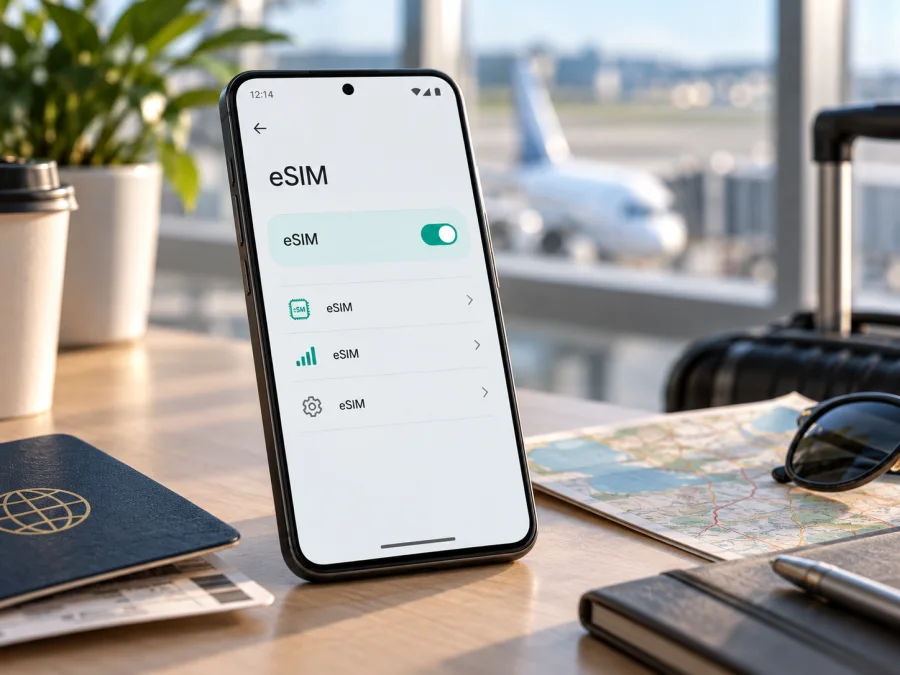
Nothing Phone 4a Pro 512GB 5G eSIM compatibility
If you are checking whether the Nothing Phone 4a Pro 512GB 5G can use a travel eSIM, the safest answer is: do not assume that it can. Nothing’s current official support information for the Phone line says that eSIM is not supported, while the manufacturer’s current Phone (4a) Pro guidance describes a physical SIM tray and physical SIM use. The support material does not confirm eSIM for the exact 512GB 5G configuration named here.
“5G” describes the network generation and “512GB” storage; neither proves an eSIM module. Support depends on hardware, firmware, sales region and operator version. Before selecting a plan, look for an EID and an Android option to add a mobile plan. Without them, a QR code cannot enable eSIM.
Quick answer for the exact variant
For the exact listing Nothing Phone 4a Pro 512GB 5G, eSIM support is not confirmed by the current official manufacturer information available for Phone (4a) Pro. Treat the device as incompatible unless its own settings show an EID and an active option such as “Add eSIM” or “Download a SIM”. A physical dual-SIM tray, 5G radio, large storage capacity or an up-to-date Nothing OS version does not replace that check.
The answer can be summarized like this:
| Check | What it tells you | Result for this variant |
|---|---|---|
| Exact model name | Identifies the product and configuration being checked | Nothing Phone 4a Pro 512GB 5G |
| 512GB storage | Storage capacity only | Does not prove eSIM support |
| 5G | Cellular network capability | Does not prove eSIM support |
| Physical SIM tray | The handset accepts a removable SIM | Consistent with current Phone (4a) Pro guidance |
| EID in settings | Confirms that an eSIM identity exists in the handset | Must be checked on the individual phone |
| “Add eSIM” or “Download a SIM” | Shows that the operating system exposes eSIM provisioning | Must be checked before purchase |
| Operator lock | May prevent a valid eSIM profile from connecting | Must be checked separately |
Ask the seller for the exact regional model and inspect network settings before paying. If there is no EID or eSIM menu, choose a physical SIM or another handset with confirmed support.
What the manufacturer information means
The current Nothing support centre includes a product area for Phone (4a) Pro. Its help material mentions a SIM tray ejector and describes inserting a SIM card to connect to a data network. That supports a physical-SIM reading, but it does not confirm or disprove every regional build. Nothing’s general Phone eSIM answer says the feature is not supported.
A separate official regional help page says that eSIM is available only on certain Phone versions sold in Japan. That exception cannot automatically be applied to an international Phone 4a Pro, an imported handset or a retailer’s 512GB listing. The exact market, model identifier, firmware, operator status and the phone’s own EID are more reliable than a product title. “Dual SIM” may mean two physical SIMs, and 5G still does not prove eSIM.
What eSIM support would require
An eSIM is a programmable SIM profile stored in secure phone hardware. Installation requires eSIM hardware, an operating-system provisioning menu and a network that can activate the profile; an app or QR code cannot add missing hardware. On compatible Android devices, the menu usually offers Add eSIM, Add mobile plan or Download a SIM. An EID is the stronger check. An IMEI, serial number or ICCID is not an EID.
The 512GB label identifies storage, not eSIM capability. Do not infer support from a listing that mentions RAM, storage and 5G; check the exact market specification or inspect the unit itself.
Check compatibility before buying
<a id="kesim-device-compatibility"></a>
1. Confirm the exact handset
Keep the complete name Nothing Phone 4a Pro 512GB 5G next to the order, box and settings screen. Check the model number and sales market, especially if the phone was imported, refurbished or bought second-hand. A matching storage number does not guarantee a matching cellular configuration.
2. Look for the EID
Open Settings and search for EID. It may be under About phone, SIM status or Status information; the path can change with Nothing OS. An EID is strong evidence of an eSIM component, although a carrier lock or regional restriction can still block activation. Do not mistake IMEI 1, IMEI 2 or ICCID for EID. If only IMEI numbers and physical-SIM details appear, the phone may be physical-SIM-only.
3. Look for an eSIM action
Open Settings > Network & internet or Settings > Mobile network and inspect the SIM manager. Look for Add eSIM, Add mobile plan, Download a SIM or an equivalent action. A menu limited to physical SIM, preferred SIM and mobile-data controls does not confirm eSIM.
4. Check the lock and network conditions
Ask whether the phone is carrier-unlocked. An EID can be present while a carrier or contract restriction blocks a travel profile. Check for a country-specific model family, install pending official updates and restart once, but do not expect an update to add missing eSIM hardware.
5. Confirm the plan’s requirements
Even a compatible phone needs a plan that covers the destination. Check region, validity, traffic allowance, activation timing, hotspot rules and refund conditions. Travel eSIMs here are normally for mobile internet, not a regular number, voice calls or SMS; messaging apps can work over data.
If all five checks are positive, the phone may be ready for an eSIM installation. If the EID or eSIM action is absent, stop at this point. Do not purchase a plan on the hope that the QR code will create a missing menu.
Use this Check your device checklist before you pay for a plan or travel with the phone.
Choosing a travel setup
For a supported handset, keep the regular physical SIM for calls or messages if needed and set the travel eSIM as the mobile-data line. For this exact listing, establish compatibility first; if the EID check fails, a physical travel SIM may be the only direct SIM option.
Kaspersky eSIM Store is an app and website that helps you choose, arrange and activate an eSIM with a suitable mobile-internet plan for an international trip. It is not a mobile operator, network owner or internet provider. Once the device check is complete, choose the destination, review traffic and validity, complete the order and keep the installation information available.
Installing an eSIM when the phone is confirmed compatible
The steps below apply only if the individual phone shows an EID and an eSIM provisioning option. If the exact Nothing Phone 4a Pro 512GB 5G unit does not show both, use a compatible physical-SIM setup instead.
Before starting, connect to reliable Wi-Fi, charge the phone, keep the QR code or activation details on another screen and confirm the destination. Do not scan one QR code repeatedly on different devices; many profiles are intended for one installation.
Android installation steps
- Open the SIM manager. Go to the phone’s mobile-network or SIM settings and choose the option to add an eSIM, mobile plan or downloaded SIM.
- Choose the QR-code method. Allow the camera or system scanner to read the QR code supplied in your Kaspersky eSIM Store profile or order message.
- Download the profile. Confirm the plan details shown by the phone and wait while the eSIM profile is downloaded. Keep Wi-Fi connected during this step.
- Name the line. Use a clear label such as “Travel data” so you do not confuse it with your regular physical SIM.
- Select the data line. Set the travel eSIM as the preferred line for mobile data. Leave the main SIM selected for calls or messages only if that matches your plan.
- Set data roaming if required. Some travel plans require data roaming to be enabled for the travel eSIM. Follow the plan’s conditions and avoid enabling roaming on the home line unless you intend to use it.
- Test the connection. Turn off Wi-Fi, wait for the phone to register on a supported network and open a simple webpage or map. Connection can take several minutes and may require one restart.
For expanded platform guidance, use the Android installation instructions. The iOS installation instructions are intended for Apple devices, but they can be useful when a family member or travel companion is setting up a supported iPhone.
Activation timing
Installation and activation are not always the same event. A profile may start its validity on first connection, or the plan may use another rule. Read the conditions: installing too early can use validity days at home, while waiting until arrival may require Wi-Fi.
Keep the physical SIM available until the travel line has registered and mobile data works. Once the connection is confirmed, disable automatic data switching if the phone offers it. This prevents an unexpected fallback to the home line. If you no longer need the eSIM after the trip, follow the plan’s rules before deleting it; some profiles cannot be installed again after removal.
Using mobile data abroad
On a seven-day trip, check the EID before departure, install over Wi-Fi, then select the travel eSIM for data at the airport. Enable roaming only for that line when required, turn off Wi-Fi and test a map before leaving the terminal. Keep the home SIM enabled only if its roaming conditions are understood.
For a multi-country route, confirm that the plan covers the whole region. Monitor data because video, backups, updates and hotspot use can consume traffic quickly. The eSIM is for mobile internet unless the selected plan says otherwise; ordinary calls and SMS remain tied to the home line or another supported service.
Troubleshooting guide
| Problem | Checks to make |
|---|---|
| EID is missing | Search device information after an official update. If there is still no EID and no eSIM menu, treat the phone as incompatible and ask the seller or manufacturer. |
| Installation fails | Use stable Wi-Fi, restart, confirm the QR code and check whether the profile was already installed, expired or blocked by a carrier lock. |
| Profile is installed but data does not work | Turn on the eSIM, select it for data, check destination coverage and required data roaming, then test with Wi-Fi off. |
| Phone uses the wrong SIM | Set the travel eSIM as the data line and disable automatic data switching. Review roaming conditions for the home SIM. |
| Traffic is used too quickly | Review video, backups, updates, background data and hotspot use; monitor the plan balance and validity. |
| Profile was deleted or the phone was reset | Check the plan’s replacement rules and contact support. Do not publish QR codes or activation details. |
FAQ
Does Nothing Phone 4a Pro 512GB 5G support eSIM?
Current official Nothing information does not confirm eSIM for this exact configuration, and the Phone (4a) Pro guidance centres on a physical SIM tray. Treat it as incompatible unless the unit shows an EID and an eSIM-add option; 512GB and 5G are not proof.
Could a regional version be different?
Yes. Nothing’s regional help information indicates that some Japan-sold Phone versions may support eSIM, but that exception does not automatically apply to an international or imported Phone 4a Pro. Check model, market, firmware and EID.
Can a software update add eSIM?
No update can add an eSIM component to a physical-SIM-only handset. After updating, check for an EID and menu, but do not treat the update alone as confirmation.
Can I install a travel eSIM with a QR code if there is no EID?
No. A QR code downloads a profile to compatible hardware; it does not create hardware. Use a physical SIM or another compatible device.
Does eSIM include a phone number?
Not automatically. Kaspersky eSIM Store helps users choose and activate eSIM plans for mobile internet on an international trip; voice, SMS and a regular number are not included unless the plan says so.
Can I use the phone as a hotspot?
That depends on the plan, destination network and settings. If allowed, test tethering briefly and monitor usage because a laptop can consume data quickly.
Is Kaspersky eSIM Store a mobile operator?
No. Kaspersky eSIM Store is an app and website that helps you choose, arrange and activate an eSIM with a suitable travel data plan; it is not an operator, network owner or direct provider of mobile coverage.
Final device and trip check
Before buying a travel plan for Nothing Phone 4a Pro 512GB 5G, complete this final list:
- [ ] Model number, market and storage match the exact phone.
- [ ] Settings shows an EID; IMEI numbers alone do not count.
- [ ] The SIM manager offers Add eSIM or an equivalent action.
- [ ] The phone is unlocked and has current official software.
- [ ] The plan covers every destination, with suitable traffic and validity.
- [ ] Activation timing, hotspot and refund conditions are understood.
- [ ] The travel eSIM is selected for data; roaming is enabled only when required.
- [ ] Automatic data switching is controlled and QR details stay private.
- [ ] A physical SIM or Wi-Fi fallback is available if this regional version is incompatible.
Current manufacturer information does not establish eSIM support for the exact Nothing Phone 4a Pro 512GB 5G variant. Verify the EID and menu on the actual unit, resolve regional or operator uncertainty, and only then choose a plan. If the checks pass, Kaspersky eSIM Store can help you select, arrange and activate a suitable eSIM for mobile internet. If they fail, use a compatible physical SIM or another confirmed eSIM device.


