Travel connectivity guide
Nothing Phone 4a Pro 5G eSIM: compatibility guide
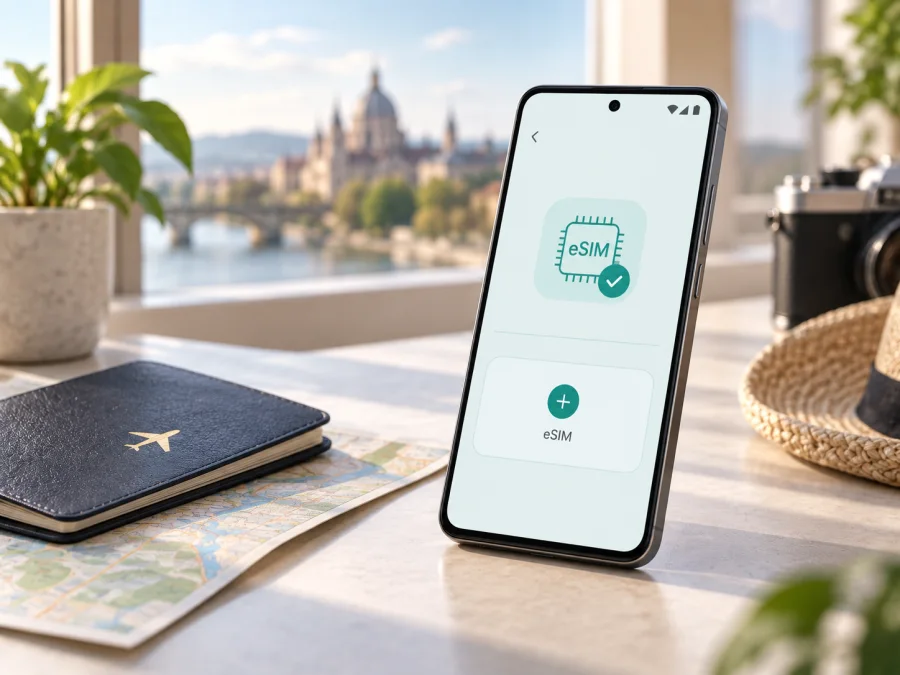
Nothing Phone 4a Pro 5G eSIM: compatibility, verification, and travel setup
If you are planning to use a travel eSIM on Nothing Phone 4a Pro 5G, the careful answer is that support is not officially confirmed for every handset sold under this exact name. Nothing’s current official pages identify the product as Phone (4a) Pro, document 5G capabilities, and list a SIM tray ejector in the box. They do not publish a universal eSIM statement for the exact wording “Nothing Phone 4a Pro 5G”.
Do not assume that 5G means eSIM. A phone can use 5G through a physical nano-SIM and have no embedded SIM profile. Before selecting a travel plan, check the handset itself for an EID and an option such as “Add eSIM” or “Download a SIM instead”. If both are missing, treat the phone as physical-SIM-only for this purpose and do not buy an eSIM plan for it.
Quick answer
For Nothing Phone 4a Pro 5G, eSIM compatibility is unconfirmed unless the individual handset shows an EID and a working eSIM-addition flow. Nothing’s official support information for the Phone (4a) Pro category includes hardware details and a SIM tray ejector, while its product material focuses on physical-SIM and 5G network compatibility. A separate official support article says that some Nothing Phone versions sold in Japan support eSIM, but it does not identify every Phone (4a) Pro 5G handset as compatible.
The practical decision is simple:
- Do not infer eSIM support from 5G, a retailer title, storage capacity, or “dual SIM”.
- Confirm the exact model number, market, carrier status, and Nothing OS version.
- Look for an EID and an Add eSIM command in standard settings.
- If those checks fail, use a physical SIM or another confirmed eSIM-compatible device.
What is known about this exact variant
Nothing’s official retail pages use Phone (4a) Pro with parentheses, and regional pages show different configurations and availability. A retailer may add “5G” to describe network generation, but that label alone does not prove that the handset contains eSIM hardware.
| Item | What to use when checking Nothing Phone 4a Pro 5G |
|---|---|
| Exact variant | Nothing Phone 4a Pro 5G |
| Manufacturer naming | Phone (4a) Pro on official Nothing pages |
| Network generation | 5G is documented for Phone (4a) Pro; bands and carrier support vary by region |
| Physical SIM | Nothing’s support information lists a SIM tray ejector |
| eSIM status | Not universally confirmed for this exact variant; verify the individual handset |
| RAM and storage | No RAM or storage modifier was supplied; do not substitute another capacity |
| Purchase decision | EID + Add eSIM + unlocked device + destination-compatible plan |
Regional and carrier differences
Nothing publishes separate regional product pages and support information. A family name can therefore appear with different firmware, bands, and carrier requirements. A statement about a Japan-sold version, Phone (3), Phone (3a), or a generic “Nothing Phone” must not be copied to Nothing Phone 4a Pro 5G without checking the exact device.
The 5G label describes radio capability, not SIM provisioning. A carrier can deliver 5G through a physical SIM, an eSIM, or both. An eSIM-capable handset can still fail to activate a particular profile if it is carrier-locked, the plan is not intended for the destination, or the carrier does not recognise the device’s IMEI or EID.
Compatibility check before buying
Use this checklist for the handset you actually own:
- [ ] The name and model number match the device being checked.
- [ ] The market of sale and carrier policy are known.
- [ ] An EID is displayed in About phone, SIM status, or standard device information.
- [ ] The SIM settings contain Add eSIM or an equivalent command.
- [ ] The phone is unlocked and has no carrier or payment restriction.
- [ ] Nothing OS is updated and the phone has been restarted.
- [ ] The plan covers every country or region on the trip.
- [ ] The data allowance, validity, activation rule, and hotspot terms fit the trip.
- [ ] You understand whether the plan is data-only.
- [ ] Reliable Wi-Fi is available during installation.
If the first four checks cannot be completed, stop at compatibility. Confirm the precise model and region before proceeding; this on-page reminder does not replace the EID and settings checks.
Verify the EID
The EID is an identifier associated with embedded SIM capability. It differs from the IMEI and a physical SIM’s ICCID. Menu labels can change with Nothing OS:
- Open Settings and tap About phone, Device information, or SIM status.
- Expand network or SIM details and look for EID.
- Compare it with SIM settings; an EID without Add eSIM may indicate a regional or carrier limitation.
Verify Add eSIM
From Settings > Network & internet > SIMs, look for a plus button, Add SIM, Add eSIM, or Download a SIM instead. A compatible system may offer QR-code scanning or manual activation; you do not need to finish installation to check.
If the only actions are “Insert SIM” or “Replace SIM”, the operating system is not offering an eSIM path at that time. If the option is greyed out, check airplane mode, pending updates, work-profile restrictions, and carrier lock.
Check your device again after confirming the precise model and region.
What the official information means
The responsible conclusion is not “all Nothing Phone 4a Pro 5G devices support eSIM”, and it is not “5G phones always support eSIM”. Nothing’s current information confirms the Phone (4a) Pro family and 5G-related network details, but it does not give a universal eSIM guarantee for the exact user-supplied name. The support category lists a SIM tray ejector, confirming a documented physical-SIM route; it does not by itself prove or disprove a regional eSIM variant.
Nothing’s separate support material says that some versions sold in Japan support eSIM, while other generic Nothing Phone articles say eSIM is not supported. Those statements show why market and model number matter; the EID and Add eSIM checks on the actual device are the deciding evidence.
Be cautious with shop descriptions such as “5G”, “dual SIM”, “global”, or “unlocked”. “Dual SIM” may mean two physical SIMs, a physical SIM plus eSIM, or a limited profile arrangement. Ask for the exact model code; if the answer is vague, consider the device unverified.
Preparing a travel eSIM
Once the device check is positive, prepare the trip in this order:
- Choose the destination or region and confirm every country on a multi-country route is included.
- Compare data, validity, activation timing, and hotspot terms with your usage.
- Confirm whether the offer is data-only; unless stated otherwise, do not expect a new number, voice, or SMS.
- Keep the QR code available and control which SIM supplies data.
Kaspersky eSIM Store is an app and website where you can choose, arrange, and activate an eSIM with a suitable mobile-internet plan for a trip abroad. It helps you review the destination, allowance, validity, and price before proceeding. It is not a mobile operator, network owner, or provider of mobile internet; coverage and service depend on the selected plan and its supporting local operator arrangements.
Install and activate eSIM on Android
Nothing Phone 4a Pro 5G uses Android, so follow this path only when Add eSIM is visible. Connect to Wi-Fi, keep the QR code accessible, and make sure the device is unlocked.
1. Recheck the plan and device
Confirm destination, data, validity, activation timing, and refund conditions. Recheck EID and Add eSIM.
2. Open mobile-network settings
Go to Settings > Network & internet > SIMs and tap Add SIM, Add eSIM, or Download a SIM instead. If the command is absent, do not scan a QR code in a random app.
3. Scan the activation code
Choose the QR option and scan the original code supplied for the plan. If scanning is unavailable, use manual details only when the plan provides them.
4. Download the profile
Approve the download and stay online while the profile is retrieved.
5. Name and select the line
Label it Travel data or with the destination. Set it as the mobile-data SIM and turn off primary-SIM data roaming when appropriate.
6. Configure roaming only when required
Some plans require data roaming for the eSIM to use a partner network. Enable it only when the plan says to do so, and do not enter an unverified APN.
7. Activate at the correct time
Some plans are installed before departure and activated on arrival; others begin during installation or first connection. Follow the plan’s rule. Registration can take a few minutes.
For more detail, use the official installation guidance for Android or the iOS instructions when helping someone with an Apple device. The iOS page is included for completeness; this device uses Android.
Using the eSIM while travelling
Before departure, save the plan details and decide which line will provide data. At the destination, turn off airplane mode, enable the travel eSIM, and wait for network registration. A 5G icon may not appear immediately: local coverage, bands, congestion, roaming agreements, and carrier policy can result in 4G or another available service even when the phone and plan are compatible.
Short holiday
Choose validity covering the whole trip and data matching your habits; download maps and documents before leaving.
Work trip
Estimate video calls, cloud files, navigation, and tethering separately. Check hotspot rules and keep an offline alternative.
Multi-country route
Check every border before purchase: a country plan may stop outside that country, while a regional plan may include only selected destinations.
Primary SIM plus travel eSIM
Use the primary SIM for its number and the travel eSIM for data when allowed. Check defaults and automatic switching; a data eSIM does not automatically provide a phone number.
Troubleshooting
No Add eSIM option
Confirm the model number, update Nothing OS, restart, and search Settings for “eSIM” and “EID”. If EID is also absent, ask the seller or Nothing support about the exact model and region before buying.
EID is present but the QR code fails
Use reliable Wi-Fi, scan the original code, and check whether it was already used or issued for the right destination.
Profile downloads but data does not work
Enable the travel eSIM, select it for data, and check roaming if required. Toggle airplane mode or restart. Confirm country and validity.
Calls or SMS fail
That may be expected. Travel eSIM plans in this context are generally for mobile internet unless their conditions explicitly include voice or SMS. Use apps over data or keep your primary line for its number.
The eSIM was deleted
Do not assume the QR code can be reused. Check the plan conditions before resetting the phone or requesting a replacement.
FAQ
Does Nothing Phone 4a Pro 5G support eSIM?
Not as a universal, officially confirmed feature for every handset carrying that name. Nothing’s official Phone (4a) Pro information documents the product family and physical-SIM path but does not publish a blanket eSIM guarantee for the exact requested variant. Check EID, Add eSIM, market, and carrier status on the individual phone.
Does 5G prove eSIM compatibility?
No. 5G identifies network capability, not the SIM technology. A 5G phone can use a physical SIM only or support eSIM in selected regional versions.
Is an IMEI enough?
No. IMEI identifies the cellular device; EID is the relevant embedded-SIM identifier. Use EID together with the Add eSIM system option.
Can I install before travelling?
Usually, but timing depends on when the plan’s validity begins. Read the activation rule and keep the travel line off until arrival when required.
Is Kaspersky eSIM Store a mobile operator?
No. It is an app and website that helps you choose, arrange, and activate an eSIM with a suitable mobile-internet plan for a foreign trip. It is not the network owner, operator, or direct coverage provider.
Summary
For Nothing Phone 4a Pro 5G, the safe answer is conditional. Nothing’s official manufacturer information for Phone (4a) Pro documents the product and its physical-SIM path, while eSIM support is not stated as universal for the exact variant wording used here. Regional versions, firmware, carrier locks, and activation policies can change the result.
Check the model number, market, EID, and Add eSIM option before paying. If all checks pass, choose a destination-compatible data plan, install it over reliable internet, select the correct data line, and follow the plan’s rules. If the checks fail, use a physical SIM or another confirmed device.
Final device check and travel eSIM choice
Before your next trip, complete this sequence:
- Verify that the device is exactly Nothing Phone 4a Pro 5G and record its model number and region.
- Confirm that an EID is visible and Add eSIM is available in system settings.
- Confirm that the phone is unlocked, updated, and connected to Wi-Fi for installation.
- Choose a plan for the complete destination or route, checking data, validity, activation timing, hotspot rules, and data-only limits.
- Use Kaspersky eSIM Store as the app and website for selecting, arranging, and activating the travel eSIM plan.
- Install before departure or after arrival according to the plan conditions, then select the travel eSIM for mobile data and test a simple connection.
If any device check is uncertain, postpone the purchase until the exact regional version is confirmed. Verifying compatibility is safer than discovering after arrival that the phone has 5G but no usable eSIM path.


