Travel connectivity guide
OnePlus 11 128GB eSIM Compatibility & Setup
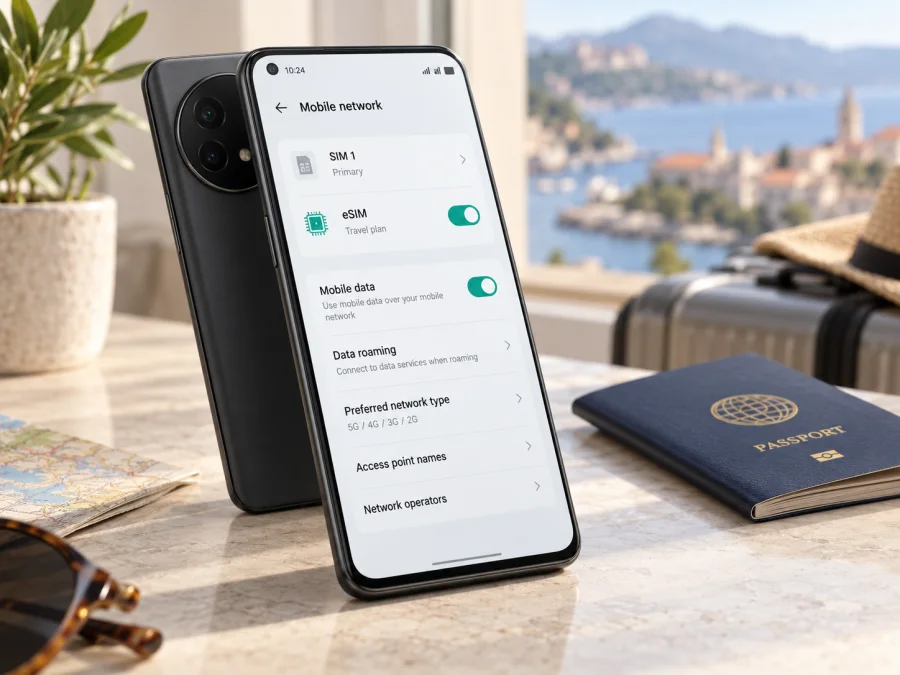
OnePlus 11 128GB eSIM: compatibility and setup
If you are preparing a OnePlus 11 128GB for a trip, the short answer is: some regional versions support eSIM, but “128GB” alone cannot confirm compatibility. OnePlus lists eSIM for certain regional versions of the OnePlus 11 5G. Its specifications vary by market, so check the exact model number and eSIM controls on your own phone before choosing a travel plan.
Storage capacity describes built-in space; it does not identify the phone’s market, model code, carrier configuration or software build. Two phones sold as OnePlus 11 128GB may therefore differ in eSIM availability. This guide explains what OnePlus currently confirms, how to check your handset, and how to install and use an eSIM when the option is present.
Quick answer: does OnePlus 11 128GB support eSIM?
It depends on the regional version. OnePlus’s US and Spain specifications list eSIM for the OnePlus 11 5G. The Spain page also lists an 8GB RAM + 128GB storage configuration. The India page lists an 8GB + 128GB configuration with dual nano-SIM, but does not list eSIM. OnePlus’s China specifications likewise describe two nano-SIMs without listing eSIM. OnePlus Support says eSIM availability depends on the device, country or region, and mobile operator.
These manufacturer pages show a market difference; they do not identify every retail listing or firmware build by storage size. If your phone was imported, bought second-hand or sold without a clear region, verify its model number and settings directly. Do not assume that installing another region’s software enables eSIM, or that every international model will work with every operator.
| Check | What it tells you |
|---|---|
| “128GB” in a listing | Storage capacity only; it does not prove eSIM support. |
| Model number and sales region | Helps identify the hardware and regional configuration. |
| EID shown by the phone | Evidence that the handset has eSIM hardware. |
| An eSIM add/manage option in Settings | Confirms that the software exposes eSIM setup. |
| Unlock status and destination support | Affect whether a profile can be installed and used on a local network. |
An eSIM-capable handset may still lack the bands or carrier profile needed for service in a particular country. 5G access depends on local bands, the destination operator and plan. Check the plan’s included countries and network requirements against your exact variant. If a seller’s listing omits its region or model number, request those details rather than relying on the storage label.
Regional versions matter
OnePlus sells the OnePlus 11 under different regional specifications and model identifiers. Storage is only one part of the configuration. The original sales market, model number, installed firmware and carrier customisation can affect whether eSIM setup appears. Imported devices may also differ in supported frequency bands, certification and carrier provisioning, which can affect service even after a profile installs.
The current OnePlus US and Spain specification pages say eSIM is supported. The India page specifies dual nano-SIM and does not list eSIM; the China page also describes dual nano-SIM without an eSIM entry. A missing specification entry is not a guarantee about every handset or future update, so treat your device’s EID and settings as the practical check. If these checks conflict with a product page or seller claim, ask OnePlus to verify the exact model and region before arranging a plan.
A physical dual-SIM tray does not prove eSIM support. Nor does an eSIM option mean that two physical SIMs and an eSIM can all be active together. Check the SIM manager on your phone to see which combinations it allows. A phone can also accept an eSIM profile but be carrier-locked, or lack the network bands required at your destination.
Check your exact phone before buying
Use both the EID and Settings checks. Menu paths change between OxygenOS versions and languages, while a carrier lock can prevent adding another provider’s profile even when the phone has eSIM hardware.
1. Find the model number
Open Settings → About device or About phone. Note the model number and software version; labels can vary. If needed, look under Status or check the original box. The model code and sales region are usually enough when asking a seller to confirm the variant. Keep your IMEI and EID private.
2. Look for an EID
Open the Phone app and enter *#06# (do not place a call). An eSIM-capable handset may show an EID alongside its IMEI numbers. You can also look under Settings → About device → Status or a similarly named status page. Keep the EID private. If it is absent, continue with the settings check rather than treating one screen as a final verdict.
3. Check eSIM management in Settings
On some software builds, the path is Settings → Mobile network or SIM card & mobile data → Manage eSIM. Look for Add eSIM, Download eSIM or similar. Search Settings for “eSIM” if needed. A visible add or download option means the phone exposes eSIM setup.
OnePlus Support says that if Manage eSIM does not appear in the relevant SIM settings, the device does not support eSIM in its current configuration. Menu wording and paths can vary, so check the model and EID as well. If both EID and eSIM controls are absent after an official software update, treat the phone as incompatible unless OnePlus confirms otherwise.
4. Confirm the phone is unlocked
Ask the original carrier or seller whether the handset is unlocked and can accept another eSIM. Operators and eSIM providers may set their own eligibility rules. Confirm that the travel plan supports this exact phone and destination.
Compatibility checklist
- [ ] The About phone screen identifies the exact model number and region.
- [ ] An EID appears in device information or the
*#06#screen. - [ ] Settings shows Add eSIM, Download eSIM or Manage eSIM.
- [ ] The phone is unlocked.
- [ ] The plan covers each country on your route and supports a network compatible with this variant.
- [ ] You have Wi-Fi or another reliable connection for installation.
For another check, check your device’s eSIM compatibility before arranging a travel plan. If your variant is not listed or the checks disagree, ask OnePlus and the seller. A compatibility checker cannot override a carrier lock, regional hardware limitation or destination network restriction.
Choose a travel plan for your route
Once the phone passes the checks, choose a plan for the countries or region you will visit. Kaspersky eSIM Store is an app and website where you can choose, arrange and activate an eSIM with a plan for mobile data on an international trip. Review each plan’s destination, data allowance, validity, activation timing and requirements. Conditions depend on the selected plan.
Travel eSIM plans are generally for mobile data, not a standard phone number, voice calls or SMS unless the plan says otherwise. You may keep your regular SIM for calls or verification while selecting the eSIM for data, if your phone and carrier permit that arrangement. Internet calling and messaging apps use data.
Check every stop on your route: a country plan may not work across a border, and a regional plan may exclude some destinations. Recheck the included countries if your itinerary changes. Estimate usage realistically: maps and messaging use less data than streaming, video calls, cloud backups or hotspot use. Check whether tethering is supported if you intend to share a connection, and compare validity and coverage as well as allowance.
You can browse current travel eSIM options. This is the general store website for checking available plans, not a link to a specific country tariff; confirm your actual destination and route in the current plan details.
How to install an eSIM on OnePlus 11 128GB
Install over stable Wi-Fi, preferably before departure. Display the QR code on another screen or use the provider’s manual activation details. Follow the plan instructions; activation codes may be single-use, so do not repeatedly scan or delete a profile to troubleshoot.
- Confirm compatibility and unlock status. Check the EID, eSIM menu and carrier restriction.
- Connect to Wi-Fi. Keep the connection stable while the profile downloads.
- Open eSIM settings. Go to Settings → Mobile network or SIM card & mobile data, then choose Manage eSIM or Add eSIM.
- Add the profile. Scan the provider’s QR code, or enter the supplied activation details manually. Keep the code private.
- Wait for confirmation. The profile may install before it connects to a mobile network; installation and service activation are separate.
- Label the line. Use a name such as “Travel data” to distinguish it from your regular SIM.
- Select data and configure roaming. When ready, choose the travel eSIM for mobile data. Enable data roaming for that profile only if the plan requires it. Turn off roaming data on your home SIM if you want to avoid charges.
- Check the APN if needed. Enter and select the exact access point name (APN) supplied with the plan only if automatic settings do not work.
- Test the connection. Turn off Wi-Fi and load a webpage. Allow a few minutes for network registration.
OnePlus’s support instructions describe QR scanning and manual activation through eSIM management, but menu names vary. The Android eSIM installation guide explains the general Android process; its screenshots use Samsung, so labels may differ on OnePlus. The iOS installation guide is for an iPhone you may use on another trip.
Use the eSIM while travelling
Before departure, install over Wi-Fi if the plan allows it, save setup details offline and note which SIM is selected for data. Review roaming conditions with your home operator. Dual-SIM behaviour varies by model and software, so test your intended line arrangement before travel.
After arrival, confirm that the travel eSIM is enabled and selected for data. Turn on its data roaming if required, then allow time for registration. Check the plan’s network and APN instructions if it does not connect. An installed profile does not guarantee service; destination, local network, handset bands and plan terms matter.
For a city break, a country plan may suit a stay within one country. On a multi-country route, check each stop against the destination list. For a longer stay or remote work, match validity to your dates and account for calls, hotspot use and large downloads. When you return, switch data to your preferred SIM. Do not delete a profile to troubleshoot unless the provider advises it; some codes cannot be reused.
Common problems and what to check
There is no eSIM option in Settings
Search Settings for “eSIM,” check the EID and model number, and install the latest official update for your phone. If both EID and eSIM controls are absent, ask OnePlus or the seller to confirm the region; do not assume a software change can add the feature. India- or China-market versions may differ from US or European ones despite the same storage label.
The QR code will not scan or the profile will not download
Use stable internet and display a clear QR code on another device. If available, enter manual details exactly as supplied. Check that the code has not already been used and that you opened eSIM settings. Note any error and contact plan support before deleting the profile or trying another code.
The eSIM was added but shows no signal
Check that the profile is on, your destination is included and the plan is valid. Select it for data, enable its roaming if required, check airplane mode and allow registration time. Use the plan’s network-selection instructions if automatic selection fails.
The phone has signal but apps cannot use data
Turn Wi-Fi off and check that data is assigned to the travel profile. Review plan status and remaining data. If an APN was supplied, verify and select the exact value. Avoid resetting network settings unless support recommends it, as this can affect the other SIM.
My primary SIM is using roaming data
Check which line is selected for data and disable roaming on the primary SIM if needed. Turn off automatic data switching if you want the phone to stay on the travel eSIM. Review your home operator’s terms for calls, texts and data abroad.
The profile works at home but not at the destination
Recheck destination coverage, activation timing, roaming and APN. Local bands and supported networks matter, especially for imported phones. Give support your model number, software version, destination and error message, but do not share your full EID, IMEI or activation code in a public forum.
FAQ
Does every OnePlus 11 128GB have eSIM?
No. OnePlus lists eSIM on some regional pages, while India and China specifications list dual nano-SIM without eSIM. Verify the EID, settings and model number.
Does an EID guarantee that my travel eSIM will work?
No. The phone must also be unlocked, and the plan and destination network must support that handset.
Can I use a physical SIM and an eSIM together?
Some configurations can use a physical SIM with an eSIM, but active-line limits vary. Check SIM Manager; the dual nano-SIM tray alone does not confirm eSIM.
Will a travel eSIM provide a phone number?
Usually not. Travel data plans are for internet access unless their terms say otherwise. Internet calling apps use data.
Should I install the eSIM before or after arrival?
Either can work if the plan allows it. Check when validity starts and install over Wi-Fi with enough time to resolve setup issues.
Do I always need data roaming turned on?
No. Some plans require it for the eSIM profile; follow the plan instructions and check which SIM’s setting you change.
Can I move an activated eSIM to another phone?
Not always. Some profiles or codes are tied to one device. Check the provider’s terms before deleting or resetting it.
Final check before your trip
For OnePlus 11 128GB, verify the specific handset rather than relying on storage: identify its regional model, look for an EID, and confirm that Settings offers eSIM management. Check that the device is unlocked and that the selected plan supports your destination, route and network requirements. If you cannot confirm those points, ask OnePlus or the seller before arranging a plan.
When compatibility is confirmed, use Kaspersky eSIM Store to review current destination options and choose a plan whose countries, allowance, validity and activation timing fit your trip. Install and test the profile over a reliable connection, select it for mobile data when appropriate, and keep setup details available. Checking the exact variant ahead of time can prevent a regional mismatch on travel day.


