Travel connectivity guide
OnePlus 11 eSIM: compatibility and setup guide
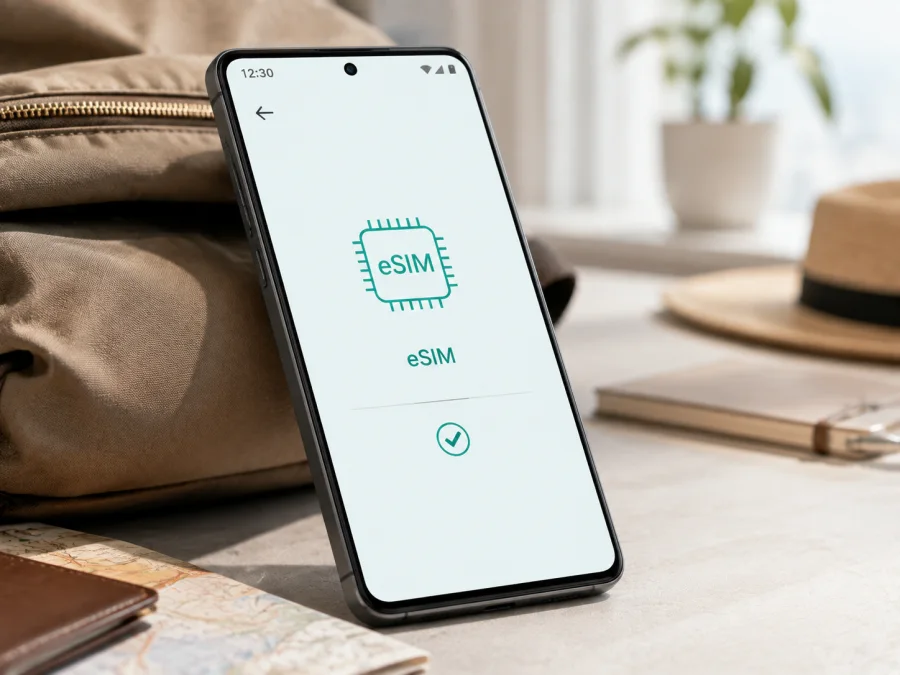
OnePlus 11 eSIM compatibility and setup guide
If you want mobile data abroad without replacing your physical SIM card, an eSIM can be useful. It is a digital SIM profile downloaded to a compatible phone. You can keep your usual line for calls or messages while using a separate travel profile for data. The important question is not only whether the model name appears on an eSIM list: market, hardware, firmware and carrier policy can change the result.
This article concerns the exact device name supplied here: OnePlus 11. It does not add an unrequested storage, RAM, 5G, Cellular or regional modifier, and it does not merge this device with another OnePlus model. OnePlus uses “OnePlus 11 5G” on some regional specification pages; that is the manufacturer’s wording for those pages, not a reason to replace the supplied device name.
Quick answer: does OnePlus 11 support eSIM?
OnePlus 11 can support eSIM, but you must verify the regional version of your handset. OnePlus’s currently published US specification page marks eSIM as “Yes” and also lists dual Nano-SIM support. Official European regional pages show the same eSIM entry. The official China specification page is different: it lists two Nano-SIM cards and separately describes eSE functions for NFC, payment and identity features, without the same eSIM confirmation.
That means the name OnePlus 11 alone is not enough for a universal yes or no. An international retail unit whose official regional specification includes eSIM is a good candidate. A China-market or imported unit with only two physical SIM entries, no EID and no add-eSIM flow should be treated as incompatible until the seller or carrier confirms otherwise. A software update can move a setting, but it cannot add eSIM hardware to a phone that was not built with it.
The practical rule is simple: buy a travel eSIM only after your own phone shows an EID or a genuine option to add/download an eSIM, and after you have confirmed that the device is unlocked. If those checks are inconclusive, pause before payment.
What the exact device name tells you
The supplied name contains no storage, RAM, carrier, market or “Cellular” modifier. Do not infer one. Storage and memory capacity do not prove eSIM compatibility: phones with the same capacity can be made for different regions, and firmware may expose different network features.
OnePlus regional pages identify the product as OnePlus 11 5G and list dual Nano-SIM support, but 5G capability and two physical SIM slots do not automatically mean that a downloadable eSIM profile is available. The decisive evidence is the EID and the Android mobile-network screen.
| Item | Guidance for the supplied device |
|---|---|
| Target name | OnePlus 11 |
| eSIM result | Region-dependent; verify the handset |
| Manufacturer name on some pages | OnePlus 11 5G |
| Physical SIM | Some regions list dual Nano-SIM; the tray is not an eSIM test |
| Storage and RAM | Not specified in the input; do not invent a configuration |
| 5G or Cellular modifier | Not present in the input |
| Strongest evidence | EID plus an Add eSIM or Download a SIM option |
| Other requirements | Unlocked phone, compatible tariff and internet during setup |
Why regional versions matter
An eSIM is a cellular component as well as a software feature. The phone needs embedded-SIM hardware, firmware that exposes it to Android and a network configuration that permits profile download. A manufacturer can enable those elements for one market and omit or restrict them for another. The outside design and SIM tray may look almost identical.
The OnePlus specifications show why checking matters. The US and some European pages have a dedicated eSIM line marked supported. The China page lists dual Nano-SIM and eSE. eSE is a secure element used for functions such as payments or digital identity; it is not the same as eSIM, which stores a cellular subscription profile. An NFC, secure-element or eSE entry is therefore not proof of travel-eSIM compatibility.
Carrier distribution can add another difference. A phone may have eSIM hardware but be network-locked, or an imported unit may be sold in a market with another configuration. Check the model identifier, sales region and actual settings together rather than relying on a generic retailer title.
Check compatibility before buying an eSIM tariff
Use this checklist for the phone in your hand:
- Confirm the model. Check Settings → About device and compare the model information with your purchase documents. The product family name alone may not reveal the market.
- Find the EID. Search Settings for “EID”, then open the matching SIM or device-status result. An EID is the identifier of the embedded-SIM component; it is not the IMEI or the ICCID of a particular profile.
- Find the eSIM action. Search for “eSIM”, “Add eSIM”, “Add mobile plan” or “Download a SIM”. Menu labels can vary with OxygenOS version and language.
- Check the lock. Confirm that the phone is unlocked. A carrier lock can prevent a travel profile from working even when an EID is present.
- Check software. Install available official updates and restart once. If no EID or add-eSIM option appears afterwards, do not install unofficial firmware to force it.
- Check the tariff. Confirm destination, supported network, data allowance, validity, activation timing, hotspot rules and whether the plan is data-only.
- Prepare internet access. Have stable Wi-Fi or another working connection for the download. Keep the QR code on a second screen if you plan to scan it with the phone.
Keep the box label, model identifier and purchase region if you bought the phone used or imported it. Those details help distinguish a supported international unit from a similarly named regional version.
Confirm the market
Record the model code, software build and original sales region. If the official regional page says eSIM is supported but the phone has no EID, treat the discrepancy as unresolved and ask the seller or carrier. If the phone shows an EID but the profile will not activate, investigate the carrier lock and tariff conditions. Never share an activation QR code publicly while requesting help.
For a direct in-page check, use Check your device. If a required item fails, ask the seller, original carrier or support team before purchasing.
Verify the EID and eSIM settings
Method 1: search for EID
- Unlock the phone.
- Open Settings.
- Use the Settings search field.
- Search for EID.
- Open the SIM or device-information result.
A long EID is a positive sign that Android can see an embedded-SIM component. It is not by itself a promise that every carrier or tariff will activate. If search finds nothing, continue with the mobile-network menu.
Method 2: look for the add-profile flow
- Open Settings.
- Enter Mobile network or SIM & mobile network.
- Look for Add eSIM, Add mobile plan or Download a SIM instead.
- Open the option only far enough to confirm that a new profile can be added.
You do not need to scan a paid QR code during the compatibility test. A screen that shows only SIM 1 and SIM 2 for physical cards, with no EID and no eSIM action, is not ready for a travel profile. A general SIM, 5G, NFC or eSE entry does not replace this check.
Choose an eSIM for a trip
After compatibility is positive, Kaspersky eSIM Store is an app and website where you can choose, arrange and activate an eSIM with a suitable tariff for mobile data during an international trip. It helps you review the destination and allowance before installation. It is not a mobile operator, network owner or underlying mobile-internet provider; coverage follows the selected tariff and local networks.
Choose the plan around your itinerary:
- For maps, messages and occasional bookings, estimate normal daily use and leave room for updates.
- For navigation, photo uploads, translation and social media, choose an allowance that matches those habits.
- For a multi-country route, check whether a regional plan covers every stop.
- Read when validity begins. Some tariffs start on installation, while others start on first connection; the plan terms control.
- Check hotspot rules before connecting a laptop or another traveller’s device.
- Assume the tariff is data-only unless voice or SMS is explicitly included. It normally does not replace your usual phone number.
Kaspersky eSIM Store helps you choose and activate the profile through its app or site. The tariff’s allowance, expiry, supported destinations and network conditions remain the source of truth for the trip.
How to install and activate an eSIM
Install only after checking the EID, eSIM menu, unlock status and tariff destination. Charge the phone and connect it to reliable Wi-Fi. Keep the QR code or manual activation details private. If the QR code is displayed on the OnePlus 11 itself, open it on another screen because the phone cannot normally scan its own display with its own camera.
For the full Android walkthrough, see the Android eSIM installation instructions. The iOS eSIM installation instructions are useful for someone travelling with an iPhone; the steps below are for OnePlus 11 and Android.
1. Check the connection
Connect to Wi-Fi or another working data network. Confirm that the phone is unlocked and that the profile is intended for the country or region you will visit.
2. Open mobile-network settings
Open Settings, enter Mobile network or SIM & mobile network, and choose the option to add a SIM or mobile plan.
3. Select eSIM
Choose the eSIM or download-a-plan option. If the phone offers both physical SIM and eSIM paths, select eSIM.
4. Scan the QR code
Scan the QR code from Kaspersky eSIM Store or the selected tariff. If manual activation details are provided and Android offers manual entry, type them carefully. Do not repeatedly scan a code after an error without checking its instructions.
5. Download the profile
Review the plan name and confirm the download. Keep Wi-Fi connected while the profile is retrieved. Installation may take several minutes.
6. Label the line
Give the profile a clear name such as Travel data or the destination. A label makes it easier to distinguish the travel eSIM from the home SIM.
7. Set mobile data
When Android asks for the data SIM, select the travel eSIM only when you want to use it. Keep your primary SIM for calls or SMS if needed. Review automatic data switching, because it can move traffic to the home line.
8. Enable roaming when required
Some travel tariffs require Data roaming for the travel eSIM because it connects to a partner network abroad. Enable it for that profile only when the tariff instructions require it. Keep data roaming off for your home line unless you have checked its terms.
9. Activate and test
If validity begins on first supported-network connection, install at home and enable it after landing. If validity begins at installation, wait for the intended travel window. After arrival, turn off Wi-Fi, select the travel eSIM for data and open a simple webpage. Registration may take several minutes.
Using OnePlus 11 eSIM during travel
Before departure
If the tariff permits, install the profile while stable Wi-Fi is available. Label both lines, confirm the travel eSIM is enabled and save the intended data-line choice. Turn off automatic app updates if you want to conserve data. Keep the QR code private.
On arrival
Enable the travel eSIM and select it for mobile data. Turn on its data roaming only if required by the tariff. Keep the home line’s data roaming off unless you deliberately want to use it. Turn Wi-Fi off for a short test and wait for network registration.
During the trip
Monitor the allowance and validity in the app, website or tariff information. A travel eSIM can reduce dependence on finding Wi-Fi, but it does not guarantee coverage everywhere. If hotspot use is allowed, enable it only when needed.
After returning home
Switch mobile data back to the home SIM and disable travel data roaming if it is no longer needed. Do not delete the travel profile until you have checked its reuse terms. Some profiles cannot be transferred or reinstalled after deletion.
Common problems and checks
The QR code will not scan
Use a second screen, increase its brightness and hold the phones steady. Confirm the code belongs to the intended tariff and has not already been used. Try manual activation details only if they were supplied. Do not post the code publicly; contact support with the error message while keeping the code private.
There is no Add eSIM option
Search for EID and inspect the Mobile network and device-status screens. If both the EID and add/download flow are absent, the handset may be a regional version without eSIM. Confirm the model code and market with the seller or carrier. A factory reset or new SIM tray cannot add missing hardware.
The profile downloaded but there is no service
Make sure the profile is enabled and selected for data. Check that the destination is covered, data roaming is enabled for that eSIM when required, airplane mode is off and the phone is unlocked. Restart once and allow several minutes for registration. Return network selection to automatic unless the tariff says otherwise.
The home SIM is using data
Open SIM settings and select the travel eSIM for mobile data. Disable automatic data switching. Turn Wi-Fi off and make a small test request. Recheck the setting after a restart or SIM change.
Signal is visible but data does not work
Check remaining data and validity. Verify the APN only when the tariff instructions provide a value; an incorrect APN can block data. Also check the supported destination, network selection and unlock status.
The plan says it is already in use
The QR code may be single-use, or a partial installation may have left a profile on the phone. Do not repeatedly delete and reinstall it. Note the exact message, check whether the profile appears in SIM settings and contact support through the service channel connected with the purchase.
FAQ
Does every OnePlus 11 support eSIM?
No universal promise is safe for the name alone. US and some European OnePlus specifications list eSIM, while the China specification lists dual Nano-SIM and eSE without the same eSIM confirmation. Check the actual handset for an EID and add-eSIM control.
Is eSE the same as eSIM?
No. eSE is a secure element for functions such as payments or identity credentials. eSIM is the embedded cellular subscription component. One does not prove the other.
Do RAM and storage decide compatibility?
No. The supplied name does not specify either, and capacity does not identify the regional hardware or firmware. Use the model information, EID and mobile-network settings.
Can I keep my regular SIM active?
Often yes, if the exact handset and carriers allow dual-line use. Keep the home line for calls or SMS, set the travel eSIM as the data line and control roaming on the home line.
Can a travel eSIM make ordinary calls?
Usually not unless the selected tariff explicitly includes voice or SMS. These travel profiles are generally intended for mobile internet. Internet calling and messaging apps can work over data when their own conditions allow it.
Can I install after landing?
Yes, if you have Wi-Fi or another working connection and the tariff is still valid. Installing before departure can leave more time to resolve an issue, but activation timing depends on the plan.
Will 5G always work abroad?
No. 5G depends on the device version, supported bands, local deployment, partner network, tariff and signal. 4G/LTE can still provide data. A 5G product label is not proof of eSIM support or guaranteed 5G service.
Is Kaspersky eSIM Store a mobile operator?
No. It is an app and website that helps you choose, arrange and activate an eSIM with a suitable tariff for mobile data during an international trip. It is not the operator, network owner or underlying mobile-internet provider.
Conclusion: verify first, then prepare the trip
For the exact OnePlus 11, eSIM compatibility is regional. Official OnePlus pages show support for some US and European versions, while the China-market specification presents dual Nano-SIM and does not give the same eSIM confirmation. Check the phone rather than assuming that every unit with this name is equivalent.
Final device-check and trip eSIM block
- Verify the device: confirm the handset is exactly OnePlus 11 and record its model and market information.
- Verify eSIM: find the EID and an Add eSIM or Download a SIM option in Settings.
- Verify access: confirm the phone is unlocked, updated and connected to Wi-Fi for installation.
- Verify the plan: match the destination, allowance, validity, activation timing, hotspot rules and data-only limits to your trip.
- Prepare the profile: use Kaspersky eSIM Store’s app or website to choose, arrange and activate the travel eSIM, keeping its QR code private.
- Set the lines: use the travel eSIM for data on arrival, enable its roaming only when required and keep home-line roaming under control.
- Test and monitor: turn off Wi-Fi, confirm the travel line is selected, test a small request and monitor the allowance.
If any check fails, pause before payment and ask the seller, carrier or support team to confirm the precise regional unit. When the checks pass, Kaspersky eSIM Store can help you prepare a suitable travel eSIM tariff for mobile data, with the final choice based on your destination and data needs.


