Travel connectivity guide
OnePlus 12 256GB eSIM: compatibility and setup
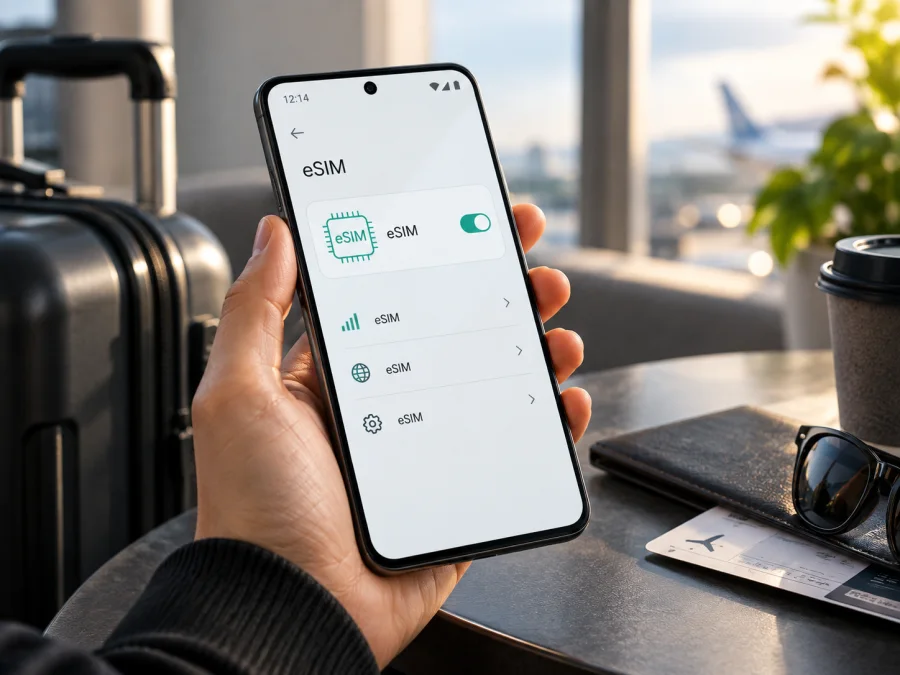
OnePlus 12 256GB eSIM compatibility
If you are preparing for a trip and want mobile data without changing a physical SIM, the exact phone version matters. This page is about OnePlus 12 256GB and should not be merged with a 512GB unit, OnePlus 12R, or another OnePlus model.
Short answer
OnePlus 12 256GB is not confirmed as eSIM-compatible for every market. Current regional OnePlus specifications list a dual nano-SIM slot. Some pages mention eSIM with a carrier note, but do not give a universal “Yes”. Chinese and Indian versions can differ.
For a purchase decision, treat the exact phone as unconfirmed until it shows an EID and an Add eSIM control. Look for Add eSIM, Download a SIM, or Add mobile plan in the mobile-network settings. If the EID and eSIM menu are missing, a QR code cannot make the phone compatible. Do not rely on 5G support, the phrase “dual SIM”, or a generic seller listing.
What the device name tells you
The requested name contains OnePlus 12 256GB, but not RAM, market, model code, carrier, or software region. Do not infer RAM from storage. Compare Settings > About device with the box or seller information.
| Item | Relevance to eSIM |
|---|---|
| Target device | OnePlus 12 256GB |
| Model family | OnePlus 12, not OnePlus 12R or another generation |
| Storage | 256GB; keep this variant separate from 512GB pages |
| RAM | Not stated in the supplied name; verify it on the phone |
| SIM hardware | Official regional pages list a dual nano-SIM slot |
| eSIM status | Not universally confirmed by the manufacturer’s regional information |
| 5G | Network capability does not prove eSIM capability |
| Decisive checks | EID plus Add eSIM or an equivalent setting |
| Possible differences | Sales region, model code, carrier lock, firmware and OxygenOS build |
“Dual SIM” normally describes two physical nano-SIM positions. It does not automatically mean one physical SIM plus one eSIM. A general eSIM heading on a product page is not proof that the handset sold in a particular market has usable eSIM. Test the phone you will travel with.
Does OnePlus 12 256GB support eSIM?
For the short name OnePlus 12 256GB, the answer is not reliably yes. OnePlus’s regional specifications list dual nano-SIM hardware. Some regions mention eSIM as dependent on local-carrier compatibility without confirming every configuration. That is not enough to promise a travel eSIM on every 256GB unit.
Regional differences matter:
- An international or European unit may expose an eSIM menu, but a web-page label is not proof for a particular handset.
- China-market and Indian units can use different firmware or SIM configuration. Do not apply an EU feature list to an imported phone.
- A carrier-customized or locked phone may hide controls, reject a profile, or restrict a second data line.
The exact model or product code is more useful than a marketplace title. Record it from Settings > About device. If the market version cannot be identified, treat eSIM as unverified; an update or QR code cannot be relied on to solve a missing capability.
Check compatibility before choosing a travel eSIM
Use Wi-Fi and complete these checks before paying for a plan:
- Find the model. In Settings > About device, record model number, storage, software version, and build. Confirm that the phone shows 256GB.
- Open mobile-network settings. Look under Mobile network, SIM & network, or a similar SIM section; OxygenOS labels vary.
- Look for eSIM. Search for Add eSIM, Add mobile plan, Download a SIM, or Set up an eSIM. Two physical-SIM entries alone are not confirmation.
- Check for an EID. Look in About device, Status, or SIM status. On some Android builds,
*#06#displays identifiers. Do not confuse EID with IMEI. - Check the lock and plan. A locked phone may reject a profile. Confirm the plan covers the destination and this handset.
Compatibility checklist
- [ ] The phone is exactly the intended OnePlus 12 256GB variant.
- [ ] The sales region, model code, and carrier-unlock status are known.
- [ ] Settings includes Add eSIM or an equivalent control.
- [ ] The phone displays an EID.
- [ ] OxygenOS is up to date and the phone has been restarted after updating.
- [ ] The destination, data allowance, validity, and activation rule fit the trip.
- [ ] Wi-Fi and the QR code or activation details are available for setup.
The first four items are the essential screen-level test. If one fails, ask the seller or operator to confirm the specific unit before arranging a travel plan.
For the final device decision, Check your device using the exact model and software information rather than a different OnePlus 12 listing. If there is no EID or eSIM option, treat the phone as physical-SIM-only. If both are present, support is promising but can still depend on the selected carrier profile and local service conditions.
Kaspersky eSIM Store and the purchase decision
After the device passes its check, Kaspersky eSIM Store can help prepare travel data. It is an app and website where you can choose, arrange, and activate an eSIM plan for mobile internet abroad. Coverage depends on the selected local operator arrangements and destination; Kaspersky eSIM Store is not the operator, network owner, or mobile-internet provider.
Start with the itinerary. Check whether the plan covers one country, a region, or the whole route. Compare allowance and validity with your use of maps, messages, browsing, work files, photo backup, and hotspot. A data-only eSIM normally does not replace your number; voice and SMS are excluded unless the plan says otherwise.
Before arranging the plan, confirm:
- destination, data amount, validity, and its start event;
- hotspot rules, QR-code reuse or device limits;
- refund, cancellation, transfer, deletion, and reinstallation conditions;
- the exact phone version the profile is intended for.
Do not choose a plan simply because the listing says “dual SIM”. Choose it only after the OnePlus settings confirm an eSIM path. If the phone fails the check, use a compatible physical SIM or another confirmed eSIM-capable device.
How to install and activate eSIM on OnePlus 12 256GB
These steps apply only when the phone has an EID and Add eSIM. Menu names vary by OxygenOS. Keep the QR code private and do not delete a partial profile before checking reinstallation rules.
Before installation
Connect to Wi-Fi, charge the phone, and keep the activation details on another screen. Decide which physical SIM remains your everyday line. Do not remove it until the travel profile works.
For Android guidance, see the Android eSIM installation instructions. The iOS eSIM installation instructions are for Apple devices and do not replace these steps.
Step-by-step setup
1. Open SIM settings
Open Settings > Mobile network, SIM & network, or the closest SIM section. Choose the option to add a mobile plan or eSIM. If it is missing, return to the compatibility check.
2. Start adding the profile
Tap Add eSIM, Download a SIM, or the equivalent control, then confirm the mobile-plan setup. Some builds show a plus sign beside the SIM list.
3. Scan the QR code
Select the QR-code option and scan the code supplied for the plan. Use good lighting and show the whole code. If it is on the OnePlus 12 256GB screen, use a second device or supplied manual details. Do not repeatedly scan a single-use code.
4. Wait for the download
Keep Wi-Fi connected while the profile downloads; this may take several minutes. If the code is invalid or already used, check the plan details rather than trying an unrelated code.
5. Name and enable the line
Give the profile a label such as “Travel data” or the destination. Turn it on when ready. Keep the regular SIM enabled only if you need its number, and review default-line settings.
6. Select mobile data
In SIM preferences, choose the new eSIM for mobile data. Disable automatic data switching for strict control, and confirm the intended lines for calls, messages, and data.
7. Configure roaming
If required by the plan, enable data roaming for the travel eSIM only. Keep roaming off for the everyday line unless its terms are clear.
8. Test the connection
Turn Wi-Fi off briefly, open a webpage or map, and check the active SIM and data counter. Turn Wi-Fi back on if needed. Without an EID or eSIM option, these steps cannot add the missing capability.
Using eSIM for mobile internet while travelling
Install the profile on Wi-Fi before departure and follow the plan’s activation rule. Some plans begin on installation; others begin on first network connection. Do not install multiple profiles just to compare them.
Before departure
Install only after compatibility is confirmed. To delay use, keep the travel line off unless the plan requires earlier activation. Save details securely and download large maps or updates over Wi-Fi.
At the destination
Turn on the travel line, select it for mobile data, and enable roaming when required. Give it several minutes to register. If needed, move location, toggle mobile data, or restart. Keep home-SIM roaming off to reduce unexpected charges.
During the trip
Watch Android’s data counter: video, photo backup, updates, files, and hotspot sessions can use an allowance quickly. Set a warning or limit. For a multi-country route, confirm every country is included; nearby territories and rural areas can differ.
Common problems and checks
No Add eSIM option
Verify the model number and search Settings for “eSIM”. If EID is also missing, the phone is not ready for a standard profile. An update may change labels, but is not proof of added hardware. Ask the seller or carrier to confirm the region and return terms.
No EID
Recheck About device, Status, and SIM status, then restart and apply any official update. Do not confuse EID with IMEI, serial number, or an eSE component. If it remains absent, use a physical SIM or another compatible phone.
QR code does not scan
Increase brightness, remove glare, and show the entire code. Use manual activation only when supplied. If the code may be used, stop retrying and contact support with the order details.
Profile will not download
Return to Wi-Fi, set date and time automatically, and check the destination. A carrier lock, expired window, one-time code, or regional incompatibility may be the cause. Do not delete a partial profile until rules are clear.
Profile is installed but there is no data
Select the travel eSIM for data, confirm the line is on, and enable roaming when required. Check APN values only when supplied by the plan. Toggle airplane mode or restart, then allow time for registration.
The wrong SIM uses data
Set the travel eSIM as default data and disable automatic switching if offered. Keep home-line roaming off and confirm the data indicator.
Connection is slow or disappears
Signal strength, load, indoor coverage, roaming agreements, and local conditions affect performance. Move location, toggle airplane mode, and confirm destination support. For persistent problems, note model, region, plan, network name, and error.
FAQ
Is OnePlus 12 256GB automatically compatible because it supports 5G?
No. 5G is a radio-network capability, not proof of eSIM support. Check for an EID and Add eSIM on the exact handset.
Does 256GB identify the eSIM version?
No. Region, model code, carrier status, and OxygenOS configuration can also matter. Keep OnePlus 12 256GB separate from other configurations.
Can a dual nano-SIM phone use a travel eSIM as a third line?
Not automatically. Two physical positions do not confirm a digital profile. The phone must expose eSIM, and active-line limits depend on model and software.
Can an update add eSIM support?
Do not assume it will. Install official updates, but confirm support only when the phone shows both EID and Add eSIM and the region is verified.
Will a Kaspersky eSIM Store plan provide a phone number?
Not normally. Kaspersky eSIM Store helps you choose, arrange, and activate an eSIM plan for mobile internet abroad. Voice and SMS are excluded unless the plan says otherwise; messaging apps can use data.
Can I move the profile to another phone?
Do not assume so. Profiles can have device or installation limits. Check the terms before deleting or transferring anything.
What if my OnePlus 12 256GB fails the check?
Do not arrange a plan until the seller or carrier resolves the uncertainty. Use a physical SIM, Wi-Fi, or another confirmed eSIM-capable phone.
Final device check and travel eSIM choice
Before departure, follow this order:
- Confirm the exact name OnePlus 12 256GB, model code, storage, sales region, and carrier-unlock status.
- Confirm that Settings includes Add eSIM or an equivalent option.
- Confirm that the phone displays an EID.
- Check destination coverage, data amount, validity, activation rule, hotspot conditions, and refund or transfer terms.
- Install on Wi-Fi, select the travel line for mobile data, and enable roaming only for that eSIM when required.
- Test data and keep the home SIM’s data roaming disabled if you want to avoid unexpected use.
If the EID or eSIM menu is missing, treat the exact OnePlus 12 256GB device as not ready for a travel eSIM, regardless of another regional listing. If both checks pass, Kaspersky eSIM Store can help you choose, arrange, and activate a suitable eSIM plan for mobile internet through its app or website. Check the device first, then choose the destination and plan that match the trip.


