Travel connectivity guide
OnePlus 13 eSIM: Compatibility & Setup
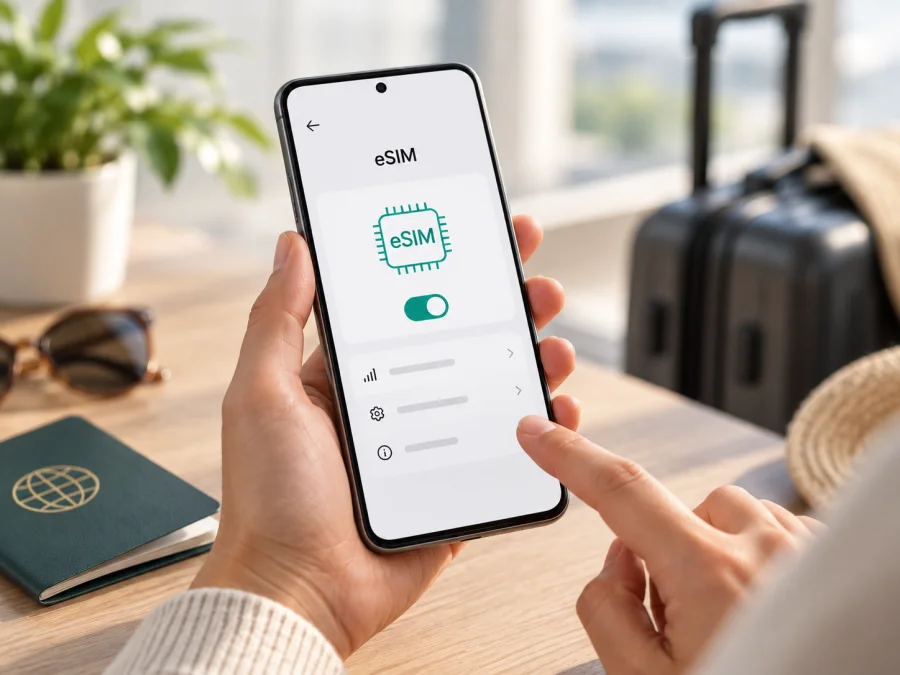
OnePlus 13 eSIM: compatibility, setup, and travel use
The short answer is: some OnePlus 13 versions support eSIM, but the name alone does not identify a universally compatible configuration. OnePlus lists eSIM in the connectivity specifications for its North American OnePlus 13 and says feature availability can depend on local carrier compatibility. Its China-market specification instead describes a dual nano-SIM setup and does not list eSIM. A phone imported from another market, a carrier-supplied unit, or a device running different regional software may therefore behave differently from a locally sold model.
For your phone, confirm that it has an EID and OxygenOS offers an option to add or download an eSIM. These checks matter more than its retail name, memory, or 5G capability. If the menu is absent, ask OnePlus or the carrier about its model code and sales region; do not assume another region’s software will enable eSIM.
OnePlus 13 at a glance
| Item | What to know |
|---|---|
| Device covered here | OnePlus 13; regional and carrier variants can differ |
| Operating system on launch | OxygenOS 15 based on Android 15 for the North American model; software can change through updates |
| eSIM answer | Listed by OnePlus for North America; verify the exact regional unit and carrier |
| Physical SIM | The North American specifications list a dual nano-SIM slot; supported combinations depend on the device configuration and carrier |
| Mobile data abroad | Possible with a compatible travel eSIM, a supported destination plan, and an unlocked device |
| Voice and SMS | A data-only travel plan does not automatically provide a regular phone number, voice minutes, or SMS |
RAM and storage do not establish eSIM support. The North American configurations include 12 GB/256 GB and 16 GB/512 GB; other markets may differ. Check the model number, sales region, carrier status, software, EID, and eSIM controls on the phone.
Why the region matters
Phone makers can sell products with the same family name but different radio hardware, SIM trays, firmware settings, and carrier approvals. OnePlus’s published North American specification page has an eSIM entry and a carrier-compatibility note. The China-market OnePlus 13 page lists a dual physical nano-SIM arrangement and does not present eSIM as a feature. That difference is a reason to verify the actual unit rather than treating every OnePlus 13 as interchangeable.
Retail labels such as “global” or “international” do not replace the original model code and regional specification. A different software build does not necessarily make a China-market unit equivalent to one sold where eSIM is enabled. Carriers may also restrict activation or require an approved plan.
Before relying on eSIM, ask the seller or carrier for the model number and original sales market, whether that software build exposes an EID and downloadable profile, and whether the phone is unlocked for the intended plan. Also check that the destination provider supports the device and your intended SIM arrangement.
Generic product listings may combine multiple markets or SKUs. Ask the seller to confirm the model code if you cannot inspect the phone before purchase; if you own it, complete the checks below before paying for a plan.
Check this OnePlus 13 before buying a plan
Perform these checks on the phone itself. Menu names may shift slightly between OxygenOS versions, languages, and carrier software. Keep the device connected to Wi-Fi while you inspect settings or install a profile.
- Look for an EID. Open Settings → About device → Status or Settings → About phone → Status information and look for “EID.” On some builds, searching Settings for “EID” or “SIM status” is quicker. An EID is a long identifier associated with the embedded SIM hardware. Do not post or send a screenshot containing the full number publicly.
- Check the SIM controls. Open Settings → Mobile network (sometimes called Mobile network & SIM). Look for eSIM, Add eSIM, Download a SIM, or a control to add a mobile plan. The exact wording varies. A working add-profile flow is a stronger sign than a general “eSIM” mention in an advertisement.
- Check the model and region. In About device, note the model number and OxygenOS build. Compare them with the official support information for the country where the phone was sold. If it is carrier-branded, ask that carrier whether it allows third-party eSIM profiles.
- Confirm the phone is unlocked. A device can contain eSIM hardware yet reject profiles from other networks because of a SIM lock, account restriction, or carrier policy. Ask the original carrier to confirm the unlock status before travel.
- Confirm the plan’s requirements. Check that the provider supports Android eSIM activation by QR code or manual details, covers your destination, and permits installation before departure. Confirm validity, data allowance, activation trigger, hotspot rules, and whether the plan is data-only.
Use the device compatibility check before choosing a plan. If there is no EID and no add-eSIM control, treat the phone as not ready for a travel eSIM until OnePlus or the relevant carrier confirms otherwise. A missing menu can reflect the regional model or software configuration; repeatedly resetting network settings will not create eSIM hardware or change the phone’s market variant.
Installing and activating an eSIM
Read the plan instructions before scanning: some QR codes are single-use, and a deleted profile may be difficult to restore. Use reliable Wi-Fi, keep the phone charged, and install while support is available.
- Choose a plan. In the Kaspersky eSIM Store app or website, select your destination and compare data, validity, price, coverage, and activation terms. Check every country on a multi-stop trip.
- Check the start time. Validity may begin at installation or first network connection. Follow the plan terms before deciding whether to install before departure.
- Start adding the eSIM. On OnePlus 13, open Settings → Mobile network and choose eSIM or Add eSIM. Select the option to download or add a mobile plan. If the control is missing, stop and repeat the EID and model checks rather than trying random menus.
- Scan the QR code. Use the system scanner. If it is displayed on the same phone, use manual activation details or another screen. Keep the code private.
- Download the profile. Follow the prompts, label it “Travel data,” and keep Wi-Fi connected until installation completes. Do not scan a single-use code repeatedly.
- Choose default lines carefully. Keep your home SIM available for calls or bank messages if you need it, but select the travel eSIM for mobile data when appropriate. If your phone asks which SIM handles calls, messages, or data, choose each deliberately; dual-SIM options vary by regional model and software.
- Activate as instructed. At the right time, turn on the travel line and select it for data. Enable roaming for that eSIM only if its instructions require it; this does not require roaming on the home SIM.
- Test it. Turn off Wi-Fi briefly and load a webpage. If it fails, use the checks below before deleting the profile.
For screen-by-screen guidance, follow Android eSIM installation instructions or iOS eSIM installation instructions. The iOS guide is provided for travelers comparing devices; the OnePlus 13 itself runs Android. Do not delete an eSIM profile simply to restart activation unless the provider confirms it can be reissued.
Using the OnePlus 13 on a trip
Before departure, save tickets, maps, and plan instructions for offline access. Install the profile over Wi-Fi if the plan permits advance installation, and note when its validity begins. Some plans start at installation; others at first connection to a supported network.
On arrival: turn on the travel line, set it as the mobile-data SIM, and allow time to register. Turn Wi-Fi off briefly to verify that a webpage loads. If your itinerary crosses borders, verify that the plan includes each country and any transit stop where you expect to use data.
Keep your home number: if you leave a physical home SIM active for calls or verification texts, select the travel eSIM for data and check your home carrier’s roaming charges. Dual-SIM behavior varies by configuration. A data-only plan does not provide ordinary calls, SMS, or a phone number unless the plan explicitly says otherwise; internet calling apps can use the data connection.
Hotspot and data use: check whether tethering is allowed before sharing the connection with a laptop or tablet. Video calls, cloud backups, and automatic updates can use data quickly. Monitor usage in the phone and plan account, and set background sync to Wi-Fi where practical.
Kaspersky eSIM Store is the app and website where you can choose, arrange, and activate an eSIM with a mobile-data plan for an overseas trip. Review destination coverage, data allowance, validity, and activation terms. Availability and performance depend on the plan, device, partner network, and local conditions.
Troubleshooting: if the eSIM does not work
Change one setting at a time. A signal icon does not confirm which line is carrying data.
- No Add eSIM option: search Settings for EID and eSIM, check the model number and software region, install official updates, then restart. If the EID and menu are both absent, contact OnePlus or the carrier with the exact model code. A reset or unofficial firmware cannot create eSIM hardware.
- Profile will not download: check Wi-Fi, the QR code’s validity, whether it has already been used, destination compatibility, and device unlock status. Do not repeatedly scan a single-use code; ask the provider about reissue.
- Installed but offline: switch on the travel line, select it for data, and enable roaming on that line if the plan requires it. Toggle airplane mode briefly or restart, then allow time to register.
- Signal but no data: confirm the plan is active and has data remaining, mobile data is enabled, and the travel eSIM is the selected data SIM. Follow the provider’s APN instructions only if one is supplied. Test with Wi-Fi off; temporarily pause VPN or private DNS if it blocks access.
- Slow or unstable: move to an area with better reception, check for congestion, and try automatic network selection first. Compatible hardware cannot guarantee a particular speed or signal everywhere.
- Calls or texts fail: check the plan description. Data-only plans do not normally include a regular number, voice minutes, or SMS. Use data-based calls where suitable or retain your home line while checking its roaming charges.
- Profile disappears or needs transfer: do not erase or delete it as a first step. Some profiles cannot be moved or downloaded again. Contact the provider before a factory reset, replacement, or reinstallation.
For support, note the model number, OxygenOS version, purchase region, EID presence, destination, and exact error. Do not share passwords, payment details, or the eSIM QR code publicly.
Frequently asked questions
Does every OnePlus 13 support eSIM?
No. OnePlus lists eSIM for the North American specifications, with a carrier-compatibility caveat. The China-market specification describes two nano-SIMs and does not list eSIM. Confirm the model number, EID, Settings menu, and carrier policy on your own phone.
Does 5G or a particular RAM size prove eSIM support?
No. 5G and eSIM are separate features. RAM and storage configurations also do not establish eSIM capability. Use the exact model code and on-device checks rather than relying on a broad retailer listing.
Can I keep my physical SIM active?
Potentially, depending on the regional configuration and carriers. Select the travel eSIM for data, review call and message defaults, and check roaming charges with your home provider.
When does a plan start, and can I transfer it?
Validity may begin at installation or first network connection; check the plan’s terms. Transfer and reinstallation rules depend on the profile issuer. Confirm recovery options before deleting the profile or changing phones.
EID appears, but there is no eSIM menu. What now?
An EID alone does not guarantee carrier approval or an available activation flow. Restart, check official updates, and ask OnePlus or the original carrier to confirm the model and region. Avoid unofficial firmware changes.
Before you travel: device check and eSIM choice
Use this final checklist before selecting a trip plan:
- Confirm that your exact OnePlus 13 has an EID and a working Add eSIM or equivalent control in Settings.
- Verify the original model code, sales region, OxygenOS build, and unlock status with the seller, OnePlus, or your carrier when anything is unclear.
- Confirm that the destination plan supports your device and covers every country on your itinerary.
- Compare data allowance, validity, price, activation timing, hotspot rules, and whether calls or SMS are included.
- Install only through the supported Android flow, keep the QR code private, and retain provider instructions until you have tested mobile data.
- At arrival, select the travel profile for mobile data and check the roaming setting required by its instructions.
Check compatibility before you buy, then choose the eSIM plan that matches your destination and expected data use in the Kaspersky eSIM Store app or website. The OnePlus 13 can be a practical travel companion when the regional handset, carrier, and plan all support the same eSIM setup; verify those details on your own phone before departure.


