Travel connectivity guide
OnePlus 13T eSIM: Compatibility and Setup Guide
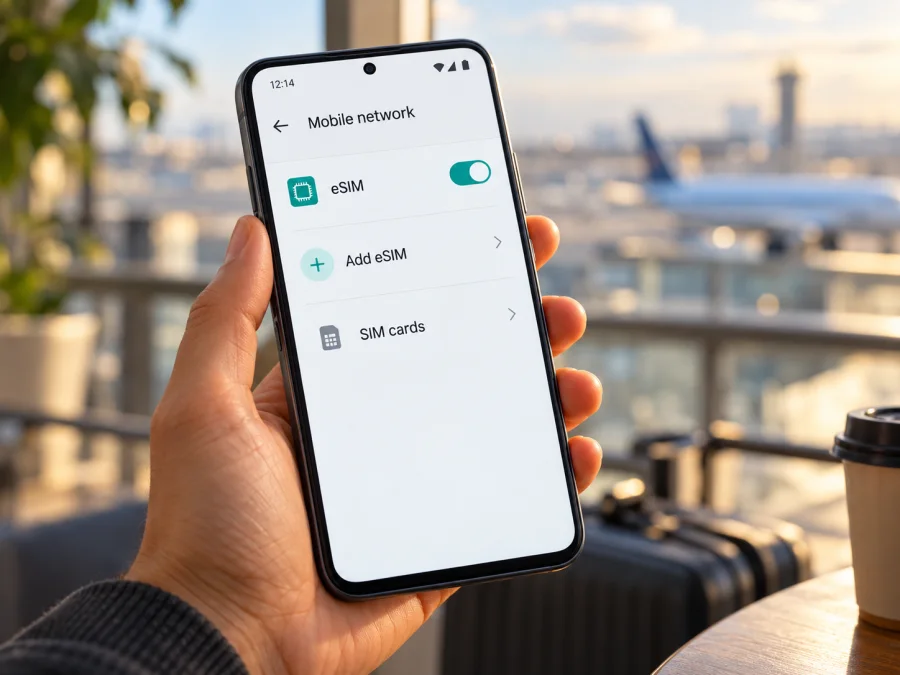
Does the OnePlus 13T support eSIM? A compatibility and travel setup guide
If you are considering the OnePlus 13T for a trip, the key question is whether the exact phone in your hand can store and activate an eSIM profile. The answer needs care: OnePlus has not published a clear, model-specific eSIM confirmation for the OnePlus 13T in the official materials checked for this guide. The official OnePlus China product page identifies the OnePlus 13T, while OnePlus’s general eSIM support guidance says that availability depends on the device, country or region, and mobile operator. That guidance recommends checking the phone’s settings. As of 1 November 2026, the safest answer is therefore unconfirmed for the OnePlus 13T as a model; verify the exact regional unit before you buy a travel plan.
Do not treat eSIM support on another OnePlus model as proof that it is available on this one. A phone can have modern mobile-network features and still lack an enabled eSIM profile system. A China-market software build, an imported unit, a later software update, or an operator restriction may also affect what you see. The most useful evidence is on the device itself: an EID and a working option to add or manage an eSIM.
OnePlus 13T eSIM compatibility at a glance
| Check | What can be confirmed | What it means for eSIM |
|---|---|---|
| Exact model | The OnePlus China product page lists the OnePlus 13T. | This confirms the model’s official product identity, not eSIM support. |
| Model-specific eSIM statement | The official OnePlus product information reviewed does not explicitly confirm eSIM for the OnePlus 13T. | Treat support as unconfirmed until the phone itself shows eSIM capability. |
| General OnePlus guidance | OnePlus Support says eSIM features vary by operator, country or region, and device; it points users to the SIM settings menu. | A compatibility answer for a different OnePlus model or market cannot be applied automatically. |
| EID / add eSIM menu | Check the About device or status information and SIM/mobile-network settings. | A valid EID plus an active add/manage eSIM option is strong evidence to continue checking with your operator or plan provider. |
| Travel-plan readiness | The device must accept an eSIM profile and connect to a supported local network. | Confirm both handset capability and destination-plan details before purchase. |
The model name alone does not identify every relevant detail. For a used or imported phone, note the full model number, original sales region, current software build, and the operator or seller that supplied it. If the seller’s listing says “OnePlus 13T” but does not show an exact model code or eSIM screen, ask for those details before relying on the listing. A translated menu, a regional ROM, or a seller-installed workaround should not be treated as proof of native eSIM support.
Regional versions and operator restrictions
The official OnePlus China product page identifies the China-market OnePlus 13T, but does not establish that every imported unit has identical SIM and software behavior abroad. No separate global OnePlus 13T eSIM specification was confirmed in the official materials checked for this article.
Check three things separately: whether the phone itself can download an eSIM, whether your home operator allows it, and whether the travel profile supports your destination and handset. A destination’s eSIM availability does not make an incompatible phone capable, and a visible eSIM menu does not guarantee every plan will work. Confirm the device, plan, and route independently.
OnePlus Support’s eSIM help page, checked on 1 November 2026, says availability varies by device, operator, and country or region. It points users to Settings → SIM card & mobile data → Manage eSIM Card and says that an absent control means the device does not support its eSIM service. Menu labels may differ by software. The official OnePlus China product and specifications pages were checked on the same date; neither explicitly confirms eSIM for the OnePlus 13T.
How to check your OnePlus 13T before buying
Run these checks on the actual phone, over Wi-Fi, before buying a plan. A screenshot from another model is not enough.
1. Find the EID
An EID identifies the embedded-SIM capability and differs from an IMEI. Look under Settings → About device → Status (or similarly named status information), search Settings for “EID,” or enter *#06# in the dialler; supported phones may display it there. Do not share the full identifier publicly. An EID is a positive sign, but also confirm that the phone has a working profile-download control. If it is missing, check the eSIM menu and ask support to verify the exact model code.
2. Look for eSIM controls
Search Settings for “eSIM,” “Manage eSIM,” or “Add eSIM.” OnePlus’s published path is Settings → SIM card & mobile data → Manage eSIM Card, though your software may use another label or omit it. A valid menu should offer an operating-system action to add/download a profile, scan a QR code, or enter activation details. You do not need to scan a purchase QR code merely to confirm that the menu exists.
3. Record the exact device details
Note the model number in Settings → About device, the software version, original sales country, and operator. Ask OnePlus Support or the seller whether that precise model and software region support native eSIM downloads. A statement about the “OnePlus 13 series” is not confirmation for the 13T.
Compatibility checklist
- [ ] The model number in Settings matches the unit you plan to use.
- [ ] An EID is visible in device information or the supported dialler screen.
- [ ] Settings includes a working Add eSIM or Manage eSIM function.
- [ ] The handset is not carrier-locked or restricted from adding another profile.
- [ ] The operator or travel-plan provider confirms compatibility for this model and destination.
- [ ] You have a reliable Wi-Fi connection and the required QR code or manual activation details.
Check your device before choosing a plan. If the EID or add-eSIM checks fail, pause before checkout and ask the seller or manufacturer to confirm native support. A physical dual-SIM tray, if present on a particular unit, is not the same feature as an embedded SIM and cannot scan an eSIM QR code by itself.
Installing an eSIM if your phone supports it
Follow the instructions supplied with your eSIM. Use stable Wi-Fi, keep the phone charged, and display the QR code on another screen or print it.
- Prepare the profile. Find the QR code or manual activation details and read the plan’s activation timing before starting.
- Open eSIM settings. Search Settings for “eSIM” or “Manage eSIM.” If available, OnePlus documents Settings → SIM card & mobile data → Manage eSIM Card. If no genuine control appears, stop and verify support.
- Add the profile. Choose add/download eSIM, scan the code from another screen, or enter provider-supplied details manually if the phone offers that option.
- Label and select the line. Name it “Travel data” or another clear label. Keep your home line for calls if desired and choose the travel profile for mobile data.
- Activate as instructed. Some plans require eSIM data roaming to be enabled. Follow the plan’s instructions and connect to a supported local network after arrival.
Kaspersky eSIM Store’s Android installation instructions illustrate a QR-code flow for Android and note that steps can vary by device; the page’s pictured menu is specific to Samsung, so use the labels on your OnePlus. The iOS installation instructions are for iPhone and are useful if you are helping a travel companion with an Apple device. For the OnePlus 13T, follow its own Settings interface and the activation details shown in your order.
Installing a profile and starting data use are separate actions. Do not delete an eSIM simply because the data connection does not start immediately. Some activation codes can be used only once; if you remove a profile, you may need the provider’s help or a replacement. Save the order confirmation and support contact information until you have verified service at your destination.
Using the OnePlus 13T for mobile data while travelling
If the device passes the native eSIM checks, a travel eSIM can be a practical way to connect a compatible phone to mobile data while abroad. Kaspersky eSIM Store is an app and website that helps you choose, arrange, and activate an eSIM with a data plan for an international trip. It is not a mobile operator and does not own the networks used by a plan. Before you choose, review the named destination or region, data amount, validity terms, activation conditions, and any device or tethering limitations shown for that plan.
A practical setup is to verify compatibility and install at home over Wi-Fi if allowed; at arrival, enable the travel line, select it for mobile data, and turn on data roaming for that line only if the instructions require it. During the trip, monitor usage and check which SIM is selected for data. At home, switch back to your usual line and review the provider’s rules before removing the travel profile.
Travel eSIM plans are often data-only and may not provide a regular number for cellular calls or SMS. You may keep your home SIM enabled for calls or verification messages, but check roaming charges and dual-SIM behavior with your operator. Internet calls and messages can use the data connection when your apps and accounts are set up.
Match the plan to your complete route: a country-specific plan may exclude neighboring destinations, while a regional plan may cover multiple stops. Review the coverage list, validity, data amount, and activation rules for current terms; usage needs vary with maps, video, hotspot use, and work calls.
If you want to review current destinations and data-plan terms, visit the Kaspersky eSIM Store website. Treat it as a starting point for browsing available travel options, not as confirmation that a particular plan works with your OnePlus 13T. Confirm phone compatibility first, then check the selected plan’s current destination and activation details.
Common problems and what to check
“Add eSIM” does not appear
Search Settings again, check the model and software region, and install official updates if available. If the EID is also missing, ask OnePlus Support or the seller to confirm native support for that exact unit. A factory reset cannot add missing eSIM hardware.
The QR code will not scan
Use stable internet, display the code brightly on a second screen, and enlarge it if possible. Enter manual activation details only if both the provider and phone support that method. If a code may have expired or been used, ask the provider to check it rather than retrying repeatedly.
The profile downloads but shows no signal
Confirm you are in a covered destination, the eSIM line is enabled, and mobile data is assigned to it. Check whether the plan requires data roaming on that line. Toggle airplane mode or restart; use manual network selection or APN details only as directed by the provider.
Data uses the wrong SIM or keeps dropping
Check the default mobile-data line. For drops, check local signal and plan network availability, restart the phone, and verify APN settings against provider instructions. Performance varies by location, local network, handset bands, and plan. If a carrier lock or rejected profile is suspected, ask the seller/operator or plan provider to check it.
The menu names differ
Android paths vary with software, region, and language. Search Settings and use instructions for your exact device; another OnePlus model’s guide cannot prove 13T compatibility.
Frequently asked questions
Is eSIM confirmed on every OnePlus 13T?
No model-wide confirmation was found in the official materials checked. OnePlus says support varies by device, market, and operator. Check the phone’s EID and eSIM menu, then verify the exact model number with support or the seller.
Does an EID mean any travel plan will work?
No. The phone also needs a working profile-download feature, no relevant carrier restriction, and compatibility with the plan and destination network.
Can I keep my regular SIM active?
Some configurations allow both lines to be enabled, but this varies by device and software. Select the intended data line and check home-operator roaming charges.
Does a travel eSIM provide a phone number?
Kaspersky eSIM Store describes its travel plans as data-only; regular cellular calls and SMS are not included unless the specific offer says otherwise. Internet apps may use the data connection.
Should I install before departure?
You can if the device is compatible and the plan allows early installation. Check when activation and validity begin, and keep Wi-Fi available. If the EID or eSIM menu is missing, ask for confirmation before purchasing a single-use profile.
Before your next trip
The OnePlus 13T’s native eSIM support is not explicitly confirmed by the official model-specific information reviewed on 1 November 2026. OnePlus’s own guidance makes the exact device, market, and operator relevant, so a general statement about another OnePlus phone is not enough. Check for both an EID and a genuine Add eSIM or Manage eSIM control, record the exact model and software region, and ask support to verify any uncertainty.
Once compatibility is confirmed, compare the current plan’s destination coverage, validity, data amount, activation instructions, and roaming requirements with your itinerary. Kaspersky eSIM Store can help you browse, arrange, and activate an eSIM data plan for an international trip; the underlying mobile service depends on supported local networks and the plan’s terms. A short compatibility check before purchase can prevent a QR code from going unused and makes it easier to choose a travel setup that fits your OnePlus 13T and route.


