Travel connectivity guide
OnePlus 15 128GB eSIM: Compatibility Guide
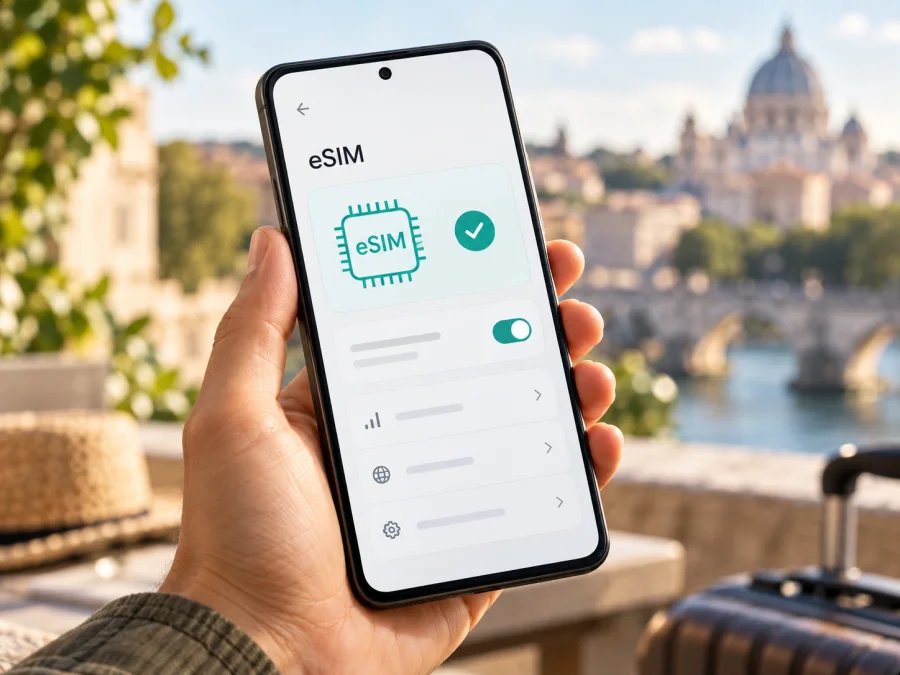
OnePlus 15 128GB eSIM: compatibility and setup guide
Short answer
The OnePlus 15 family supports eSIM according to current official OnePlus specifications. However, the exact OnePlus 15 128GB configuration is not established by the official specifications checked for this guide: the US product pages list 256GB and 512GB, while regional pages describe eSIM support, including dual eSIM in some markets. This confirms support for versions in those markets, but not every handset advertised as “OnePlus 15 128GB.”
Treat the exact 128GB phone as conditionally compatible until you inspect it. Confirm that it shows an EID and an option to add eSIM, is not carrier-locked, and can use your intended plan in the destination. Storage capacity does not itself determine eSIM support; market version and software configuration do. A 128GB listing may be a regional variant, seller shorthand, or an inaccurate description. Ask for the exact model number and a live view of SIM settings; do not rely on 5G or a generic “dual SIM” label.
What is verified and what remains uncertain
The official OnePlus specifications for the US market mark eSIM as supported. The current Spanish-language OnePlus product page describes dual eSIM. Those pages provide direct evidence that OnePlus 15 versions sold for at least those markets are designed to use eSIM. The official US configuration listing checked for this article shows 12GB RAM with 256GB storage and 16GB RAM with 512GB storage; it does not list a 128GB configuration. The specification pages do not establish that an exact 128GB handset from every country has the same eSIM capability.
That is why the useful answer is neither a blanket yes for every phone carrying the name nor a blanket no based on one storage listing. If you own a OnePlus 15 128GB and it displays an EID and an “Add eSIM” control, the device’s software recognizes eSIM hardware. If both are absent, do not purchase a profile expecting a QR code to add the missing capability. If the screens are present but installation fails, the cause may instead be a carrier lock, an unsupported market build, a profile restriction, or a network setting.
| Check | What current official information establishes | What to verify on a OnePlus 15 128GB |
|---|---|---|
| eSIM on the OnePlus 15 family | OnePlus US specifications list eSIM as supported; a regional OnePlus page describes dual eSIM. | Check the EID and eSIM controls on your actual handset. |
| 128GB storage variant | The official US listing checked shows 256GB and 512GB configurations. | Confirm the model number and region with the seller or OnePlus support. |
| Physical SIM arrangement | It depends on the market version; do not infer it from “dual SIM.” | Check the tray and SIM settings on the specific phone. |
| Travel eSIM usability | A compatible eSIM phone can install a profile, subject to plan and network conditions. | Confirm the device is unlocked and the destination and plan support it. |
| Installation menus | OnePlus uses Android-based OxygenOS, with menu labels that can vary by release and region. | Search Settings for “eSIM,” “EID,” or “SIM.” |
Why the regional version matters
A model name can cover market editions with different cellular bands, SIM trays, eSIM functions, or software. Carrier-sold phones may also be network-locked. These differences are independent of storage: “128GB” does not identify the region or radio configuration.
The current OnePlus US specification says eSIM is supported; a Spanish regional page describes dual eSIM. The US store listing checked shows 256GB and 512GB configurations, not 128GB. The reviewed public pages therefore do not establish a universal 128GB specification. This gap does not prove every such listing is fake or incompatible; it makes the exact handset check essential.
Ask the seller for the model number in Settings → About device, the sales region, and confirmation that it is network-unlocked. Have them show the EID and add-eSIM screen on the actual unit, with most of the EID obscured. If anything remains unclear, ask OnePlus support using the model number and software version. “Unlocked bootloader” does not mean network-unlocked.
Check eSIM compatibility on the phone
Run these checks before choosing or paying for a travel eSIM. Menu wording and placement can vary between OxygenOS versions, but Settings search usually finds the relevant page.
1. Look for the EID
Open Settings and search for EID. If search finds nothing, inspect About device, device status, and SIM information. EID is the identifier used to manage embedded SIM profiles; its presence strongly suggests eSIM hardware, but does not guarantee activation with every operator or plan. A seller can demonstrate the field while hiding most digits. A box label or copied specification is not a substitute for the handset.
2. Find the add-eSIM control
Open Settings → Mobile network or SIM management and look for Add eSIM, Add mobile plan, or Download a SIM. A plus sign may open the same flow. Check that it offers QR scanning or downloading a profile; you do not need to complete installation just to confirm the menu exists.
If the control is missing, search Settings for “eSIM” and “SIM,” restart, and check for an official system update. Menu names can vary, but an update cannot add missing eSIM hardware. If both EID and the add-eSIM option are absent, treat the phone as incompatible unless OnePlus confirms support for that exact model number.
3. Check lock status and plan suitability
Ask the original carrier or seller to confirm that the phone is network-unlocked. Before purchase, also check that your destination is covered and review the plan’s activation requirements and network restrictions. An eSIM-capable device may still be unable to register on a particular network or use the required bands in a specific location.
Check whether your device is compatible before selecting a plan. Kaspersky eSIM Store is an app and website where you can choose, arrange, and activate an eSIM with a suitable tariff for mobile internet abroad. When compatibility is confirmed, browse current destination options on the Kaspersky eSIM Store website and review availability and conditions for your trip.
Install and activate eSIM on OnePlus 15 128GB
The following steps apply only after the handset passes the EID and add-eSIM checks. Keep the QR code or manual activation details private. Most QR profiles are intended for one installation, and deleting a profile may not make its activation code reusable. Connect to reliable Wi-Fi and keep your phone charged before starting.
For general Android guidance, see Kaspersky eSIM Store’s Android installation instructions. Its published screens are written for Samsung, so OnePlus menu names differ. The iOS installation instructions are for iPhone and are included for readers comparing device instructions; they do not apply to this Android phone.
Step-by-step setup
- Prepare the phone. Connect to Wi-Fi, charge the OnePlus 15 128GB, and display the QR code on another screen. If it is on the phone itself, use manual activation details if provided.
- Open SIM settings. Go to Settings → Mobile network or the closest SIM-management page. Choose Add eSIM or the equivalent. If it is absent, return to the compatibility check.
- Download the profile. Scan the supplied QR code or enter activation details, then wait for the profile to appear. Keep the code private; some codes are intended for one installation.
- Label the profile. Use a name such as Travel data to distinguish it from your regular SIM.
- Choose when to use it. You can often install over Wi-Fi before departure, then leave the travel profile off or keep your regular SIM selected for data. Check when the plan’s validity begins; purchase, installation, first network connection, and data use can be separate events.
- Select the data line. In SIM settings choose the travel eSIM for mobile data when ready. Turn off automatic data switching if you do not want the phone to use your primary SIM’s roaming data.
- Set roaming and APN carefully. Enable data roaming for the travel profile only if its instructions require it. Keep primary-SIM roaming off unless intended. Most profiles configure APN automatically; if the plan provides an APN, enter that exact value.
- Test after arrival. Disable airplane mode, select the travel eSIM for data, wait for registration, and open a simple webpage. If it fails, use the checks below before deleting the profile.
Using the eSIM for mobile internet on a trip
Before departure
Verify the phone first, then choose a destination and plan that covers the full itinerary, including transit stops. Compare data allowance and validity with expected use. Maps and messaging use less data than video, cloud backups, or hotspot activity; disable automatic app and photo updates over mobile data if you want to conserve the allowance.
Check when the plan starts. If validity begins at purchase, installing early may shorten the time available for travel. If the provider permits advance installation without starting data use, add the profile over Wi-Fi and select it later. Ask support when the terms are unclear.
On arrival and during the trip
After landing, disable airplane mode and wait for a supported network. Confirm the eSIM is enabled and selected for mobile data; enable its roaming only if required. Disable data roaming on your home SIM to avoid unintended charges. A signal indicator alone does not confirm data access, so test a webpage or messaging app.
Kaspersky eSIM Store lets users browse, arrange, and activate a travel eSIM through its app or website. Review the current destination options and plan conditions on the Kaspersky eSIM Store website. Connectivity depends on the handset, selected plan, and local network; 5G capability alone does not establish coverage.
Monitor data and validity during the trip. Use Wi-Fi for large downloads where practical. Check plan terms if you need tethering. A data-only travel eSIM may not include a conventional phone number, calls, or SMS; internet calls and messages may work through apps. On return, select your preferred data line and remove the travel profile only after checking whether it can be reused.
Common problems and what to check
There is no EID or eSIM menu
Search Settings for “EID” and “eSIM,” then check SIM management and About device. Restart and install any official update. If both items remain absent, the regional build may not expose eSIM. Ask OnePlus with the model number, region, and software version; do not buy a plan until support is confirmed.
The QR code will not scan or the profile will not download
Use a clear code on a second screen, connect to Wi-Fi, and start from the eSIM setup flow rather than the camera app. Enter manual details if offered. A QR code may be single-use, so check its status with the provider before retrying or deleting a partly installed profile.
The profile installs but has no service or data
Confirm the plan is active and includes your destination. Toggle airplane mode, then verify that the travel eSIM is enabled and selected for mobile data. Enable its data roaming if required, and check APN only against the plan instructions. Network registration may take a few minutes or may be unavailable outside the eligible region.
The phone uses the regular SIM or activation fails
Turn off automatic data switching and check primary-SIM roaming separately. Also verify Wi-Fi, date and time, software version, and network-lock status. Do not delete a profile until you know whether it can be downloaded again. Contact the provider with the order reference, but never share an unredacted QR code or activation secret publicly.
Practical examples
A short city break: check the exact phone at home, select a plan covering the destination, install over Wi-Fi if permitted, and select the travel eSIM for data after landing.
A multi-country trip: verify each country and transit stop is included. One successful connection in the first country does not guarantee service in the next.
An overseas purchase: ask for the model number, region, EID, add-eSIM screen, and network-unlock confirmation before payment. If the seller cannot demonstrate them, treat compatibility as unresolved and plan a fallback.
Keeping a home number active: leave the primary SIM available for calls or verification only if its roaming terms are acceptable. Select the travel eSIM for data and disable automatic switching.
Frequently asked questions
Does OnePlus 15 128GB support eSIM?
Official OnePlus specifications confirm eSIM support for OnePlus 15 versions listed in some markets, but the official US configuration checked does not list a 128GB model. The exact OnePlus 15 128GB handset therefore needs a direct check: look for an EID and an eSIM-add option, and confirm its model number, region, software, and unlock status.
Does 128GB storage affect eSIM?
No. Storage does not enable eSIM. The unusual capacity listing is a reason to confirm the actual market configuration, not proof either way.
Does 5G or dual-SIM support prove eSIM compatibility?
No. “Dual SIM” can mean different physical/eSIM combinations by model and market. Check the EID and add-eSIM flow.
Can I install the profile before travelling?
Often yes, if the profile’s terms allow installation in advance and you have Wi-Fi. Confirm when its validity begins and when data use starts. Leave it switched off or do not select it for mobile data until you want to use the travel plan.
Will a QR code make a non-eSIM phone compatible?
No. The QR code downloads a profile to supported eSIM hardware; it cannot add an embedded SIM to a device that lacks it. Confirm the phone first.
Can I use the travel eSIM for regular calls and SMS?
A data-only profile usually provides internet rather than a traditional number. Check the plan terms; internet calls and messages may work through apps.
Should I delete the profile after a failed attempt?
Not immediately. Check reinstallation rules and ask support to review its status first; a QR code may not be reusable.
Final check before choosing a travel eSIM
For OnePlus 15 128GB, begin with the actual handset rather than the storage label: verify the EID, find the add-eSIM control, identify the model number and sales region, and confirm the phone is not carrier-locked. OnePlus’s current regional specifications show eSIM support for the OnePlus 15 family, but the official configuration pages checked do not establish a universal 128GB edition. That makes a direct device check important before you commit to a travel plan.
Once compatibility is clear, select a destination and review the current plan’s coverage area, data allowance, validity, activation timing, and roaming instructions. Kaspersky eSIM Store is an app and website where you can choose, arrange, and activate an eSIM with a suitable tariff for mobile internet abroad. Browse current destination options on the Kaspersky eSIM Store website after confirming compatibility. If the exact 128GB unit does not show an EID and an eSIM setup option, use a confirmed compatible device or another connectivity option for the trip.


