Travel connectivity guide
OnePlus 15 256GB eSIM Compatibility and Setup
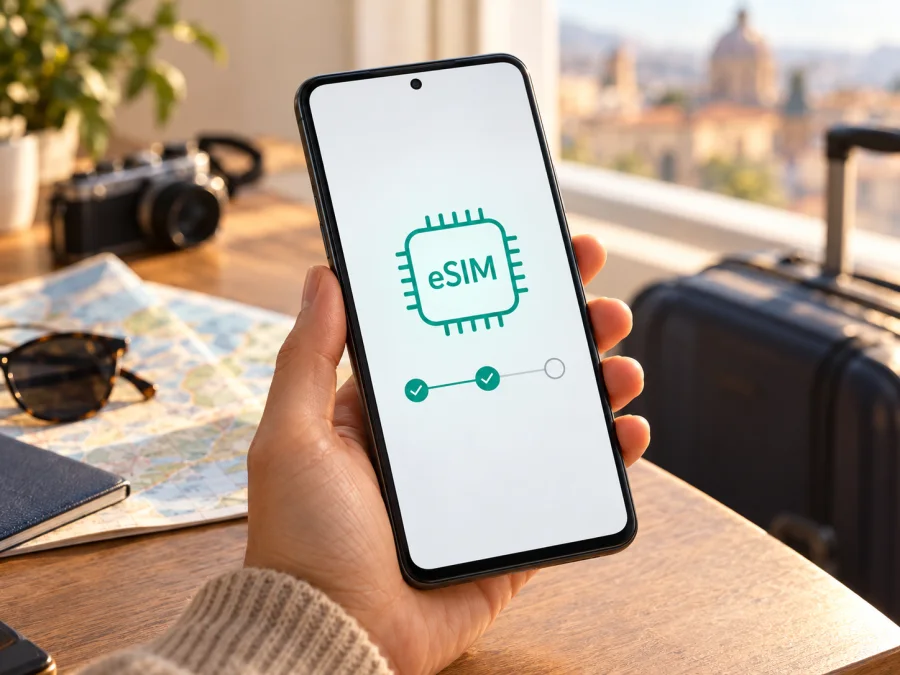
OnePlus 15 256GB eSIM: compatibility and setup
Short answer: the current OnePlus global specifications list eSIM as supported and include the 12GB+256GB configuration. That confirms eSIM on the listed global product, but the words “OnePlus 15 256GB” alone do not identify the sales region or the hardware inside an imported handset. Before choosing a travel plan, check the exact phone in Settings for an EID and an option to add an eSIM, and confirm that it is unlocked and accepted by the provider for your trip.
A travel eSIM can be useful when you want mobile data abroad while keeping your usual physical SIM in the phone. The device can store a digital SIM profile, but regional hardware, firmware, carrier restrictions and the terms of the plan all matter. This guide separates what OnePlus publicly confirms from the checks you should make on the particular 256GB unit in your hand.
Does OnePlus 15 256GB support eSIM?
For the global OnePlus 15 configuration listed as 12GB+256GB, OnePlus says yes. OnePlus’s Global Specs page lists “eSIM — Supported” alongside 256GB storage and a dual nano-SIM slot. The US OnePlus 15 specifications also list eSIM support and the 12GB+256GB configuration. These product pages were checked on November 2, 2026. The configuration name describes storage capacity; it does not, by itself, guarantee that every phone sold under the OnePlus 15 name uses the same regional hardware or software.
| Item | What the published global listing says | What to confirm on your own phone |
|---|---|---|
| Device and storage | OnePlus 15, with a 12GB+256GB configuration | The exact model and sales region on the box, receipt or About phone screen |
| eSIM | Supported on the global specifications page | EID and an Add eSIM option in the handset’s own settings |
| Physical SIM | The global page also lists a dual nano-SIM slot | Which SIM combinations your region’s build can use at the same time |
| Network access | Cellular band support is listed by OnePlus, with carrier support noted | Whether your travel plan’s local partner network and bands work at your destination |
| Software | The current global page lists OxygenOS 16 based on Android 16 | The installed software version and whether it is official for the phone’s region |
The Chinese-market product listing is separate from OnePlus’s global specification page. The global page’s eSIM statement should not automatically be applied to a handset intended for mainland China, or to an import sold with a changed ROM. Public material available for this check did not establish eSIM capability for every China-market 256GB configuration. Treat that case as unconfirmed until the exact device shows an EID and Add eSIM option and OnePlus or the seller confirms the unit’s capability. This distinction is about the phone’s actual regional version, not the country where you happen to use it.
Check the exact 256GB phone before buying
Use more than the storage label. The following checks help establish whether your individual OnePlus 15 is ready for a travel eSIM. Menu names can vary between OxygenOS versions, regions and languages, so use Settings search if a path is not identical.
- Confirm the sales variant. Check the model identifier in Settings → About device/About phone and compare it with the packaging and seller’s description. Ask whether it is a regional retail unit or an import. “Global ROM” describes software, not necessarily the original hardware.
- Look for an EID. Open the phone dialler and enter
*#06#. If supported, the device information screen should show an EID, a long identifier for its embedded SIM hardware. You can also look in Settings → About device → Status or SIM status; the precise location can vary. - Look for eSIM controls. Open Settings → Mobile network (or SIM & mobile network) and look for Add eSIM, Download a SIM, or a similarly named option. On some software versions, the control appears after opening SIM management or tapping the plus sign to add a SIM.
- Check that the device is unlocked. A carrier lock may restrict which profiles can be installed or used. Ask the original carrier or seller to confirm the phone accepts an eSIM from another provider.
- Check software and service support. Install the official system updates offered for the phone, then ask the travel eSIM provider whether the exact regional model is accepted. A menu item alone does not guarantee that a particular profile will activate.
- Confirm your route and data needs. Check that the plan covers every country on your itinerary, what data it includes, how long it remains usable and when its usage period begins. Coverage is provided by the local network used by the plan and can vary by place.
Check your device before choosing a plan. This compatibility step matters for the exact regional version, even though OnePlus lists eSIM support for its global 12GB+256GB product configuration.
Quick compatibility checklist
| Check | Ready to continue when… | Pause and verify when… |
|---|---|---|
| EID | An EID is displayed in device information or by the dialler code | No EID appears, or the code only shows regular IMEI identifiers |
| Add eSIM | Settings offers an eSIM download/add flow | The only options are physical SIM management or inserting another SIM |
| Region | Seller or OnePlus identifies the phone as the expected regional version | It is an import, a converted ROM or the sales region is unclear |
| Lock status | The phone is unlocked for another provider’s profile | The original carrier still restricts SIM changes |
| Destination | The selected plan lists all places where you need data | Your itinerary includes an unlisted country or border area |
A measured next step
Once the device checks are positive, Kaspersky eSIM Store’s website and app can help you choose, order and activate an eSIM with a mobile-data plan for an international trip. It is a way to prepare a travel data profile; it does not make the handset compatible by itself. Review the destinations and conditions shown for the plan you select, since the global page is an option to browse rather than a guarantee for every country or local network.
Browse current Global eSIM plans and check that the countries on your itinerary are included before proceeding. The Global page identifies the included destinations and describes the available plan terms; confirm the displayed information at the time you choose. Kaspersky eSIM Store is an app and website for selecting, ordering and activating travel eSIM plans. Local telecommunications providers supply the underlying service.
Install and activate a travel eSIM on OnePlus 15 256GB
Install only after confirming compatibility. You will need a reliable internet connection, usually Wi-Fi, plus the QR code or in-app installation option provided with your plan. Keep the code available on another screen or device if you plan to scan it with the phone’s camera. A QR code is generally intended for one installation; do not delete the profile or reset the phone unless the plan provider explains how to reinstall it.
For a general reference, see the Android eSIM installation guide and iOS eSIM installation guide. Android menu names vary, and the iOS guide applies to Apple devices; use the OnePlus steps below for this phone.
- Connect to Wi-Fi. Keep the phone online throughout profile download and activation. If you are already abroad, use reliable Wi-Fi until the eSIM has registered on a supported local network.
- Open SIM settings. Go to Settings → Mobile network or SIM & mobile network. Choose the control labelled Add eSIM, Download a SIM, or Add mobile plan. If you do not see it, search Settings for “eSIM” and repeat the EID check before buying anything.
- Start the add flow. Select the option to scan a QR code or add a profile provided by the plan service. If the provider offers direct in-app installation, use its instructions instead of trying to reuse a QR code.
- Scan the code. Point the camera at the QR code from the purchase confirmation or account page. If scanning is unavailable, look for a manual entry option and use only the activation details issued for your plan. Treat those details as private.
- Review and download. Confirm that the displayed profile is the travel eSIM you intend to use, then approve the download. Keep Wi-Fi connected and leave Settings open if the phone shows that installation is still in progress.
- Name the profile. Choose a clear label such as “Travel data” so you can distinguish it from your home SIM. The label is for your convenience and does not change the plan or its network access.
- Choose when it should connect. If you are installing before departure, leave the home SIM selected for mobile data until you want to use the travel plan. Do not turn off or remove your usual SIM unless you intend to.
- Select the travel eSIM for data. At your destination, open SIM settings and select the travel profile as the mobile-data SIM. Keep calls or texts on your usual line if you need them, and check that your home carrier’s roaming rules will not create charges.
- Enable data roaming only if required. Some travel profiles require Data roaming on for that eSIM to register abroad. If the provider’s instructions say to enable it, turn it on for the travel profile specifically. This setting does not mean the plan has unlimited access; use remains subject to the purchased plan’s conditions.
- Wait for registration. Give the phone a few minutes to connect. The network name and data indicator may take time to appear. Follow the provider’s APN instructions only if the profile does not connect and those instructions specify an APN.
- Test with Wi-Fi off. Open a simple webpage or messaging app after turning Wi-Fi off. Confirm that mobile data works through the intended eSIM before relying on it for navigation or bookings.
Use OnePlus 15 256GB for mobile data while travelling
A simple setup is to keep your regular SIM for your familiar number and set the travel eSIM as the mobile-data line while abroad. The two profiles can have separate roles, but the number of profiles you can store and the combinations you can keep active depend on the regional model and software. Follow the SIM status shown on your own OnePlus rather than assuming every market supports the same simultaneous setup.
Before you leave, decide how you will handle calls, messages and mobile data. Travel data plans are commonly intended for internet access and may not include a regular phone number, voice calls or SMS; check the exact plan details. Internet calling and messaging apps can use mobile data if your contacts and accounts are already configured. Keep access to account verification methods in mind if you normally receive sign-in codes by text.
Three common trip setups
- A week in one country: Before departure, match the destination to the plan, install the profile over Wi-Fi if early installation is allowed, and keep your home SIM selected for data until you arrive. At the destination, switch mobile data to the travel eSIM and test it with Wi-Fi off.
- A multi-country itinerary: Compare the plan’s listed destinations with every stop, including any airport or overnight transit. Choose a regional or global option only when its stated coverage matches your route; check again before crossing a border because the phone may need to register with another supported network.
- You need your usual number as well: Keep the home line enabled for the services you need, but select the travel profile for mobile data. Review roaming settings separately for each SIM and your home operator’s charges. If the phone cannot keep the profiles active together, decide which line is essential before you travel.
Troubleshooting: eSIM does not install or connect
The Add eSIM option is missing. First check for an EID using *#06# and inspect SIM status in Settings. Search the settings menu for “eSIM,” restart the phone and install available official system updates. If both the EID and add option are missing, the device may be a regional configuration without working eSIM support, or its software may not expose the feature. Ask OnePlus or the seller to identify the variant before purchasing a plan.
The profile downloads but activation fails. Confirm Wi-Fi or another working internet connection, verify that the plan is intended for the phone’s destination and that the phone is unlocked. Make sure the activation code has not already been used and compare the error text with the provider’s setup guidance. A displayed EID alone cannot guarantee that a carrier or travel service accepts the device’s exact regional configuration.
The eSIM is installed but there is no signal. Confirm that the profile is switched on, that it is selected for mobile data, and that you are in a destination included by the plan. Toggle airplane mode once, then restart if needed. If the provider requires data roaming for its travel eSIM, enable it for that line only. Give network registration a few minutes and check the provider’s current status or support guidance if the problem continues.
You see signal bars but data does not work. Turn Wi-Fi off and check which SIM is selected for mobile data. Verify that the plan is active for the current country and has remaining data. Check APN settings only when the eSIM provider supplies an APN or directs you to change it; do not copy values from an unrelated phone or operator. If necessary, reset network settings only after noting that this can remove saved Wi-Fi and Bluetooth connections.
The phone shows an EID but the provider rejects it. Confirm the exact model identifier, software region and lock status with OnePlus, the original carrier or seller. Ask the plan provider whether that regional OnePlus configuration is eligible. Avoid factory-resetting the phone or deleting the profile until support confirms the recovery steps; reinstalling may require a fresh activation code.
FAQ
Is the 256GB version the eSIM version?
The “256GB” label refers to storage, not a separate eSIM edition. OnePlus’s current global specifications list eSIM support and a 12GB+256GB configuration. The US product specifications list the same capacity and eSIM as supported. A different sales region may have a different configuration, so verify the exact phone rather than relying on capacity alone.
Does eSIM support mean it will work with every travel plan?
No. Device capability, regional variant, carrier lock, software state, plan eligibility and destination coverage are separate checks. Confirm the EID and add flow on the phone, then check the exact model with the travel plan provider and review the plan’s destinations and conditions.
Will the travel eSIM replace my regular number?
Not necessarily. A data-focused travel eSIM can provide mobile internet while your home SIM remains available for the services it supports. Many travel data plans do not include a standard phone number, calls or SMS. Check the plan details and configure the preferred line for each function on the phone.
What if the phone was imported or its software was changed?
Treat compatibility as unconfirmed until the device itself shows an EID and a working Add eSIM flow and the provider accepts its model. A changed software image does not prove that the original regional hardware supports eSIM. Ask the seller for the exact variant and written confirmation before purchase.
Before you travel: verify, then choose
For the global OnePlus 15 12GB+256GB configuration, OnePlus currently lists eSIM as supported. That is a useful starting point, while the exact handset’s region and operator-market eligibility still need checking. Find the EID, confirm the Add eSIM menu, make sure the phone is unlocked, and verify that the plan covers your itinerary. If any check fails or the regional identity is unclear, get confirmation from OnePlus, the seller or the eSIM provider before paying.
When those checks are complete, select a plan according to where you are travelling, how much data you expect to use and when you want it to become active. Kaspersky eSIM Store’s app and website help you choose, order and activate an eSIM with a travel mobile-data plan; local telecommunications providers supply the underlying service. Review the displayed destinations and terms before checkout, and keep your home SIM settings in mind to manage roaming. The best preparation is a compatible, unlocked phone, an installed profile and a clear plan for which line will handle data once you arrive.


