Travel connectivity guide
OnePlus Open eSIM: compatibility and setup
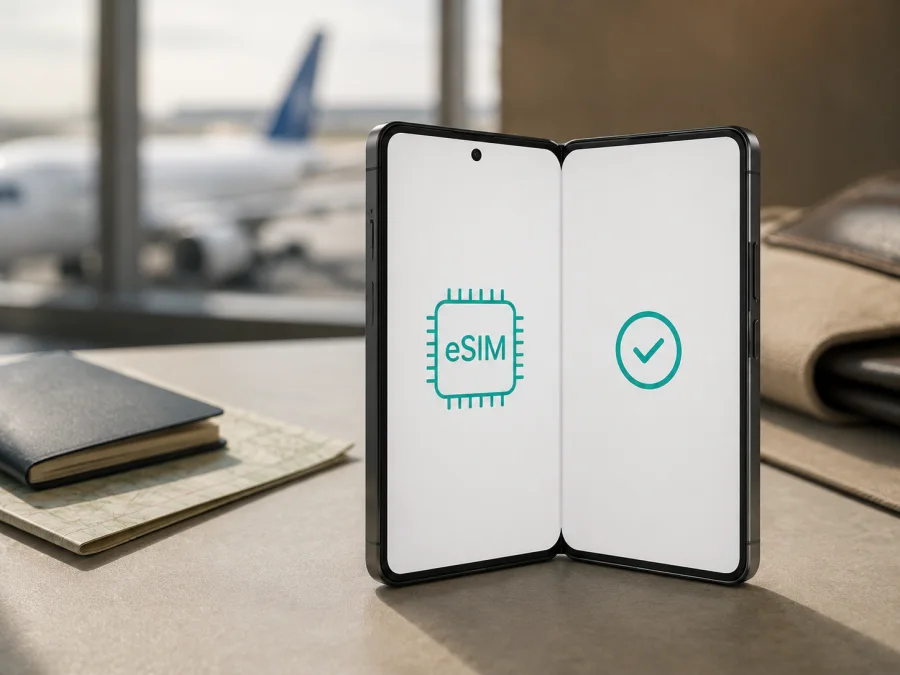
OnePlus Open eSIM compatibility and setup
If you are preparing a trip and want mobile data without replacing your physical SIM card, the exact model name matters: this guide is about OnePlus Open. The short answer is yes: OnePlus documents eSIM support for OnePlus Open in its global specifications, and the official English user manual includes eSIM in the mobile-network settings. That makes OnePlus Open a suitable candidate for a travel eSIM, but it is not a reason to skip the final check on your own phone. Market, carrier, firmware and imported-unit differences can affect what is available in practice.
An eSIM is a digital SIM profile stored in the phone rather than on a removable card. A travel eSIM is normally for mobile internet in the destination country or region. It does not automatically give you a second phone number, voice service or SMS; those features exist only when the selected plan says so.
Quick answer: does OnePlus Open support eSIM?
The current manufacturer information points to yes for the documented OnePlus Open model. OnePlus’s global OnePlus Open specifications list eSIM in the Connectivity section. The English OnePlus Open User Manual also shows an eSIM entry within Settings > Mobile network, alongside mobile-data controls. These two official references are the basis for the compatibility answer, checked on 7 September 2026.
Market firmware, carrier activation rules or an imported unit may differ, and OnePlus notes that cellular features depend on carrier support. Confirm the EID or eSIM-addition control on the actual device before paying.
| Item | What to expect on OnePlus Open |
|---|---|
| Device covered here | OnePlus Open |
| eSIM status | Documented by OnePlus; verify the individual unit in Settings |
| Physical SIM | OnePlus lists a dual nano-SIM slot on its global specifications page |
| Software reference | The official manual shows eSIM under Settings > Mobile network |
| Mobile-data use | Select the travel eSIM as the line for mobile data |
| Network limits | Bands, roaming, carrier approval and local coverage depend on the plan and network |
| Calls and SMS | Not part of a data-only travel plan unless its conditions say otherwise |
| Before purchase | Confirm EID/eSIM menu, unlocked status, destination and plan conditions |
How to verify your particular OnePlus Open
<a id="kesim-device-compatibility"></a>
- Connect OnePlus Open to Wi-Fi and install any available system update in Settings > About device > Software update. Use Settings search if a label has moved after an OxygenOS update.
- Open Settings > Mobile network. Look for eSIM, Add eSIM, Add mobile plan, or a similar control. On the documented software path, eSIM appears inside the mobile-network area.
- Open the eSIM page only far enough to see whether adding or downloading a profile is offered. Do not scan a QR code while you are still checking.
- Check the EID under Settings > About device > Status or on the eSIM page; Settings search can find “EID”. It identifies the embedded SIM and is not the same as the IMEI. Keep it private.
- Confirm that the device is not carrier-locked. eSIM hardware can be present while a network restriction blocks another provider’s profile.
Compatibility checklist
Use this short checklist before ordering an eSIM for OnePlus Open:
- [ ] eSIM menu: Settings shows eSIM or an option to add a mobile plan.
- [ ] EID: an EID is visible in the phone’s information or eSIM screen.
- [ ] Unlocked device: the phone accepts a compatible non-home carrier profile.
- [ ] Updated software: OxygenOS is up to date enough for the displayed eSIM flow.
- [ ] Internet for setup: Wi-Fi or another working connection is available when the profile is downloaded.
- [ ] Destination: the plan covers every country or region on your itinerary.
- [ ] Plan conditions: you understand data volume, validity, activation timing, top-ups and refunds.
- [ ] Primary line: you know whether your ordinary SIM will remain on for calls and SMS and what roaming charges may apply.
If the handset has no eSIM menu, request exact model and software details before buying; only the manufacturer or carrier can explain a restriction.
Regional, carrier and firmware differences
OnePlus publishes specifications for a product family, while the phone in your hand is a particular market configuration. The global OnePlus Open page lists eSIM and a dual nano-SIM slot, so the documented global model can use embedded and physical SIM capability. A regional sales channel may enable or disable features, use different software or rely on a carrier for activation. Network bands can also be less useful in one destination than another.
Keep three questions separate:
- Is eSIM exposed? The EID and Add eSIM control answer this.
- Is the handset unlocked? A carrier restriction can block a profile even with an EID.
- Will the plan work there? Local-network arrangements, bands, roaming permissions and plan geography decide this.
An eSIM profile is not a guarantee of coverage or speed. Read the destination list: a regional plan may cover several countries, while a country plan may not cover a neighboring border crossing.
What to check before buying an eSIM plan
Check your OnePlus Open before choosing a travel plan. If neither an EID nor an option to add an eSIM appears, pause the purchase and ask the seller or carrier to confirm the exact regional model and firmware. Do not infer support from a review of another OnePlus Open unit.
Compatibility comes before payment. Start with the phone check above, then consider the trip itself.
First, decide what your regular SIM should do. The home carrier could charge roaming fees if that line uses data or calls abroad. A cautious setup assigns data to the travel eSIM, turns off automatic data switching and leaves primary-line data roaming off unless you have confirmed the price.
Second, select the plan according to use: navigation, translation, ride-hailing, work calls and photo uploads consume different amounts of data. Check allowance, days, prepaid status, validity start, activation trigger and expiration. These conditions belong to the selected plan and may change. For installation, prepare Wi-Fi, a charged phone, the QR code or activation details, and account or email access. Keep the code private and do not scan a one-time plan on a test phone.
Kaspersky eSIM Store is an app and website that helps you choose, complete and activate an eSIM plan for mobile internet during a foreign trip. It is not the mobile operator, network owner or provider of the underlying coverage; plan conditions and supported networks are shown in the product flow.
How to install and activate eSIM on OnePlus Open
Install the profile when OnePlus Open has stable internet. You can install it at home if the plan permits it, but check when validity starts.
- Prepare. Charge OnePlus Open, connect to Wi-Fi, open the Kaspersky eSIM Store app or website and locate the issued eSIM instructions. Display the QR code on another screen when possible.
- Open settings. Go to Settings > Mobile network > eSIM or Add eSIM/Add mobile plan; search Settings for “eSIM” if needed.
- Add the plan. Choose the add/download option and scan the supplied QR code. Confirm that it belongs to this plan and destination.
- Wait for download. Installation can take several minutes. Leave the flow open and do not repeatedly scan a one-time code.
- Label the line. Use “Travel data” or the destination name so you do not select the home line by mistake.
- Select mobile data. Choose the new eSIM in Mobile network settings and turn off automatic data switching while testing; label the line “Travel data” or with the destination.
- Set roaming only if required. Some travel eSIMs use a partner network and require data roaming for that profile. Do not enable roaming for the home SIM without checking its charges.
- Activate at the right time. Follow the plan’s rule for installation, first connection and validity. After arrival, enable the eSIM, allow data, wait for registration and test a simple webpage.
See the Android eSIM installation instructions and the iOS eSIM installation instructions. OnePlus Open uses Android and OxygenOS menu labels.
Using OnePlus Open for mobile internet while travelling
Before takeoff, install the profile if allowed, but leave the travel line off if you do not want validity to start early. Keep activation details secure. At the destination, disable airplane mode, enable the travel eSIM, select it for data and wait for registration.
For two lines, keep the home SIM available for the service you need and set the travel profile as the data line. Turn off automatic switching. A roaming icon can be normal for a travel profile using a partner network; check the plan requirement and keep the home line from using data.
If you need a hotspot, check that tethering is permitted. Video calls, updates and cloud backup can consume the allowance quickly, so download maps and pause large background tasks over Wi-Fi.
Three practical travel scenarios
Short city break. Install over Wi-Fi, label the destination, and use the eSIM for maps, transport, translation and messaging. Check allowance and expiration.
Multi-country route. Confirm every border crossing is included. The profile may remain installed while the partner network changes, but registration is not guaranteed in every location. If service stops, toggle the eSIM, check network selection and consult the plan before deleting it.
Work trip with a home number. Keep the primary SIM for calls or verification messages, make the travel eSIM the data line and disable primary-line data roaming. A data-only plan does not replace the number.
Troubleshooting common eSIM problems
The eSIM option or EID is missing
Restart OnePlus Open, search Settings for “eSIM”, install the available software update and confirm the seller supplied the correct regional model. If the EID is absent, do not buy on the strength of a generic listing; ask the seller or OnePlus support about a market or carrier restriction.
The QR code will not scan
Increase the code’s brightness, remove glare and hold OnePlus Open steadily. Confirm it belongs to this plan and has not been used. Use manual details only when the plan provides them, and never share the code publicly.
The profile will not download
Check Wi-Fi and automatic date and time, then retry from Add eSIM. A server issue or one-time code limit may be responsible. Do not delete a partial profile until support advises it.
The eSIM is installed but there is no data
Check that the profile is enabled for data, airplane mode is off, the destination is covered and roaming is enabled if required. Change APN only from the plan’s instructions. Try automatic network selection and restart; weak signal, unsupported bands or an outage can also prevent registration.
Data uses the wrong SIM
Set the travel profile as the data line, turn off automatic switching and temporarily disable home-line data. Check the status bar after one simple webpage. If the home line remains selected, contact its carrier.
Calls or SMS do not work as expected
That can be normal for a data-only plan. Check whether voice and SMS are included; otherwise use messaging or calling apps over data and keep the primary SIM for ordinary service if its roaming conditions are clear.
Frequently asked questions
Is OnePlus Open compatible with an eSIM?
Yes, OnePlus’s global specifications and official English user manual document eSIM for OnePlus Open. Confirm an EID and Add eSIM control on your handset because market, carrier and firmware configurations can vary.
Can I use a physical SIM and eSIM together?
OnePlus lists a dual nano-SIM slot as well as eSIM. The exact active-line and data-switching combination depends on software and carrier behavior, so test it before travelling.
Do I need an EID to buy a travel eSIM?
Verify an EID or eSIM-addition option before payment. An EID confirms an embedded SIM component but not an unlocked phone or a plan’s destination support.
Can I keep my regular number?
You can usually leave the physical SIM installed and choose the travel eSIM for data, subject to dual-line behavior. This does not make the travel plan a second ordinary number. Check home-line roaming settings and charges.
What if OnePlus Open was imported?
Treat imported hardware separately: check EID, eSIM menu, software, unlocked status and exact market model. Global documentation cannot guarantee a different regional configuration.
Final device check and choosing an eSIM for your trip
Before you buy, perform the final check on OnePlus Open: open Settings > Mobile network, find the eSIM addition control, confirm the EID and make sure the phone is unlocked. Match the plan to your route, days and data use. Read when validity starts, whether roaming and tethering are allowed, and how support handles installation problems.
Keep eSIM details private, install over a stable connection, label the profile and select it for data when ready. Monitor which line uses data. If the menu, EID or carrier status differs from the documentation, resolve that uncertainty before activation.
When the checks are complete, Kaspersky eSIM Store can help you choose a destination and suitable eSIM plan for mobile internet during the trip and guide you through purchase and activation. The sequence is: verify OnePlus Open, choose the destination plan, read its conditions, install the profile and test the travel data line after arrival.


