Travel connectivity guide
Oppo A55s 5G 256GB eSIM: compatibility
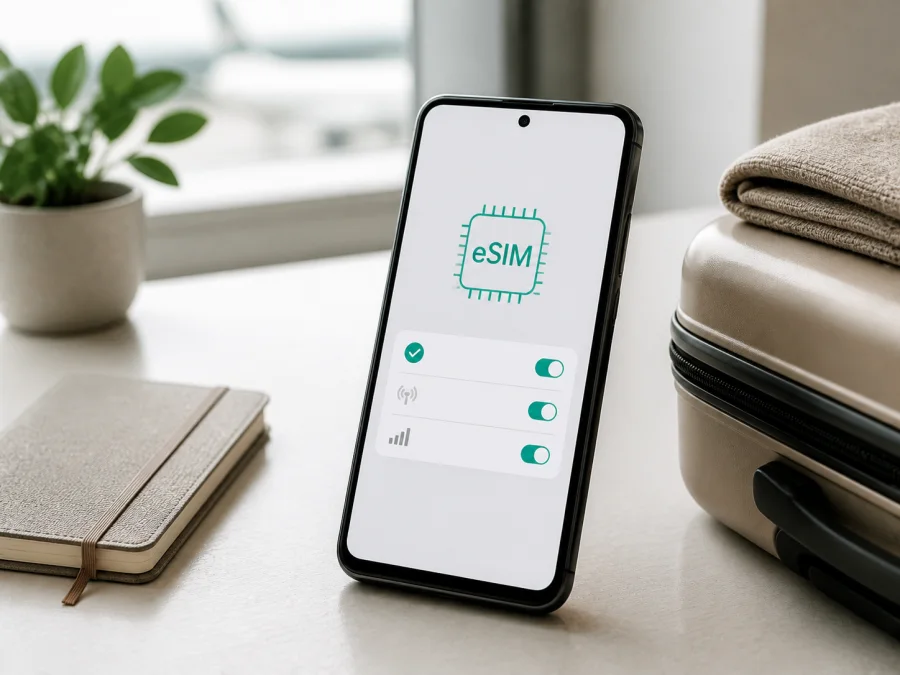
Oppo A55s 5G 256GB eSIM: compatibility and installation
Short answer
The exact Oppo A55s 5G 256GB variant should not be treated as automatically eSIM-compatible. Current official manufacturer information confirms eSIM on the Japanese OPPO A55s 5G model identified as CPH2309: its specifications list a nano-SIM plus eSIM arrangement, and the official guide explains that using eSIM disables SIM1. However, that same official specification lists 4GB RAM and 64GB storage, not 256GB. The manufacturer information reviewed does not confirm that a device sold as Oppo A55s 5G 256GB has the same eSIM hardware.
That difference matters. “A55s 5G” is a family name, while storage capacity, model code, sales region, firmware and carrier version can identify a different configuration. For the exact 256GB phone, the reliable answer is conditional: eSIM may work if the phone has an eSIM-capable regional configuration and exposes an EID or an Add eSIM control. If those items are missing, do not purchase a travel eSIM for this phone. Verify the handset itself before paying for a plan.
What the official specification confirms
OPPO’s current Japanese product page identifies CPH2309 and lists the following SIM combination: one nano-SIM with either a second nano-SIM or an eSIM. It also says that live-network features depend on the carrier network and related services. The manufacturer’s published specification for that regional configuration lists ColorOS 11 based on Android 11, 4GB RAM and 64GB internal storage. The official quick guide adds an important operating detail: when eSIM is used, SIM1 cannot be used.
The result is useful evidence, but it is not proof that every phone carrying the A55s 5G name supports eSIM. In particular, it does not verify the requested 256GB capacity. A seller’s memory description can refer to a different market, a different model code, an expanded storage configuration, or a listing error. Do not resolve that uncertainty by assuming that a larger storage option has the same modem and eSIM component.
| Item | What can be said about Oppo A55s 5G 256GB |
|---|---|
| Exact device name | Oppo A55s 5G 256GB |
| Product family | A55s 5G; regional variants are possible |
| Storage | 256GB is part of the requested variant; verify it in About phone and on the original label |
| RAM | Not supplied in the device name; do not infer it from the 256GB listing |
| 5G | 5G is part of the requested model name; usable bands and service depend on the regional version and network |
| eSIM | Not confirmed for the exact 256GB configuration by the official specification reviewed |
| Best proof on the handset | A displayed EID and an Add eSIM/eSIM control in mobile-network settings |
| Physical SIM note | On the officially documented CPH2309 configuration, eSIM is combined with nano-SIM options and using eSIM disables SIM1 |
| Purchase decision | Check the phone first; only then choose a travel eSIM plan |
Why region and seller details change the answer
Ask the seller for the complete model code, not only “A55s 5G”. Ask whether the exact 256GB unit has an EID, whether an eSIM can be added in its original region, and whether it is SIM-unlocked. A screenshot of Settings > Mobile network showing Add eSIM is stronger evidence than a generic product title. A photo of the About phone page and the box label can help match the storage claim to the device.
Compatibility check before buying a plan
Complete these checks while the phone has Wi-Fi access or another working data connection. Do not buy first and hope that the profile will install later.
- Confirm that the About phone screen says Oppo A55s 5G 256GB, or record the exact model code if the wording is different.
- Confirm the storage shown by the phone. A 256GB listing alone does not prove that its eSIM hardware matches CPH2309.
- Open the mobile-network or SIM-management settings and look for Add eSIM, Set up eSIM, Download a SIM, or an eSIM section.
- Open the device-identification screen and look for an EID. An IMEI by itself is not evidence of eSIM support; an EID is the identifier normally associated with the eSIM component.
- Check whether the device is carrier-unlocked. An eSIM can be technically supported and still be restricted by the original carrier.
- Install pending system updates only when the phone has stable power and Wi-Fi, then check the eSIM menu again. Do not assume an update can add hardware that is not present.
- Confirm that the selected travel plan covers the country or region on your itinerary and that its data amount and validity period fit your use.
- Keep the original SIM active only if the phone’s actual SIM combination allows it. For CPH2309, eSIM means SIM1 is unavailable.
How to find the EID
Menu names vary by ColorOS release and region. In Settings, open About device or About phone, then Status, SIM status or Device identifiers, and look for EID. On some Android builds, *#06# shows device identifiers. An EID is evidence of the eSIM component, not a guarantee of carrier activation.
If there is no EID and no eSIM option, stop: a QR code cannot add eSIM hardware. If the EID is present but Add eSIM is hidden, record the model code and ask the seller or carrier whether regional software permits activation.
For second guided check, Check your device. This reminder does not replace the EID and settings check.
Prepare the phone and the travel plan
Before departure, charge the phone, connect it to reliable Wi-Fi and keep the QR code or activation details available on another screen. If the travel plan is delivered inside the Kaspersky eSIM Store app or account, sign in before leaving home.
Kaspersky eSIM Store is an app and website where you can choose, arrange and activate an eSIM with a suitable tariff for mobile internet during an international trip. It is not a mobile operator, network owner or mobile-internet provider. The underlying network experience and availability depend on the selected tariff, local partners, the destination and the phone’s compatibility. The app or website helps you prepare the eSIM workflow; it does not remove a hardware, region or carrier restriction on Oppo A55s 5G 256GB.
Before completing an order, compare the destination, data allowance, validity period, activation conditions and support terms. A travel eSIM is generally for mobile data, not a normal phone number, voice calls or SMS unless the specific plan says otherwise.
Installing an eSIM on Oppo A55s 5G 256GB
The exact labels can differ because the requested 256GB unit is not officially identified by the same specification as the Japanese CPH2309. Use the device’s own Add eSIM screen as the authority. For platform guidance, see the Android installation instructions and the iOS installation instructions.
1. Check compatibility
Confirm the EID, Add eSIM option and absence of a carrier lock. Make sure the phone matches Oppo A55s 5G 256GB as closely as possible.
2. Connect to the internet
Use stable Wi-Fi or another active SIM; downloading an eSIM profile requires a data connection.
3. Open mobile-network settings
Open Settings and select Mobile network, SIM card and mobile data, or the closest equivalent. Choose eSIM, Add eSIM, Add mobile plan, or Download a SIM. If no such control exists, return to the compatibility check.
4. Start adding the profile
Choose the eSIM option and accept the notice. If the phone asks which physical SIM to disable, read it carefully: the official CPH2309 guide says eSIM use disables SIM1.
5. Scan the QR code or use manual details
Point the camera at the QR code supplied after the eSIM order. Keep the code visible and, if manual activation is offered, enter the activation details only on the system screen and only as instructed.
6. Wait for the profile to download
Keep Wi-Fi on while the profile is added. Installation may take several minutes; download, activation and local registration can be separate steps.
7. Name and enable the line
Give the profile a clear name such as Travel data. Enable it when ready, unless the plan says installation or first registration starts validity.
8. Choose mobile data
Select the travel eSIM as the mobile-data line. Leave automatic data switching off unless you understand it, and keep calls and SMS on the everyday line only when it remains available and charges are acceptable.
9. Configure roaming only when required
Enable Data roaming for the travel line if the plan requires it; avoid enabling it on the everyday line unless its operator terms allow it.
10. Test the connection
Turn off Wi-Fi briefly, confirm the travel eSIM is selected for data, and open a simple webpage. If it connects, leave the line disabled until departure when the plan’s validity rules make that preferable.
Using the eSIM while travelling
Arrival and airport scenario
If the profile was installed at home and its conditions allow later activation, keep the travel eSIM disabled during the flight. After landing, enable it, select it for mobile data and turn on data roaming for that line if required. Use it for maps, arrival messages, ride booking and translation without removing your physical SIM. Check the status bar and a small data test before relying on it.
Everyday and multi-country use
On a compatible configuration, a physical line may remain available for calls or texts while the eSIM carries data, but this can create roaming charges. The official CPH2309 guide says eSIM use disables SIM1, so follow the exact screen on the 256GB handset. For a multi-country route, choose a plan whose stated area matches every destination; do not assume one country’s plan covers a neighbour. Monitor the allowance because signal bars can remain after data is used.
Troubleshooting guide
There is no Add eSIM option
Recheck the model code, region, firmware and EID. Restart the phone and look again under mobile-network settings. If the option is still missing, treat the exact Oppo A55s 5G 256GB unit as not verified for eSIM. Contact the seller or carrier with the model code and do not rely on the product title alone.
There is no EID
An IMEI is not a replacement for an EID. If no EID appears in About phone, the status screen or the identifier panel, the handset may not contain an eSIM component or may be using firmware that does not expose it. A QR code cannot correct that. Stop before purchase and request a manufacturer-confirmed answer for the exact regional variant.
The QR code will not scan
Increase screen brightness, clean the camera lens and hold the phone steady. Make sure the full code belongs to this order. If manual activation is offered, copy each field exactly; do not repeatedly delete a profile when its code may be single-use.
The profile downloads but has no service
Confirm that the travel eSIM is enabled and selected for data. Turn on roaming if required, toggle airplane mode or restart, and allow a few minutes for registration. Check the destination and activation status; a carrier lock can still prevent service.
The phone shows signal but apps are offline
Turn off Wi-Fi and confirm data is assigned to the travel eSIM. Check that automatic switching has not moved traffic to another line. Review APN only when the plan provides a value, and check the allowance and validity period.
FAQ
Does Oppo A55s 5G 256GB support eSIM?
Not conclusively as an exact 256GB variant. Official OPPO Japan information confirms eSIM for the regional CPH2309 configuration, but the same official specification lists 4GB RAM and 64GB storage. Because 256GB is not confirmed there, check the exact phone for an EID and Add eSIM control before buying a plan.
Can I use a QR code if the EID is absent?
No. A QR code delivers a profile; it does not add eSIM hardware. If the EID and Add eSIM option are missing, use a compatible physical SIM or another eSIM-capable device for the trip.
Can eSIM and a physical SIM work together?
Possibly, but the combination depends on the exact region and software. The official CPH2309 documentation describes nano-SIM plus eSIM and says that eSIM use disables SIM1. Do not assume that the 256GB unit has identical dual-SIM behaviour.
Should I activate the eSIM before leaving?
Install it before departure when the phone has stable Wi-Fi, but follow the plan’s activation rule. Some plans become active at installation or first network connection. If the terms permit later use, leave the travel line disabled until you arrive and then enable it at the destination.
Final device check and travel eSIM choice
Before you pay for a travel plan, inspect the exact Oppo A55s 5G 256GB in your possession. Confirm the model code and storage, locate an EID, find Add eSIM in mobile-network settings and check that the handset is not carrier-locked. Remember that current official manufacturer information confirms eSIM for the Japanese CPH2309 configuration while documenting a different 4GB + 64GB memory configuration; that is why the requested 256GB version remains a regional question rather than an automatic yes.
Once the device passes those checks, use Kaspersky eSIM Store as the app or website for choosing, arranging and activating a suitable travel eSIM tariff. Match the destination, allowance and validity to the trip, install it on Wi-Fi, select it for data on arrival and enable roaming only when required. If EID or Add eSIM is missing, confirm the variant or use another compatible device.
The safest decision is simple: verify the phone first, then choose the travel eSIM. That order protects you from buying a plan for a configuration that cannot install it.


