Travel connectivity guide
Oppo Find N3 eSIM Compatibility and Setup
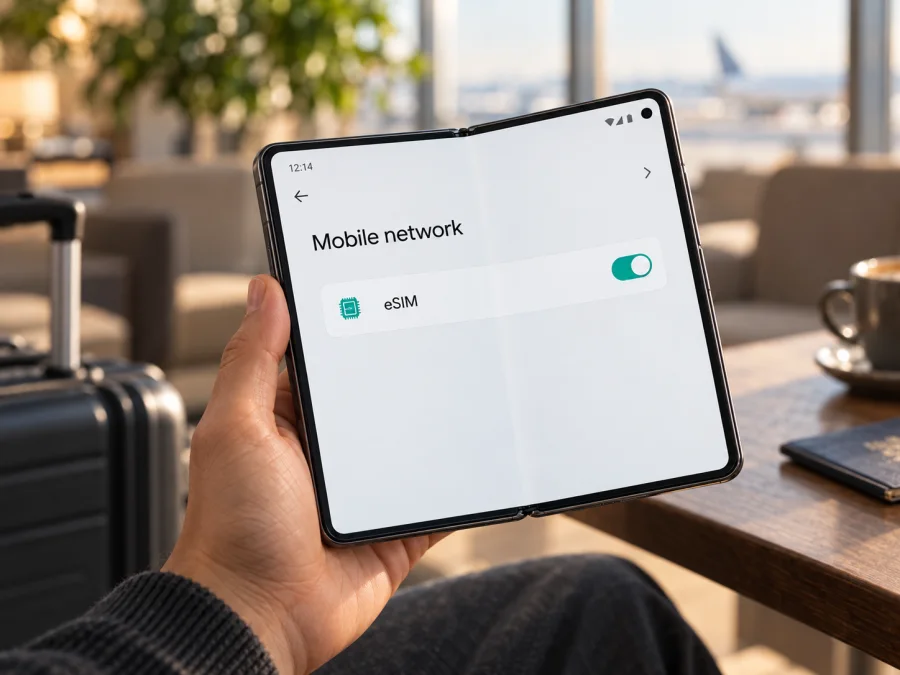
Oppo Find N3 eSIM: compatibility, setup and travel use
The Oppo Find N3 can use eSIM in supported regional versions, but the name on the box alone does not settle compatibility. OPPO’s specifications for the international CPH2499 model list Nano-SIM plus eSIM and explain that eSIM support depends on the carrier. OPPO’s China-market PHN110 specification lists a different configuration. If you are buying a Find N3 or preparing it for a trip, check the model number, the phone’s own settings and the carrier restrictions before paying for an eSIM plan.
An eSIM is a digital SIM profile stored in the phone. Once installed, it can connect the device to a supported mobile network without inserting another plastic SIM. For travel, that can make it easier to keep your usual number on a physical SIM while using a separate data plan abroad. Whether that setup is available on your particular Oppo Find N3 depends on the regional hardware and software, carrier provisioning, and whether the device is unlocked.
Oppo Find N3 eSIM compatibility at a glance
| Item | What to know |
|---|---|
| Device in this guide | Oppo Find N3 |
| eSIM support | Available on the international CPH2499 version listed by OPPO; not safe to assume for every regional version |
| OPPO-listed SIM arrangement | Nano-SIM + eSIM on the CPH2499 specification page |
| Carrier condition | OPPO notes that eSIM support depends on the carrier |
| China-market identifier | PHN110; check the China-market product specification and the device itself rather than relying on CPH2499 information |
| Before you buy | Confirm the exact model number, EID/eSIM menu, unlocked status, plan coverage and activation conditions |
The short answer: Oppo Find N3 supports eSIM on supported versions, including OPPO’s international CPH2499. This is not a universal yes for every regional version. A generic “Find N3” listing cannot confirm that an imported phone will accept your eSIM profile.
Why the model number matters
A product family name can cover devices prepared for different markets. OPPO’s official Thailand and Russia specifications identify the international Find N3 as CPH2499, list Nano-SIM + eSIM, and note that eSIM use depends on the carrier. OPPO’s China specification identifies PHN110 and lists its own SIM configuration. Do not apply the CPH2499 result automatically to PHN110 or an imported phone. Regional firmware, carrier restrictions and supported network bands can differ; ask OPPO or the seller using the complete model code if uncertain.
The Find N3 and Find N3 Flip are separate products. This guide concerns Oppo Find N3 only. A similar model name, design or chipset does not establish compatibility for another device.
Check your own Oppo Find N3 before buying
An EID is a strong sign that the phone has an embedded SIM, and an “Add eSIM” option confirms that the operating system exposes setup. Also confirm the phone is unlocked and accepted by your plan provider.
- Find the model code. Open Settings → About device and look for Model or Model number. Record the complete code, such as CPH2499 or PHN110, and compare it with the box or invoice.
- Look for an EID. Search Settings for “EID,” or check About device → Status/SIM status. On some versions,
*#06#in the phone app shows identifiers; see whether an EID appears with the IMEI. - Inspect SIM settings. Open Mobile network or SIM card & mobile data and look for Add eSIM, Add mobile plan or Download a SIM. Menu labels vary by ColorOS version and market.
- Check restrictions. Ask the original carrier or seller whether the phone is unlocked and eSIM provisioning is allowed. Give the plan provider the model code and destination to confirm compatibility and activation rules.
If the EID or add-profile control is missing, check the region-specific OPPO specification or contact OPPO support. A reset will not correct a hardware or carrier limitation and may erase personal data.
Compatibility checklist
Before choosing an eSIM for a holiday, work trip or stopover, confirm each item below:
- [ ] Your phone is an Oppo Find N3, and you have recorded its complete model code.
- [ ] Your own Settings screen shows an EID or an option to add/download an eSIM profile.
- [ ] The regional variant and installed software allow eSIM use; CPH2499 specifications are not being assumed for PHN110 or another market version.
- [ ] The handset is unlocked, and the current carrier allows another SIM profile to be added.
- [ ] The plan supports the country or region you will visit and the networks available there.
- [ ] You have read the plan’s data allowance, validity period, activation rule, hotspot terms and any speed limits.
- [ ] You know whether installation requires Wi-Fi, a QR code, or manual activation details.
Check whether your device is compatible before choosing a plan. This extra check is useful for imported devices: a feature listed on one country’s manufacturer page might not be enabled on a phone configured for another market.
Installing and activating an eSIM
The exact screens can differ across ColorOS versions and plan providers. Keep the phone connected to Wi-Fi during setup, and keep the QR code or activation details available on another screen or printed page. Do not photograph or share a QR code that contains a personal eSIM activation profile; someone else may be able to use it.
Before installation
Check when the plan validity starts: it may begin at download, installation, first connection or another event set by its terms. Use Wi-Fi, keep the Oppo Find N3 charged and updated, and check any limits on profile downloads or transfers before scanning.
Read the Android eSIM installation instructions alongside the instructions supplied with your selected plan. The iOS instructions apply to Apple devices rather than the Oppo itself, but are available for travelers setting up another device in their group.
Add the profile on Oppo Find N3
- Open Settings and go to Mobile network or SIM card & mobile data.
- Select Add eSIM, Add mobile plan or the equivalent option. If you cannot find it, use the Settings search field for “eSIM” and confirm the model code and EID before proceeding.
- Choose the QR-code option and scan the code supplied by the plan provider. If scanning is unavailable, choose manual entry and enter the server or activation details exactly as supplied.
- Review the confirmation screen and approve downloading the profile. Keep the phone online until the process finishes. A successful download may add a new line without immediately connecting to a destination network.
- Give the profile a clear label such as “Travel data” or the destination name. This helps distinguish it from your usual SIM when choosing calls, texts and mobile data.
- If you are still at home, leave the profile disabled if the provider’s rules permit and you do not need to activate it yet. Before departure, check the plan’s activation guidance again.
Set the eSIM as the travel data line
When you are ready to use the plan, open the SIM or mobile network settings and turn on the eSIM profile. Set it as the preferred line for mobile data. You can usually keep your usual physical SIM enabled for calls and messages, but confirm the roaming charges for that line with your home carrier. Turn off data roaming for your home SIM if you want to avoid accidental roaming data charges.
Some travel eSIMs need data roaming enabled on the eSIM itself to connect to partner networks. This setting is separate from the roaming setting for your regular SIM. Follow the provider’s instructions and enable roaming only for the correct line. If the phone offers a “switch mobile data automatically” option, consider disabling it while abroad so the phone does not silently move data to the home SIM.
A profile being installed does not always mean the plan is active. The phone may wait until it reaches the destination, registers on an eligible network or meets another activation condition. If there is no service before the trip, do not delete the profile or repeatedly scan the code; check the plan’s activation terms first.
Using Oppo Find N3 eSIM while travelling
A dual-SIM setup can keep your primary number available while the travel eSIM handles data. Use messaging or calling apps over data, and test whether both lines can remain active before relying on them.
For a city break, compare the allowance and validity with expected use for maps and messages. For remote work, confirm hotspot terms. On a multi-country itinerary, verify coverage in every destination rather than assuming a country plan works across borders.
Kaspersky eSIM Store is an app and website where you can choose, arrange and activate an eSIM with a mobile-data plan for an international trip. Check the listed destination, data amount, duration, price, activation timing and usage conditions before completing the order. The plan is for mobile internet; it does not automatically provide an ordinary phone number, voice minutes or SMS unless those features are expressly included in its terms. You can still use internet-based messaging and calls when the plan and app support them.
Practical travel setups
- City break: estimate data use for maps, messages and ride-hailing; compare the plan’s allowance and validity with your stay.
- Work trip: confirm hotspot terms and pause large uploads or automatic updates if data is limited.
- Multi-country route: check that every destination is covered; do not assume a country-specific plan works across borders.
- Late arrival: if permitted, install over Wi-Fi before leaving and enable the profile according to its stated activation time.
Troubleshooting: when eSIM does not work
There is no “Add eSIM” option. Confirm the model code and ColorOS version, search Settings for “eSIM,” and check for an EID. OPPO lists eSIM for CPH2499; another regional configuration may differ. Ask OPPO support or the seller about the exact device before attempting software changes.
The QR code cannot be scanned or the download fails. Use stable Wi-Fi, raise the QR display brightness and try scanning from a second screen. If the code may already have been used, do not keep retrying; ask the provider whether it can be reissued. Manual activation is an option only when the provider supplies those details.
The profile is installed but has no service. Check that the eSIM is enabled, the plan covers your location and the travel line is selected for mobile data. Follow provider instructions for data roaming and network selection. Toggle airplane mode briefly or restart, then allow the phone time to register.
Signal appears but data does not load. Confirm that mobile data is assigned to the travel eSIM, that the plan is active and has remaining data, and that roaming or APN settings match the provider’s instructions. Turn Wi-Fi off briefly to test the cellular connection.
The wrong SIM handles calls or data. Review preferred lines and disable automatic data switching if needed. A data-only plan may not support ordinary calls or SMS; use internet calling apps over its connection where available.
The handset is locked, or an installed profile stops working. Ask the original carrier about unlocking and restrictions. Check expiry, destination coverage and profile selection after an update. Do not delete or reinstall a profile until the provider confirms the activation code can be reused.
Frequently asked questions
Does every Oppo Find N3 support eSIM?
No. OPPO lists Nano-SIM + eSIM for CPH2499 and notes carrier dependence. The China-market PHN110 has a separate specification. Check your model code, the phone’s EID/eSIM menu, firmware and carrier status.
Can I keep a physical SIM active with eSIM?
OPPO describes the CPH2499 dual-SIM arrangement as SIM 1 + SIM 2 or SIM 1 + eSIM. Actual simultaneous use can depend on software and carrier configuration. Check the SIM settings on your phone.
Is Find N3 Flip covered by this guide?
No. It is a distinct model. Check its own full model code and manufacturer specifications.
Does a travel eSIM replace my regular service?
A travel data plan usually provides internet rather than your usual number, calls or SMS, unless its terms say otherwise. Keep your regular SIM for its normal services only after checking roaming charges.
When should I install, and can I move the profile later?
Both activation timing and transfer rules depend on the plan. Read its validity terms before installing. Do not assume a profile can be moved or reinstalled after deletion; ask the provider first.
Final device check and trip eSIM choice
Before you choose a plan for a trip, match the exact Oppo Find N3 model code with the eSIM option on your own phone. Confirm an EID or an “Add eSIM” setting, ensure the device is unlocked, and check carrier and regional restrictions. For CPH2499, OPPO’s specifications list eSIM while noting carrier dependence; do not infer the same result for PHN110 or an unspecified imported version.
Then choose a plan for the places you will actually visit. Compare data allowance, duration, activation timing, supported networks and hotspot conditions. Keep the QR code and help instructions available, assign the travel profile to mobile data, and protect your home SIM from unexpected roaming charges. These checks make the first connection abroad more predictable.


